
Set up delivery service channel
This is how you determine for Uber Eats which menu and prices the delivery service receives, how orders are accepted, and publish the menu.
Once a delivery service is connected, you configure its channel in the Web desk under Settings → Integrations → Delivery Services: Click on Manage Channel on the delivery service's card. A dialog box with four tabs will open. Instructions for connecting Uber Eats can be found in Connecting Delivery Services to the POS.
Delivery services are included in the Max tariff. Only those with the Manage Guest Orders right are authorized to modify, publish, and generate channel prices. No orders will be processed as long as the card displays Open Setup (e.g., missing TSE or no device printing online orders).
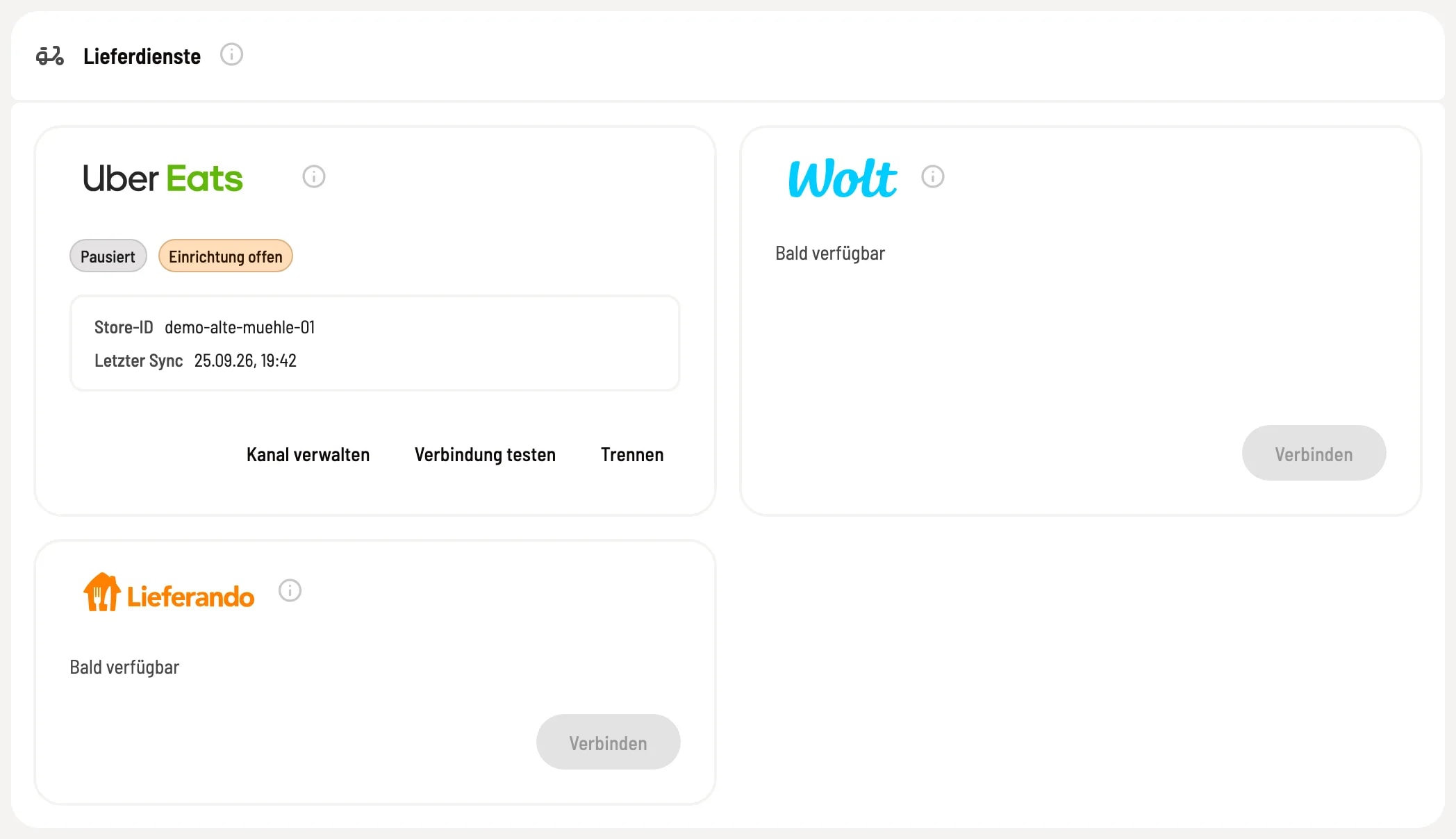
Manage channel
The card displays the status, store ID, and last synchronization date. Manage Channel opens the channel settings.
menu
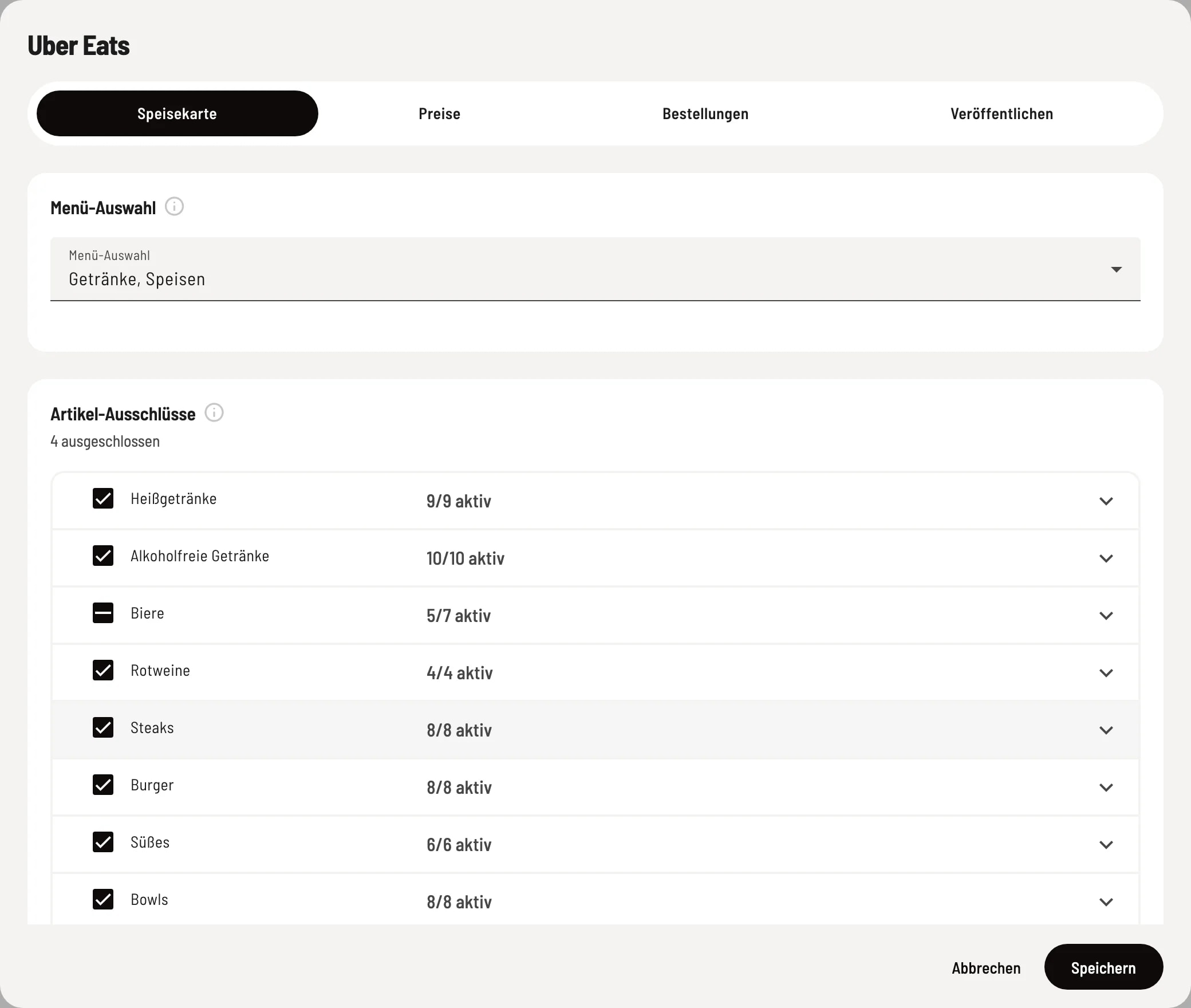
Menu selection and item exclusions
Under Menu Selection, choose the menu item that will appear in the delivery menu. Below that, you can deselect individual item .
- Menu Selection – the menus for the delivery service. - ** item Exclusions** – deselected item will not be sent to the delivery service, e.g., beverages that cannot be delivered. A checkmark next to the category selects all its item; the number shows how many are active. New item from the selected menus are automatically included. Changes are only sent to the delivery service after clicking Publish Now.
Prices
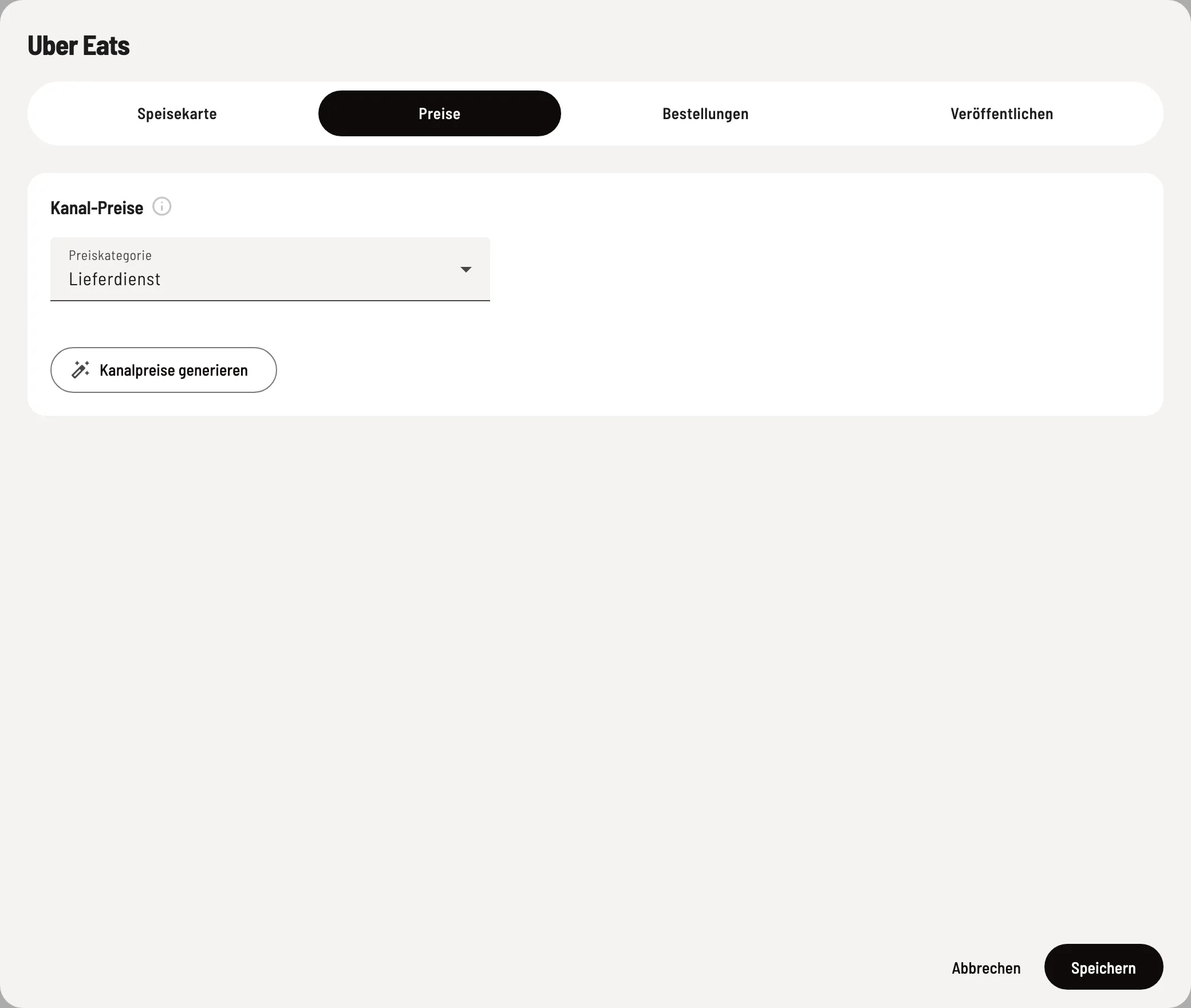
Step 1 of 2
Channel prices
Under Price Category, select a custom price category for the delivery service, e.g., with a surcharge for the commission. Standard Prices are the prices at checkout.
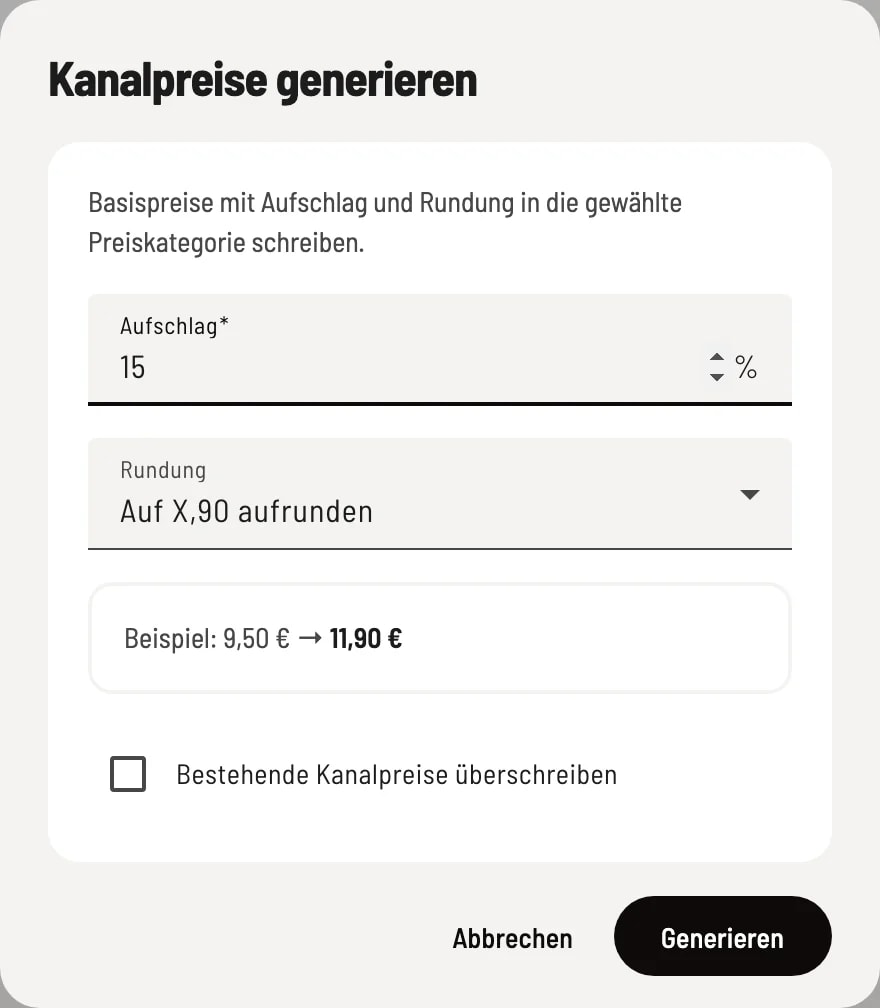
Step 2 of 2
Channel prices generate
Generate channel prices populates the selected price category from the regular prices – with a markup in percentage and rounding (none, round up to 10 cents, or round up to X.90). The example shows the effect. With Overwrite existing channel prices, you decide whether existing prices are replaced.
The price category overrides the base price for each item. If an item has no price in that category, its normal price applies. You can create price categories under Manage Price Categories.
Orders
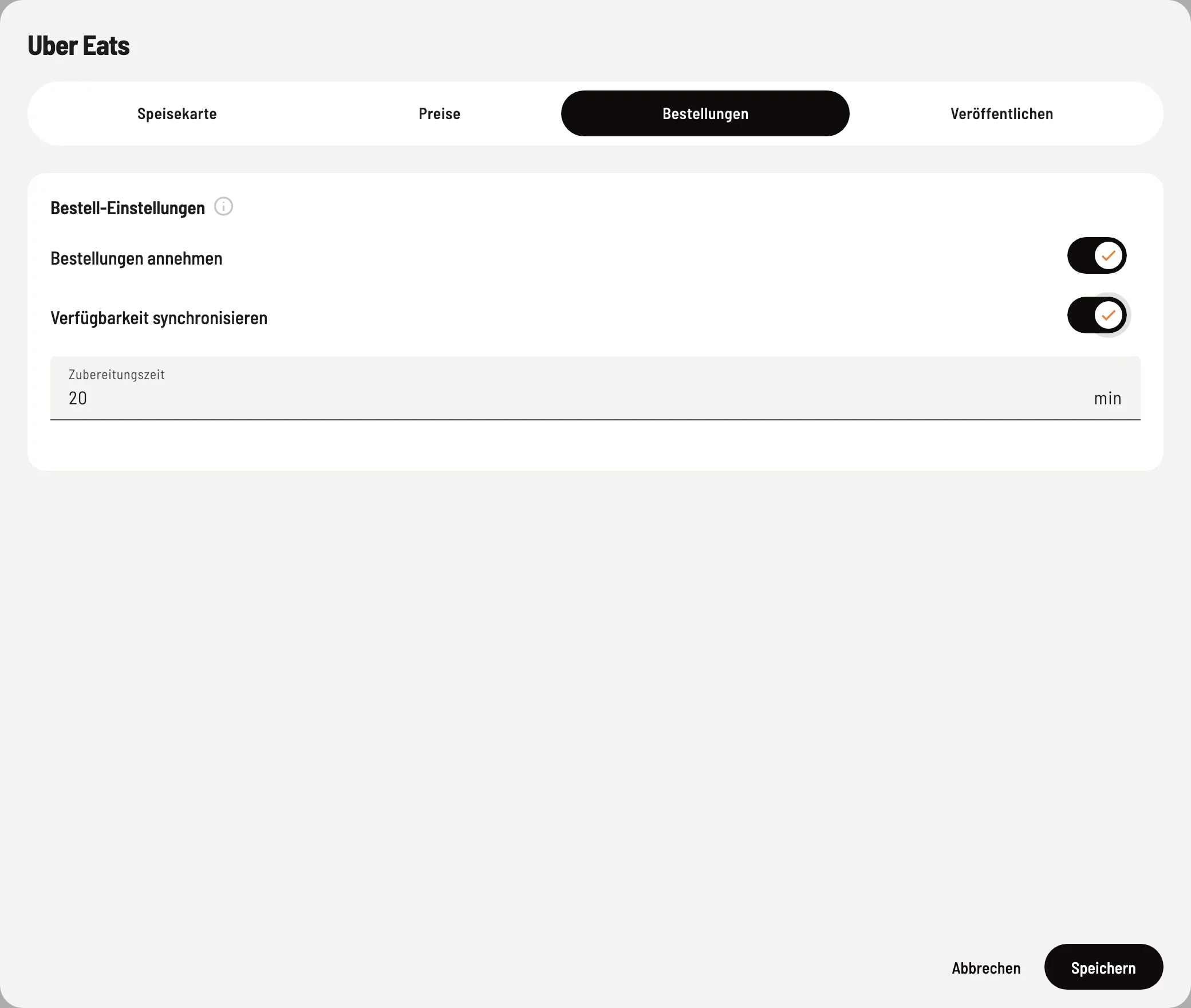
Order settings
Here you control acceptance, availability and preparation time.
- Accept Orders – Off pauses your store with the delivery service; guests cannot order, and the menu displays Paused. On: Every order is booked, printed to the kitchen, and automatically accepted. - Synchronize Availability – item that you report as sold out or deactivate are immediately unavailable for order with the delivery service – and become available again as soon as you release them. This applies to item that have already been published. - Preparation Time – This time (0–240 minutes) is reported by the POS system to the delivery service upon acceptance to ensure timely pickup. 0 = Delivery service's default time.
Publish
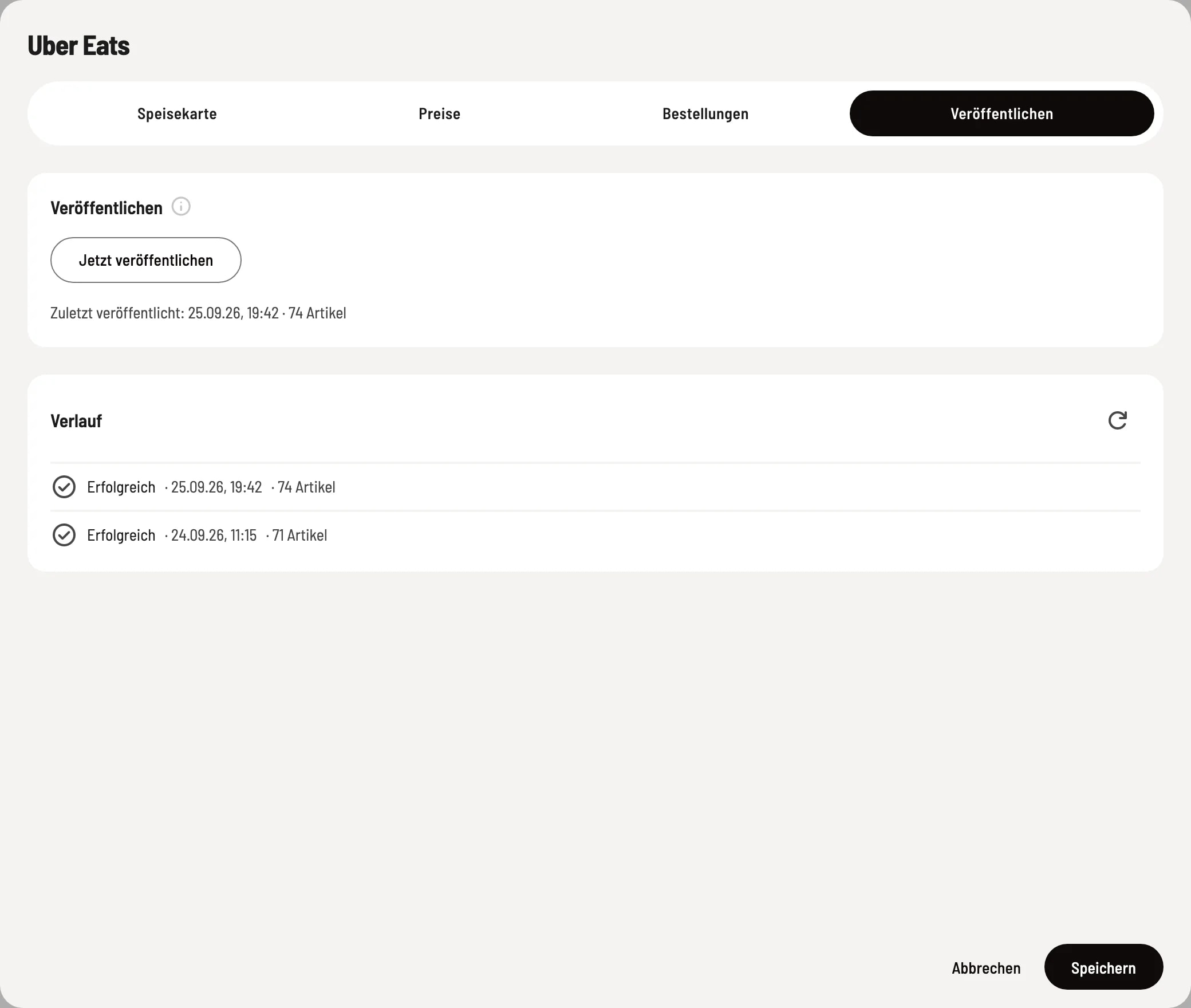
publish menu
Publish now transmits the menu, exclusions, and prices to the delivery service. A Preview beforehand displays menus, categories, item, price examples, and warnings. Below this are Recently published and the History of all publications.
Save changes first – as long as something is unsaved, the tab displays Save first, then publish and the button is locked.