
Embed reservations on your own website
Integrate the reservation widget into your existing website using code and define the allowed domains.
In the Embed tab of the reservation settings, you can retrieve the code that will make the reservation form appear on your existing website. To do this, open Reservations → Gear icon → Embed.
The code will only appear once your Servire website is published (Website, status Active). Until then, the tab will only display a notification and the Go to Website Editor button. The reservation is automatically integrated into the Servire website itself.
Embed a widget on your website
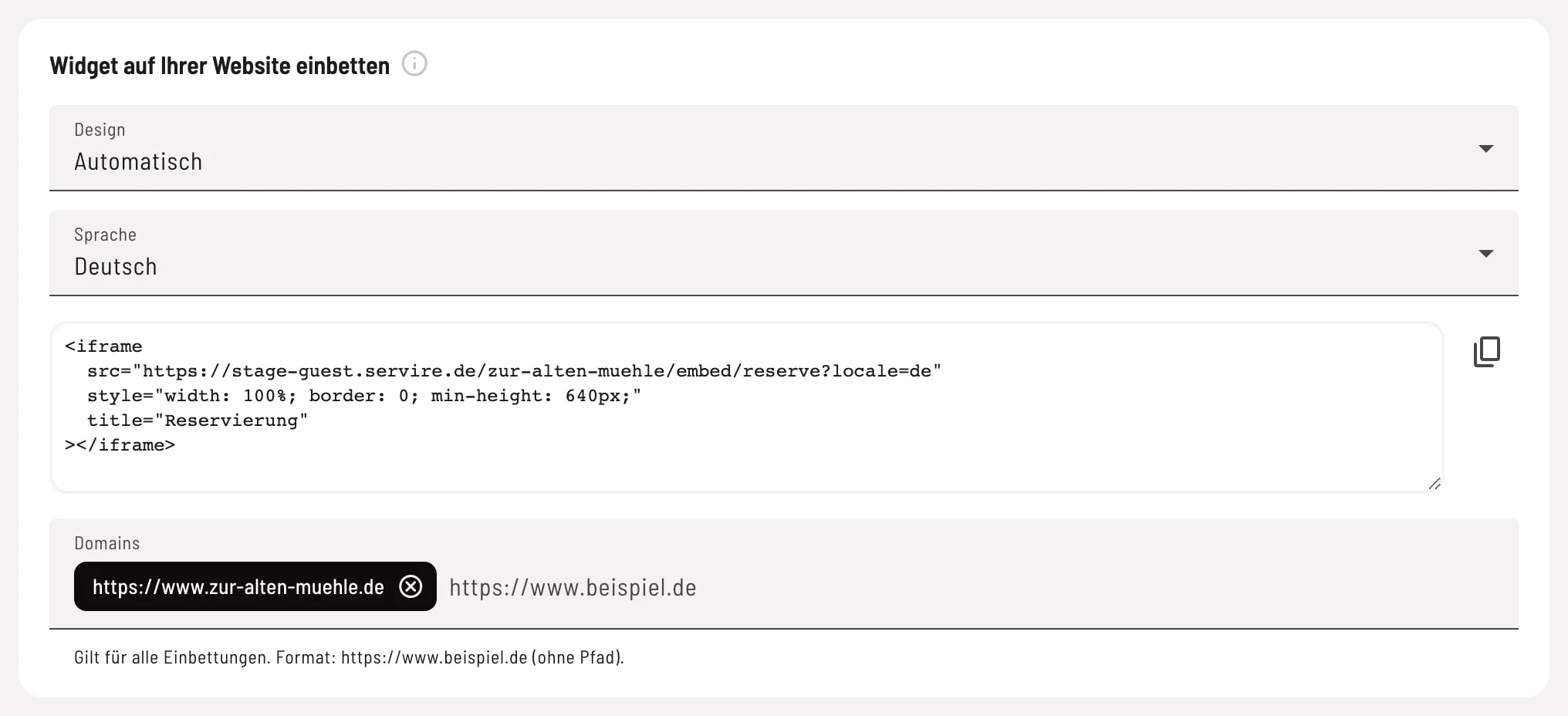
Design, language, code, domains
Design – Automatically adopts the colors of your Servire website. Light and Dark assign fixed colors to the widget. Language – German or English. Code – Copy the snippet to your clipboard and paste it into an HTML element on your website; the widget will appear there. Change the design or language beforehand, otherwise the code won't work. Domains – Only these websites are allowed to embed the widget, e.g., https://www.example.com (without the path). Type in the address and press Enter, then Save. Your Servire website and connected domains are automatically allowed.
The list of domains applies to all embedded elements of your business – reservations, menu, orders, and vouchers. You can manage it here or under Website → Edit → Approved Domains.
You can integrate menu, guest orders, or voucher sales in the same way: see Integrating reservations, orders, menu , or vouchers on your own website.