
Mark item as sold out
This is how you lock a dish for today or until further notice without deleting it.
If a dish is sold out, you mark it as sold out. It remains on the menu but can no longer be ordered. The change takes effect immediately on all devices.
Prerequisite: At checkout, you need the right To mark item as sold out. This is separate from the right to create item .
At the checkout
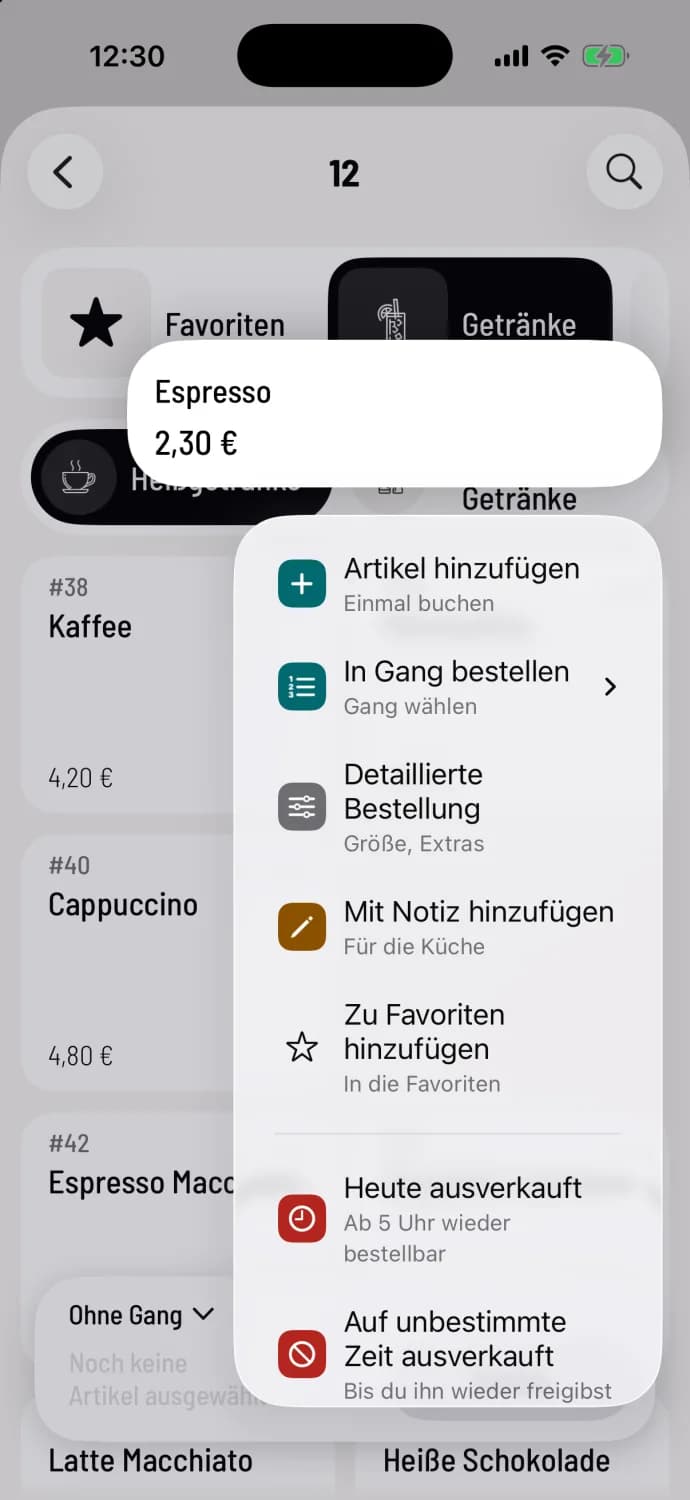
Step 1 of 2
Hold down the tile
When ordering, press and hold the item tile. Under the order options such as **Add item ** and Add to favorites, select Sold out today (available again from 5 a.m.) or Sold out indefinitely (until you make it available again).
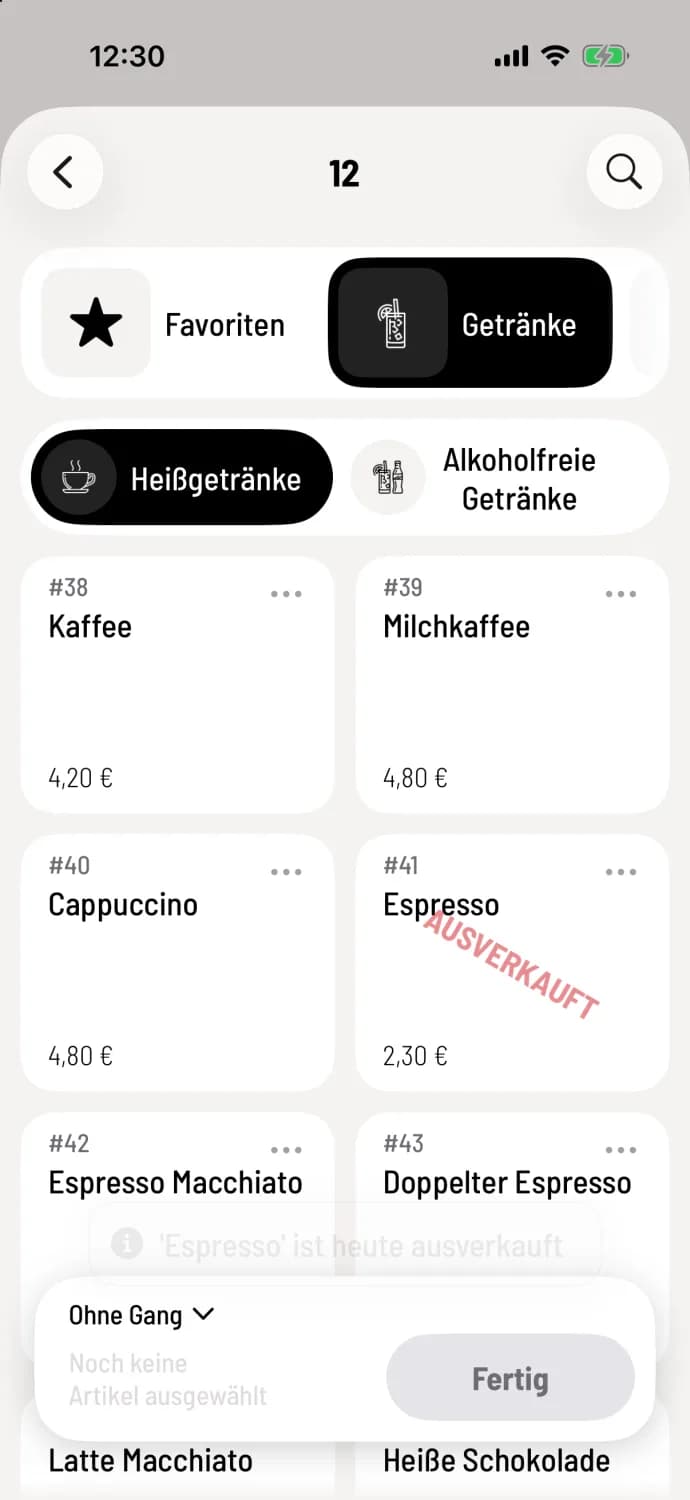
Step 2 of 2
item is marked
The tile bears the stamp SOLD OUT, and a brief message confirms, for example, "'Espresso' is sold out today." If someone taps it anyway, the cash register asks if they really want to order the item .
To release it, press and hold the tile again and tap Available again. This works in table view and at the quick checkout, on iPhone, iPad and Android.
In the Web desk
In the item , under Currently available for order?, you can choose between Available, Sold out today, and Sold out. To edit multiple item at once, select them from the list and choose Edit → Change status (see Editing multiple item simultaneously ). The list will then display the status as Sold out today or Sold out.
What guests see
For guest orders and delivery services, the item is visible but cannot be ordered. The website, display, and PDF continue to show it without any indication, as they are simply displaying the product range.
With inventory management , Servire automatically sets item to Sold Out (In Stock) and releases them upon the next incoming shipment. Blocked Online means the reorder point has been reached, customers cannot order, but the item remains sellable at checkout. If you decide to block the item yourself at checkout or in the Web desk, this overrides the inventory block.