
Reservations at the checkout: an overview
The reservation book at reception: requirements, structure and the header with day, service time, filter and search.
The reservation book is available in the Max plan if the reservation module is activated in the Web desk . You can set service times, opening hours, and table layouts in the Web desk – see Reservation settings in the Web desk.
The Reservations view turns your device into a reception desk: You can see all of the day's reservations, create new ones, manage walk-ins, and maintain the waiting list. No shift needs to be running for this – only Walk-ins and Opening a Table require one.
Turn on view
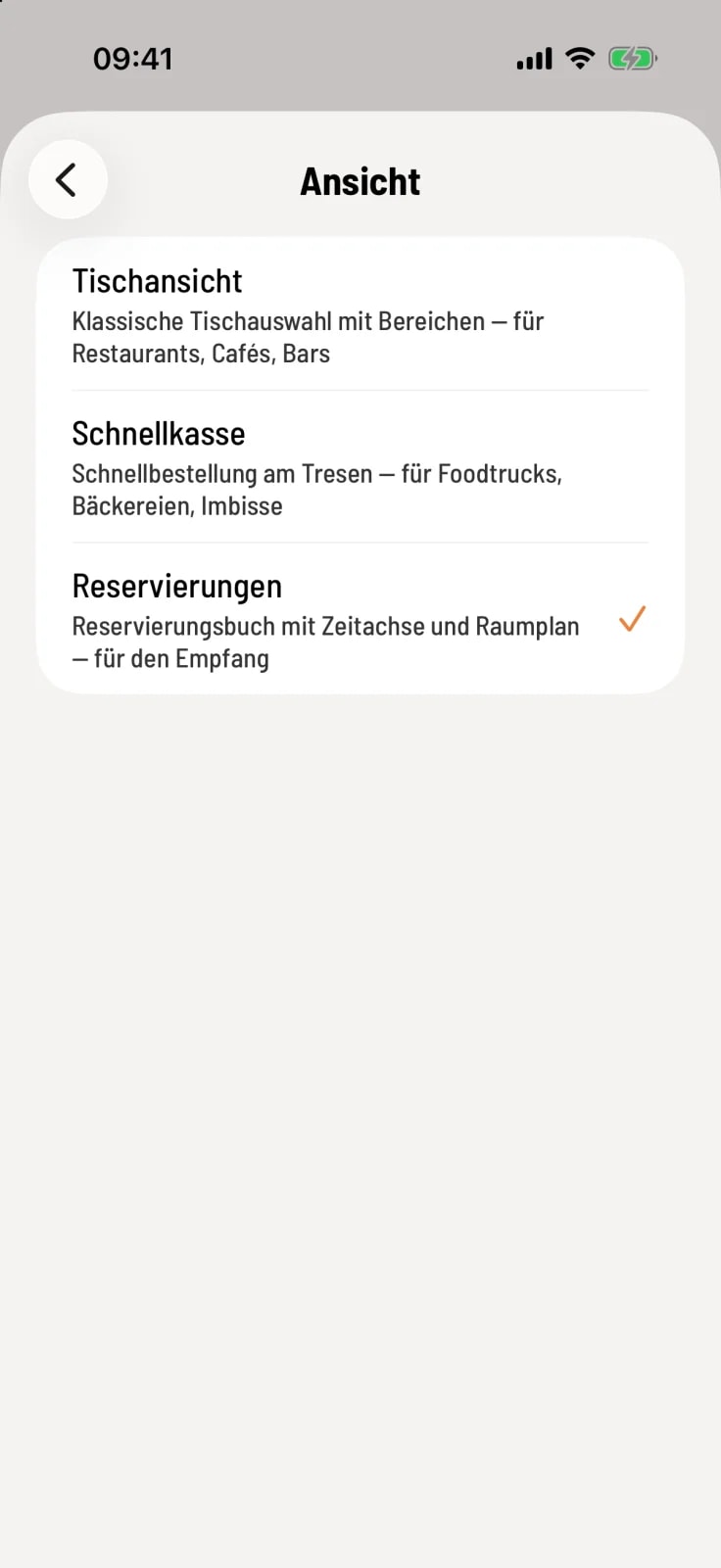
Select view
Tap the House icon in the top left corner, then View, and select Reservations. The device will remember your choice and will open directly to the reservation book in the future.
Three perspectives on the same day
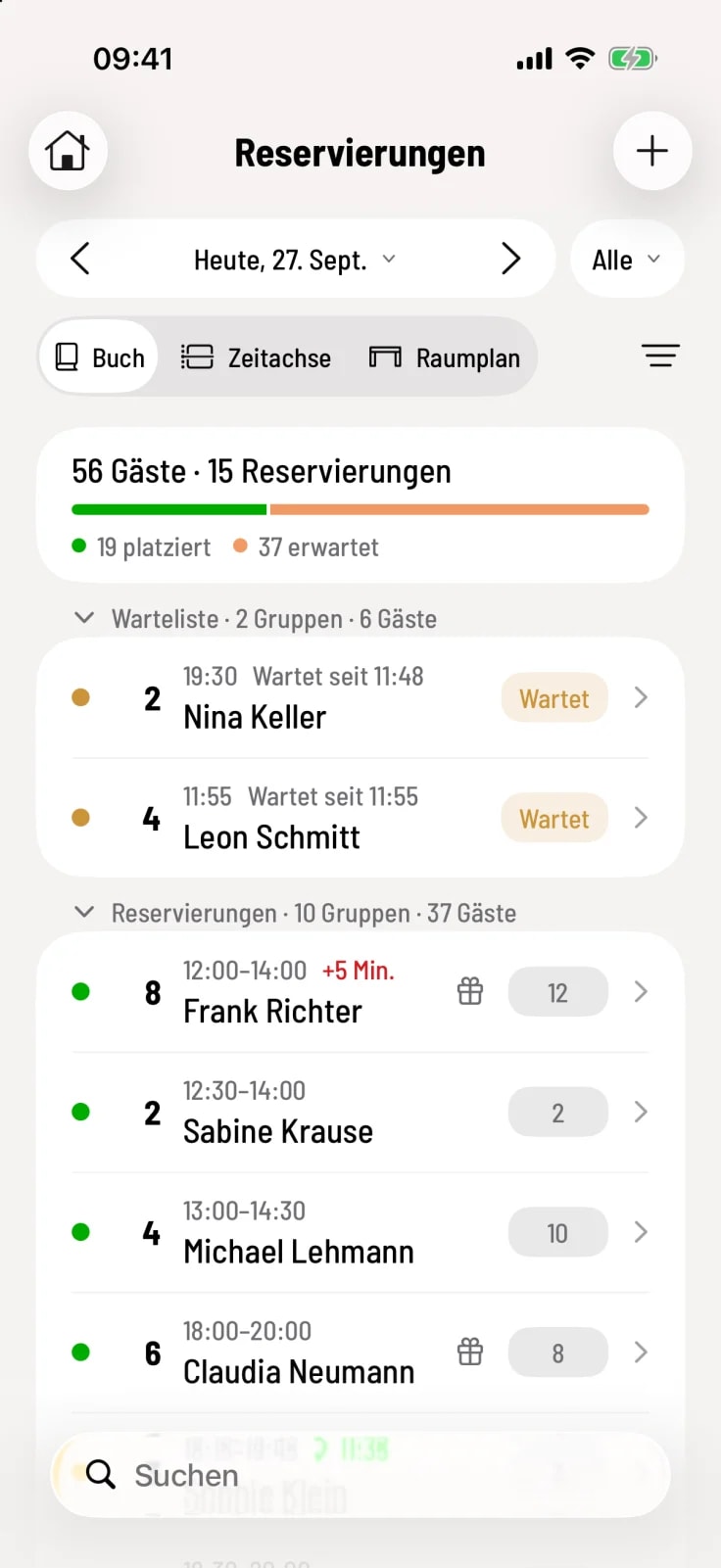
Book – the list of all reservations and those waiting, sorted by time. See Reading the Reservation Book.
Timeline – Tables as rows, reservations as bars. See Timeline.
Room Plan – your table plan at a specific time. See Room Plan.
On wide screens, the book is permanently on the left; on the right you switch between the timeline and the floor plan.
Select day and service time
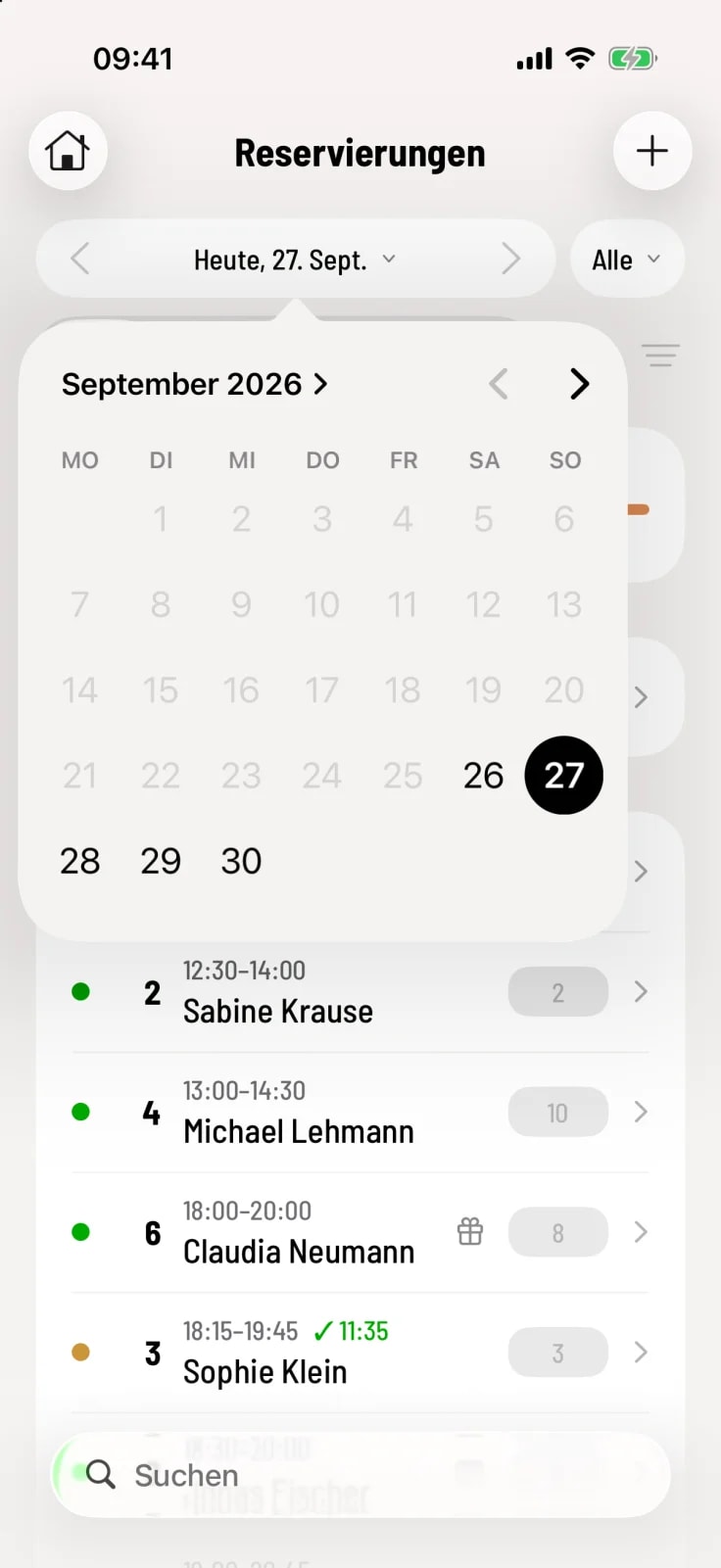
Step 1 of 2
Choose day
Use ‹ and › to scroll through the days. Tapping on a date opens the calendar. The book goes back to yesterday; older days can be found in the shift history.
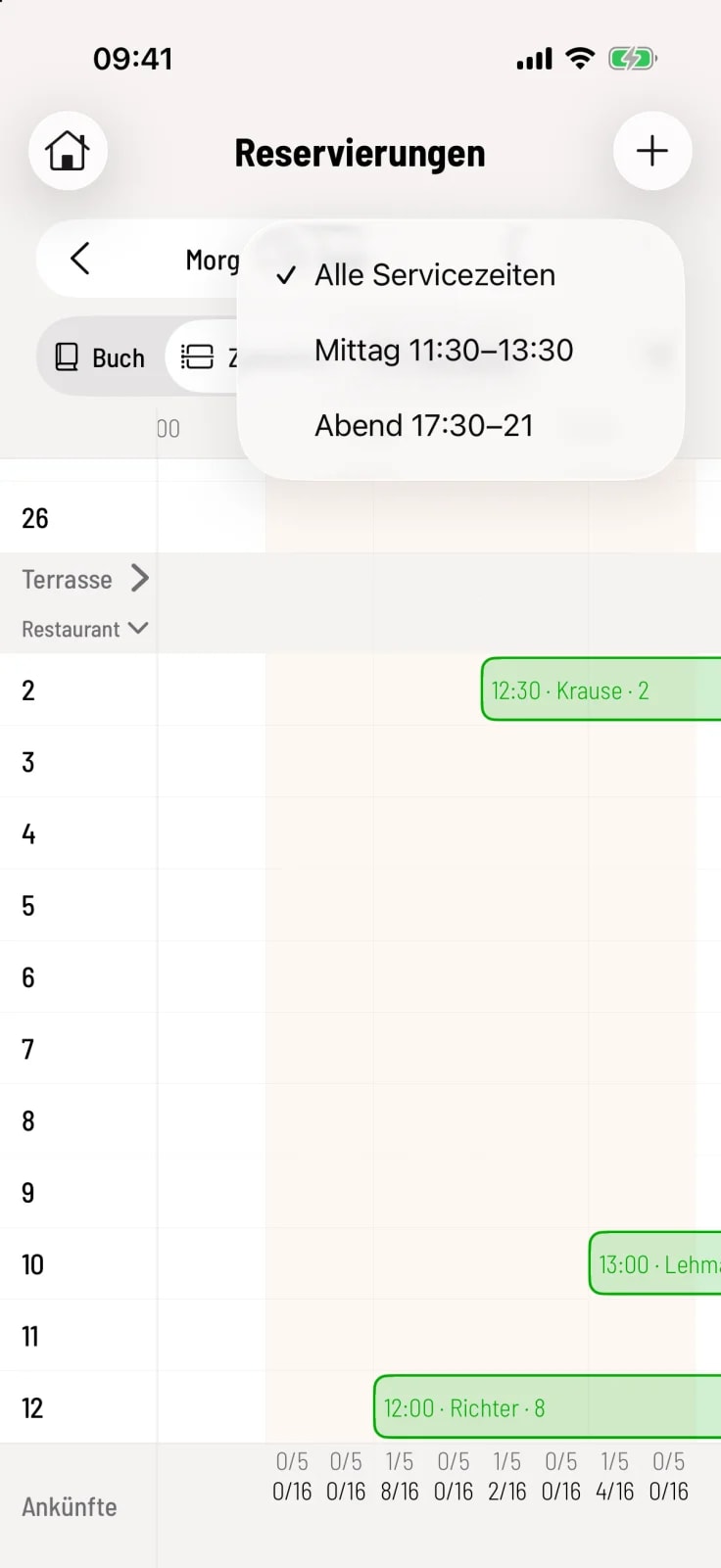
Step 2 of 2
Filter service time
The pill icon to the right of the date only shows reservations for a specific service time, for example, evening. With All Service Times, you can see the entire day again.
If a moon symbol appears at the top, the day is a day off according to opening hours. A clock symbol with an exclamation mark means that no service hours have been set up yet. Both are just indicators – you can still create them.
Filter and search
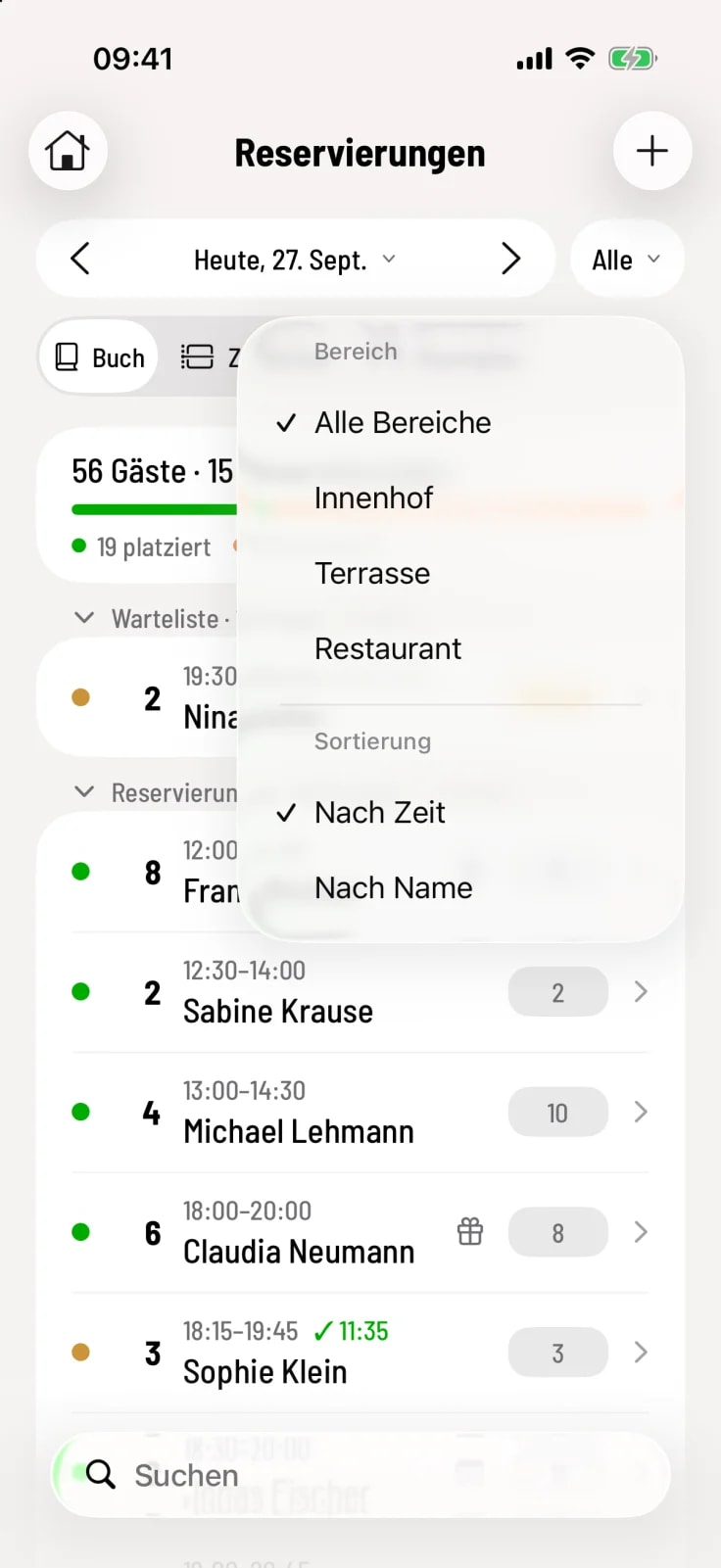
Step 1 of 2
filter
The icon to the right of the views filters by Area and sorts By Time or By Name. An orange dot indicates an active filter; Reset clears it.
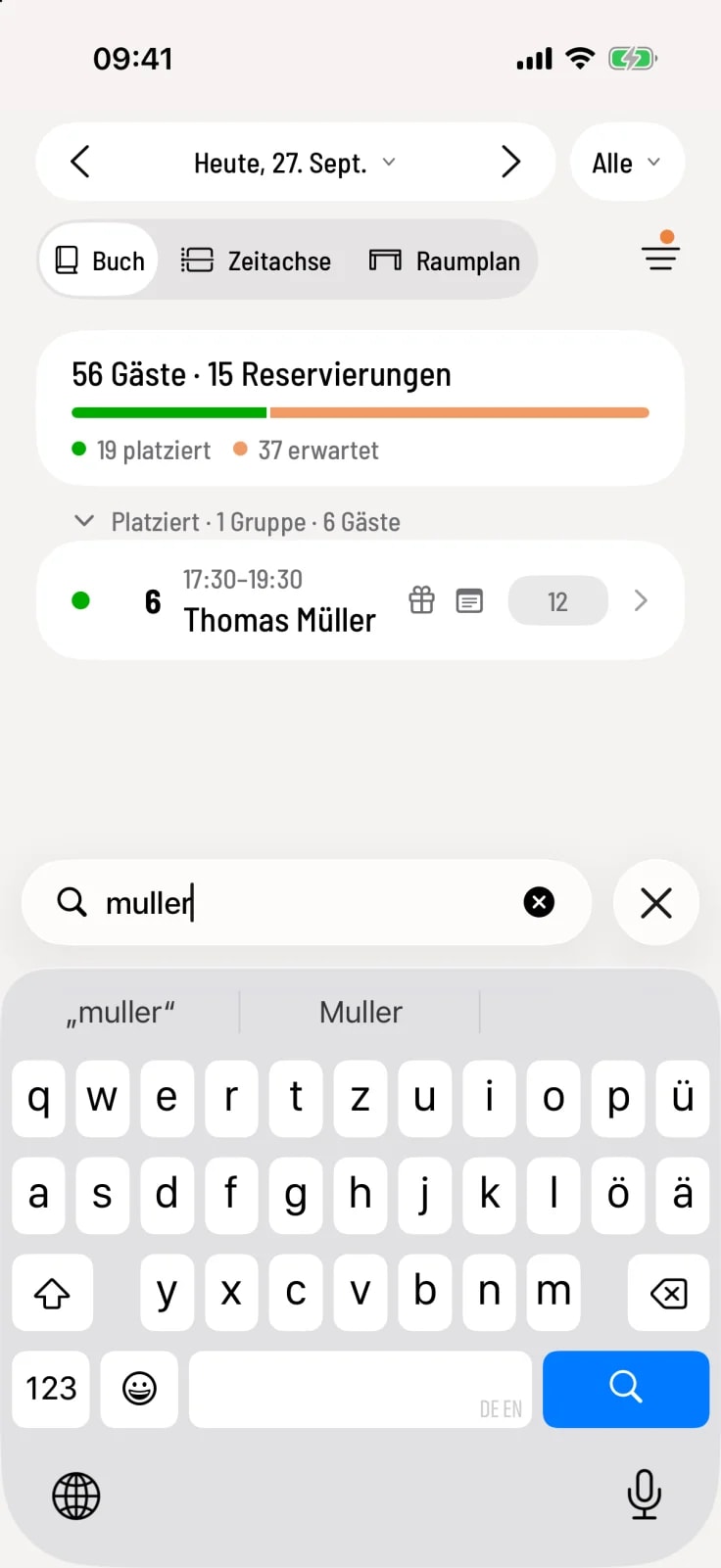
Step 2 of 2
Search
The search field at the bottom of the book finds guests by name, phone number, email address, confirmation code, or table. You don't need to type umlauts: "muller" will also find "Müller".