
Set up order terminal
Guests order themselves via touchscreen, pay at the card reader and receive a collection number.
At the ordering terminal, guests order themselves: They select from your menu, pay by card at the card reader, and receive a collection number. The order then proceeds like any other order via the kitchen, receipt, and Z-report.
Prerequisite: Max tariff. The owner has accepted the Data Processing Agreement in the Web desk . If a TSE (Technical Security Device) is active, fully configured, and registered with the tax office: register the cash register with the tax office; without an active TSE , the terminal sells unsigned transactions. Stripe or SumUp is connected to the Web desk . A shift is open in the POS app. A print center or a POS system with Print Online Orders is printing.
Check readiness
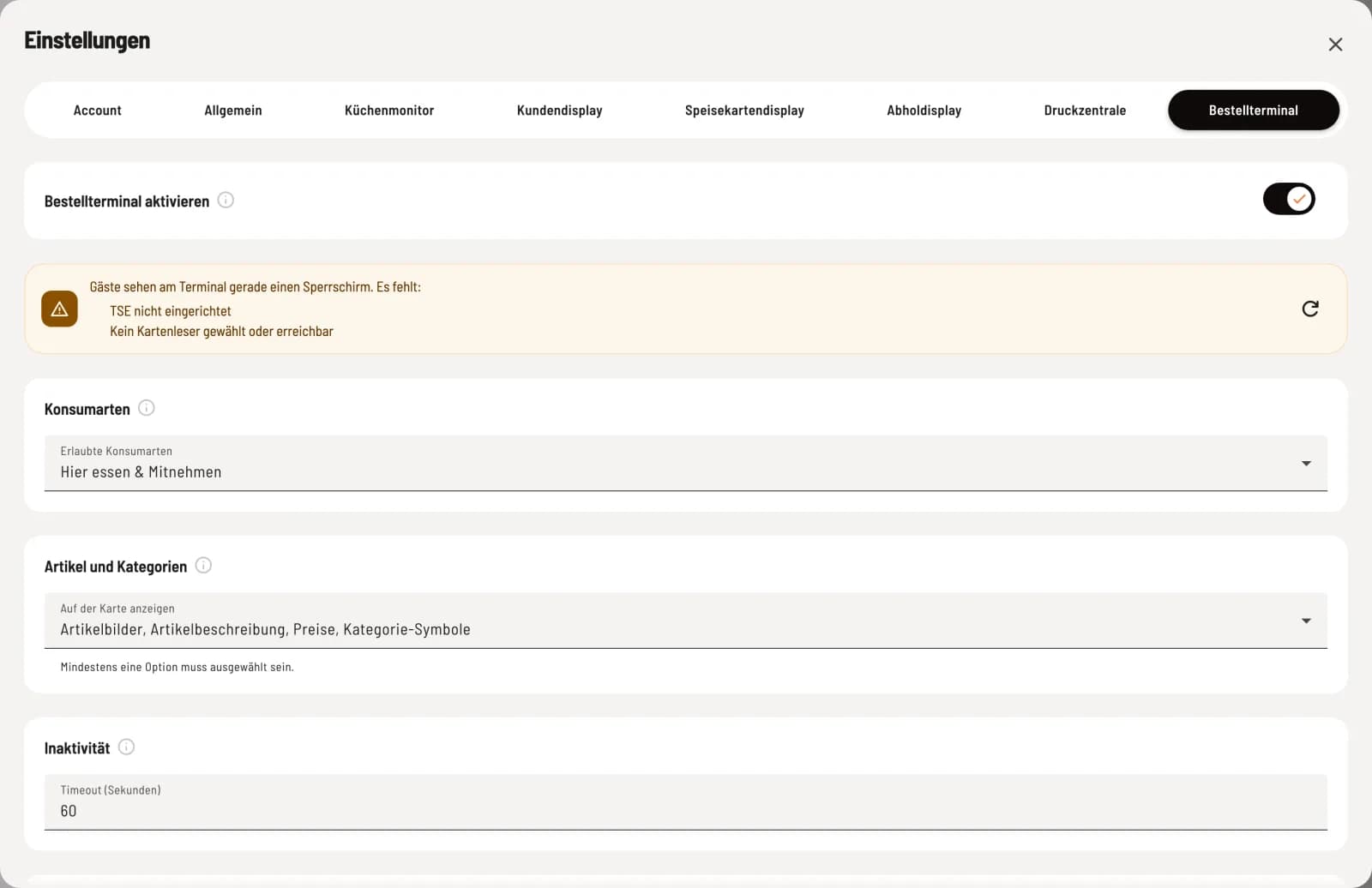
Open settings
Click on your profile (gear icon) in the sidebar at the bottom and select the Order Terminal tab. Activate Order Terminal is enabled by default in the Max plan. If something is missing, it will say below, "Guests are currently seeing a locked screen at the terminal. Missing:" with the remaining options. The arrow icon will recheck.
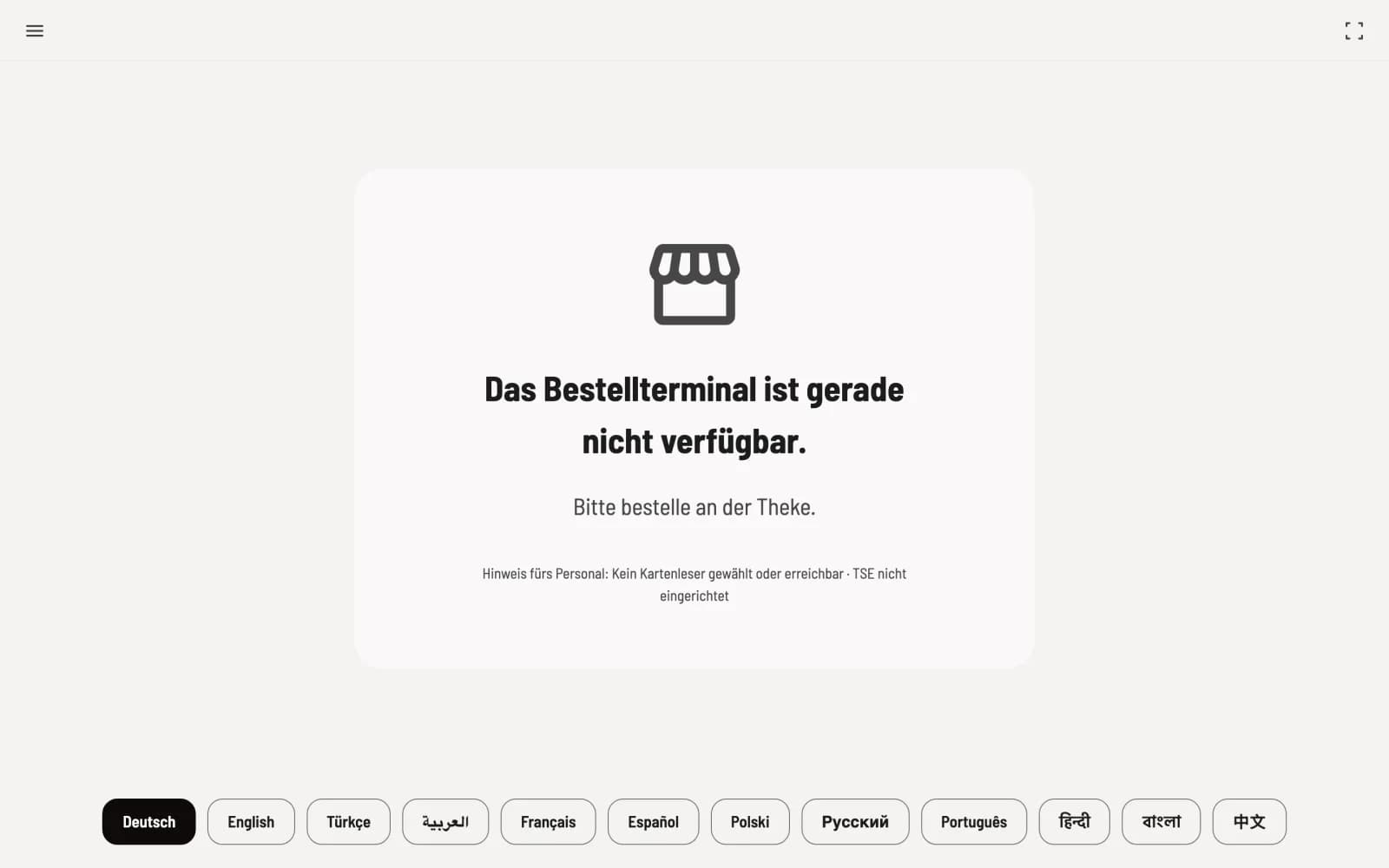
As long as something is missing, guests will see the message "The ordering terminal is currently unavailable. Please order at the counter." Below this, in small print, is the reason for the staff's absence, such as "No open shift" or "No card reader selected or available."
Connect card readers
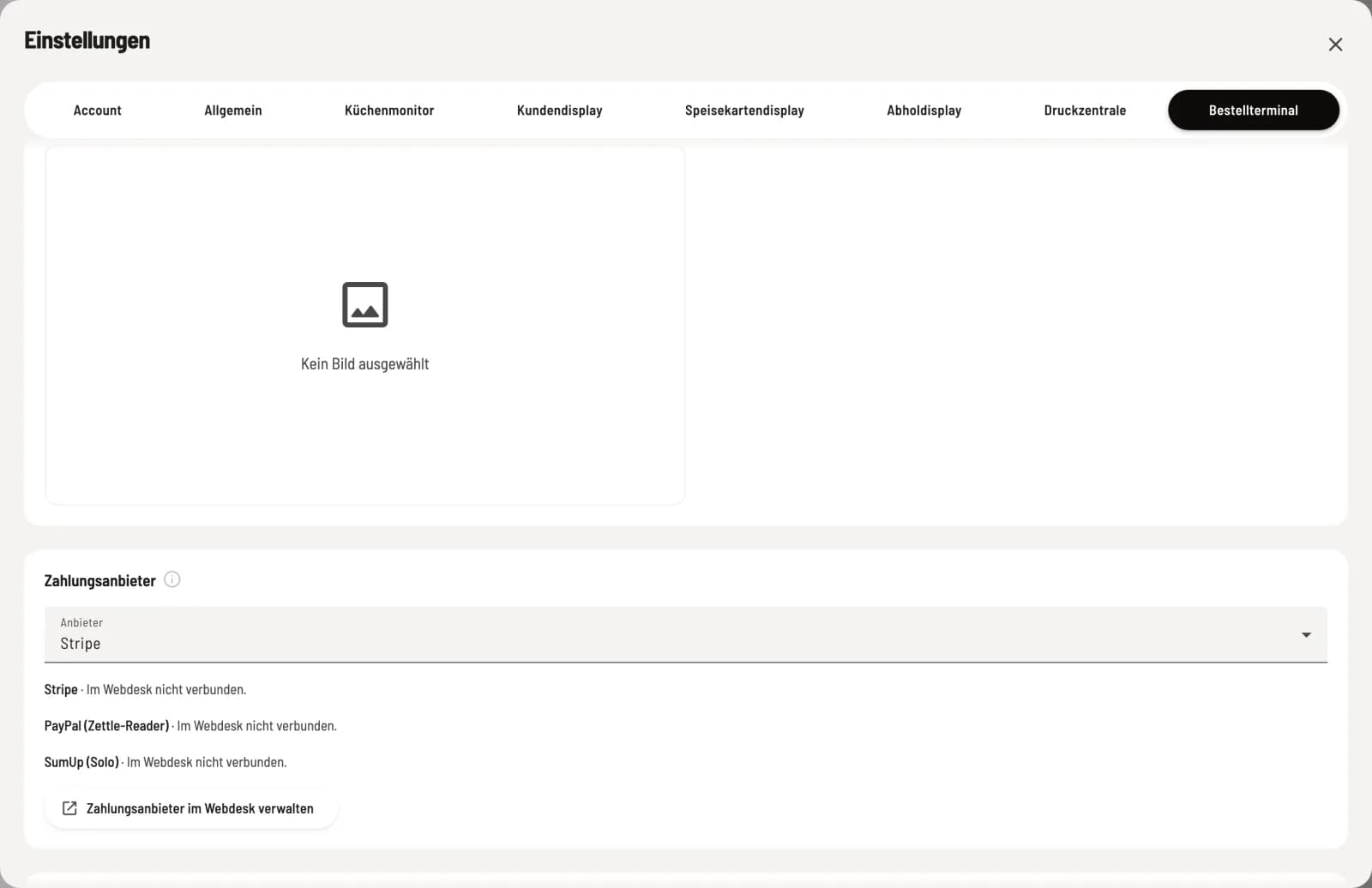
Choose provider
Under Payment Providers, select Stripe or SumUp (Solo). Below each provider's entry, it indicates whether it is connected to the Web desk . Manage Payment Providers in Web Desk will take you there. PayPal (Zettle Reader) is also listed, but is not yet enabled everywhere.
Stripe – Smart readers such as the S700 or WisePOS E. Enter the registration code from the reader's display.
SumUp Solo – on the Solo, open API → Connect and enter the pairing code. It is valid for 5 minutes.
Under Register Card Reader, enter the code and optionally a Name, then click Register. Select the desired reader using Select; it will then be labeled Selected. Only authorized personnel with employee rights for payment service providers are permitted to register and remove readers.
Which readers: The reader needs its own Wi-Fi or mobile data connection. SumUp Solo Lite and SumUp Air do not work with the terminal; they only connect to a mobile phone or tablet via Bluetooth. If SumUp displays "Connected, but without card reader authorization," disconnect SumUp in Web desk and reconnect it.
More settings
Types of consumption – Eat here & takeaway, Eat here only or Takeaway only.
** item and categories** – whether the map displays article images, descriptions, prices and category icons.
Inactivity – after how many seconds without input does the terminal reset an order; by default, it's 60. Before that, it asks "Still there?".
Placeholder image – the start screen, with display and optional text over the image.
Next, open the hub on the touchscreen, select Order Terminal, and switch to full screen. Secure the device with the device code.
At the terminal
The guest taps "Tap to Order," selects their language below, chooses Eat In or Take Out, adds item to their cart, and taps Pay Now. If guest tracking is active, they can scan their loyalty card or enter their email address for stamps. After payment, the terminal displays their pickup number.
Payment, cancellation and refund
The order is only placed once payment has been processed. If the reader doesn't respond for three minutes, the terminal will cancel. If the card was charged anyway, Servire will automatically refund the amount. You can refund a paid terminal order in the Web desk under Online Orders → Guest Orders by clicking Cancel.