
Edit reservation and set status
The reservation card: greet the guest, seat them, close the reservation, cancel it, or mark it as a no-show.
Tapping on a reservation opens its map. At the top is the status, below that the time, number of people and table, the guest's phone number and email address, and other details.
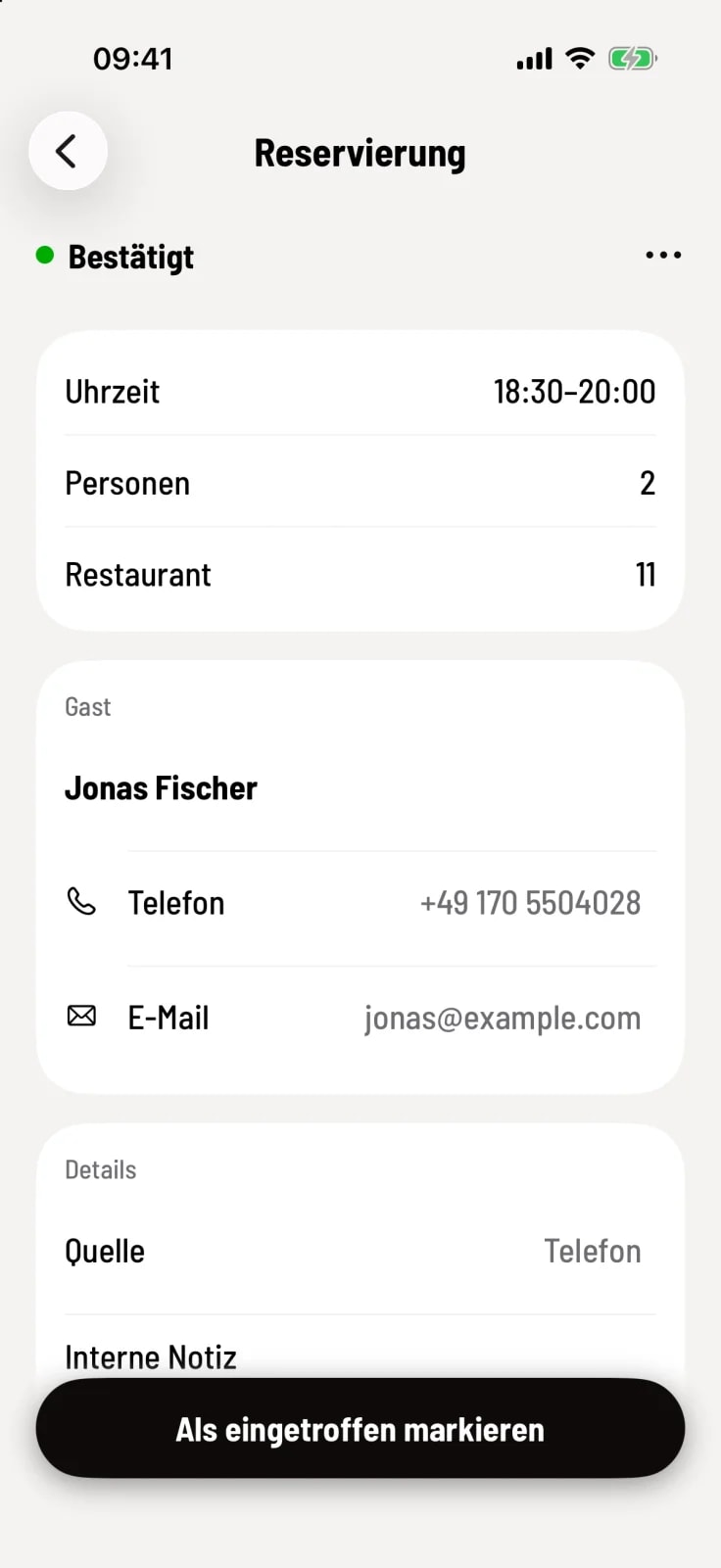
The journey of a guest
Pending – an online request that still needs to be confirmed. Tap Confirm.
Confirmed – the guest is expected.
Arrived – the guest is at the door, but does not yet have a table.
Partially seated / Seated – part or all of the group is seated.
Completed – the visit is over.
The large button at the bottom always suggests the next logical step. All other actions can be found in the top right corner under ….
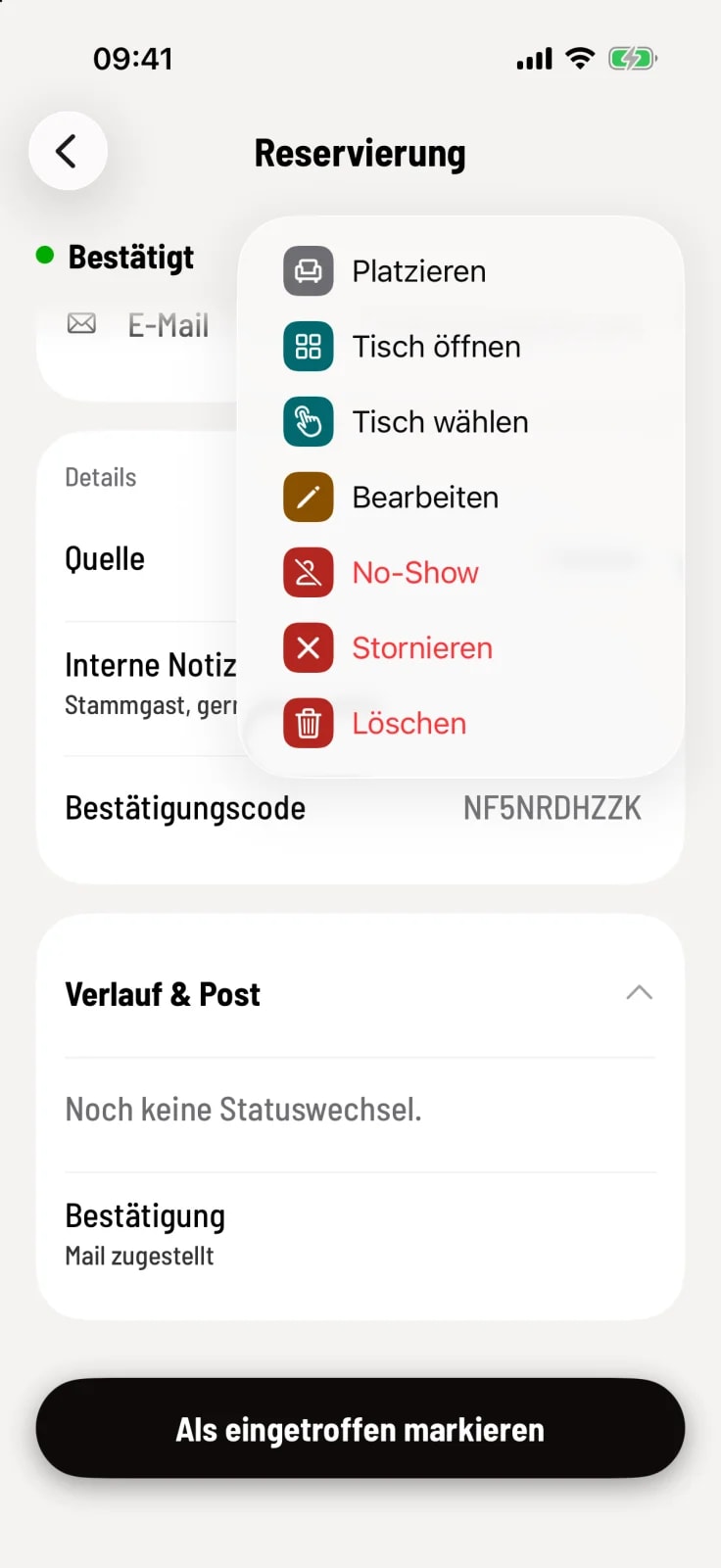
Open Table – jumps to the order at the guest's table (requires a running shift).
Select table – assigns a table or moves the guest. The status remains.
Edit – opens the form. Tapping on time or people also leads there.
Revert to Confirmed – undoes an accidental arrival or placement.
Cancel, No-show, Delete
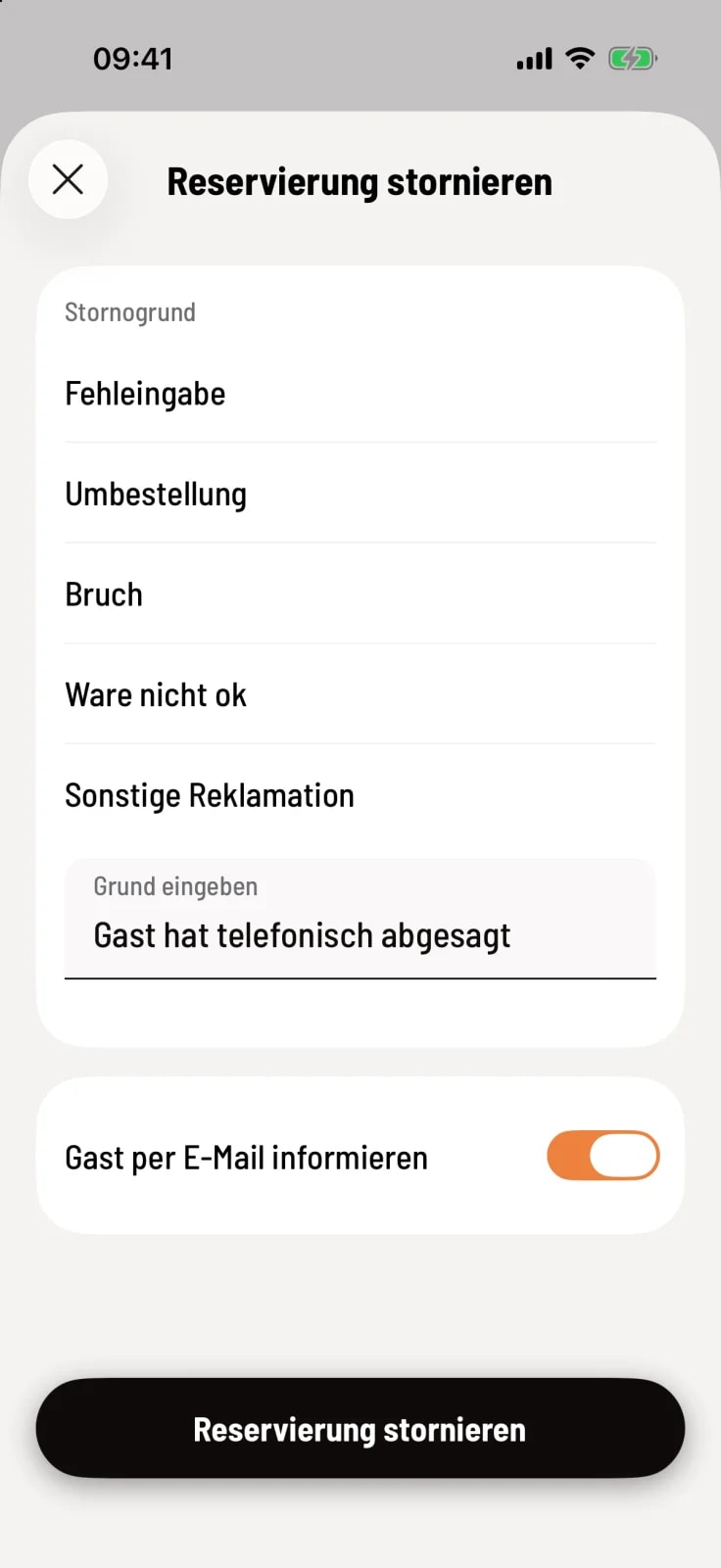
Step 1 of 3
Cancel
Choose a pre-defined cancellation reason or enter your own. Selecting Notify guest by email will send the guest a cancellation notice.
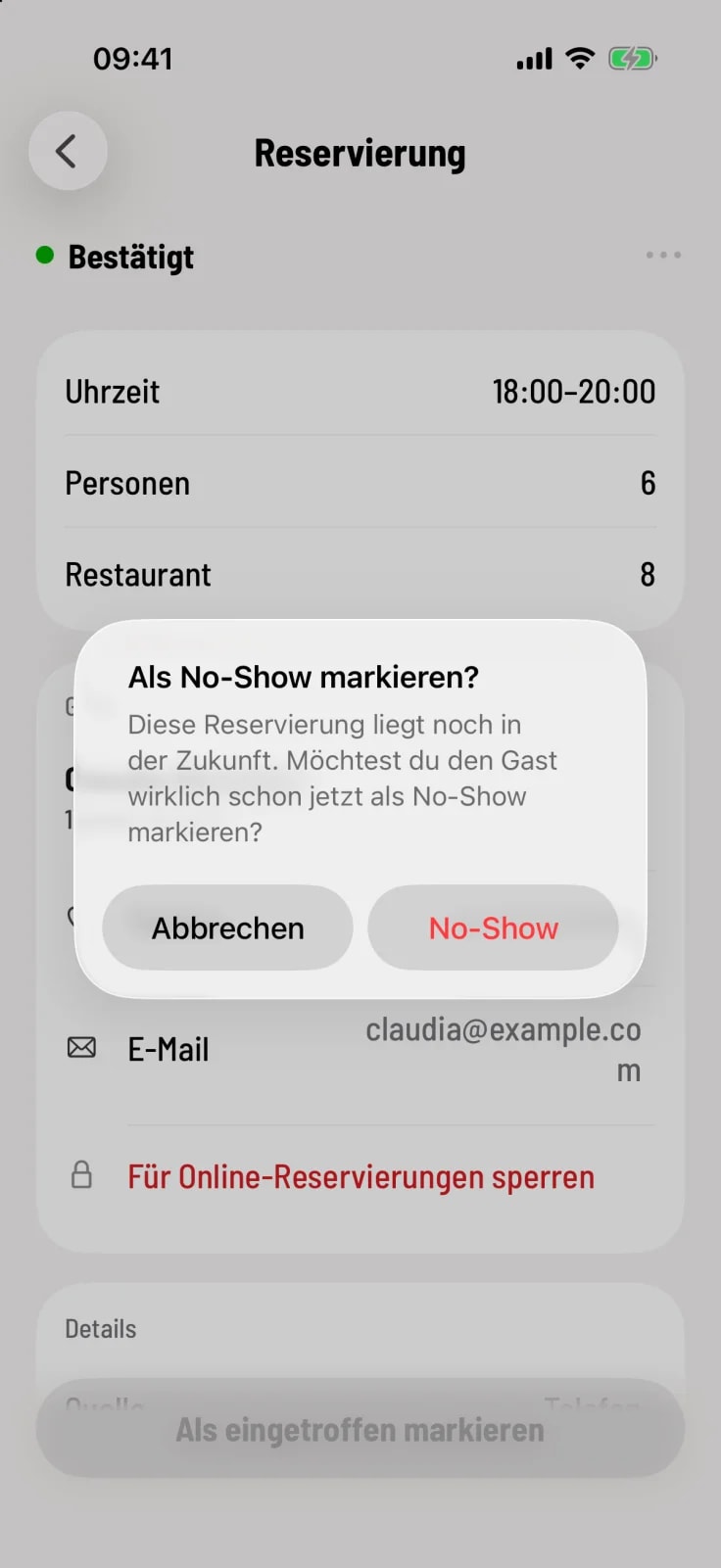
Step 2 of 3
no-show
This indicates that the guest did not arrive. If the reservation is still in the future, the cashier will inquire. Once the guest has arrived, there is no longer a no-show – the guest was present.
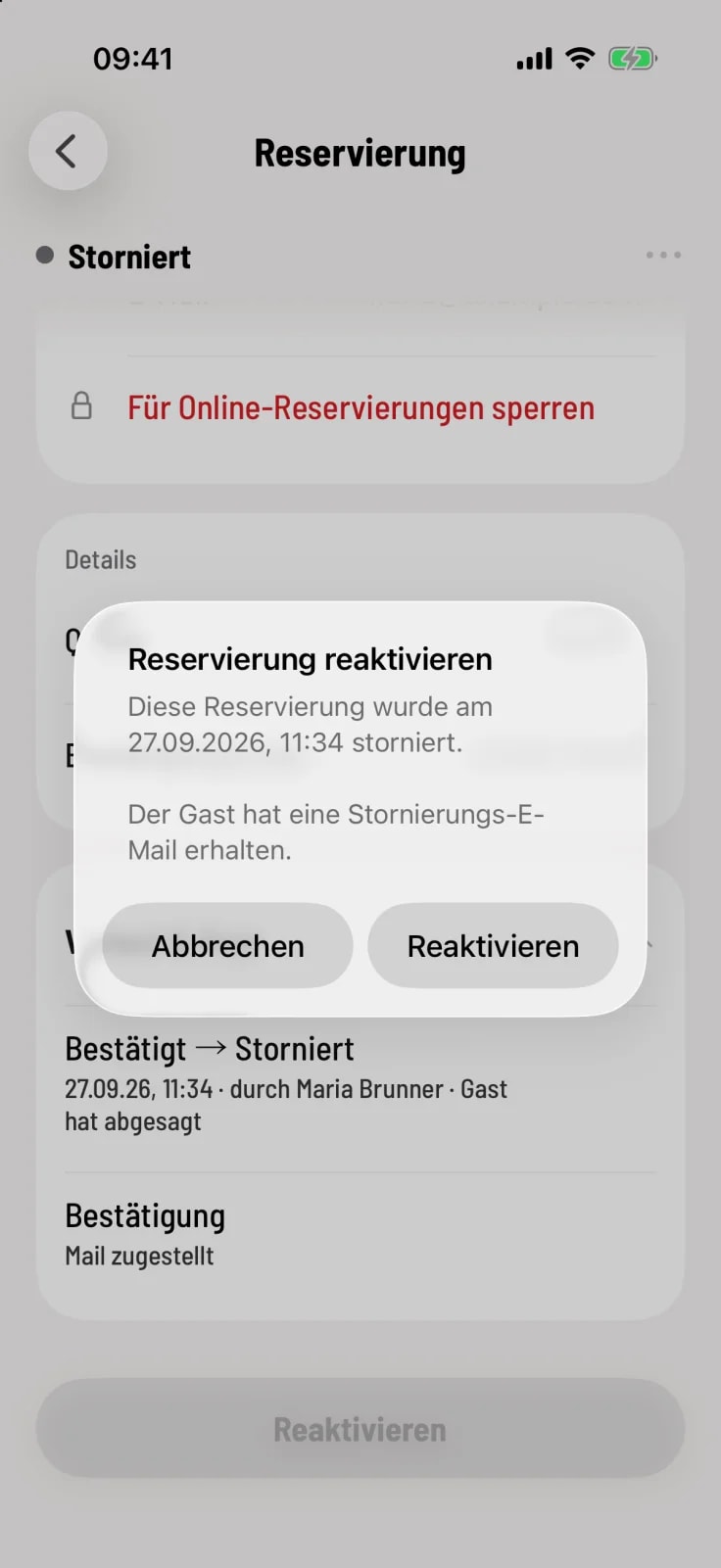
Step 3 of 3
Reactivate
You can retrieve cancelled and no-show reservations with Reactivate (then Confirm), and completed reservations with Reopen.
Deleting permanently removes a reservation – this cannot be undone. For cancelled appointments, cancelling is usually the better choice because the booking history is preserved.
Guest, details and history
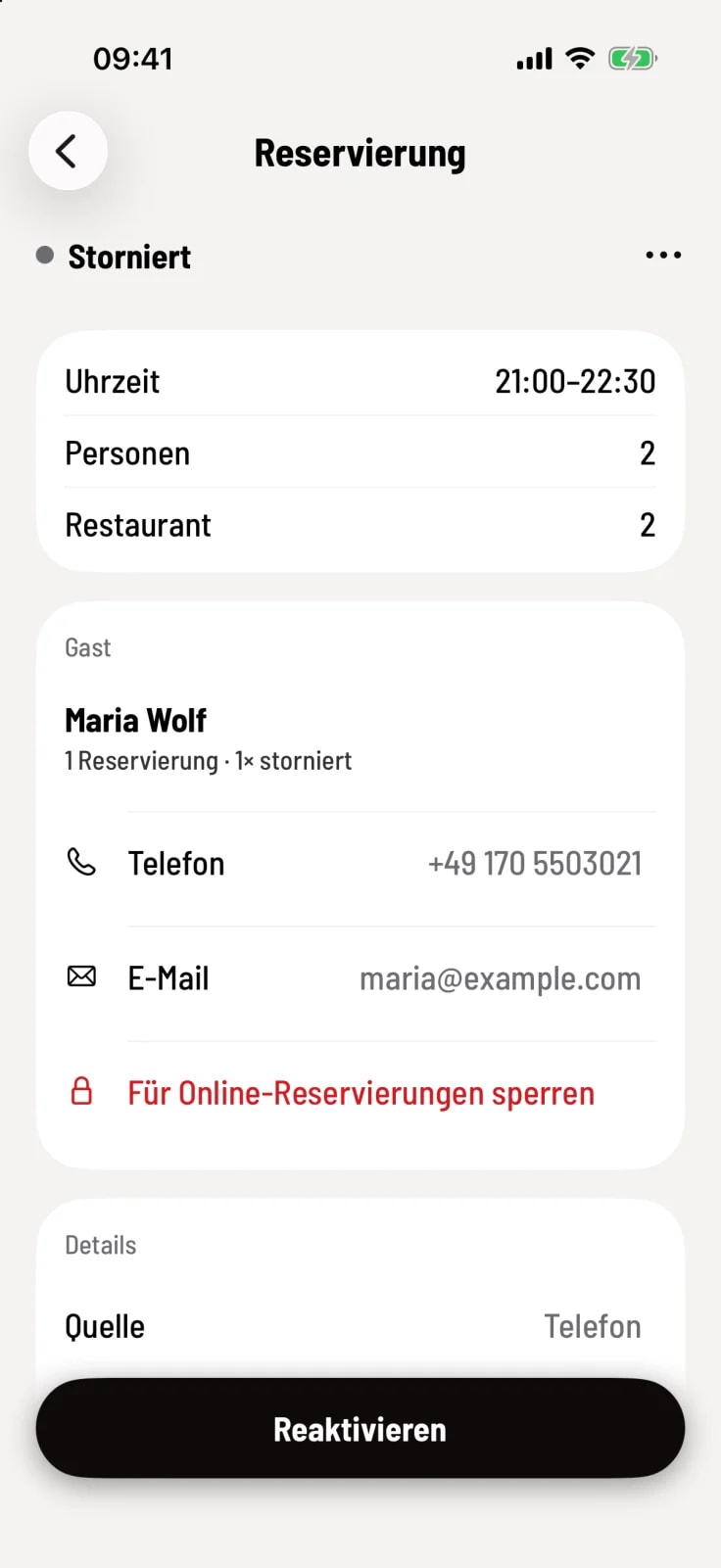
Step 1 of 2
Guest
Below the name, it shows how often the guest has made a reservation, cancelled, or failed to show up. By selecting Block from online reservations, they can no longer book online.
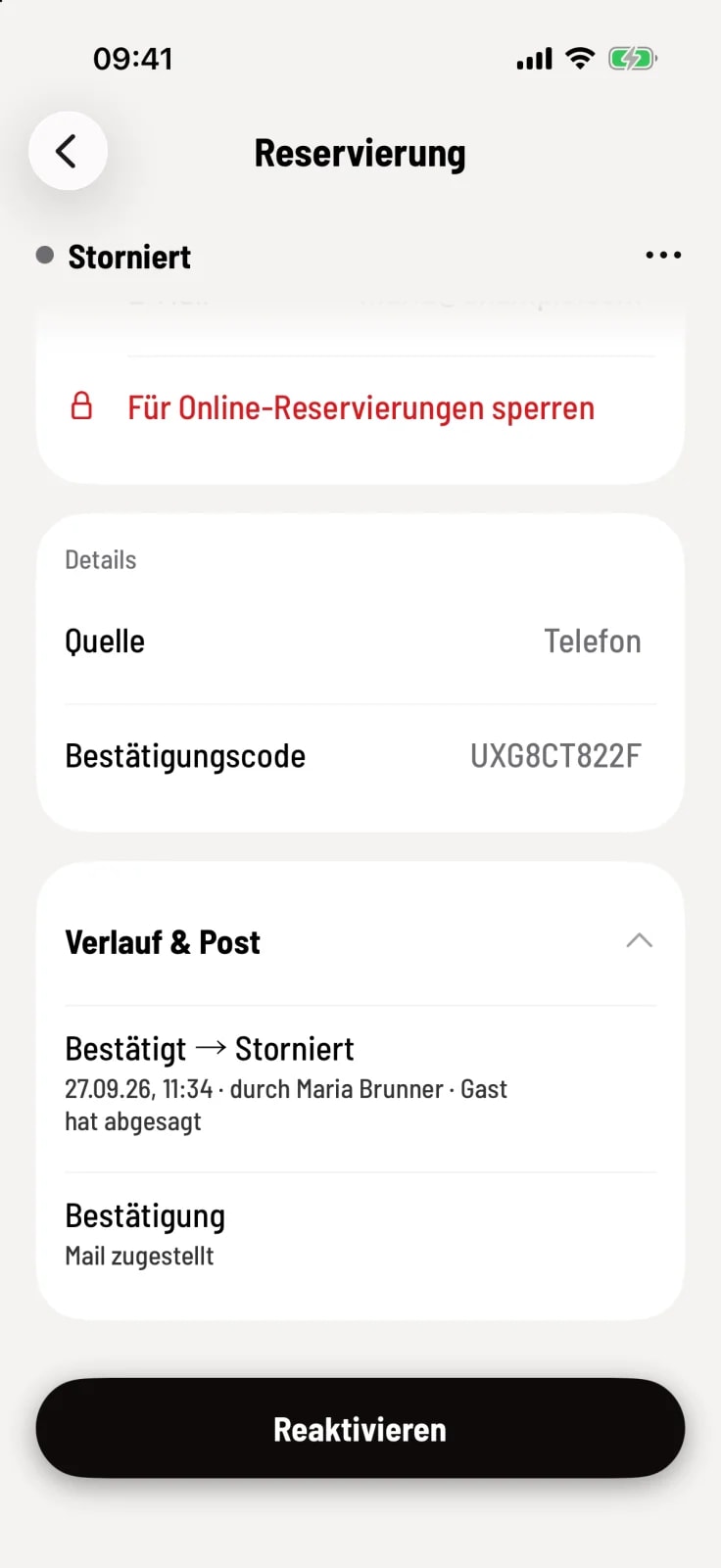
Step 2 of 2
History & Mail
Open the History & Mail section: Here you will find every status change with time and employee, and whether confirmation, reminder or cancellation emails were delivered.
If automatically complete reservations is enabled in the Web desk , Servire will automatically set placed reservations to Completed after their end time – without sending an email to the guest.