
Overview of guest management settings
Where you can set up loyalty points, stamp cards, credits, guest accounts and automatic emails for your guests.
You can configure all guest management rules in one place: Open Guests in the Web desk and click on the gear icon (Settings) in the upper right corner. The Guest Management Settings dialog has five tabs. Next to each heading is an information icon with a brief explanation.
Guest management is included in the Max plan. The first time you open Guests, a wizard will guide you through the setup; before that, you, as the owner, must conclude the data processing agreement (DPA). Only those with the Manage Guests right can change the settings – everyone else can only view them.
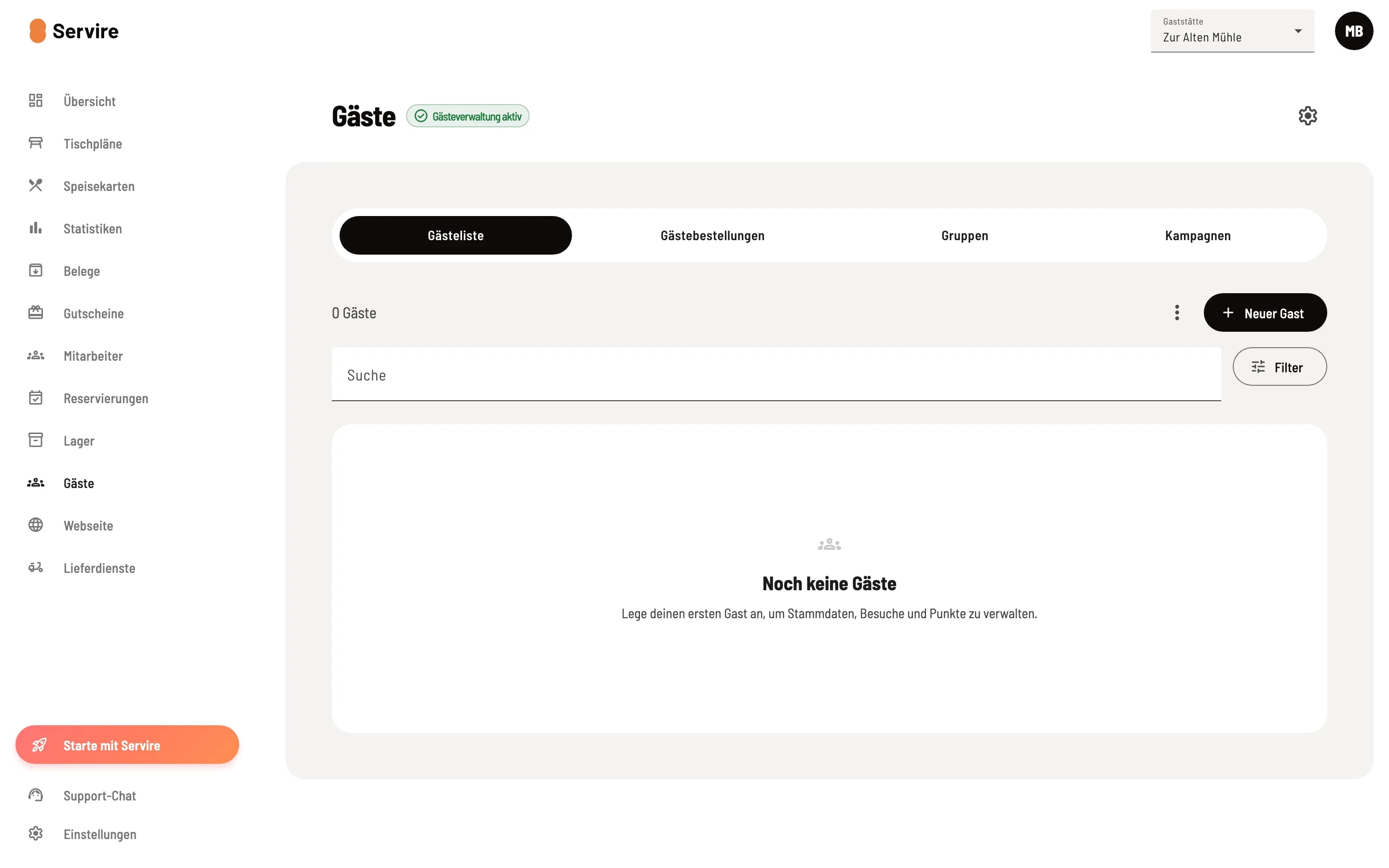
Guests open
Open Guests. The badge next to the title indicates whether guest management is active; you can also use it to turn it on or off. The gear icon in the upper right opens the settings.
The Five Horsemen
- Loyalty Points – Points per euro spent, value of one point, and minimum points required for redemption. See Setting up Loyalty Points. - Stamp Cards – Digital stamp cards such as "10 coffees, get 1 free". See Setting up Stamp Cards. - Credit – Prepaid credit that you top up at the checkout, optionally also online. See Setting up Credit (Prepaid). - Guest Account – Guest access where guests can view their points, stamps, and credit balance themselves. - Automatic & Emails – Automatic VIP assignment, birthday emails, and default settings for invoice delivery. See Setting up Guest Access, VIP Assignment, Invoice Delivery, and Birthday Emails.
Save and Errors
Your changes will only take effect after saving. If an entry is incorrect, the dialog will jump to the first affected tab when saving; tabs with errors will display !. If you close the dialog with unsaved changes, it will ask if you want to discard them.
If you deactivate a program (loyalty points, stamp cards, credit balance), a confirmation message will show how many guests are affected. Collected points, stamps, and credit balances will always be retained.