
Overview of the POS app settings
Where you can find the settings of the cash register app and what's behind each line.
The POS app has its own settings menu. There you define how the device works and manage your own account. Settings that apply to the entire business, such as payment methods or receipt printing, are configured in the Web desk .
The line "Printer" is only visible to employees with the employee right "Access to printer settings". All other lines are visible to anyone who is logged in.
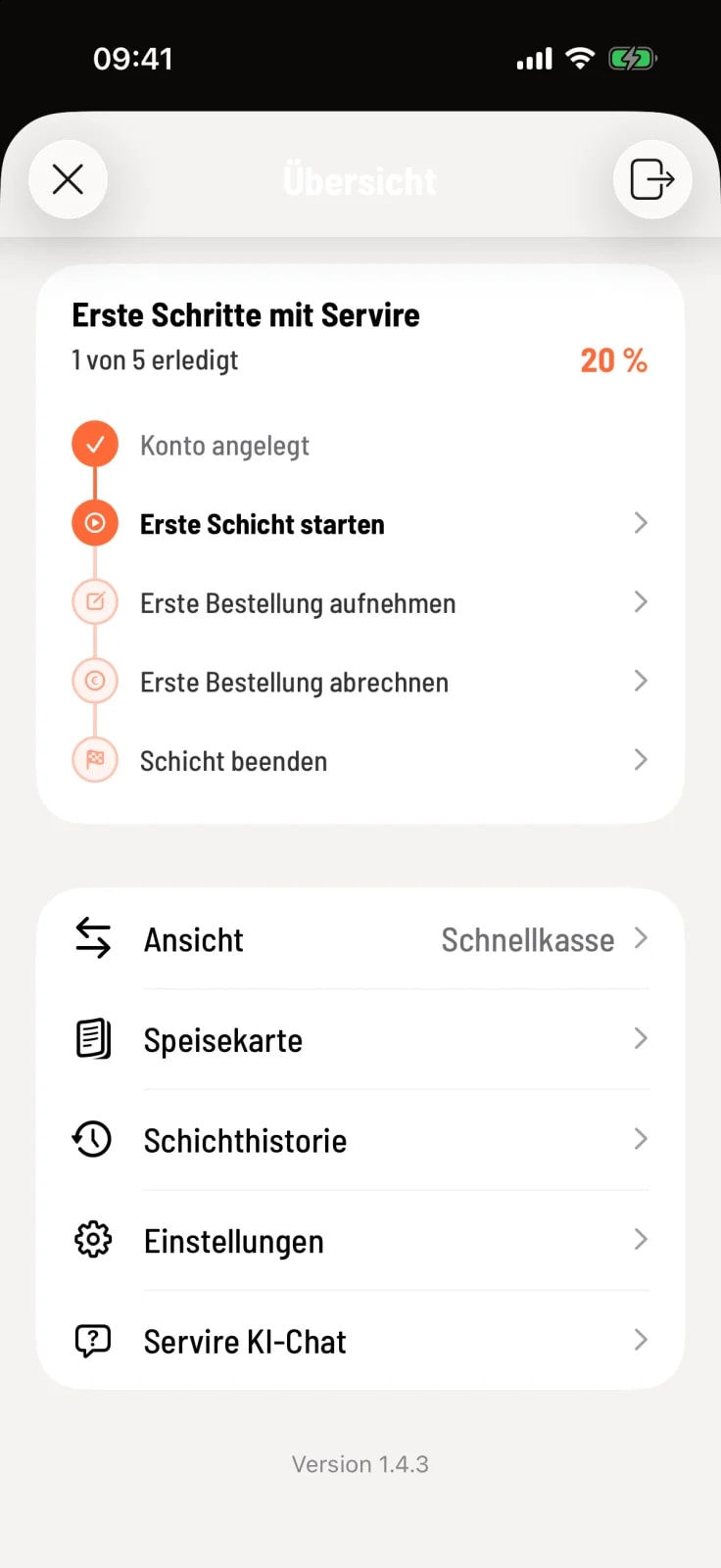
Step 1 of 2
Open overview
Tap the house icon in the top left corner. The Settings option is located at the bottom of the overview.
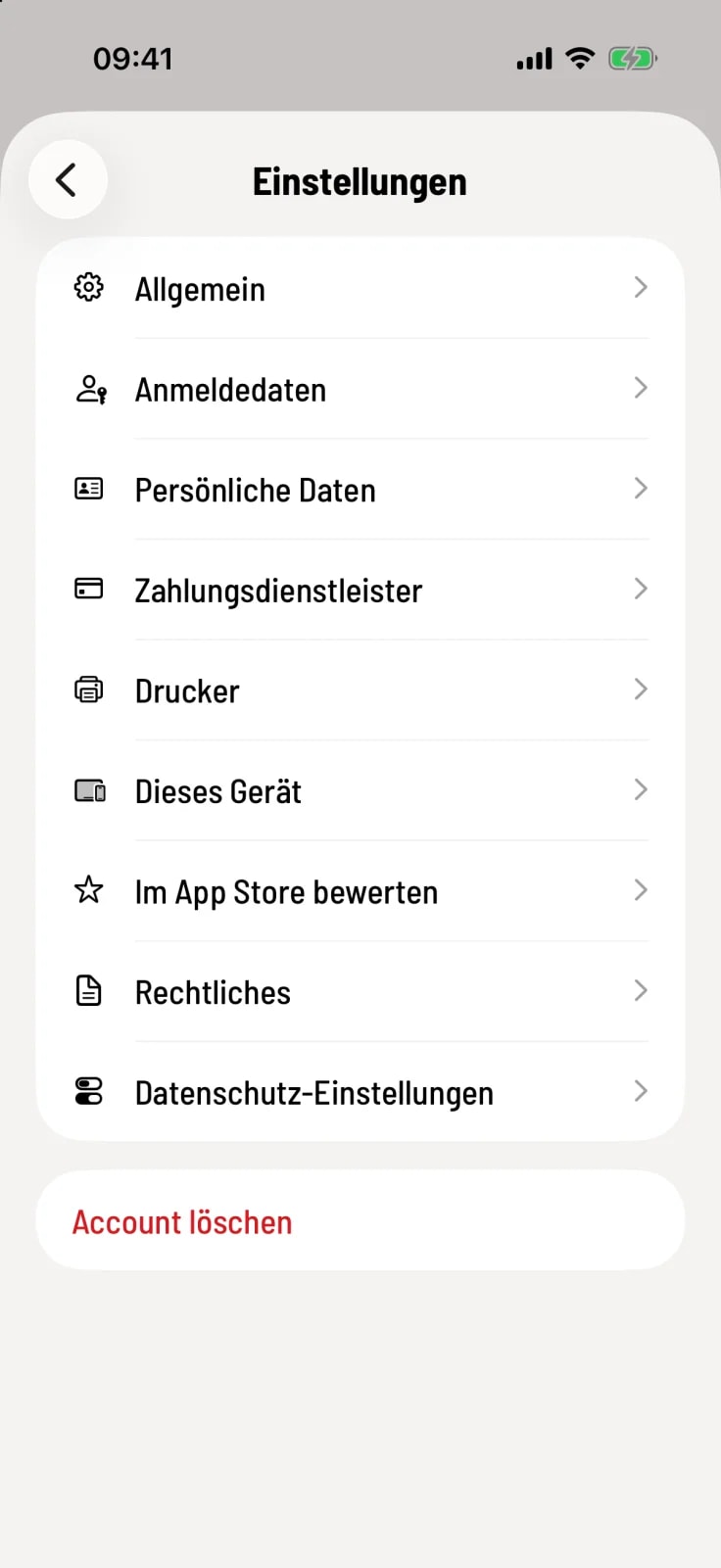
Step 2 of 2
Open settings
Tap on Settings. Each line opens a separate screen.
What lies behind the lines
General – Receipts, item tiles, quick notes, font size and preselection during settlement: General settings of the POS app.
Login details – Email, password and login PIN: Change login details.
Personal Data – Name, address and telephone: Change personal data.
Payment service provider – Tap to Pay and card reader of this device: Payment service provider in the POS app.
Printers – the receipt printers of this device: Add printer. If your business prints via the Servire Hub, Hub mode active will be displayed on the right.
This device – the device assistant for home view, permissions and card payment: Set up the device with the assistant.
The rating line opens the rating page of the Servire app in your device's store.
Legal Information and Privacy Settings – Terms and Conditions, Privacy Policy and Usage Statistics: Legal information and data protection in the POS app.
Delete Account – permanently removes your account: Delete Account.
The start view – table plan, express checkout or reservations – is not in the settings, but directly in the overview under View: Switch view.