
Setting up a kitchen monitor
Set up a screen in the kitchen where each order sent appears as a card.
The kitchen monitor replaces the paperwork: Every order appears as a card as soon as it is sent at the checkout. Orders from the guest app, ordering terminal, and delivery services are also included.
Requirements: A screen or tablet with internet access, your Servire account and an open shift in the POS app.
Furnish
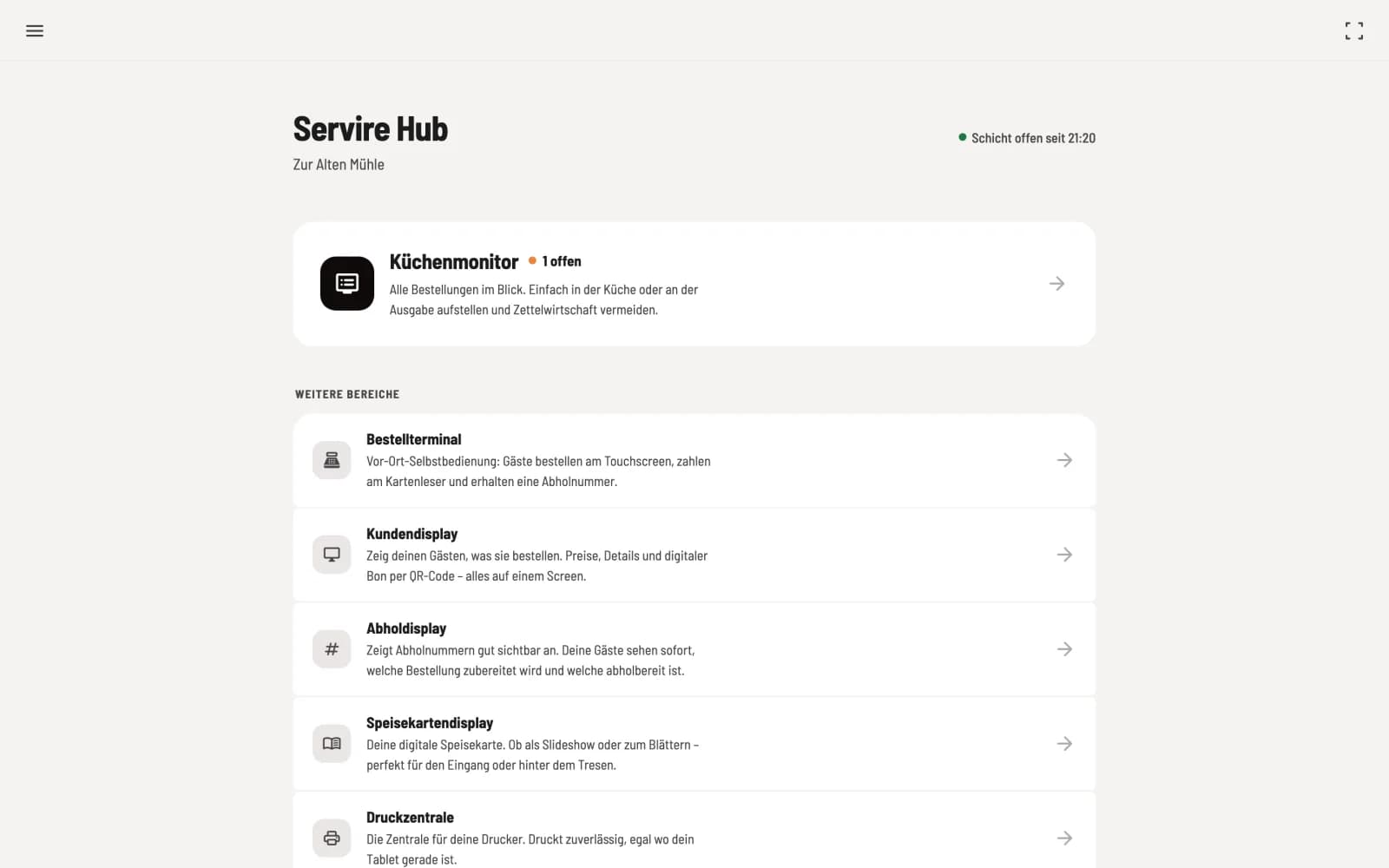
Step 1 of 2
Open kitchen monitor
On your kitchen appliance, open hub.servire.de, log in and select the Kitchen Monitor tile.
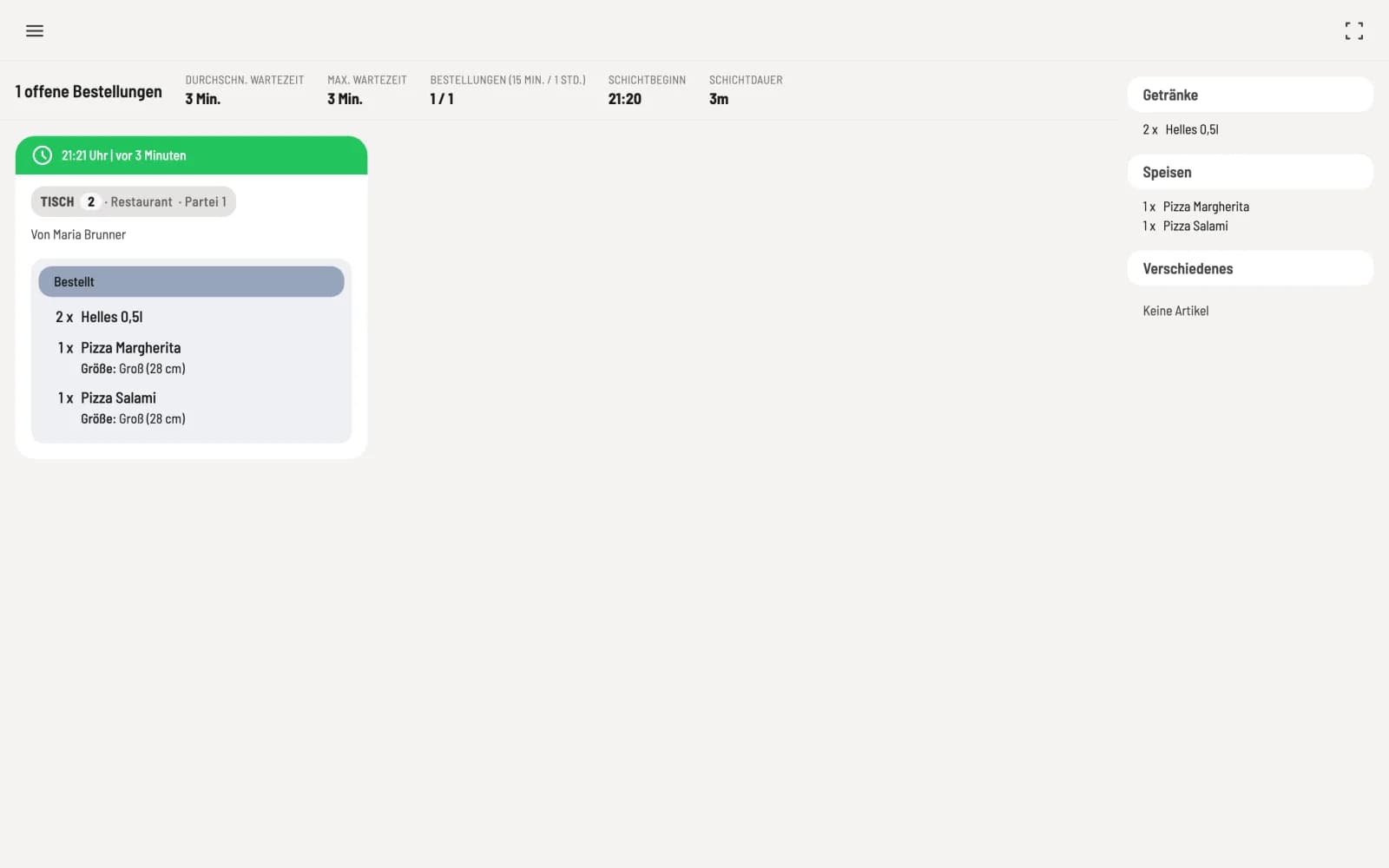
Step 2 of 2
Turn on full screen
Click the full-screen icon in the top right corner. To prevent anyone from accidentally navigating away, secure the device with the device code.
Only certain item are shown
By default, the monitor displays everything. If a second device is placed at the bar, it should usually only display drinks. To change this, open the kitchen monitor settings on the respective device and select only the relevant groups under Item Groups. This selection applies only to that specific device.
If the monitor remains blank
No active shift – no shift is open in the POS app. Start one.
No orders – there really are no open orders, or the filters are too restrictive. Check the Item groups and Status filters settings.
Operation: Operate the kitchen monitor.