
Setting up service counters and allocation
This way, each server gets their own cash register, and several share a common one.
In the Web desk, open Settings → Cash Register and click on the pencil icon under Cash Book & Service Cash Register. In the Service Cash Register section, you can activate separate cash registers for your team and define how cashiering for colleagues is counted.
During an ongoing shift , the service till, assignment, groups, and tip are locked; a message will appear at the top of the dialog box. Change these settings before the next shift starts.
Service counter
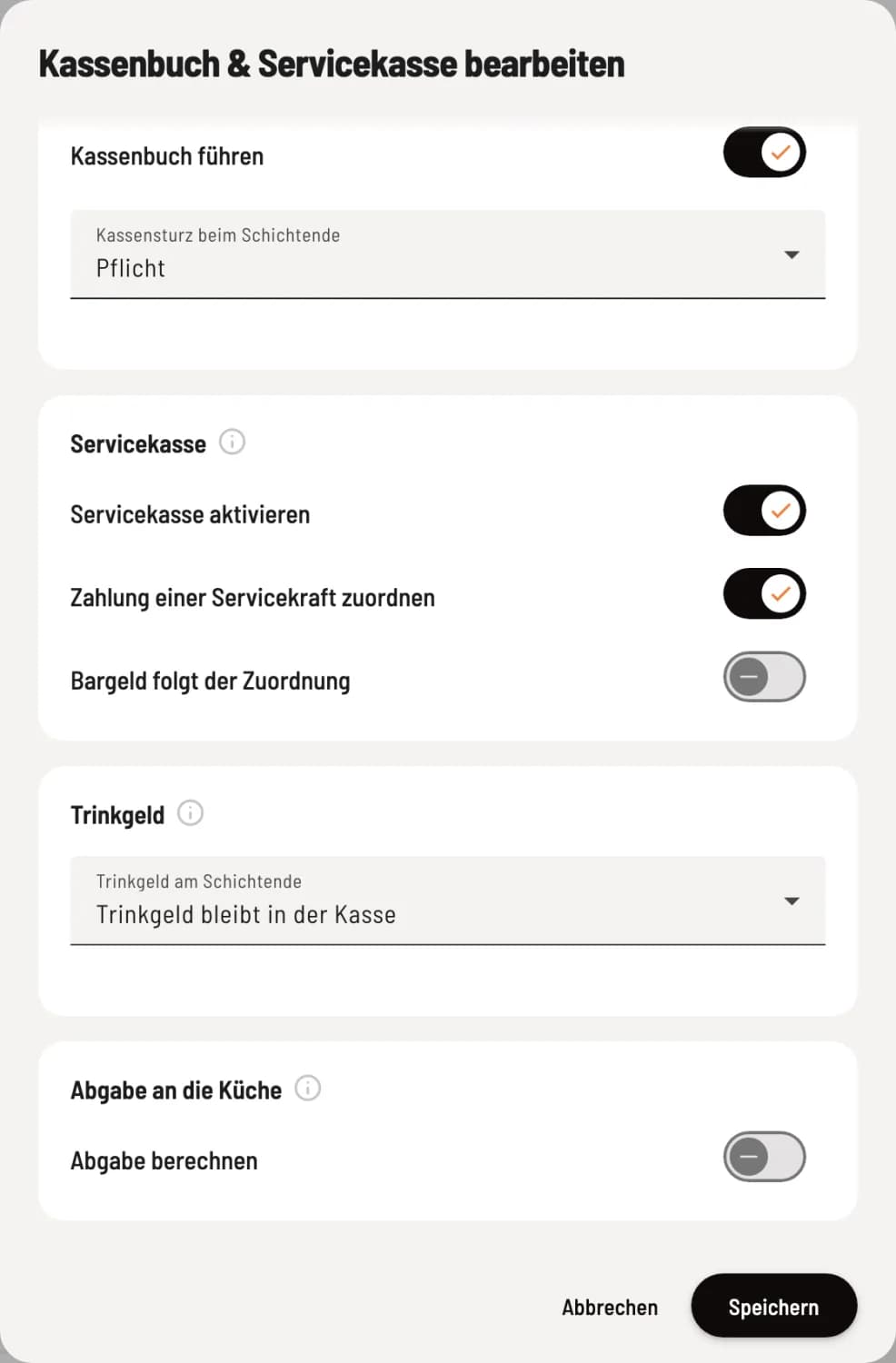
Activate service point-of-sale
Activate Service POS. Cash follows allocation will only appear if **Assign payment to a server ** is also enabled.
Activate service cash register: Each server receives their own cash register with an initial balance and counts it at the end of their shift. Without a service cash register, all cash transactions are handled through a shared cash register.
**Assign payment to a server **: For businesses where someone handles payments for colleagues. During the accounting process, you select who receives the sales and tip , both in the Z-report and in the statistics. In the tax office export, the cashier remains the server.
Cash follows the allocation: The cash is counted towards the service till of the selected server. Only activate this if they will actually receive the money, otherwise the count will be incorrect.
Service cash register groups
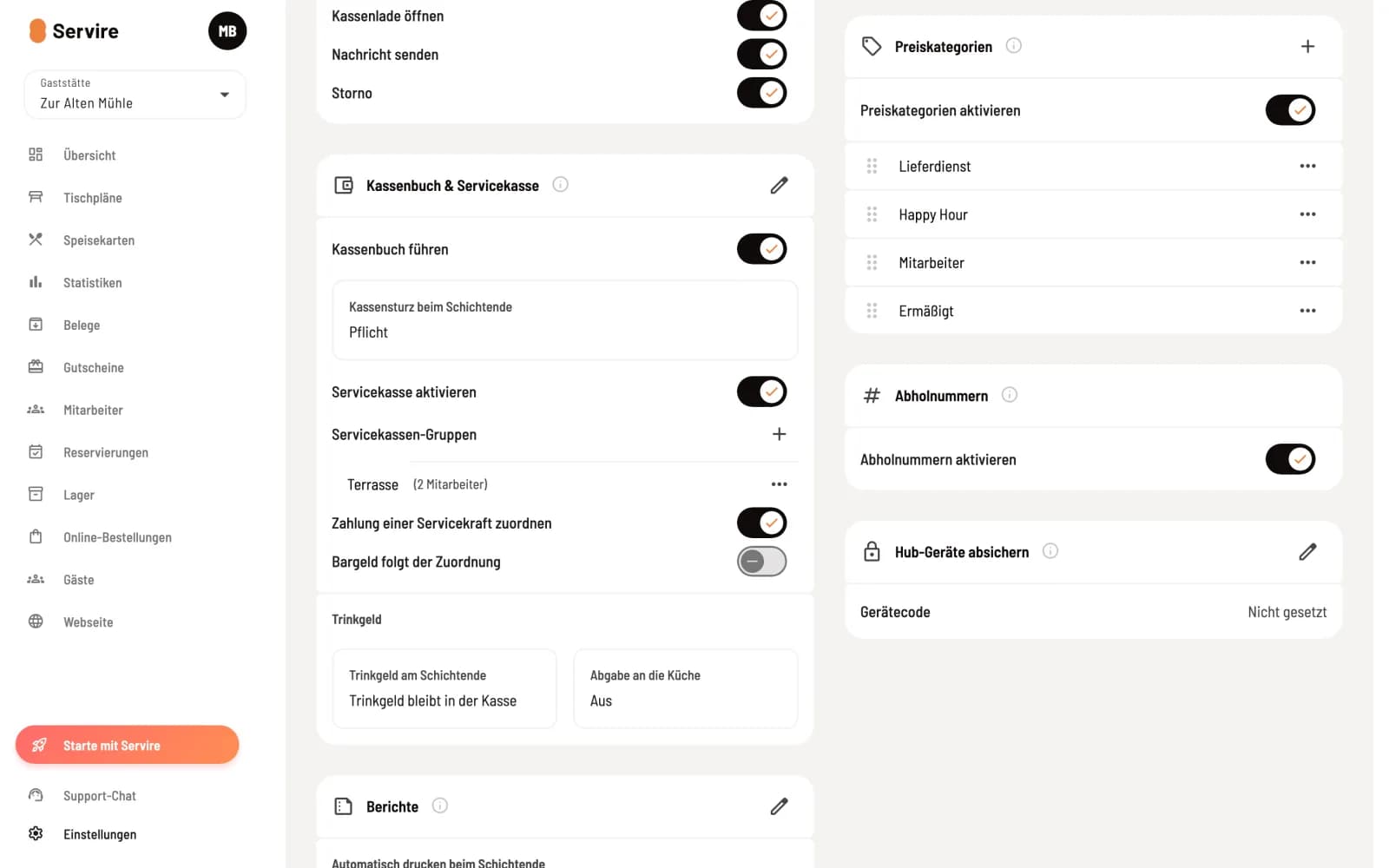
Step 1 of 2
Groups on the map
With the service point activated, the Cash Book & Service Point map displays the Service Point Groups section. Use + to create a group, and … to edit or delete one.
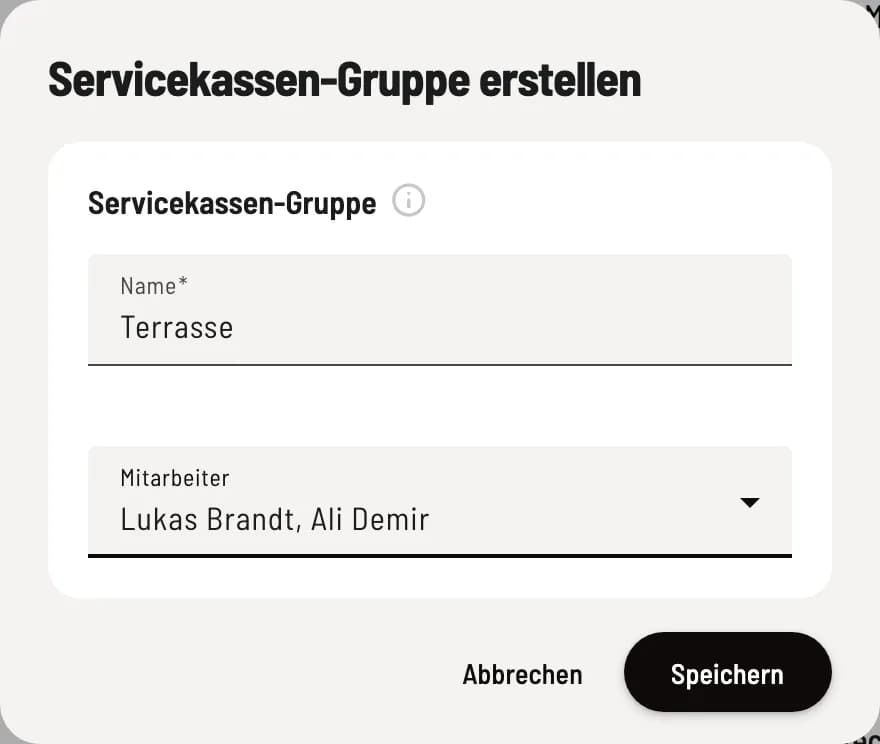
Step 2 of 2
Create group
Enter a name, e.g., "Terrace", and select the employees. Employees from a different group are grayed out. Save creates the group.
The employees in a group share a service till. Whoever opens it first during their shift counts the initial balance; the others join in. At the end of the shift, the total is counted together. Each employee can only be in one group. Without a group, each server has their own individual till; if you delete a group, its members will have their own individual tills again.
Daily routine in the POS app: Open the service checkout and count the service checkout. You can configure whether employees need to clock in before opening it in the time tracking settings (Force clock-in before service checkout check-in).