
Secure hub devices with a device code
Use a numerical code to prevent guests from leaving full screen or switching to the menu at the terminal.
The device code protects all Hub devices in your restaurant: Without it, you can't exit full screen, and the menu won't open in the guest areas. This prevents unauthorized access to the kitchen or settings at the order terminal or customer display. You can manage it under Settings → POS in the Secure Hub Devices section.
Set device code
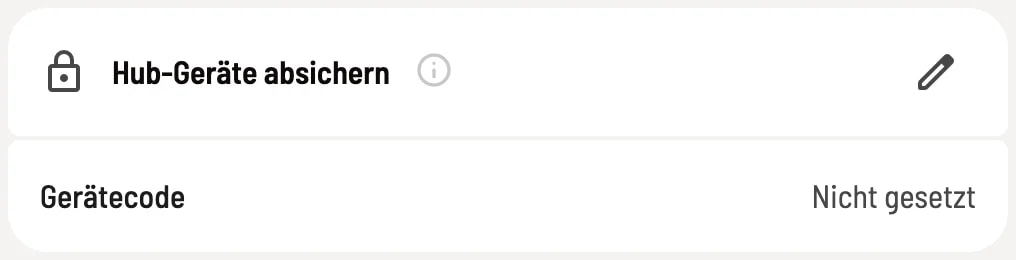
Step 1 of 2
View device code status
Under Device Code you can see whether a code is Set or Not Set. Click on the pencil icon.
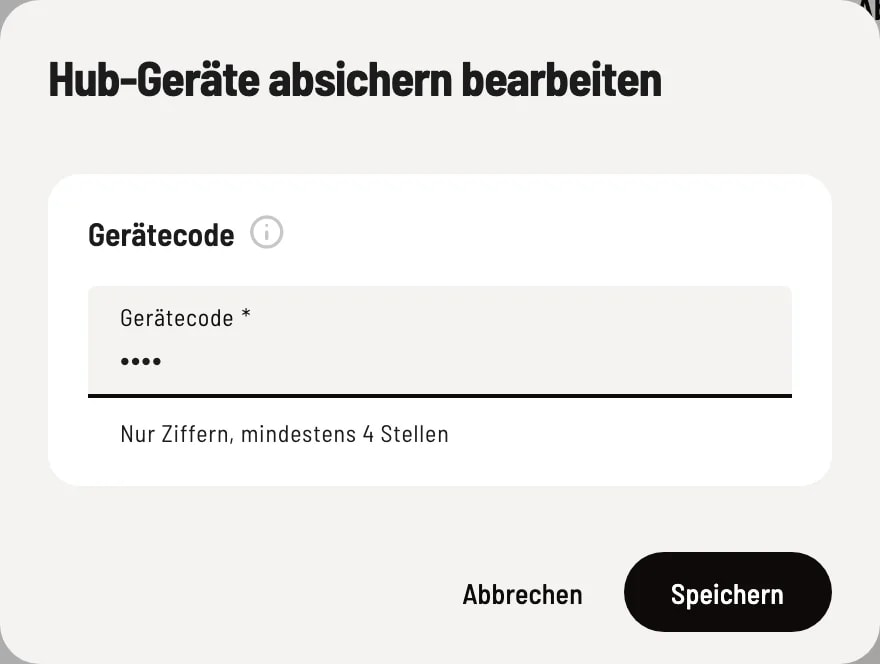
Step 2 of 2
Enter the code
Enter only numbers under Device Code, at least 4 digits, and click Save. The code will immediately apply to all Hub devices in this restaurant.
Where the hub asks for the code
- Exit full screen – in all areas of the hub, including the kitchen monitor and print center.
- Open menu – only in the guest areas: order terminal, customer display, pick-up display and menu. After correct entry, the menu remains visible for one minute.
The kitchen monitor and print center are devices for your staff; the menu opens there without a code.
Change or remove code
A set code cannot be displayed. Reopen the dialog and enter a new one under New Device Code to replace it. Use Remove Code to remove the protection.
Write the code down in a safe place. If you forget it, you can simply enter a new one in the Web desk – you don't need to know the old one.