
Kitchen monitor settings
Article groups, status filters, sorting, recipes, sound, automatic status assignment and colors.
Click on your profile (gear icon) in the sidebar at the bottom and select the Kitchen Monitor tab. Each section also has an info icon for further information.
Where the settings apply: Item groups, Status filters, Sorting, Show recipe buttons, and Sound apply only to the device you are using. This ensures each screen displays what is needed at its location. Record course times, automatic status assignment, and colors apply to the entire restaurant.
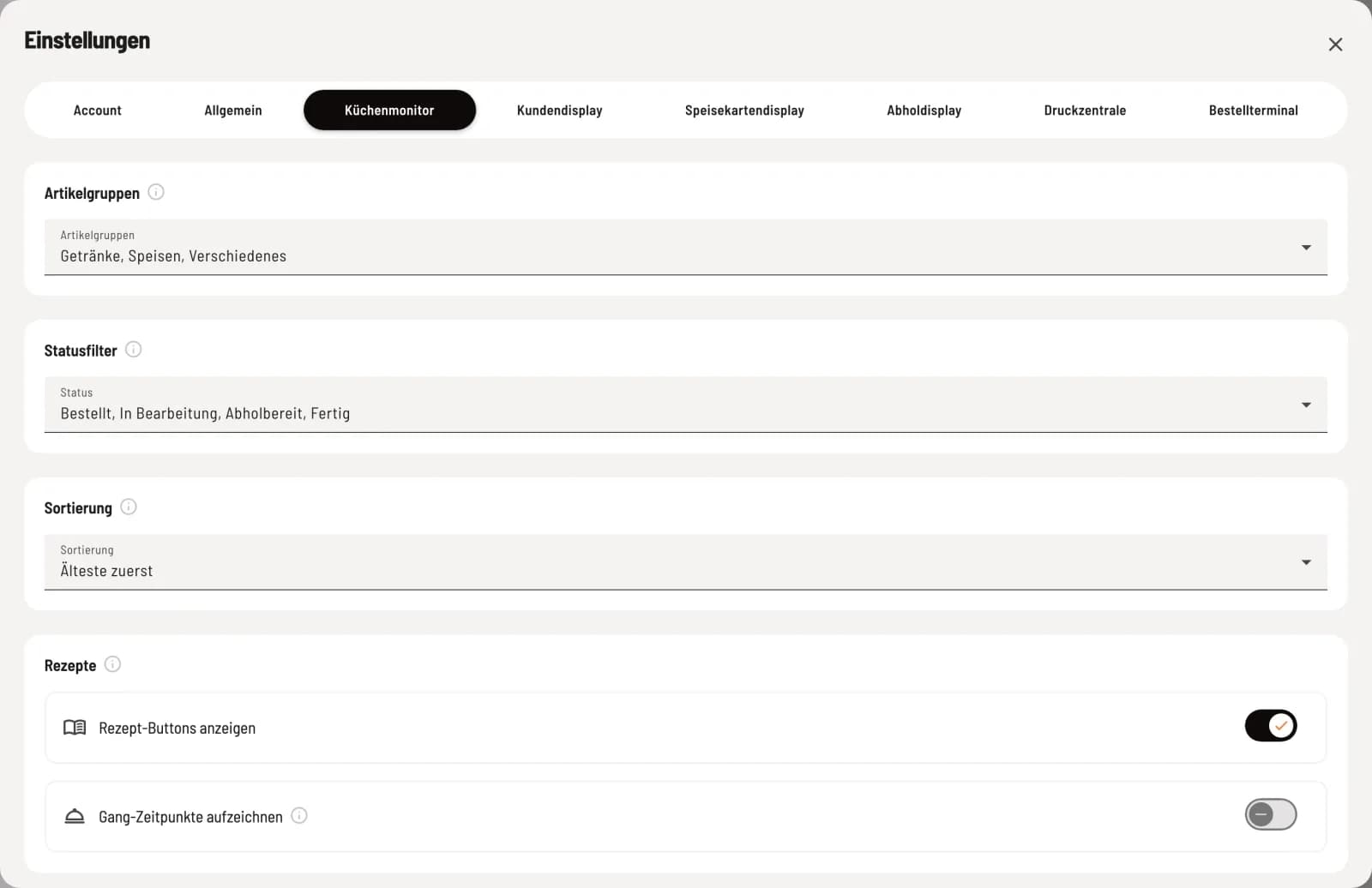
Article groups – which groups appear on this monitor, all by default.
Status filter – which statuses are visible: Ordered, In progress, Ready for pickup, Done. To only see pending tasks, deselect Done.
Sorting – Oldest first (default) or Newest first.
Show recipe buttons – displays the book icons in the positions.
Record course times – records when a course was finished and served; the cash register displays this at the table. Disabled by default. Only activate once all cash registers are up to date.
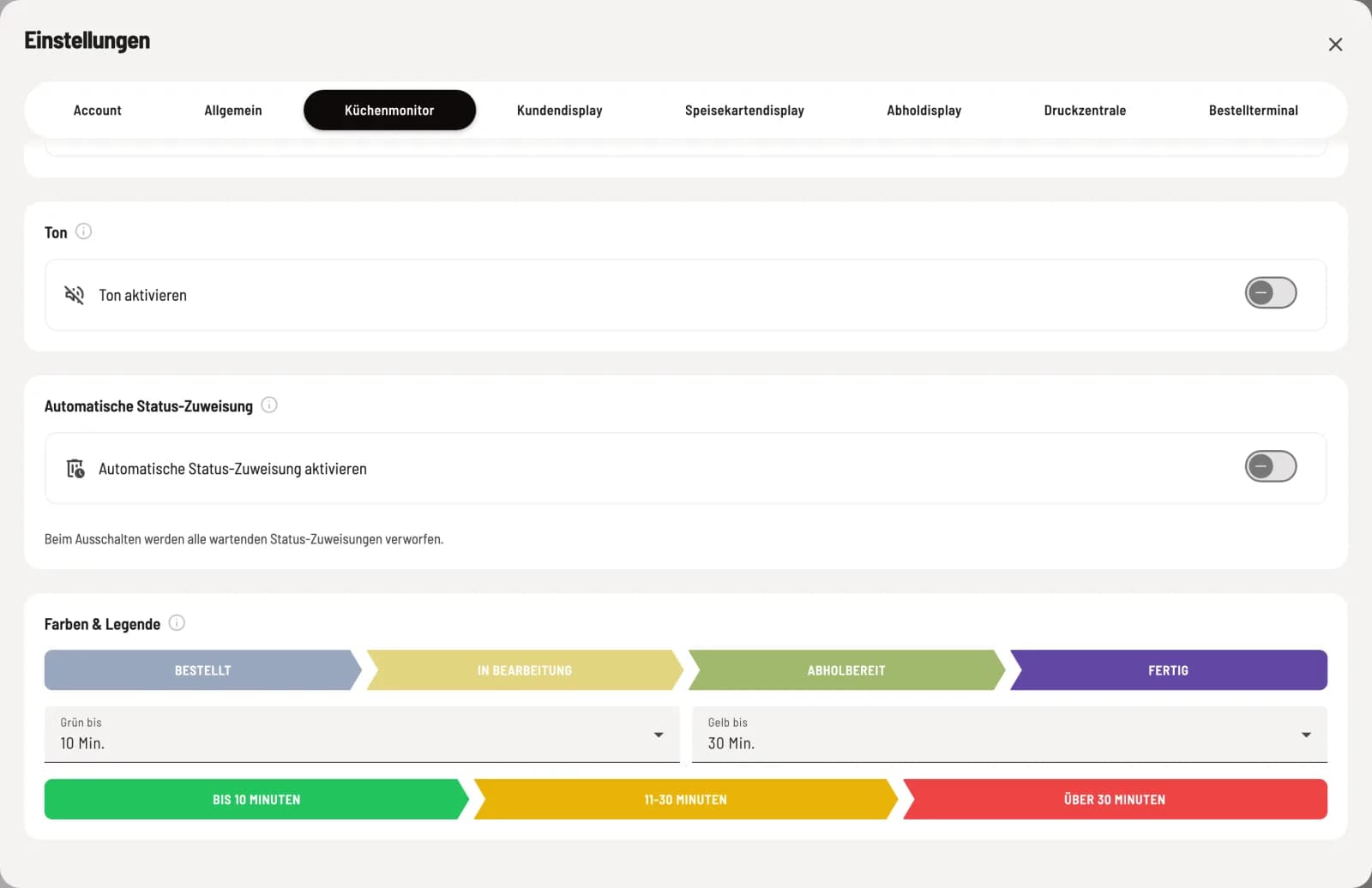
Tone – a signal tone for every new order, with six sounds: Single, Double Beep, Ascending, Doorbell, Bell, Marimba. Listen to a preview. Factory default setting.
Colors & Legend – when a waiting order turns yellow and red: Green until and Yellow until, 10 and 30 minutes from the factory.
Automatic status assignment
When an order is paid for or canceled in the POS app, Servire automatically sets a kitchen status after a waiting period. The card disappears without anyone in the kitchen taking any action. Enable Automatic Status Assignment and configure separate settings for Payment and Cancellation.
Waiting time – from immediately to 10 minutes, so that the kitchen has a buffer.
Status after payment or after cancellation in the POS app – which status is set; No assignment deactivates the case.
When the device is switched off, all pending assignments are discarded.