
Define colors, fonts and brand logo
A brand presence for your guest pages, voucher printing and menu PDFs.
Under Settings → Restaurant, the map displays Branding accent color, font pairing, and logo. These apply to your guest pages (website, reservation, order, voucher shop), voucher printing, and menu PDFs.
Prerequisite: Tariff Max (also during the test phase).
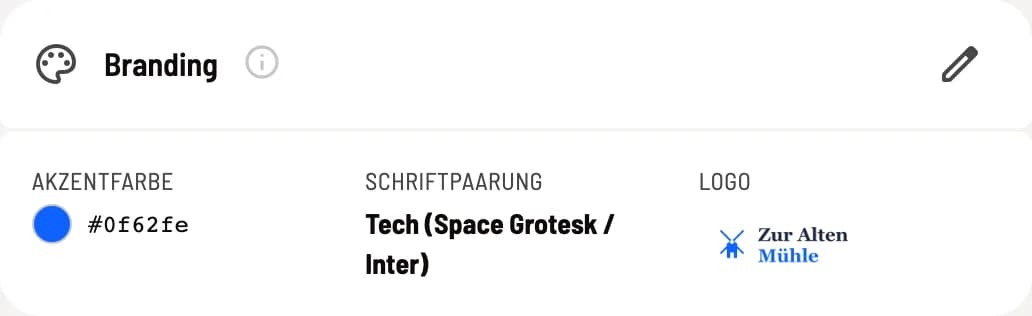
Step 1 of 2
Card Branding
Click on the pen to open the dialog.
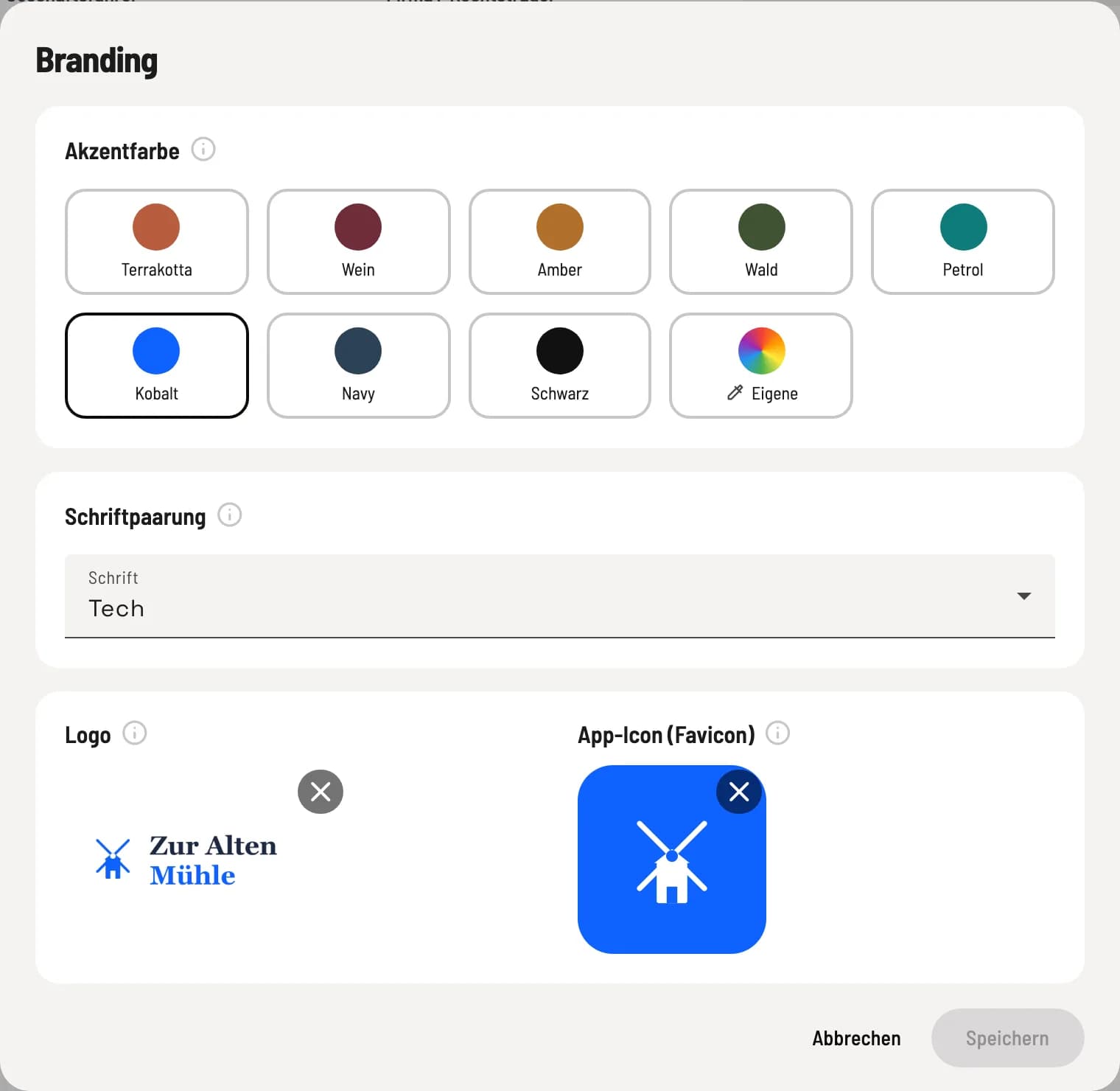
Step 2 of 2
Dialogue Branding
Three sections: Accent color, Font pairing, Logo, and App icon (favicon).
Accent Color: Color for buttons, links, and highlights. Choose a preset or any color via Custom.
Font pairing: one font pair for headings and body text.
Logo: your colorful logo for guest pages, vouchers and menu PDFs.
App Icon (Favicon): Square symbol for the browser tab and the guests' home screen, at least 128 × 128 pixels. If no custom icon is provided, the Servire icon will appear.
Save saves the color and font. The logo and app icon are saved immediately after uploading; Cancel does not undo this. A separate black and white logo is available for printed receipts: Receipt logo and receipt options.