
Guest access, VIP allocation and invoice dispatch
This is how you give guests their own account, automatically mark VIPs, and set up invoice delivery via email.
You can find these settings in the Web desk under Guests → Gear icon, in the tabs Guest account and Automation & Emails.
Guest management is included in the Max plan. The first time you open Guests, a wizard will guide you through the setup; before that, you, as the owner, must conclude the data processing agreement (DPA). Only those with the Manage Guests right can change the settings – everyone else can only view them.
Guest access
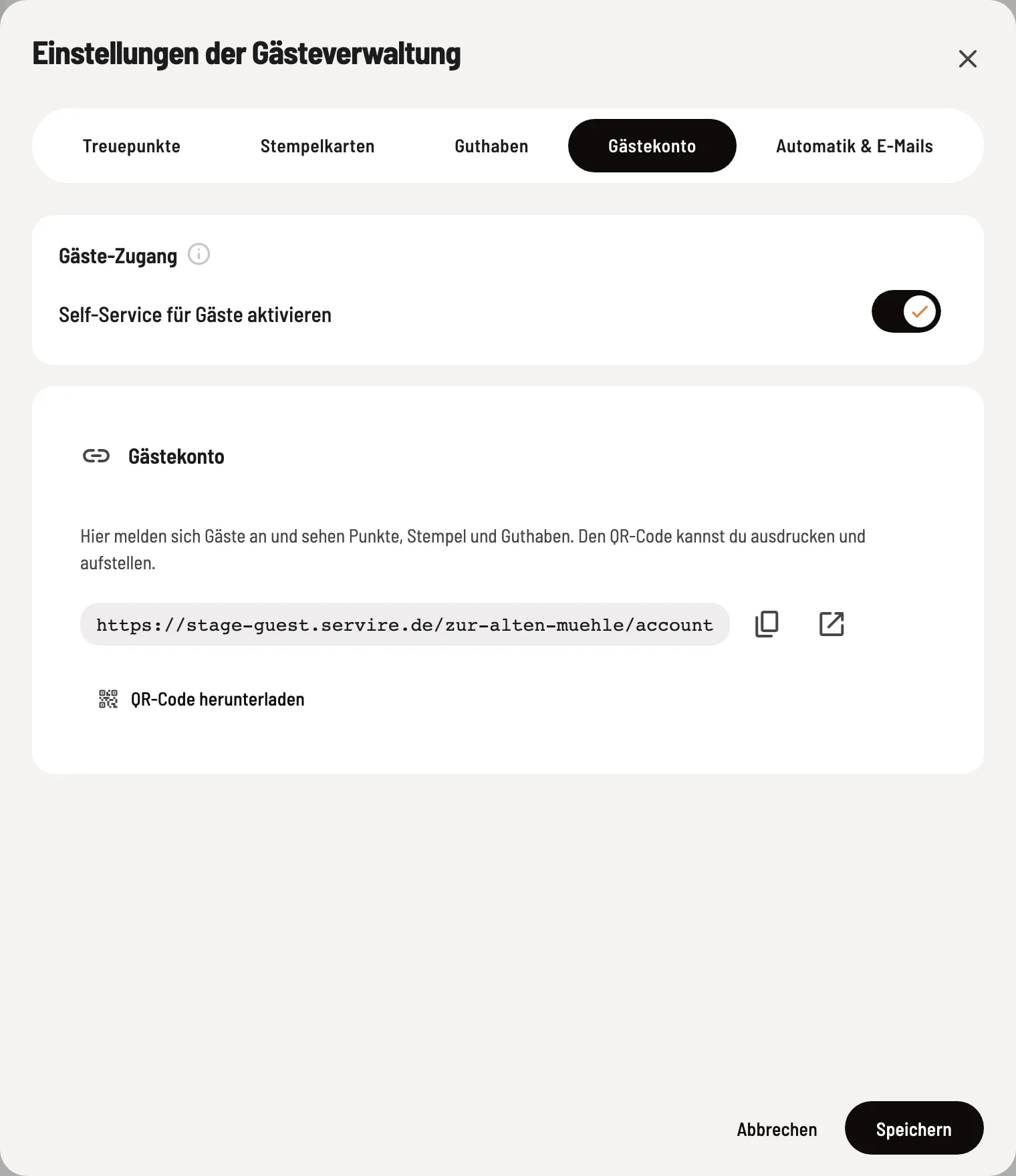
Guest account tab
Activate self-service for guests. Below, you will find the link to the guest account (copy and open) and a download QR code for a table or counter display.
Guests register on your guest page – via a link or code sent to their email address, using Google or Apple – and can view their points, stamps, and balance there. The guest page then displays an account login, and emails to guests link to their account. Without a guest website, there is no link yet; the tab then displays Go to website.
Automatic VIP allocation
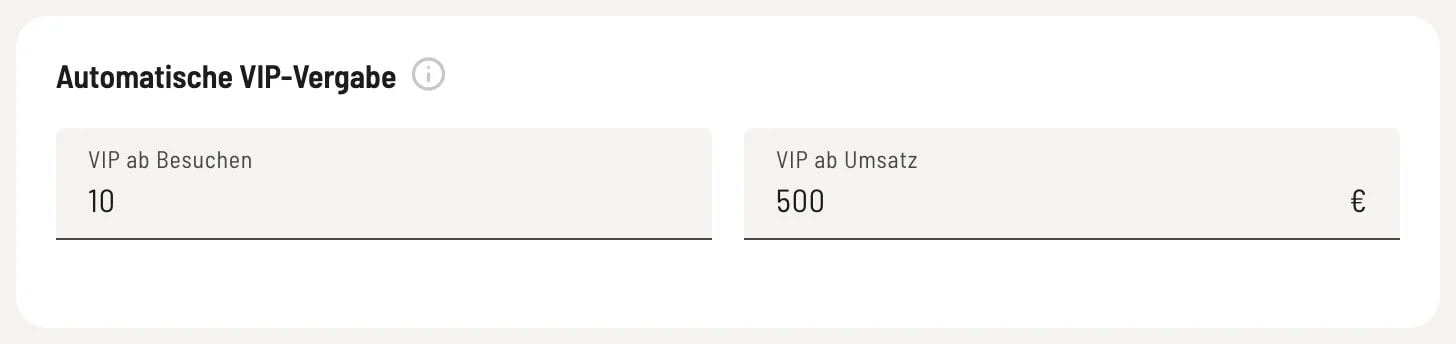
Setting VIP thresholds
In the Automation & Emails tab, enter a threshold under VIP from Visits and/or VIP from Revenue. An empty field disables the respective rule.
- VIP from visits – Number of visits.
- VIP based on sales – Value of goods from all visits, excluding tip and deposits.
If a guest reaches one of the thresholds, they are automatically marked as a VIP – after each billing cycle and additionally every night. If they no longer reach a threshold, for example, because you have increased it, they lose the automatically assigned VIP status that night. If you manually remove a guest's VIP status, the rule will never grant it again.
Invoice automatically sent by email

Further section
Send invoice automatically via email after billing (default) is the default setting for guests you add in the Web desk . You can change it for each guest in their profile.
Corporate guests who haven't specified their own payment method will receive their invoice by email after each transaction. For other guests, this setting only applies based on their initial booking.