
Assign guest at checkout
Assign a payment to a regular customer: collect stamps, regular discount, credit and guest card.
If you assign a guest to an order, they automatically collect stamps when paying, receive their regular discount, and can redeem rewards and credits.
Tariff Max and guest management enabled in Web desk: Guest management settings. Otherwise, the Guest line will be missing.
Assign guest
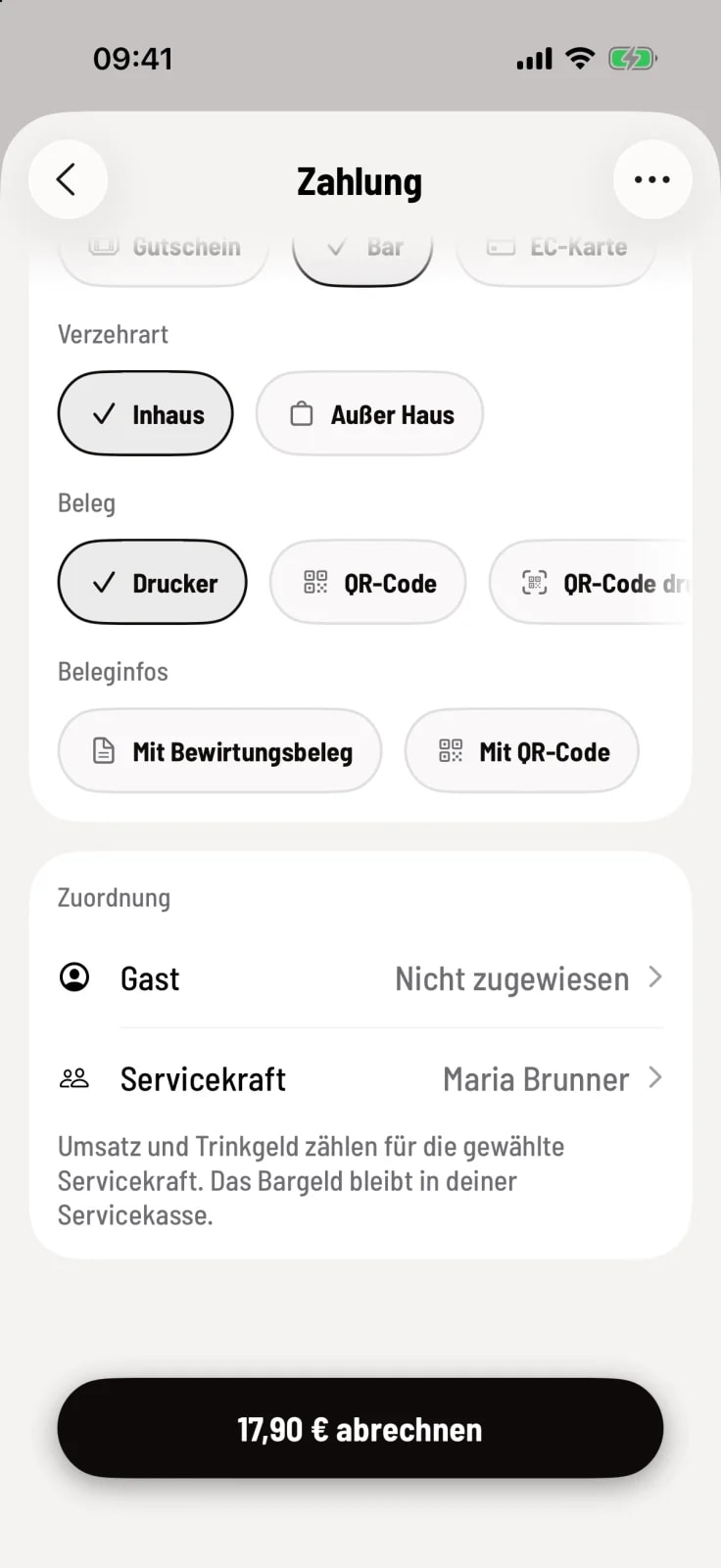
Step 1 of 3
Tap the guest line
On the Payment screen, under Assignment, tap Guest. At the table, you first go to … of the party and Assign Guest…, at the express checkout via Assignment in the receipt.
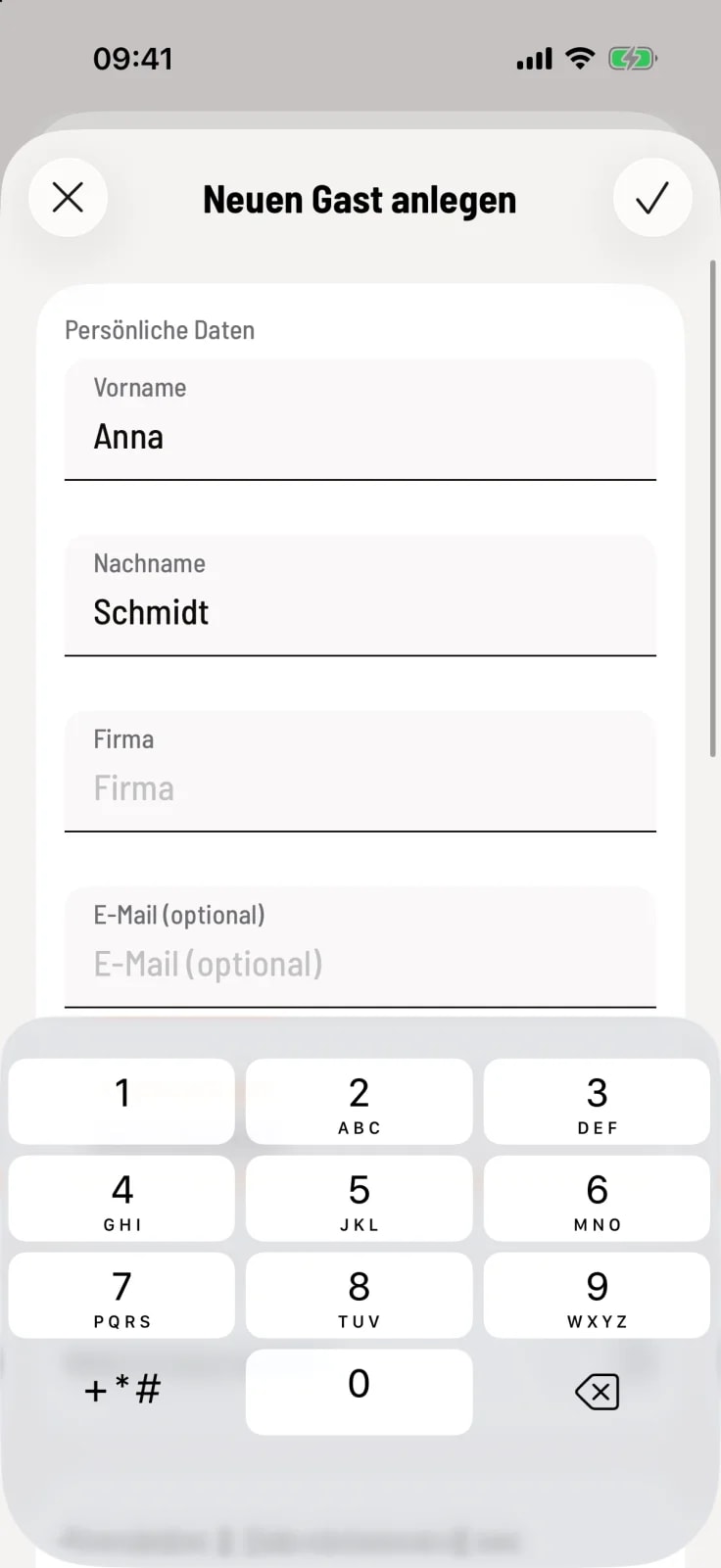
Step 2 of 3
Search or create a new one
Search by name, company, phone number, email address, or number, or scan the guest card. Add new guests via +; first name or company name is required. You can only activate the newsletter with the guest's consent.
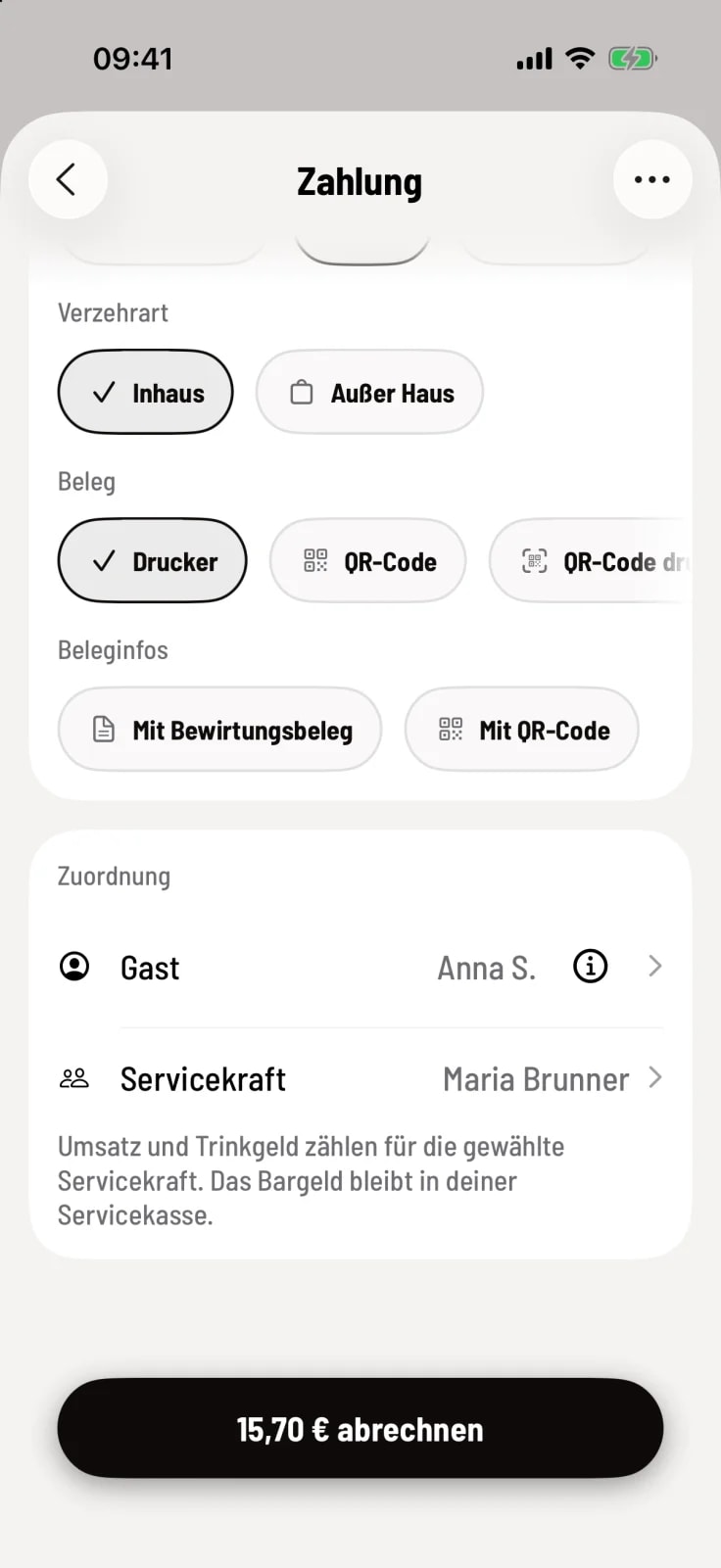
Step 3 of 3
Guest is assigned
Below the name, you'll find the stamp balance, credit balance, and any relevant information such as allergies. If the guest has a loyalty discount, the cash register will apply it automatically.
Servire automatically adds the stamp after payment. The new balance is shown on the receipt.
Redeem reward and Redeem credit will appear in the … top right corner as soon as the guest has something.
The standard discount only applies when no other discount is used and no price category is selected. It is set in the Web desk.
Guest newspaper
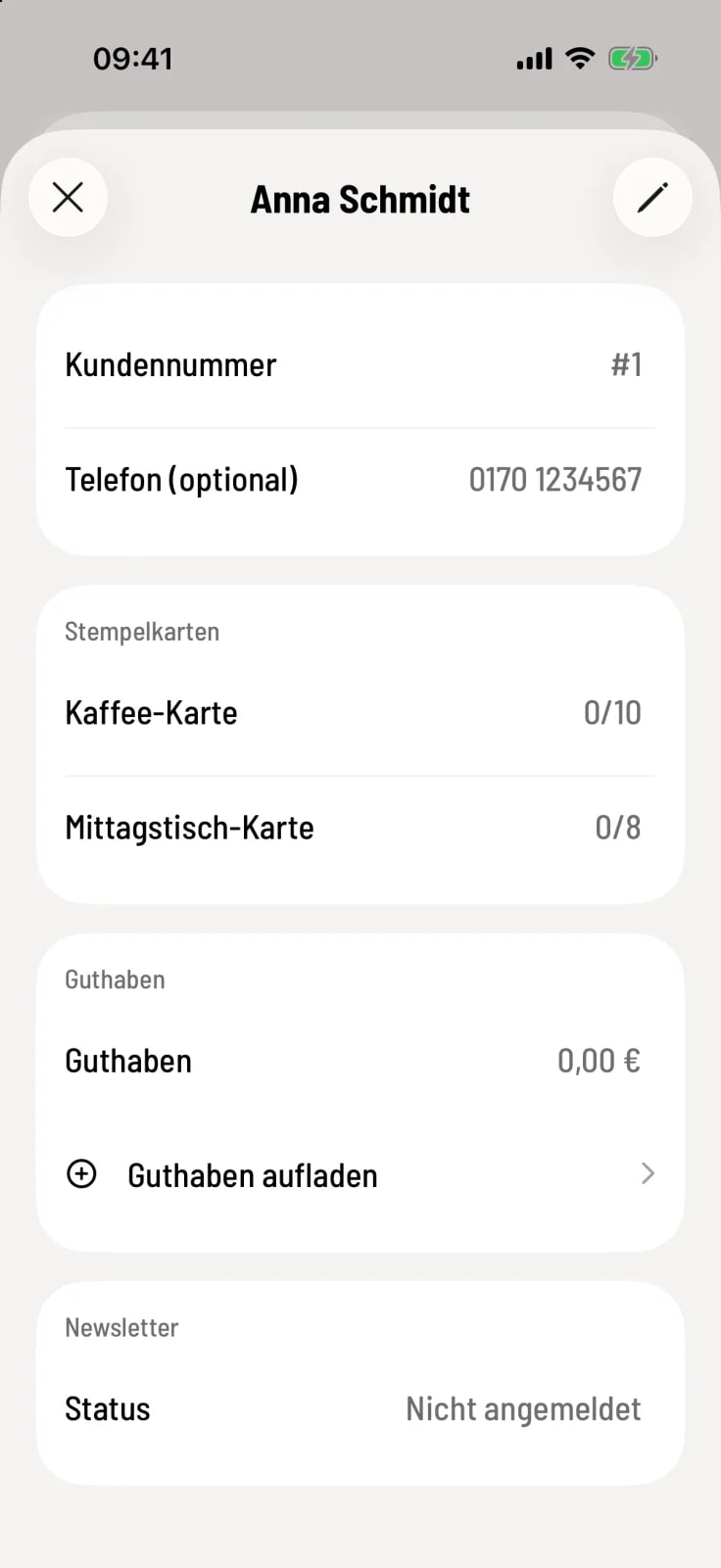
Open guest sheet
Tap the ⓘ next to the guest or tap the guest's name at the table. You'll see punch cards, balance (with top up balance), and the newsletter status. Use the pencil icon to edit the guest's information.
Assign subsequently
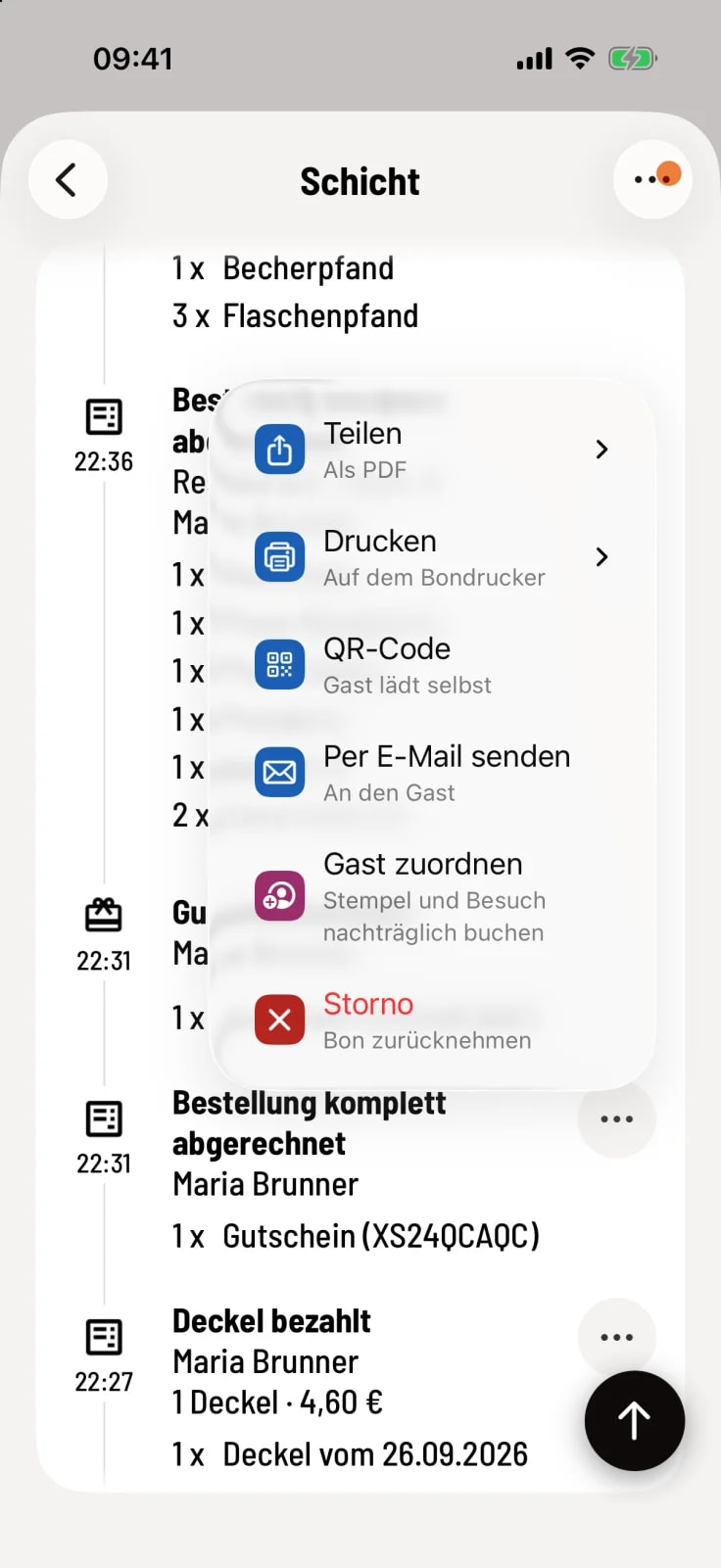
Assign document
Forgot your card? Open the shift, tap … on the receipt, and then tap Assign Guest. The stamps will be added retroactively.
Retroactively assigning bookings requires the "Manage Guests" right. This only works for bookings from the last 7 days that have not been cancelled.