
Integrate reservations, orders, menu or vouchers into your own website
Here's how to integrate reservations, menu, guest orders, or voucher sales via code into your existing website.
You already have your own website, for example on Jimdo, Wix or WordPress, and want to display table reservations, menu, orders or voucher sales. You can get a ready-made code to insert for this in the Web desk .
Prerequisite: Your Servire website needs a web address and must be published ( Set up your own website ). If the address is missing, the dialog will display a message: The code will appear as soon as your website has an address. For ordering, guest orders must be active; for vouchers , online sales must be enabled.
Release domain
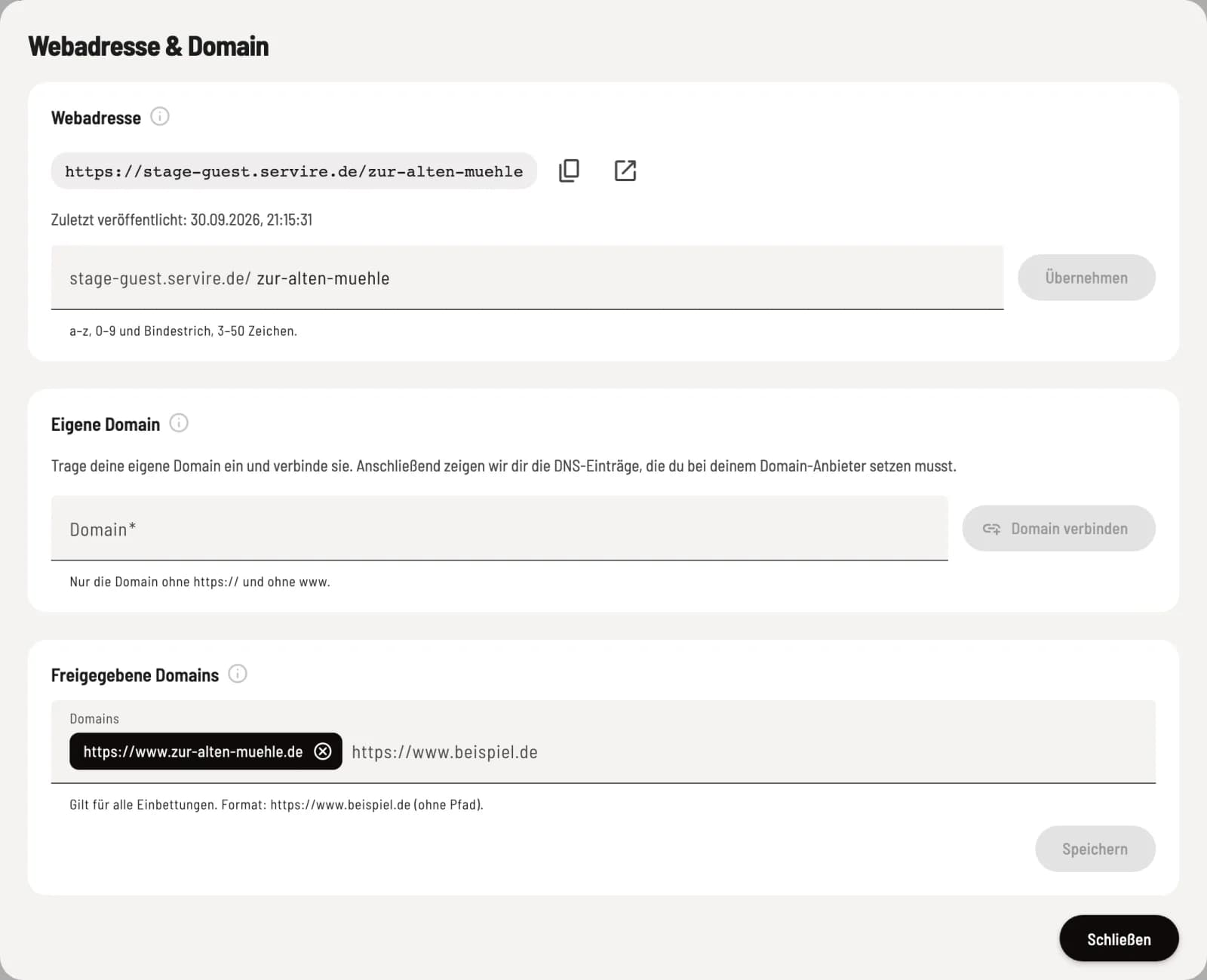
Released domains
In Web desk , open Website and click Edit under Web Address & Domain. Enter your website's address under Shared Domains, e.g., https://www.example.com, without a path or wildcards like *.example.com. Press Enter and click Save.
Without an entry, embedding on external websites is disabled. Your own Servire address is always permitted. This list applies to all embeddings. The overview shows how many domains are permitted under On an external website.
Get code
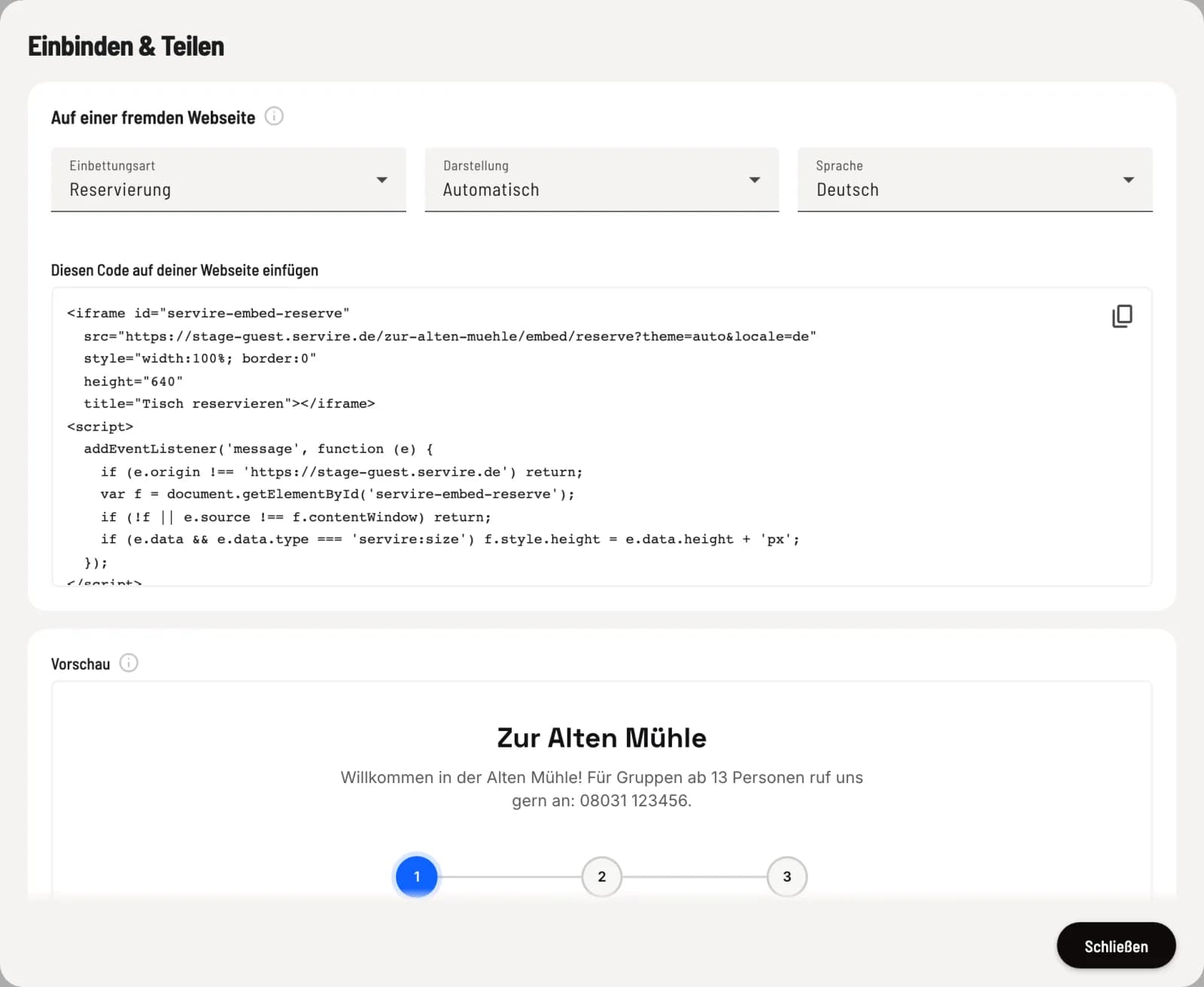
Embed & Share
Under Web Address & Domain, click Embed. Select Reservation, ** menu**, Order, or Vouchers under Embed Type, then Appearance and Language. Copy the code under Insert this code on your website. The Preview shows how it will look to your guests.
Automatically adopts the colors of your Servire website. Light and Dark assign fixed colors to the frame, useful if your website is significantly lighter or darker.
Insert the complete code
The code consists of two parts: the frame itself and a short <script> block below it. The script block ensures that the frame's height matches its content. Insert both into an HTML element using your website provider.
Some website builders, including Jimdo and Wix, remove <script> blocks. This leaves the frame at its starting height, resulting in a large empty area on short pages. After saving, check if the block is still there; otherwise, use an element that allows custom HTML and scripts.
You don't need any code on your Servire website itself: Reservations appear automatically on the homepage and contact page. You add orders and vouchers as building blocks on a page ( Create your own pages and building blocks ). The code for reservations is also available in the reservation settings: Embed reservations on your own website.