
Set report printing
Specify which reports are automatically printed at the end of the shift and what is included in the X and Z-report .
Open Settings → Cash Register and click on the pencil icon under Reports. You can also toggle the switches directly on the card; they will be saved immediately.
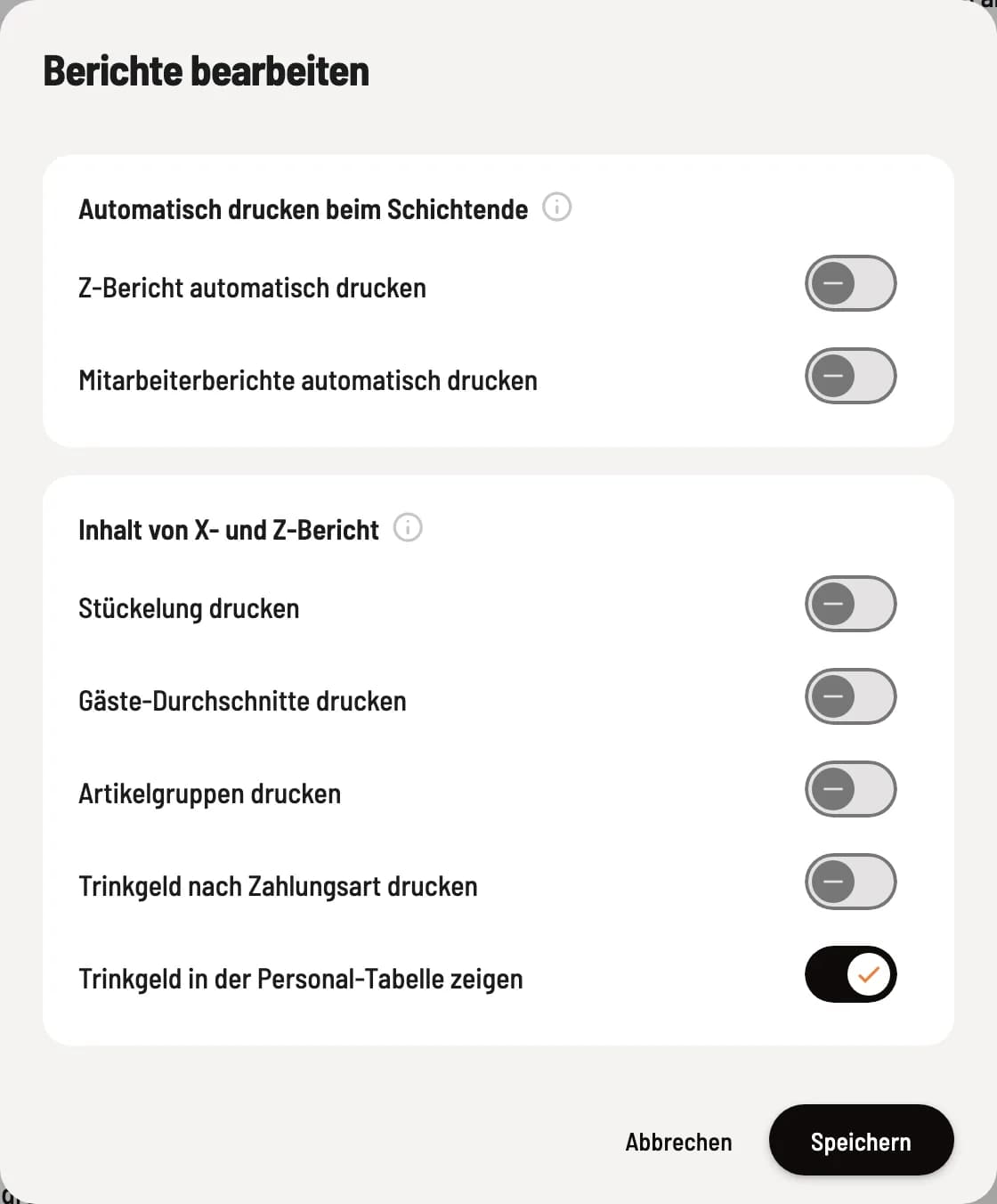
Edit reports
The switches are located at the top under Automatic printing at shift end, and below that, Contents of X and Z-report. Confirm with Save.
Automatic printing at the end of the shift
** Automatically print Z-report ** – at the end of the shift, the device that ends the shift prints the Z-report on the report printers.
Automatically print employee reports – prints a separate report for each server who has processed payments.
When a shift ends automatically: If a shift ends automatically, a cash register with a printer prints the reports if the cash register app is open and Print online orders is enabled; with a print center, the Servire Hub prints. If no cash register is currently open, the first one open on the same business day prints the report. The Z-report is generated in any case and is available in the shift history. See Setting up automatic shifts.
Contents of X and Z-report
These settings apply to the printed X and Z-report and the PDF, not to employee reports. They also take effect if you reprint a report later.
Print denominations – counted bills and coins below the cash count. If no cash count is performed at the end of the shift, it will remain empty; you can configure this under Cash Book and Cash Count.
Print guest averages – revenue per guest, also broken down by food and drinks. The number of guests is always displayed.
Print product groups – Revenue per product group as a separate section.
Print tip by payment method – additional table with cash and card tip per server. Only show in conjunction with ** tip in staff table**.
Show tip in the staff table – from: The tip columns in the staff table are omitted.
Guest averages are only as good as the recorded number of people. How to make them mandatory: Number of people and service time instructions.