Skip to content
Servire: The POS system for your hospitality business
Get started

Reservation settings in the web desk

All options of the reservation dialog: group sizes, booking windows, occupancy duration, service periods, confirmation, automation, guest texts and embedding.

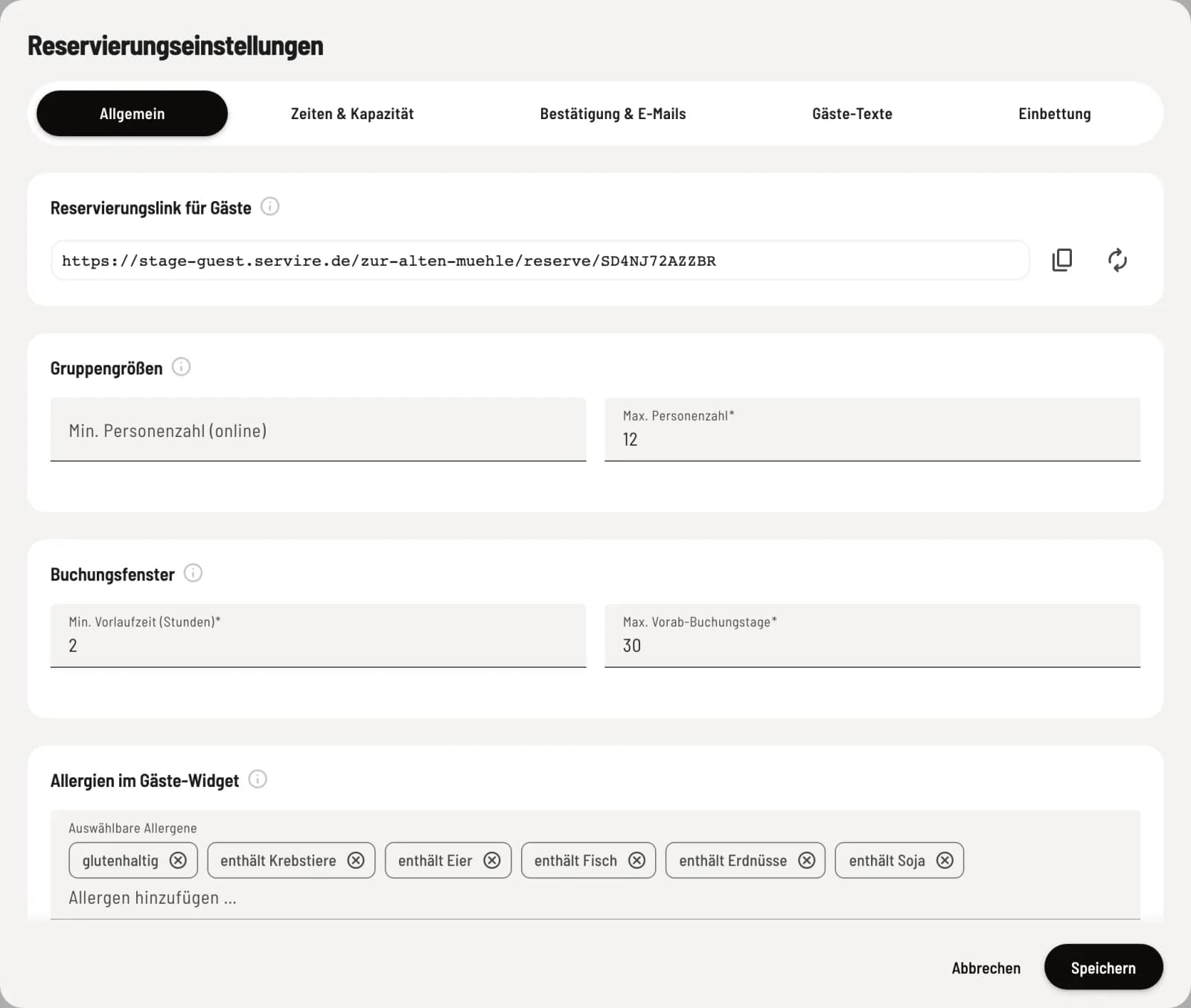
The reservation settings determine when and how guests can make online reservations, how long a table remains occupied, whether you need to confirm reservations, and what text guests see. In the Web desk → Reservations, open the gear icon in the upper right corner. The dialog has five tabs. Save saves all tabs at once; a tab containing an error will display a !.

The Reservations module is part of the Max plan. For guests to see available times online, tables must be marked as available for online reservation under Table Plans and have a seat capacity. The bookable times are determined by the opening hours. The Info icon next to each heading in the dialog explains the fields below.

Generally

Reservation Link for Guests – Share this link with guests, for example, on Google, Instagram, or the menu. It leads directly to the reservation page and works even without your own website. If you have a published Servire website, it will display your own address. Regenerate Link immediately invalidates the existing link; shared links, QR codes, and embedded content must be replaced afterward. Max. Number of People – The largest group that can reserve online. For larger groups, the reservation page displays the text for oversized groups. Min. Number of People (Online) – The smallest group that can reserve online. Leave blank = no minimum. Max. Advance Booking Days – How far in advance guests can reserve online, for example, up to 30 days. Min. Lead Time (Hours) – The maximum number of hours before the reservation time that guests can reserve or change their booking online. All four limits apply only online. Your staff can record any group size and make reservations at any time.

Times & Capacity

Standard Reservation Duration – How long a table remains occupied per reservation. Determines the end time and when the table is available again. Time Slot Interval – The increments in which guests can select times, for example, every 30 minutes: 6:00 PM, 6:30 PM, 7:00 PM. Buffer Time Between Reservations – Time that remains free after each reservation at the same table, for example, for clearing and setting the table.

Table occupancy duration (turn-time)

Here you define the booking duration for each group size. Use Add Level to enter Up to Number of People and Duration. A level applies up to the specified number of people – for example, up to 2 people for 60 minutes, up to 6 people for 90 minutes. The levels must be ascending, and the highest level must extend to the maximum number of people; otherwise, the dialog cannot be saved. Without levels, the standard booking duration applies to everyone.

Service periods

Service periods are time slots during which online reservations can be made – for example, lunch and dinner separately. Without periods, the entire opening time can be booked. Periods are only valid within the opening hours. Weekdays, From, To – When the period applies. The end time may be after midnight. Slot Increment – The increment of the times within this period. This also determines the increment for the following limits. Max. Guests per Slot – The total number of guests allowed per slot. Empty = no limit. Max. Groups per Slot – The maximum number of reservations allowed per slot, regardless of size. Large Groups from and Max. Large Groups per Slot – Additionally limit groups of a certain size, for example, a maximum of one group of 6 or more people per slot. 0 completely blocks large groups during this period. Reservations received as inquiries do not count towards these limits.

Confirmation & Emails

Automatically confirm reservations – Online reservations are confirmed immediately, and the guest receives confirmation directly. Manually confirm reservations – Every online reservation comes in as a request and awaits your confirmation. The table is already reserved in the meantime. Automatically confirm up to a certain group size – Small groups are automatically confirmed; larger groups come in as requests. Reservations made by your staff are always confirmed. Reminder emails – Guests with an email address automatically receive a reminder before their reservation, only for confirmed reservations. With Reminder X hours before, you can set the time, for example, 24 hours. Required fields for manual reservations – Applies when your staff makes a reservation. The name is always required; you can also make Phone number or Email address mandatory. Walk-ins and online reservations are exempt. Auto-block after no-shows – If a guest fails to appear a certain number of times, they will be automatically blocked from making online reservations. Blank = no block. Your staff can still make reservations for blocked guests.

Automatic completion

Without this automation, reservations remain open and continue to occupy the table. Automatic status changes never send an email to the guest. Grace period after end – This is how many minutes after the end time a reservation is automatically closed. No-shows are closed the following day. Keep waitlist – This is how long a notified waitlist guest has to make a reservation. After that, their entry expires. No-show after – This is how many minutes after the stated time a reservation whose guest has not arrived is marked as a no-show. 0 = off. An automatic no-show counts towards the auto-block.

Guest texts

Welcome Text – Appears at the top of the reservation page, for example, a short greeting or a note. Confirmation Text – Seen by guests after making a reservation. It is also included in the confirmation email. Texts in the Reservation Widget – Guests see these texts in special cases: on closed days, during fully booked times, and for groups that are too large. They are pre-filled with the standard text; an empty field displays the standard text again. In the text for groups that are too large, {{count}} is replaced by the selected number of people. Cancellation Policy – Seen by guests when making an online reservation, for example, deadlines or rules for no-shows, optionally with a link to a detailed page. With Consent Required When Booking Online, guests must actively agree to the terms and conditions; this only applies if text has been entered. Guests Can Change Their Booking Online – Via the link in the confirmation email, guests can change the date, time, and number of people themselves, up to the minimum notice period before the reservation. Guests can cancel regardless. Each text has a field for the English version. This appears for English-speaking guests; if left blank, these guests see the German version.

Embedding

Here you can embed the reservation widget into your own website. Select Design (light, dark, or automatic based on the guest's system settings) and Language, copy the code, and paste it into your website. Under Domains, enter the websites that are allowed to embed the widget; the website published under Website and associated domains are automatically permitted. This tab will only be usable once this website is published. For more information, see Integrating Guest Features into Your Own Website.