
Set up the device using the wizard
The device assistant sets the start view and obtains all permissions before the first guest pays.
The device wizard sets up a new POS terminal in just a few pages. It only asks what else the device needs – permissions for the printer, camera, and card payments. This way, no prompts appear during the checkout process.
After registration, the same pages will run once during the introduction. Later, you can start the assistant at any time under Settings → This Device.
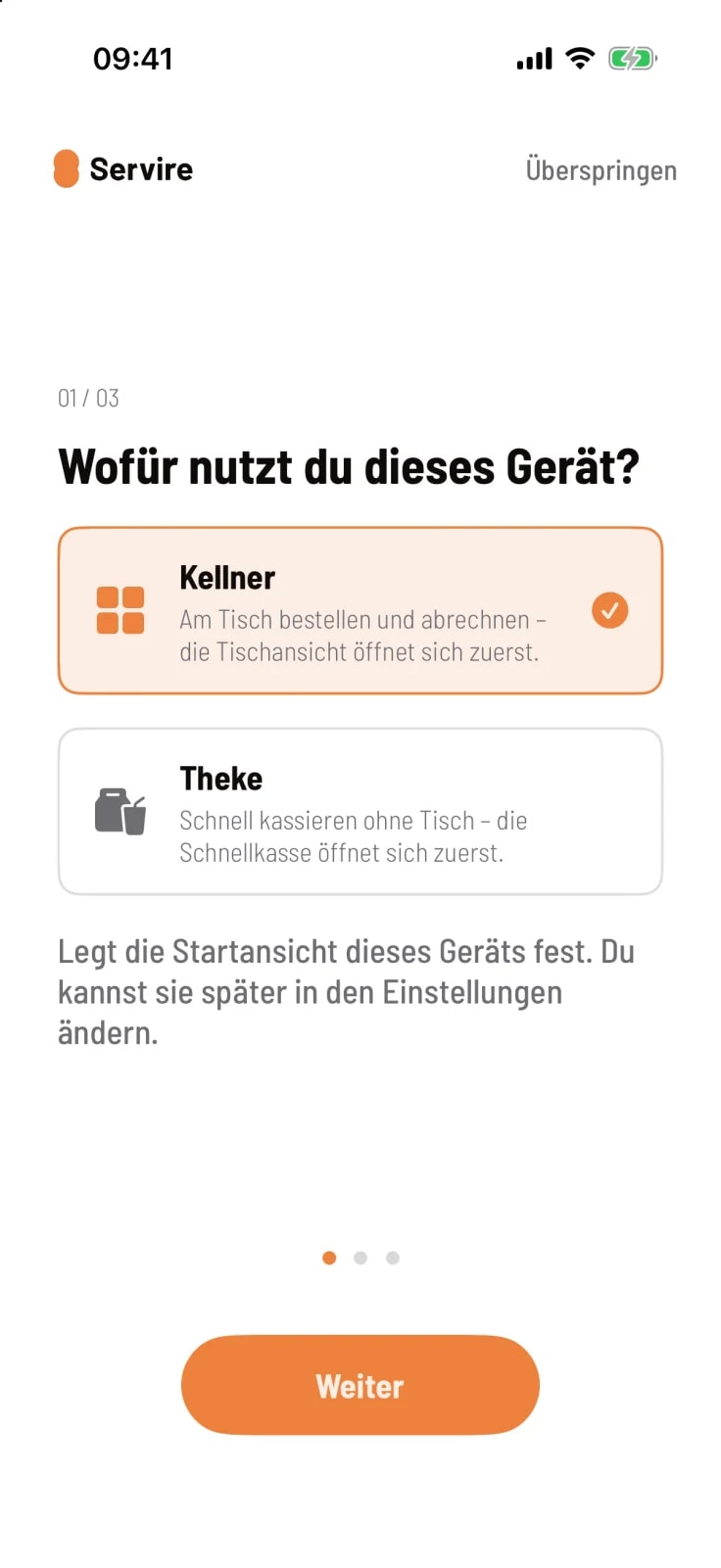
Step 1 of 3
What do you use this device for?
Select ** server** if you're ordering and paying at a table – the table plan will open first. Select ** counter** if you're paying without a table – the express checkout will open first. Tap Next.
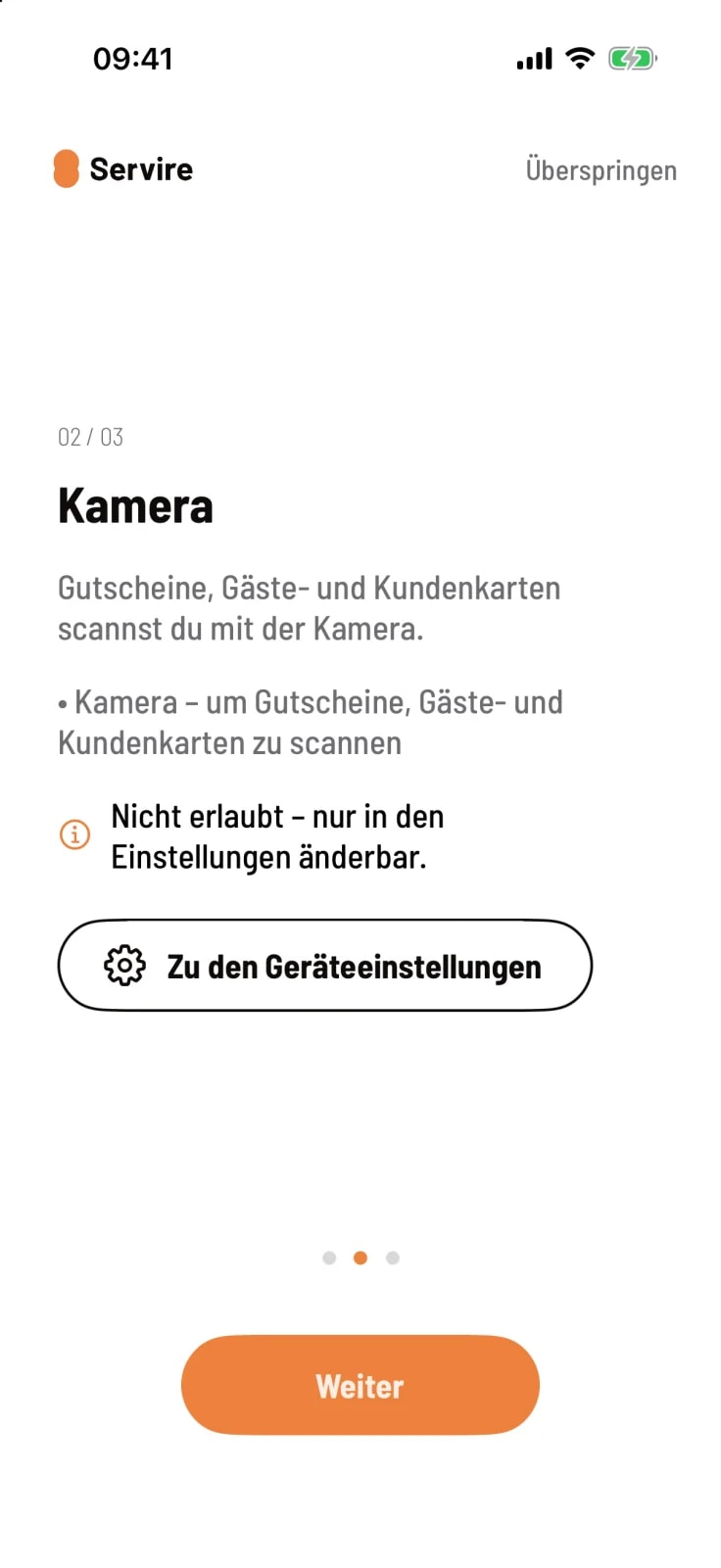
Step 2 of 3
Grant permissions
On the following pages, tap Allow and confirm your device's prompt. If you previously declined, it will say Not allowed – can only be changed in settings. Clicking Go to device settings will then take you directly to the correct setting.
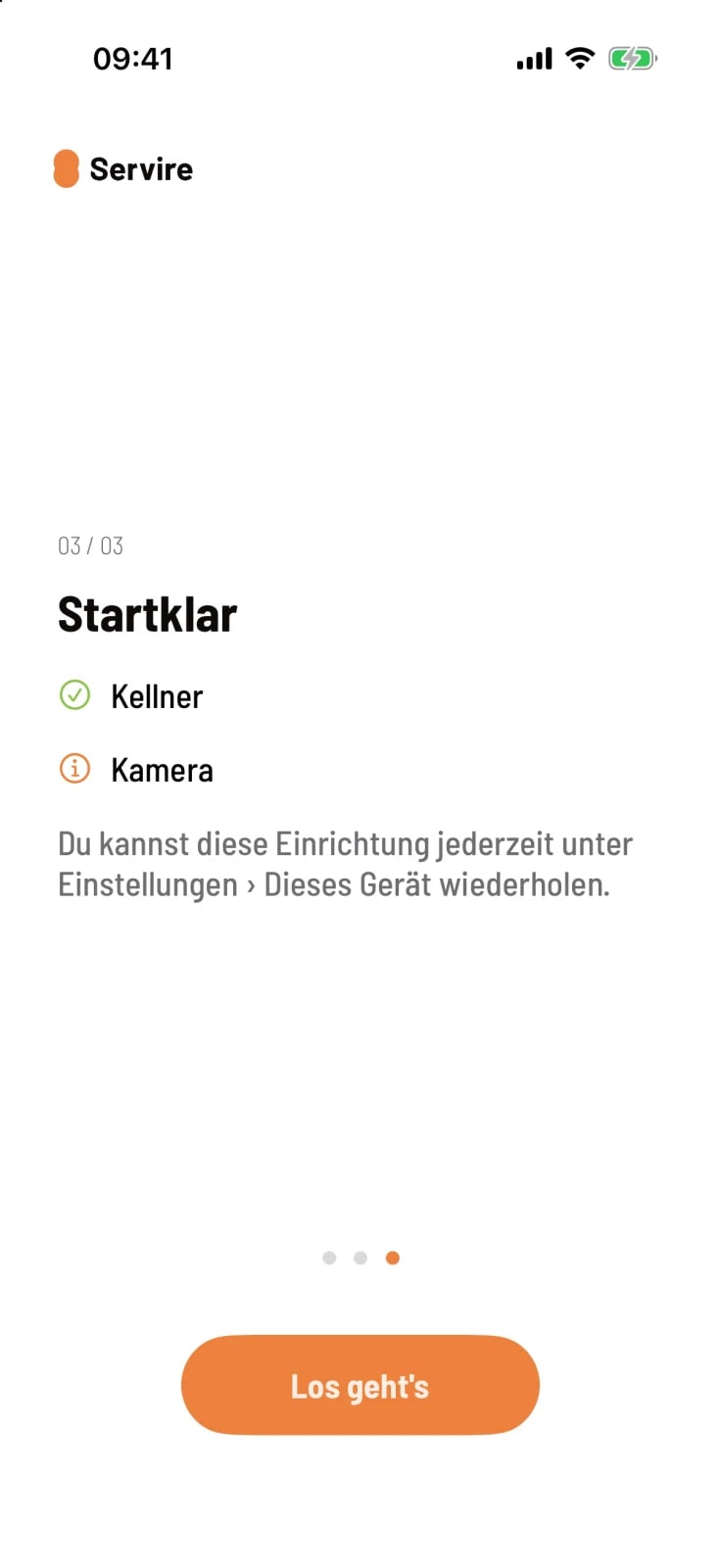
Step 3 of 3
Ready
The last page summarizes: A green checkmark means completed, an orange symbol means still pending. Clicking Let's go means you're finished.
Which pages appear
The assistant only shows pages that are still open on this device. That's why each device looks slightly different.
Printer on Wi-Fi or Network printer – allows the app to access receipt printers on the Wi-Fi network. This option is not required if your business prints via the Servire Hub .
Camera – for scanning vouchers, guest cards and customer cards.
Built-in printer and NFC – on POS terminals with a built-in printer or NFC. Use Print test receipt to check the paper width, and Activate NFC to test card reading.
Card payment – the permissions required by your payment provider and the one-time activation of Tap to Pay: card payment directly on the device.
Notifications – so that the card reader can display updates.
Clicking Skip in the upper right corner will end the wizard at any time. The selected start view will still apply. You can change it later in the overview under View: Switch View.