
Print queue and malfunctions
What the print center is currently printing, what's stuck, and how to reprint or delete orders.
Below the printer list in the print center is the print queue. It shows what is currently printing and what is stuck. Once everything has been printed, it will say "No print jobs in the queue."
The columns
Type – what the receipt was generated from, such as “Order added”, “Settlement”, “Z-report”, “Deposit return” or “Open cash drawer”.
Group – the goal: food, drinks, bills, reports, deposits or miscellaneous items.
Table – the table or, for orders without a table, the collection number.
Status – Waiting, Printing..., Done, or Failed, with the number of attempts shown for reprints. If a receipt is waiting to be printed, the reason, the waiting time, and "Will reprint automatically as soon as the printer is available" will be displayed.
Reprint and tidy up
The arrow symbol on a job prints it again, the trash can symbol deletes it.
Reprint all resends all failed orders.
Delete All clears the queue after a confirmation prompt. This action cannot be undone. Use it if there are old receipts left over after a service disruption that no one needs anymore.
Avoid duplicate receipts: If an order says "The receipt has already been sent to the printer — please check before reprinting," check the printer first. Otherwise, the receipt will be printed twice.
The condition of each printer
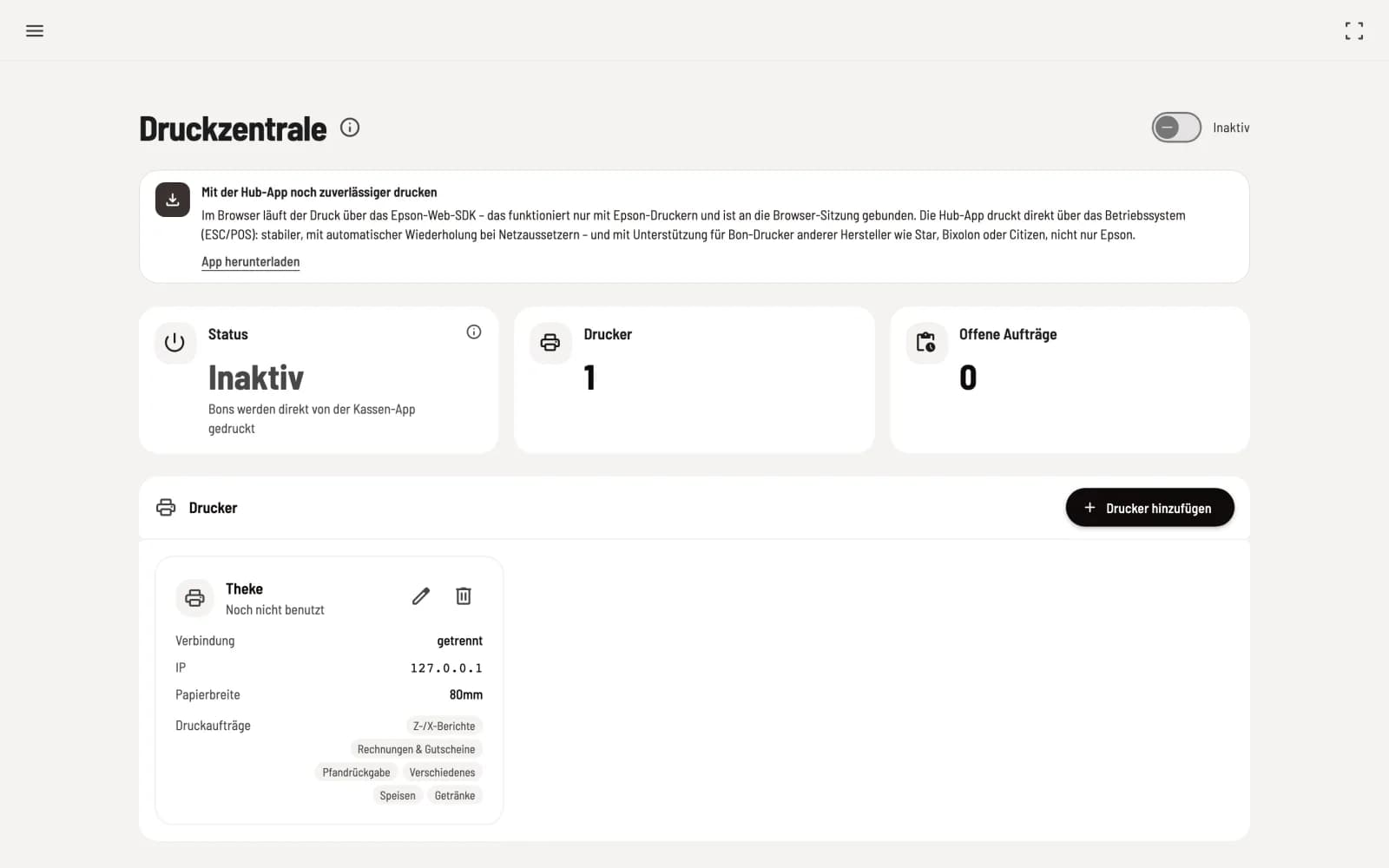
Ready – everything is in order.
Attention – the printing is still running, but something is wrong, for example "paper almost empty."
Blocked – the printer is not accepting anything, with reason and solution, such as "Insert a new paper roll and try again."
Not yet used – the printer is set up, but has not printed yet.
If the browser blocks the printer
If print jobs report a connection error even though the printer is on the network, the browser blocks the direct connection. The hub then displays "Printer on network, but blocked?" with the solution: in the printer's web interface, under Network Security Settings → SSL/TLS, set the Redirect HTTP to HTTPS option to Disable. The desktop app is simpler; it prints without this configuration.