
Release and serve courses
Retrieve waiting courses, release them at a timed interval, and mark them as served.
When you submit your order, all courses are sent to the kitchen at once. Course 1 is released, while the order slips for later courses will say Waiting for release. This allows the kitchen to prepare and plate the dishes only when you request a course.
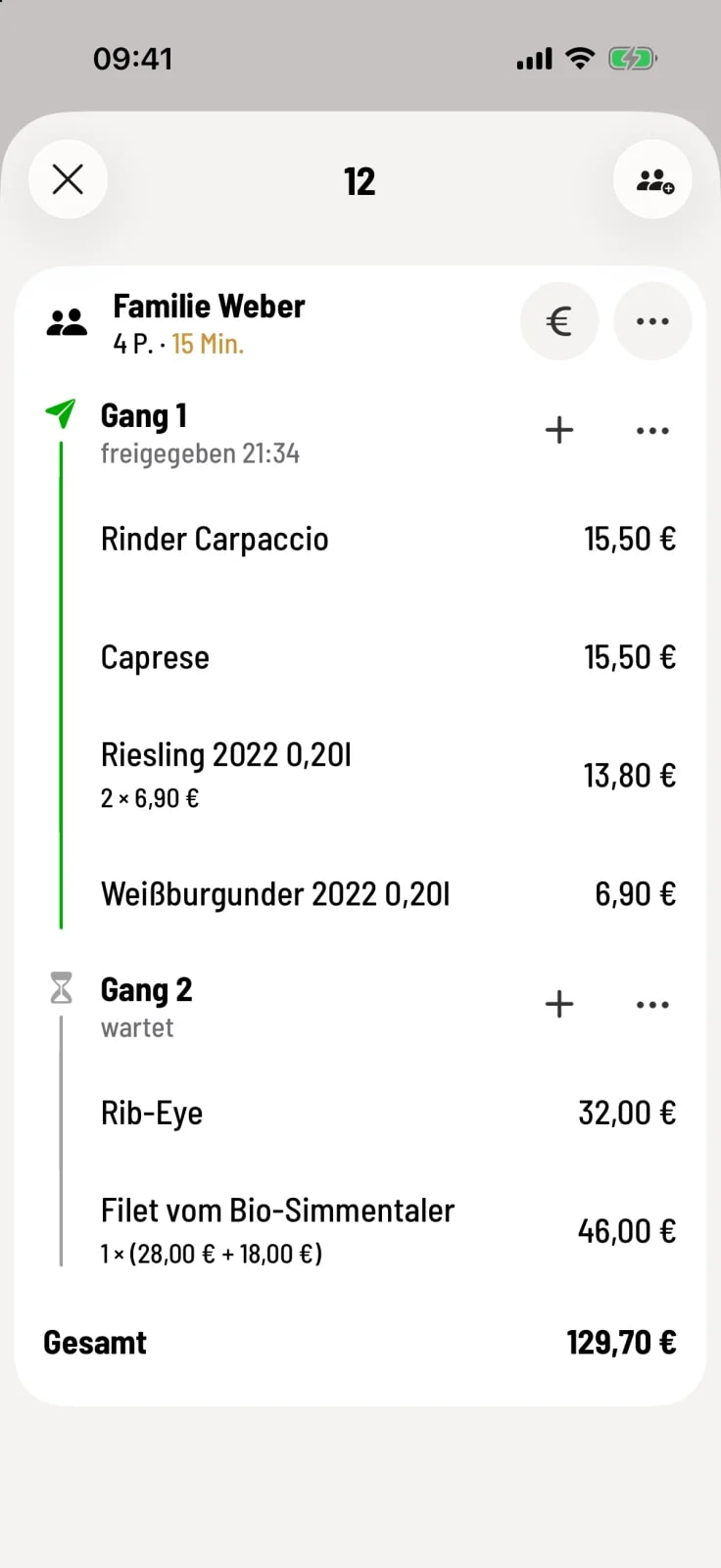
Read the status
Waiting (hourglass) – not yet retrieved.
Released with time – the kitchen is working on it.
Reordered – new stock was added after the order was placed.
Ready (orange bell) – the kitchen monitor signals that the course is finished.
served (hook) – the course is with the guest.
Access gear
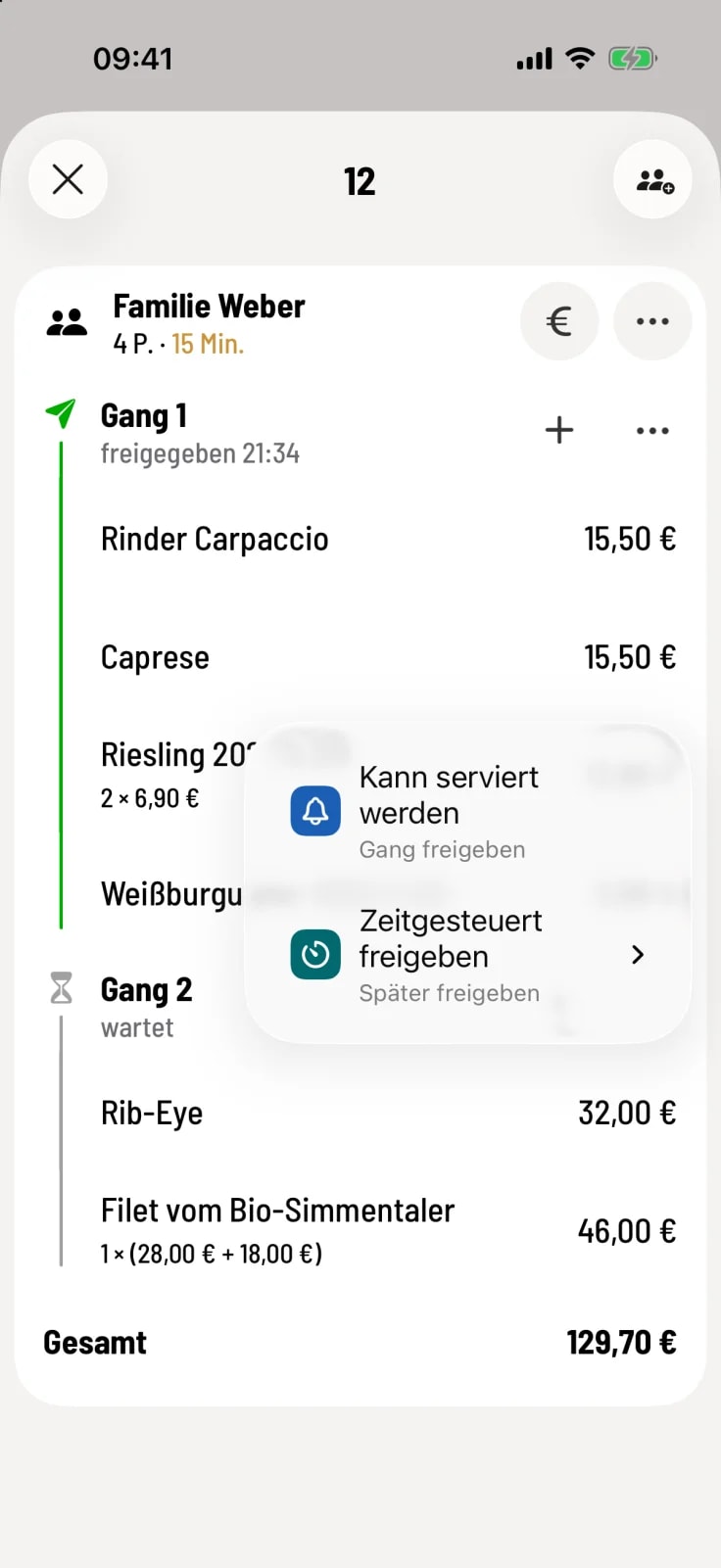
Step 1 of 2
Can be served
Tap on … in the course row and then on Ready to Serve. For a course that has been sent, this takes effect immediately; the kitchen receives a notification.
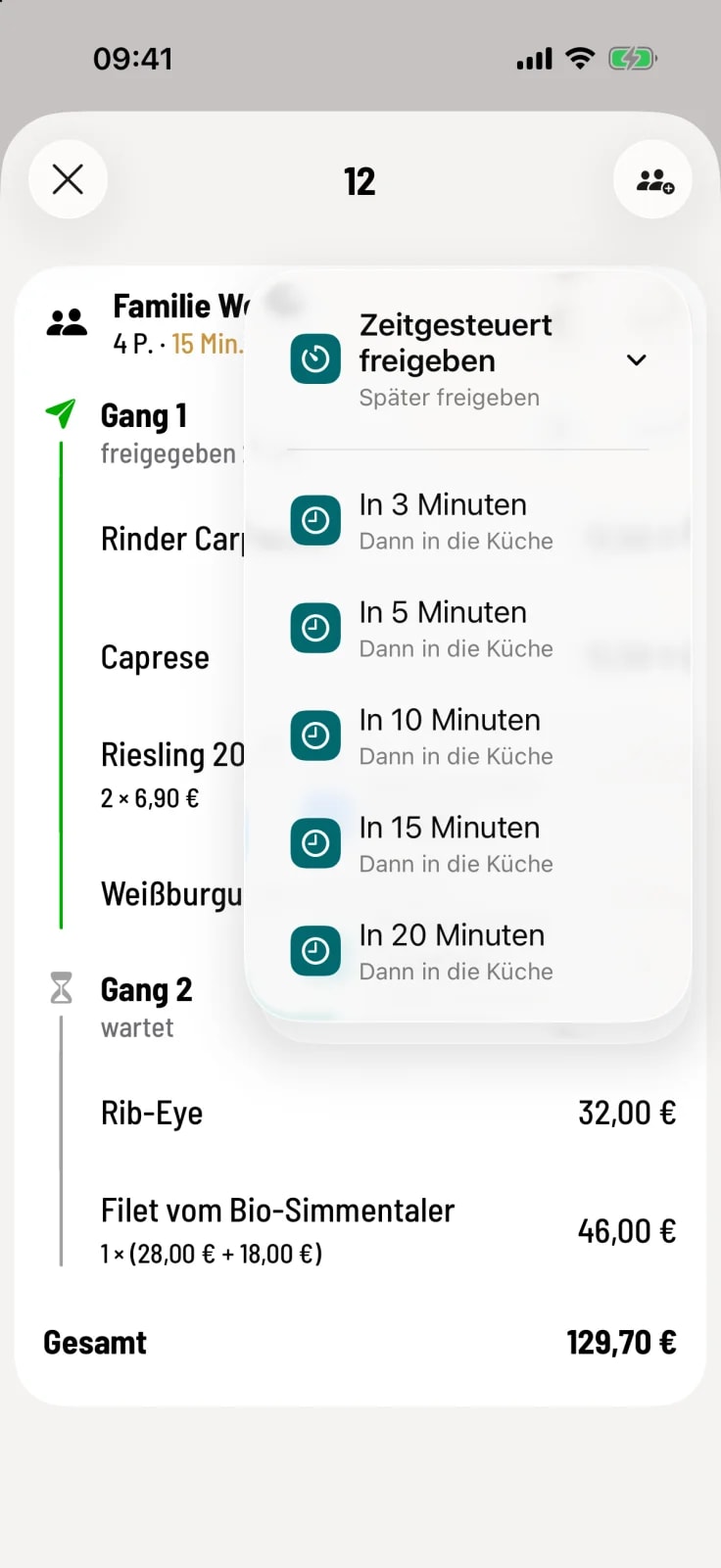
Step 2 of 2
Or time-controlled
Under Timed Release, select 3 to 20 minutes. The gear countdown begins; Cancel Timer stops it. If a gear hasn't been sent yet, the countdown starts again with Send.
The planned release applies to the table: it will still happen even if your device is switched off in the meantime, and the receipt will only be printed once.
Mark as served
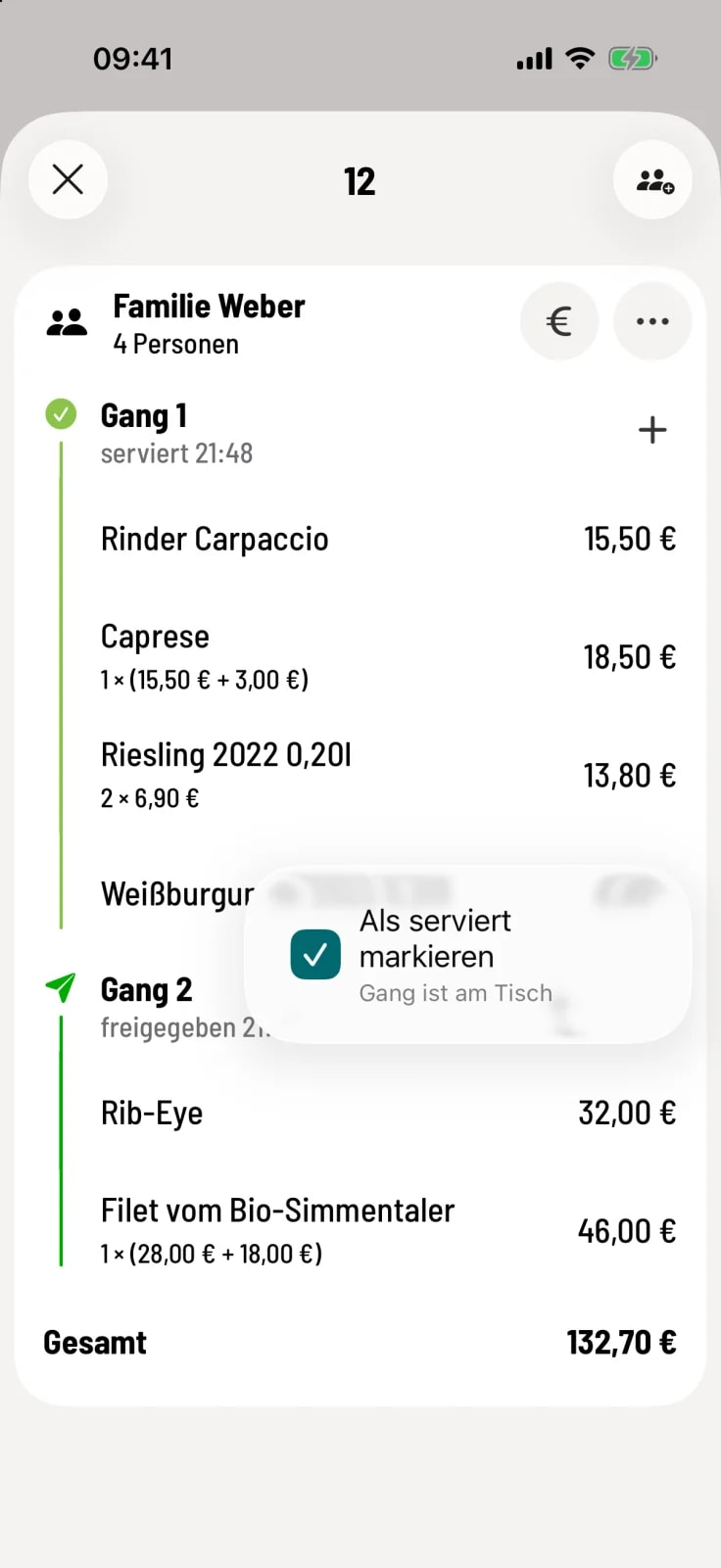
Step 1 of 2
Check off the gear
In the menu of an approved course, tap Mark as served. This takes effect immediately, without submitting anything and without a receipt.
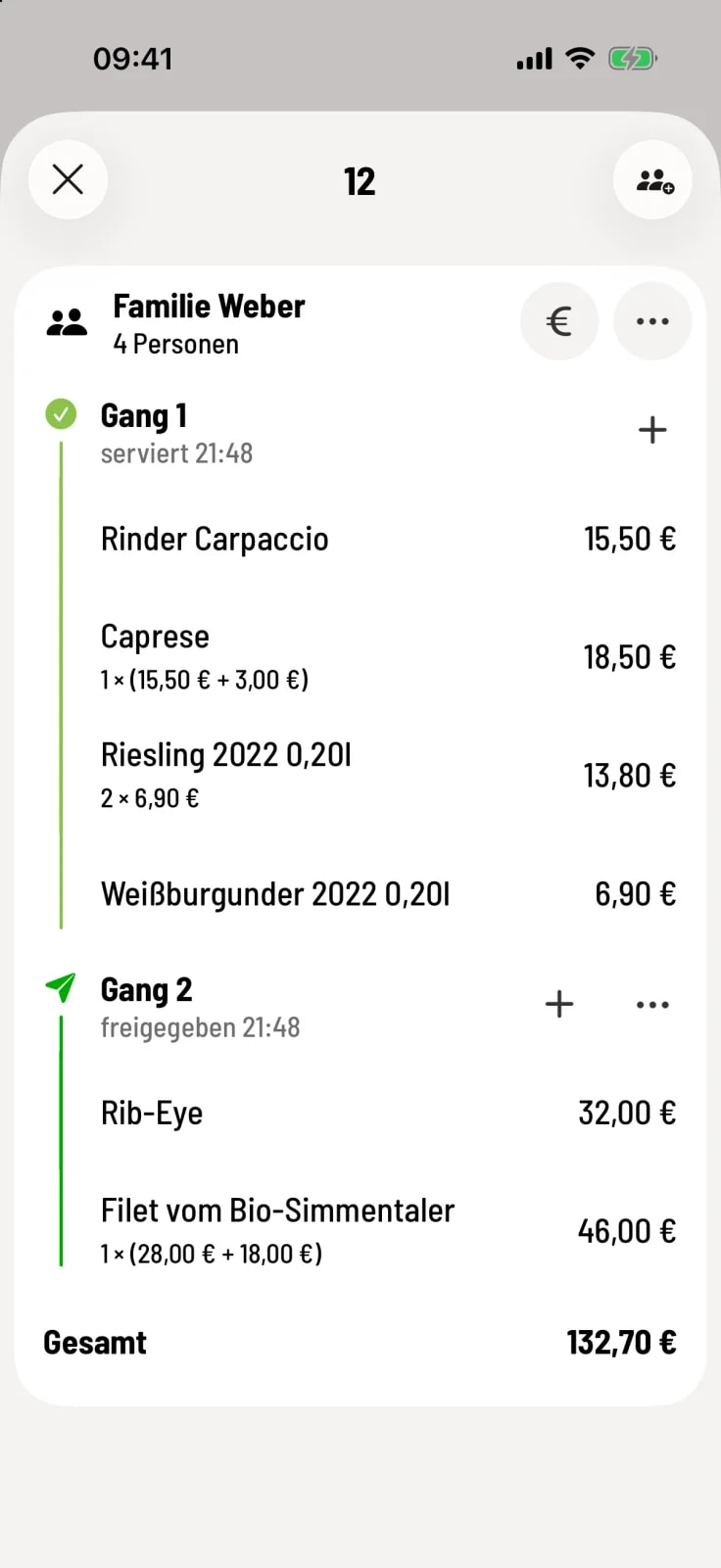
Step 2 of 2
Result
The aisle shows served with time.
Usually, this happens automatically: A course is considered served as soon as you request the next one, the kitchen serves it, or the bill is settled. Only the last course remains released without a kitchen monitor until the bill is paid.
The kitchen monitor only signals "ready" and "served" if "Record course times**" is enabled in its settings: Kitchen Monitor Settings. A finished course is indicated by an orange bell icon on the table in the table plan .