
Print mode: Image or text
Whether an Epson printer receives the receipt as an image or as text, and what that means for appearance and speed.
Prerequisite: The print mode is only available in the POS app on iPhone and iPad and only with Epson printers. Android always prints as text.
The print mode determines, for each printer, in what format the cash register sends the receipt to the printer.
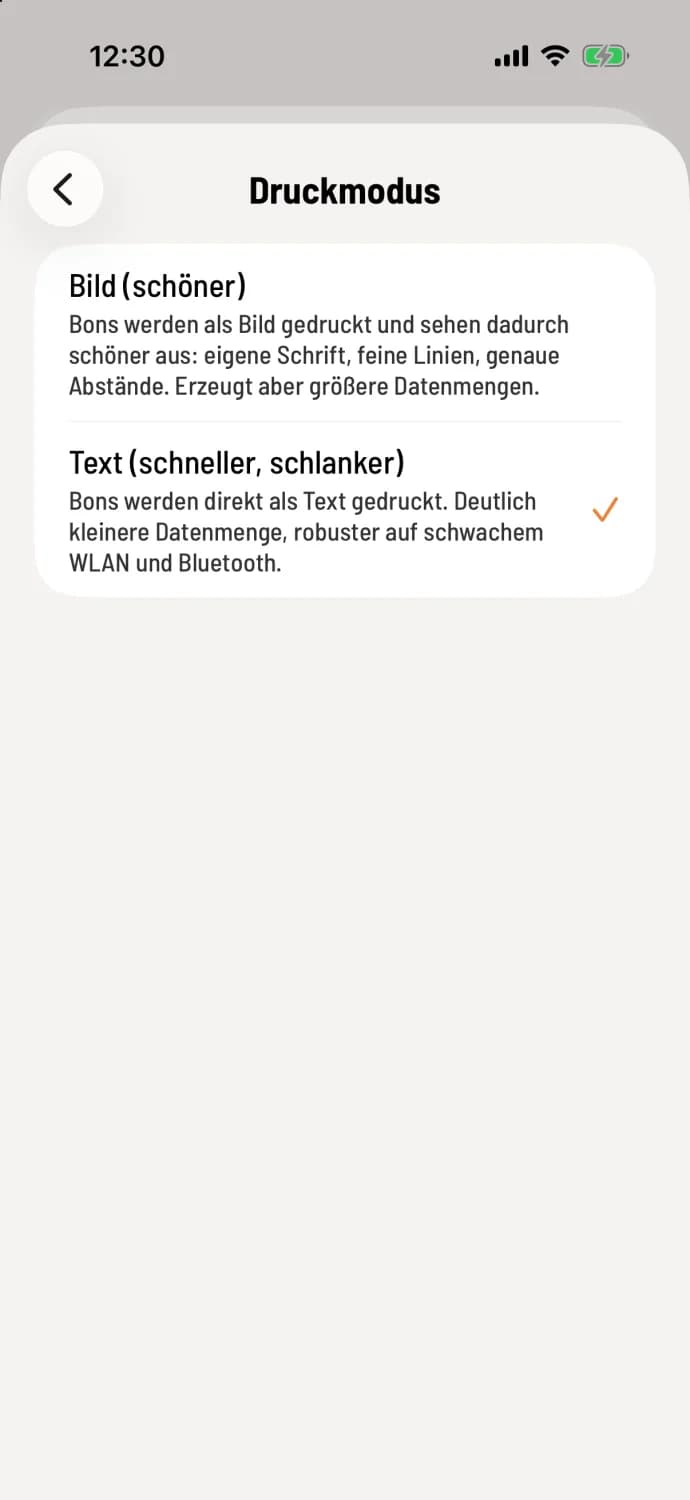
Select mode
Open the printer settings under Overview (house icon in the top left) → Settings → Printer, tap the line under Print Mode and select Image (prettier) or Text (faster, leaner). Save with the checkmark.
Picture (nicer)
The receipt is printed as an image: with custom text, fine lines, and precise spacing. This requires more data, and printing takes longer with a weak Wi-Fi connection.
Text (faster, leaner)
The receipt is sent to the printer as text and uses its built-in font. This uses significantly less data, and printing is more robust even with weak Wi-Fi and Bluetooth connections. Newer printers start with text.
Which one should you choose?
If the receipts arrive quickly, you can use image. If they arrive with a delay or the printer is connected via Bluetooth, stick with text. The cash register always prints reports as text.