
Clocking in and out at the cash register
Clock in and out of work hours and breaks directly in the overview of the POS app.
Each person clocks in and out using their own account. You can find the Time Tracking map in the overview, which you open via the House icon in the top left corner.
Prerequisite: Time tracking is enabled in the Web desk ( activate time tracking ). A cashier shift does not need to be running; only in older app versions is clocking in only possible during an ongoing cashier shift. Those exempt from time tracking will not see the card. The restaurant owner is exempt by default, as they are not an employee.
Playing loads YouTube (Google).Playing loads the video from YouTube and sends data to Google. Clicking allows external media. Privacy
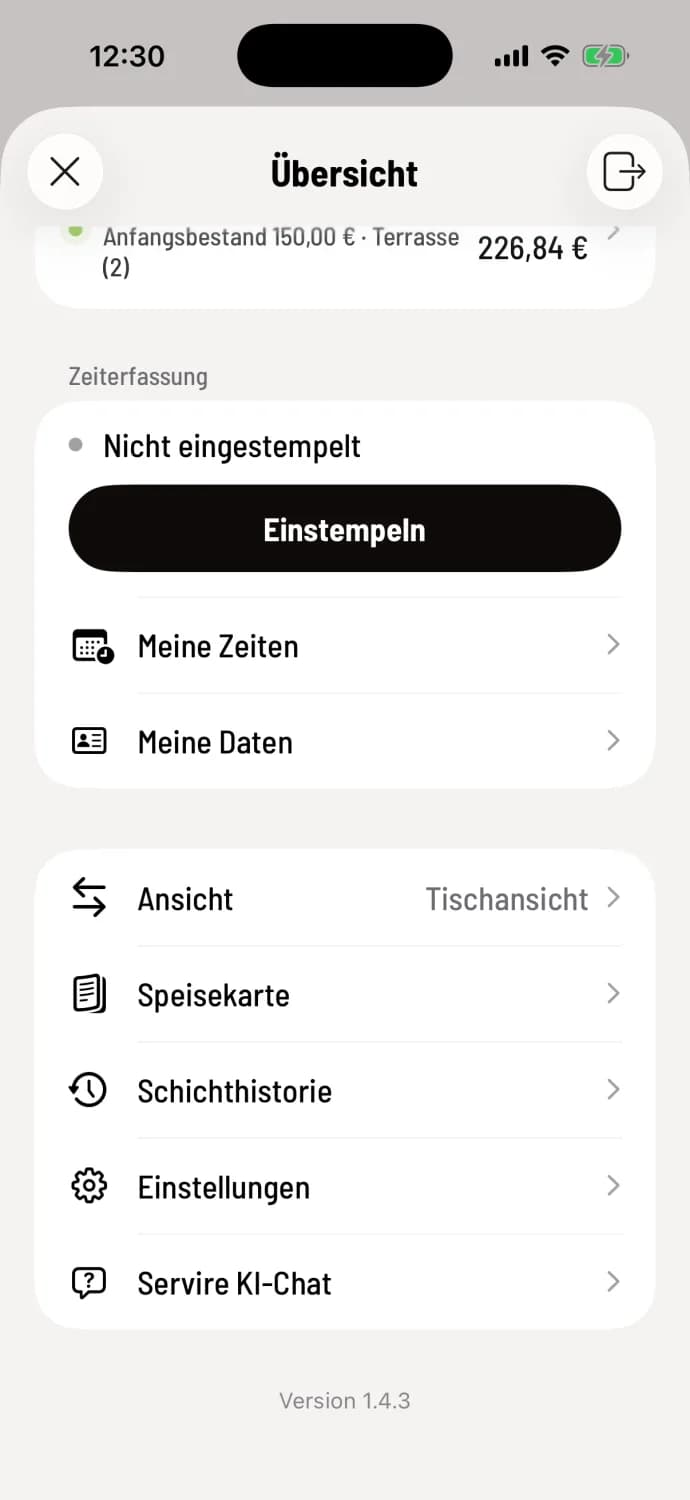
Step 1 of 5
Stamp in
The Time Tracking card shows Not Clocked In. Tap Clock In.
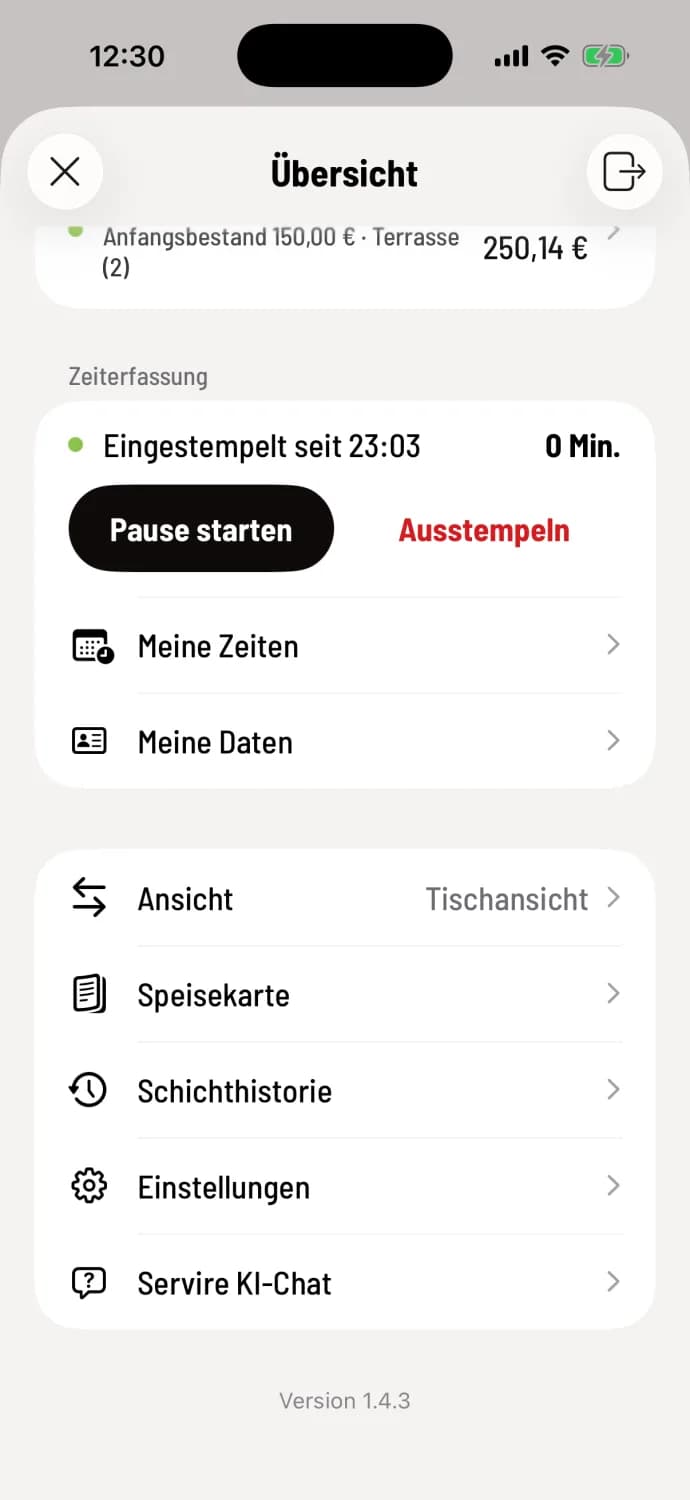
Step 2 of 5
During work
The line shows Time clocked in since and the previous working time on the right. Click Start break to begin a break.
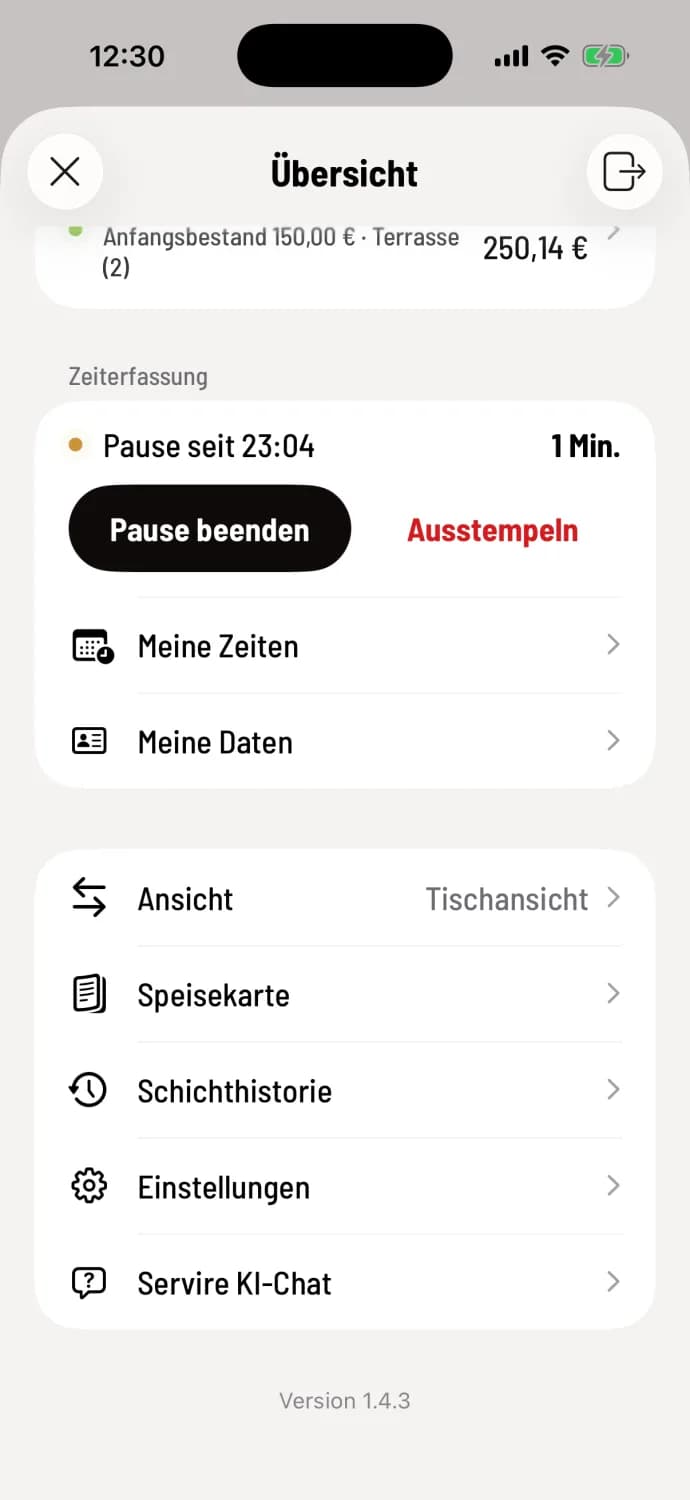
Step 3 of 5
pause
During breaks, the display shows "Break since". "End break" resumes work. Only breaks that are officially stamped count as breaks.
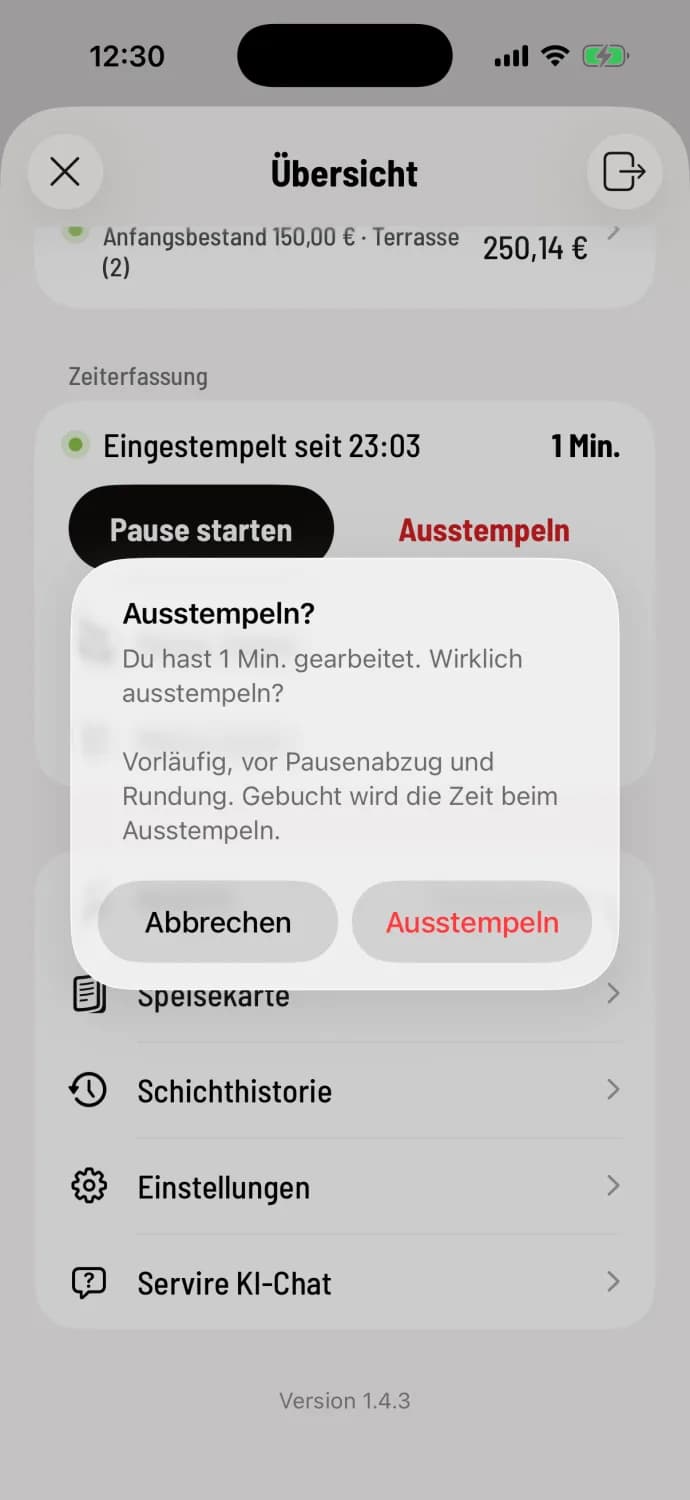
Step 4 of 5
Clocking out
Tap clock out. The till will display your current working hours and ask for confirmation. If your company automatically deducts breaks or rounds down, this number is preliminary.
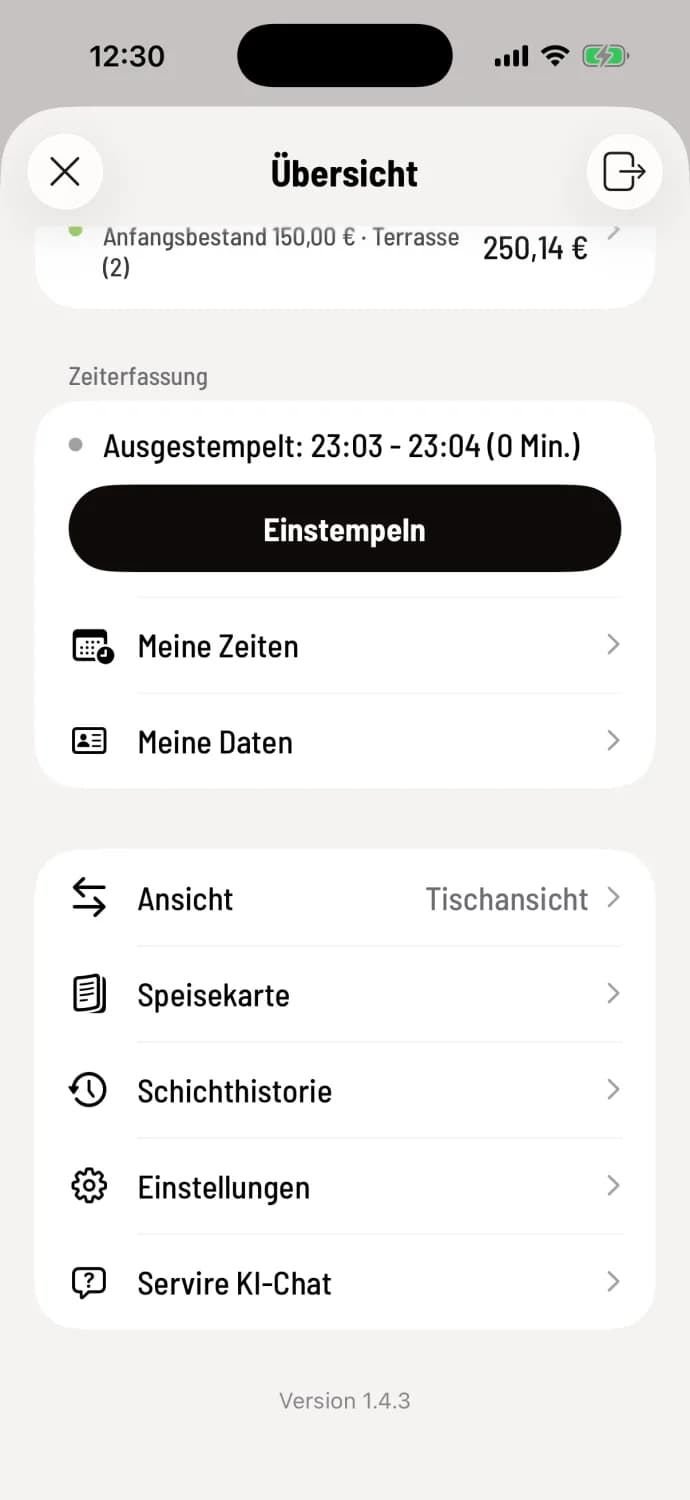
Step 5 of 5
Ready
The line shows Clocked Out with start, end, and net time; below it says Clock In. For a split shift , you simply clock in again later.
If something was forgotten
If you stay clocked in for too long, the cash register will remind you under your status: Forgot to clock out?
After 16 hours, Servire automatically closes an open entry and marks it for review.
When you end your shift, the cash register reports who is still clocked in. Time tracking continues independently: Clock out and finish clocks you out. Others clock out themselves later; otherwise, Servire closes their entry after 16 hours.
If there are fewer hours between two shifts than the rest period, the cash register displays Rest period not met when clocking in. The clock is still recorded; see the Working Time Act guidelines for understanding this.
If employees need to clock in at the service desk, the system will display a message indicating "Time recording required" when the service desk is opened and offer the option to "Clock in now". If a time is incorrect, you can submit a correction request.