
Add item to the checkout
Create item directly in the POS app and change the name, price, or description.
If an item is missing from the menu, you can add it directly at the checkout, without a computer. You can also use the same form to change the name, price, or description of an existing item.
You need the permission "Can create and edit item " and an internet connection. Without this permission, the menu can only be viewed.
Step 1 of 3
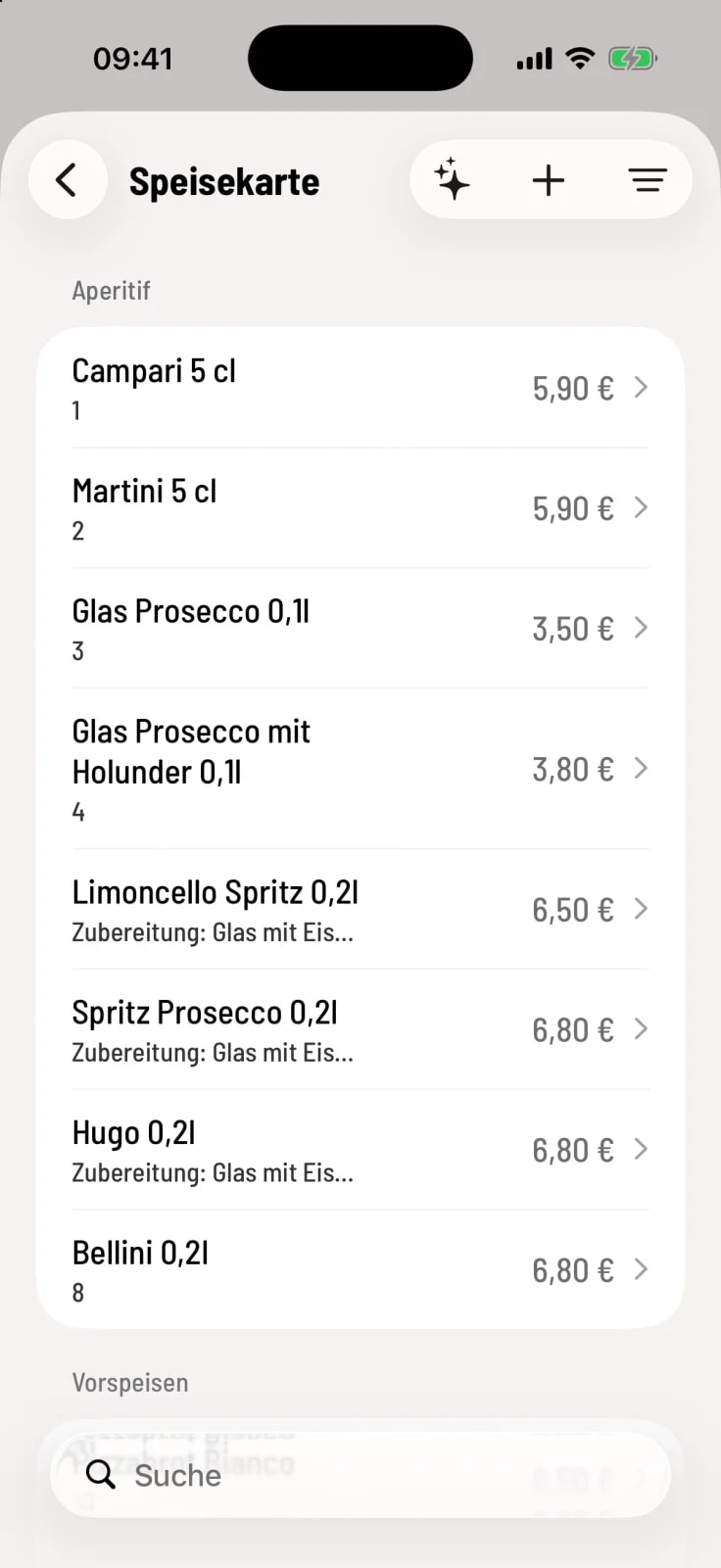
Open menu
Tap the house in the top left corner, then tap ** menu**. Tap + in the top right corner.
Step 2 of 3
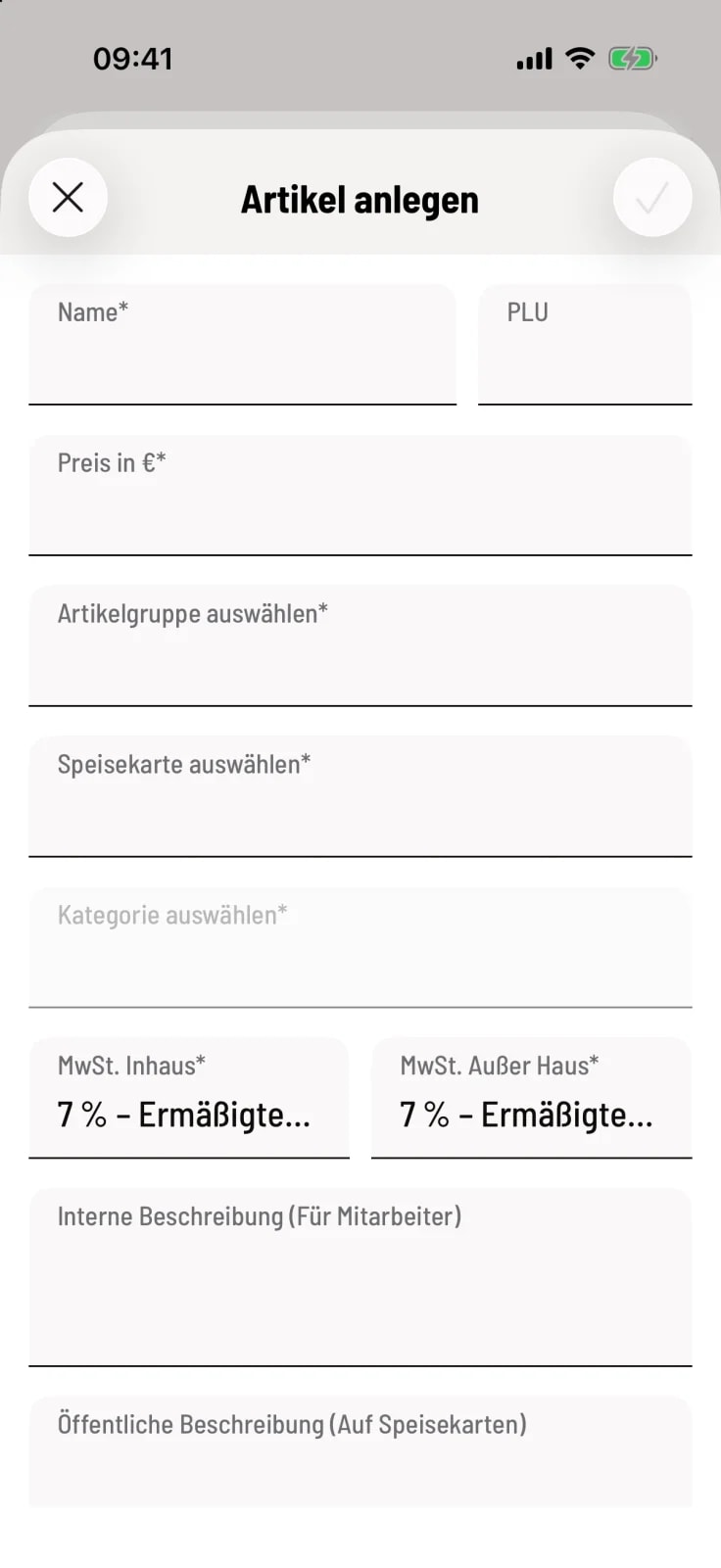
fill out the form
Required fields include Name, Price in €, Item Group, ** menu**, Category, VAT (In-House), and VAT (Takeaway). Select the category after viewing the menu. Save by clicking the checkmark.
Step 3 of 3
Edit item
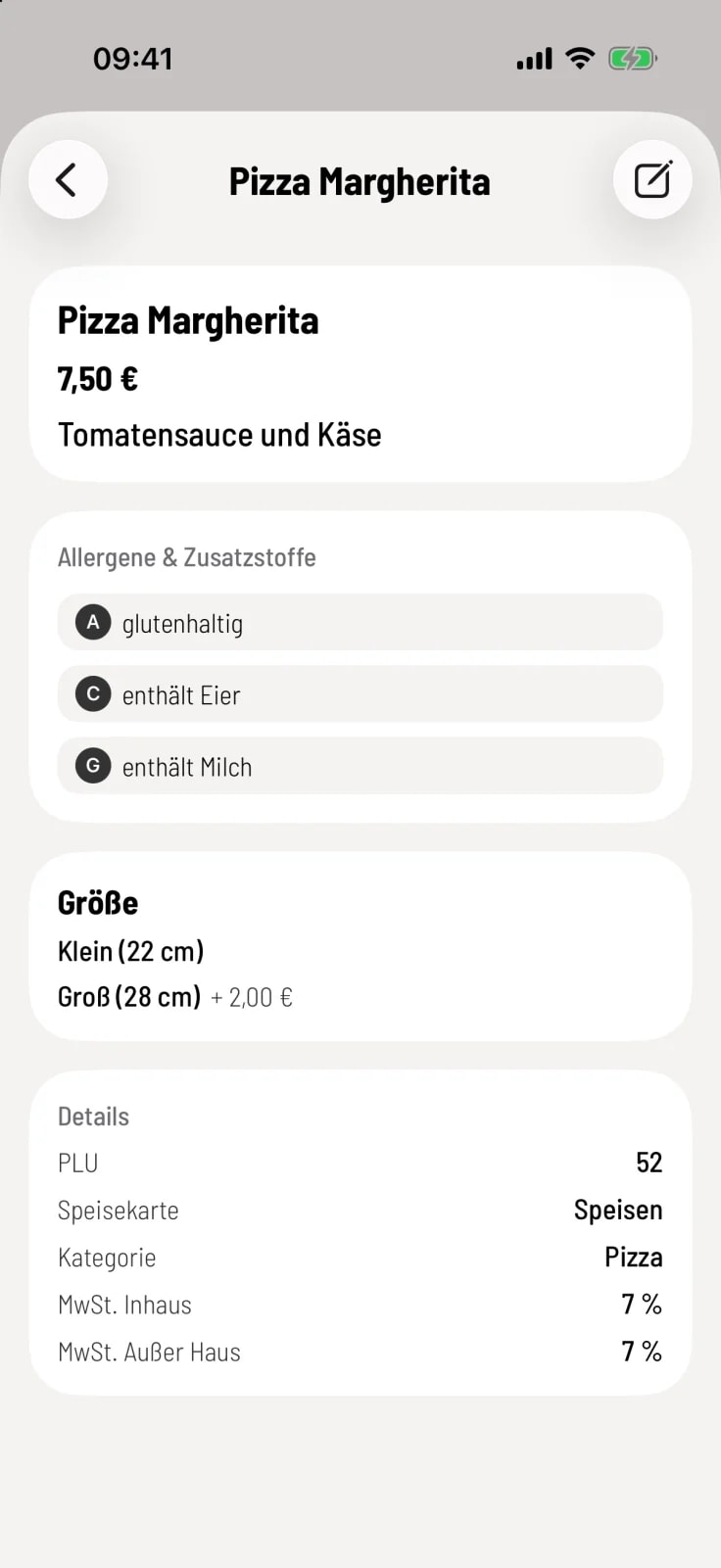
Tap on an item in the list, then tap the pencil icon in the upper right corner. If you clear an optional field, the information will be removed.
Good to know
Both tax rates are preset to 7%. Check them for each item.
The price must be greater than €0.
If you have filtered the list to show a map, it is already selected in the form.
The Active switch hides an item without deleting it.
You can manage images, variations, recipes, and deletion in the Web desk: create, edit, and delete item.
You don't mark an item as sold out in the form, but rather on the tile: Mark item as sold out.