
Timeline: Tables and times at a glance
Reservations are displayed as bars for each table: change the status with a tap, move reservations and plan arrivals.
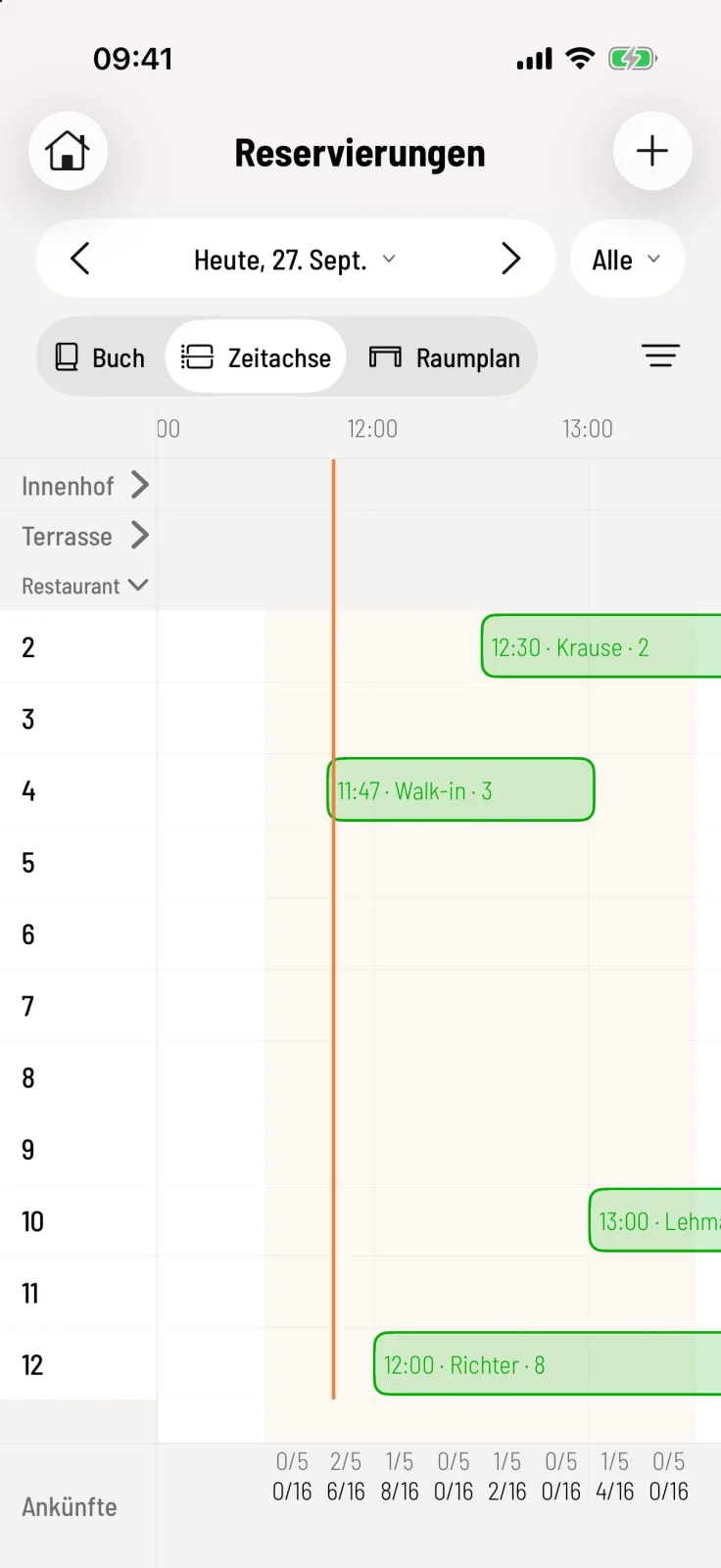
The timeline shows each reservable table as a row and each reservation as a bar in its status color. This way you can see at a glance where there is still space.
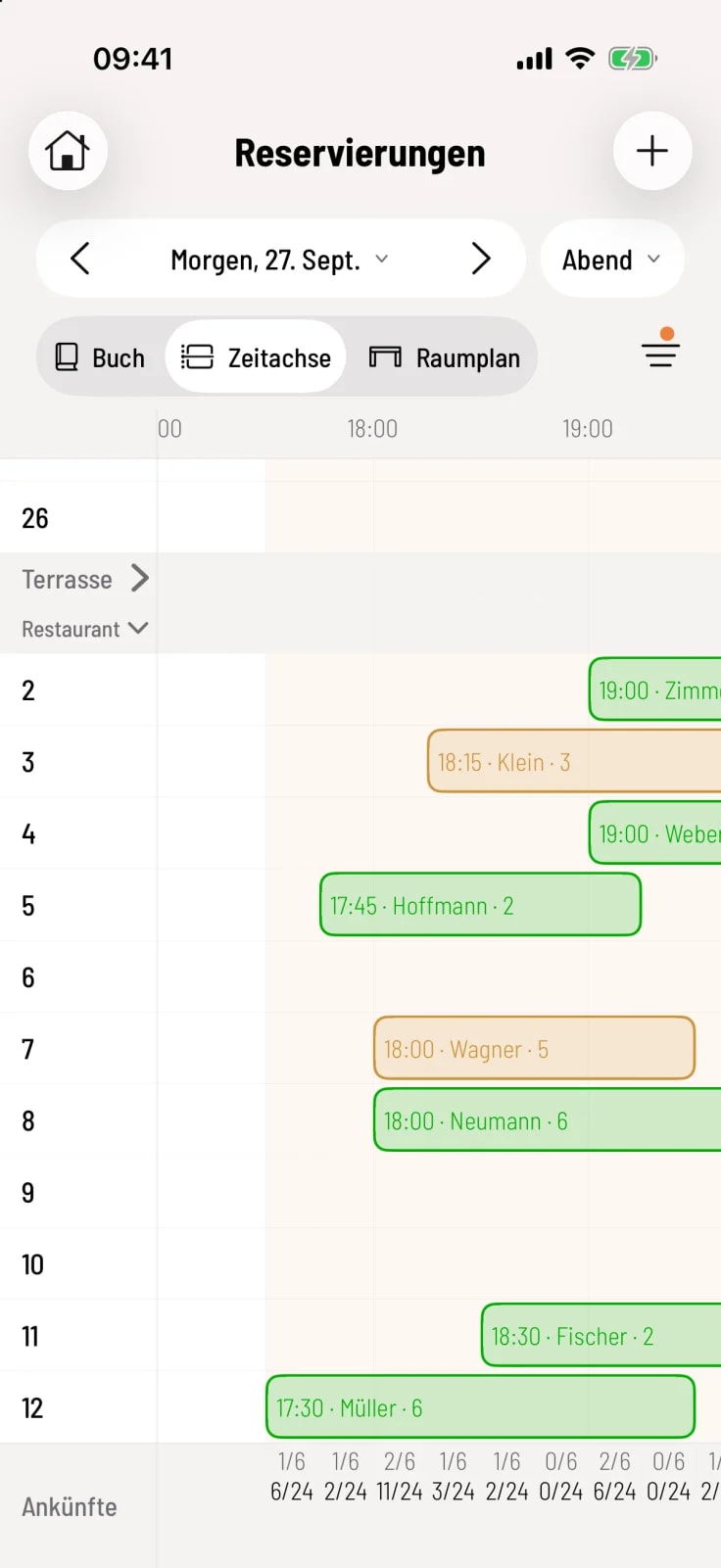
Tables are grouped into areas. Tapping on the area name expands or collapses it.
Reservations without a table are listed at the top under Without a table.
Today, an orange line shows the current time.
If two reservations at the same table overlap, a red ribbon is placed behind them.
Two fingers zoom in, a double tap resets the zoom.
Working with the timeline
Status via tap
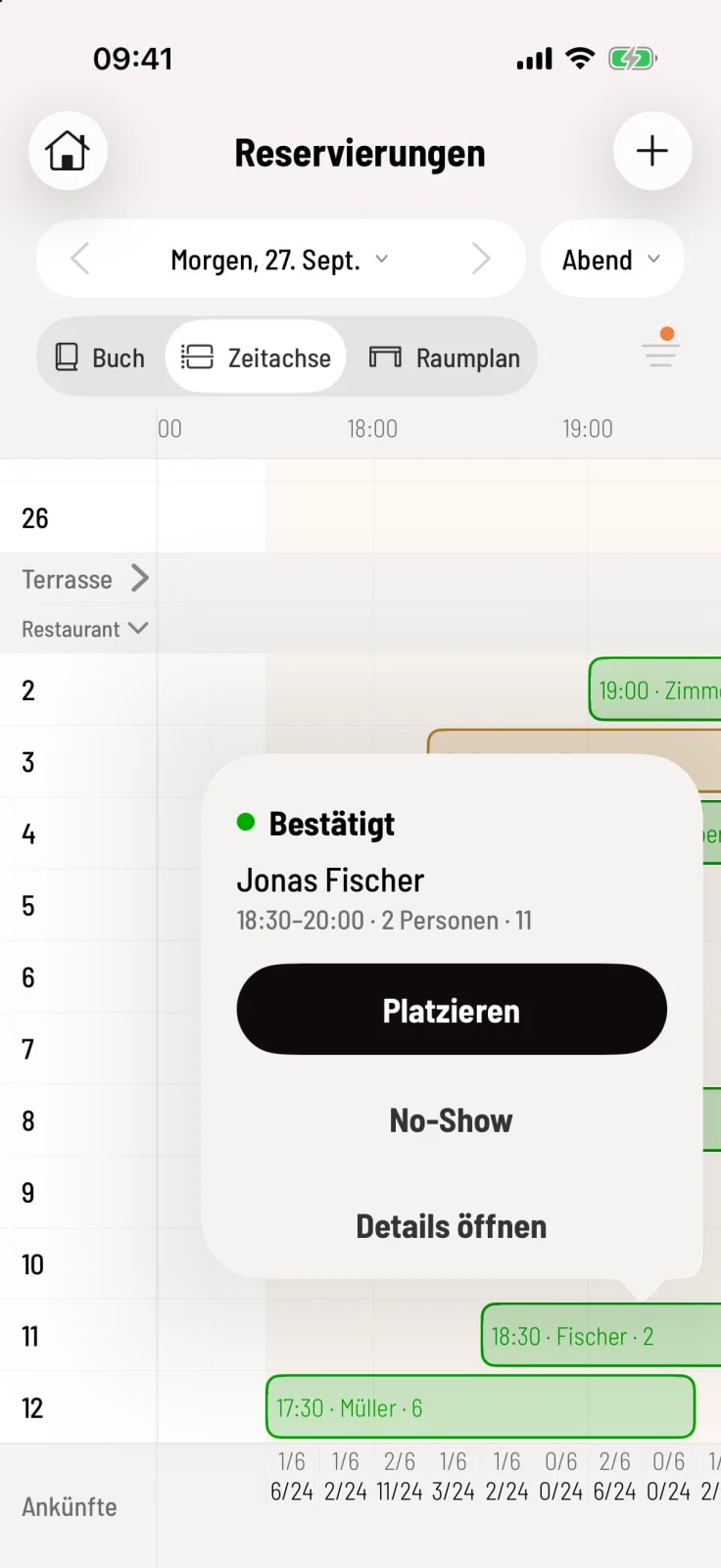
Tap on a bar: The checkout will offer the appropriate steps, such as Place, Complete, or No-show. Open Details displays the entire reservation.
New reservation – tap on an empty space in a row of tables. The table and time will then be entered.
Move – briefly press and hold a bar and drag it: horizontally changes the time, vertically the table. Undo will then briefly appear. Completed reservations cannot be moved.
Arrivals
The Arrivals line at the bottom counts the arriving groups (above) and guests (below) for each time interval. If you have set up arrival control in the Web desk , it will show, for example, 2/6 – a full interval is highlighted in orange. This helps you distribute kitchen duties evenly throughout the evening.