
Delete restaurant
Check the requirements before removing a business that is no longer needed.
At the very bottom under Settings → Restaurant is Delete Restaurant. The button is only active if all three conditions are met:
You are the creator of the restaurant.
There never was a subscription for this restaurant; even a terminated subscription prevents deletion.
Your account will then remain linked to at least one other restaurant.
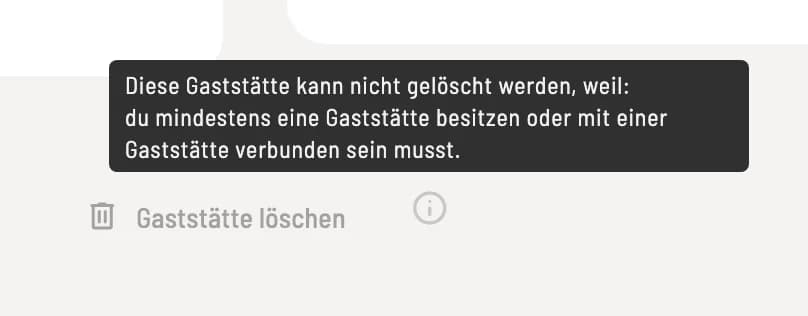
Reason for a suspension
If Delete Restaurant is grey, the Info Symbol next to it shows what is missing, in this case: It is the only restaurant in the account.
Confirm deletion
If all requirements are met, Delete Restaurant opens the Permanently Delete Restaurant dialog. Enter the restaurant's name exactly and confirm. Cancel will not delete anything.
Deletion is permanent. Orders, shifts, invoices, statistics, and the restaurant's cash book will be irrevocably deleted. Back up anything you still need beforehand. If the restaurant had a subscription, it cannot be deleted; in that case, only cancel the subscription.