
Setting up time tracking and surcharges
What employee settings for clocking in, breaks, bonuses and reminders do.
You can access the settings under Employees via the gear icon in the top right corner (Employee Settings). These settings apply to the entire restaurant and affect all entries that are clocked out or edited after saving. Depending on the permissions and module, the dialog has up to four tabs: Working Hours, Shift Schedule, Wages & Costs, and Notifications.
Prerequisite: Time tracking is part of the Max plan and must be set up. Changes can be made by the owner and anyone with the rights **Use Web desk ** and Manage Time Tracking & Payroll. The Shift Schedule tab is available to everyone with Manage Shift Schedule once a shift schedule has been set up.
working hours
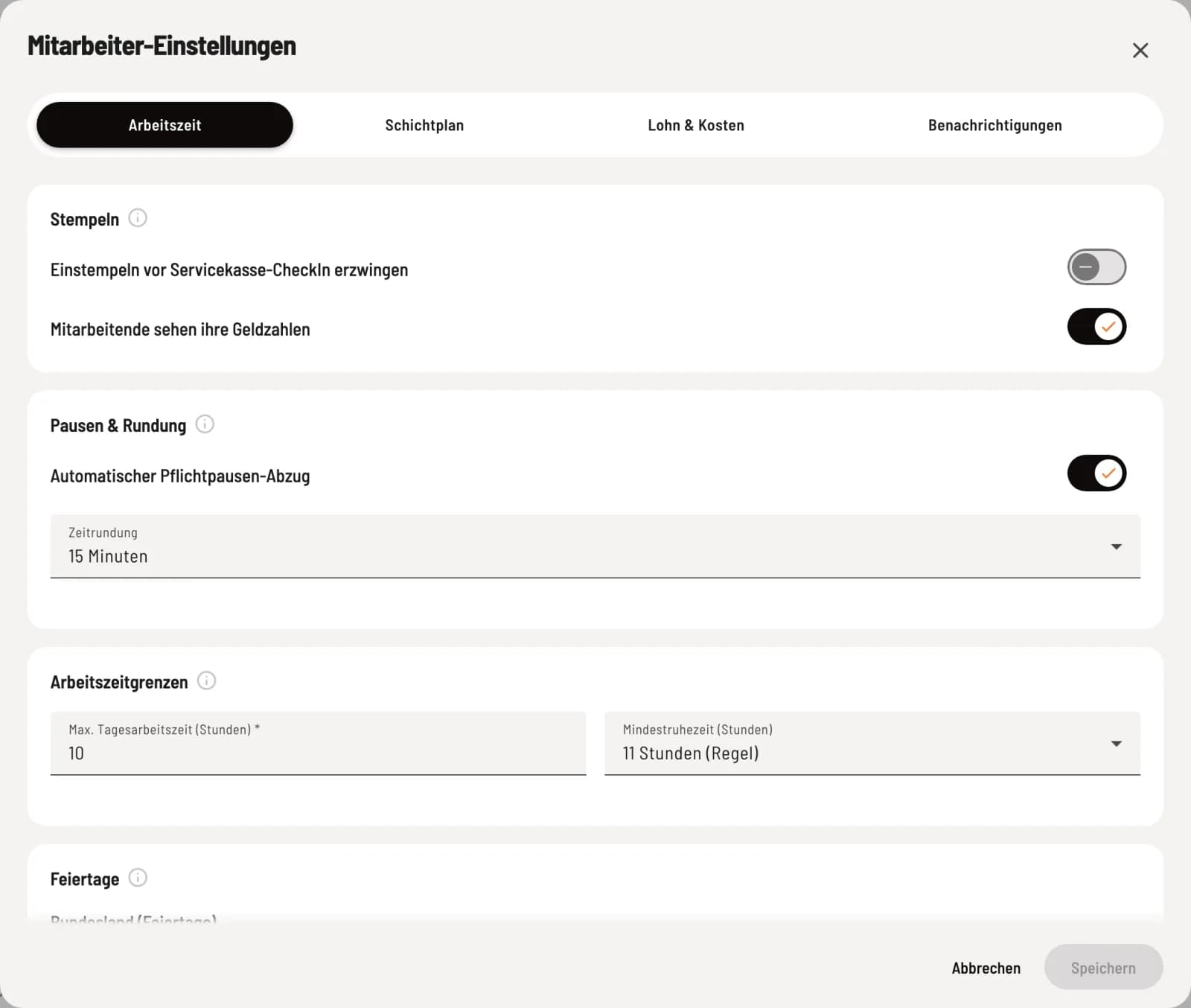
Stamps, breaks and boundaries
Enforce clocking in before check-in at the service counter: Anyone who is not clocked in cannot check in at a service counter. Employees see their pay figures: In addition to hours worked, employees can also see their wages, bonuses, sales, and tip. Automatic mandatory break deduction: If the legally required break is missed, Servire deducts it from the paid time: 30 minutes for more than 6 hours, 45 minutes for more than 9 hours. Time rounding: Rounds to the nearest 5 or 15 minutes. The clocked times remain unchanged. Maximum daily working hours: 8 to 10 hours per workday (6 a.m. to 6 p.m.). Minimum rest period: 11 hours (standard) or 10 hours (restaurant, compensation required).
When rounding, Servire never pays less than the time worked: If the rule rounds down, wages and wage exports are calculated using the exact time. Exceeded limits do not prevent clocking in; they appear as a notification, see Understanding the Working Time Act (ArbZG) guidelines.
Under Public Holidays you'll find the federal state where the restaurant is located; Change in Restaurant leads to the Information where you can manage this setting. If the restaurant is closed on a public holiday according to its opening hours, each person with a weekly quota will have their daily quota credited to their account.
Wages & Costs
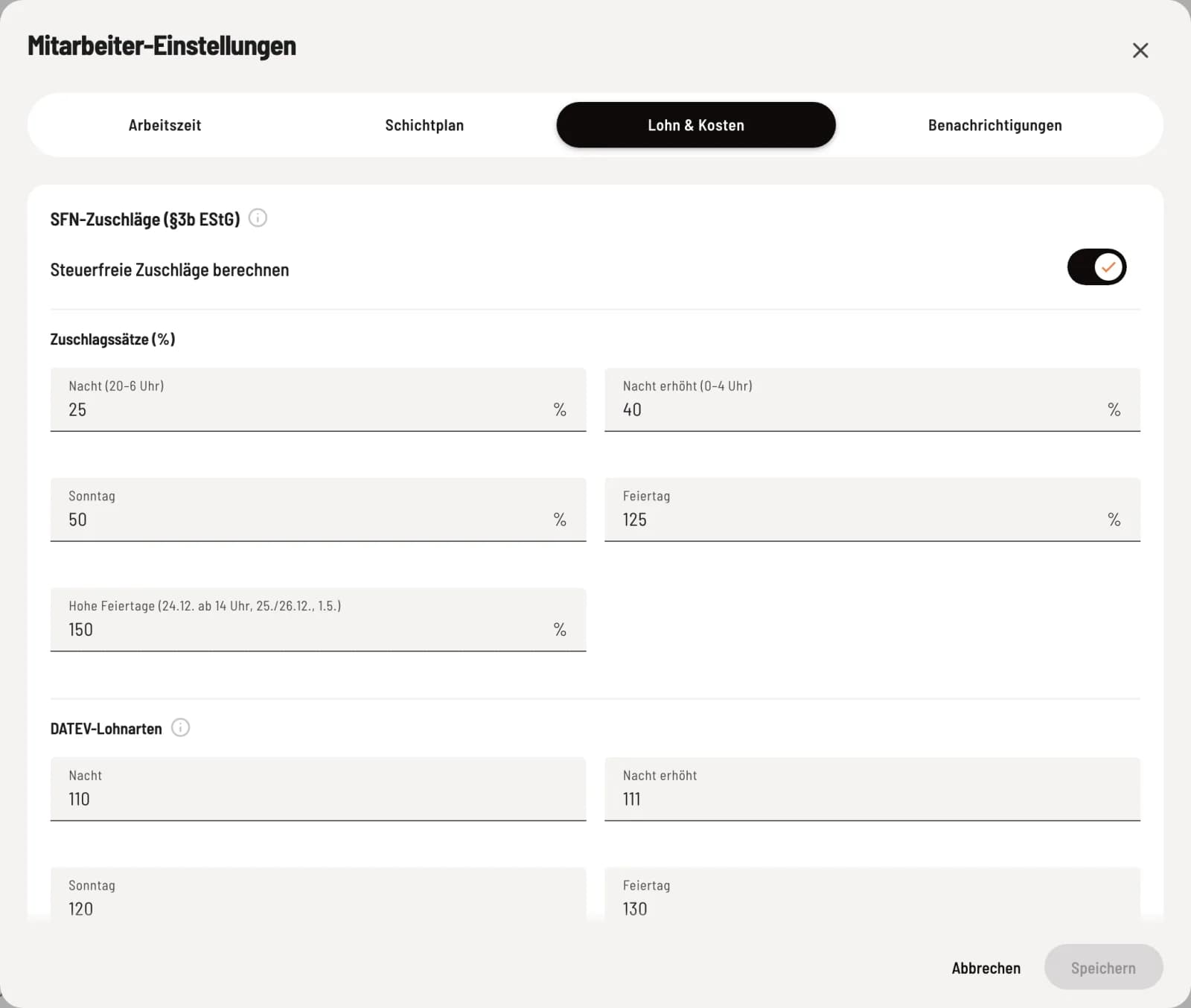
Tax-free allowances
Calculate Tax-Free Supplements calculates night, Sunday, and holiday supplements on the hourly wage. Ex-works: Night (8 p.m.–6 a.m.) 25%, Night (midnight–4 a.m.) 40% if shift starts before midnight, Sunday 50%, Holiday 125%, High Holidays 150%. A range of 0 to 200% is permitted. Under ** DATEV Wage Types**, you enter your payroll department's wage types for the supplementary hours.
Exception per employee
The surcharges apply to everyone in the restaurant. If no surcharge agreement exists for a particular employee, in the Edit Employees dialog under Payroll & Payroll, deactivate the Receives tax-free surcharges toggle and select Effective from (the beginning of the month). Servire will recalculate their entries from this date without surcharges; if a payroll export already exists for the month, create a new one. The Time Sheet will highlight these entries. More information: Edit employee data and rights.
Below these are the personnel costs for shift planning and statistics and the payroll export, see Setting up payroll export.
Only the standard rates for a basic wage of up to €50 per hour are tax-free (§ 3b EStG). You should discuss higher rates with your payroll department.
Notifications
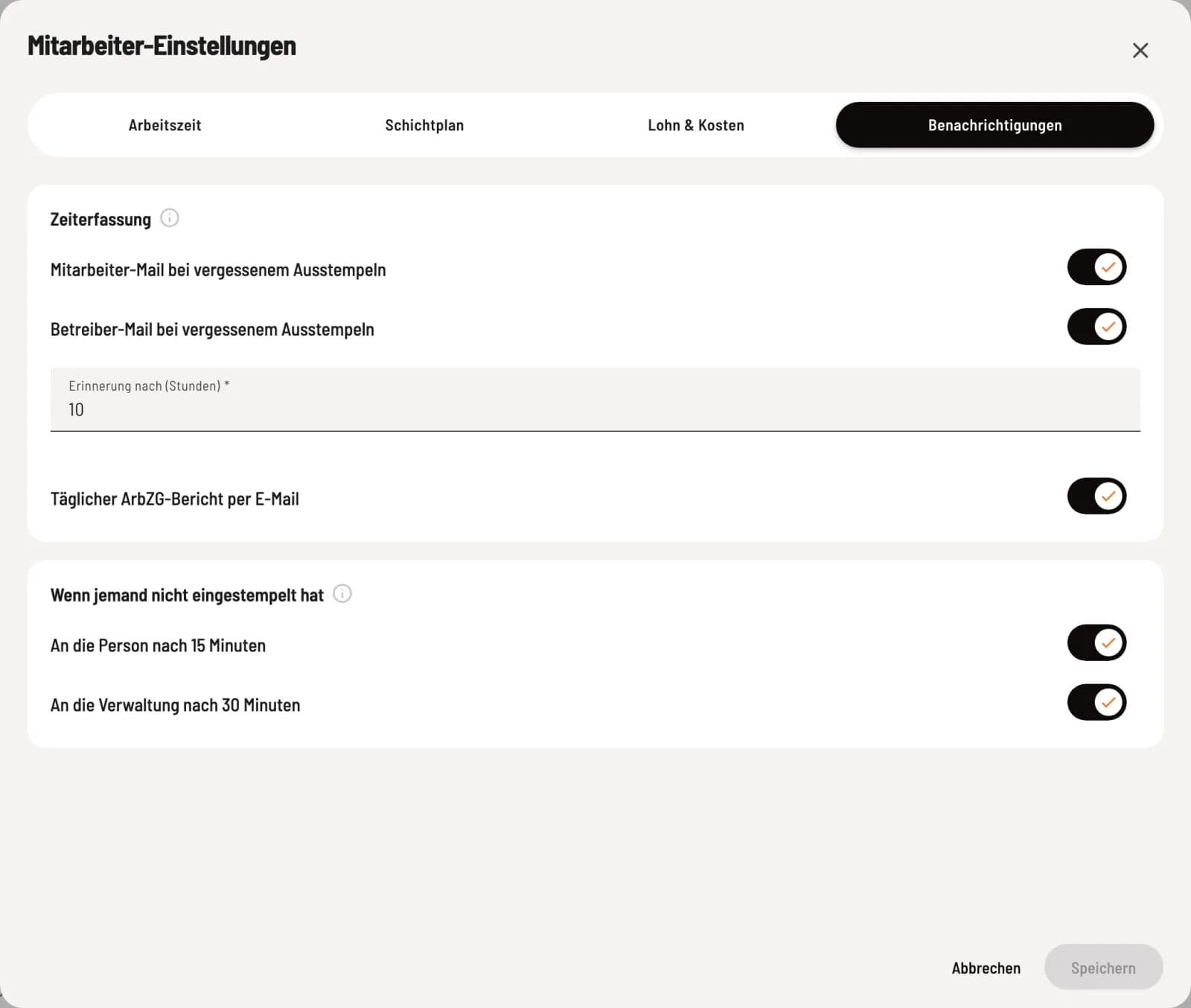
Memories and Working Time Act report
Employee email if clocking out is missed and Operator email if clocking out is missed: send a reminder email if someone is still clocked in after reminder after (hours) (1 to 24). Daily Working Time Act report via email: an email is sent to employers every morning at 7 a.m. if there was a violation the previous day. With a shift schedule, If someone hasn't clocked in, an email is sent to the employee after 15 minutes and to administration after 30 minutes after the shift begins.
Always active: Anyone clocked in for more than 16 hours will be automatically clocked out. The entry will be marked for review; see Correcting time entries.