
Set up birthday email
Here's how to automatically send guests a personalized email on their birthday.
The birthday email automatically congratulates your guests. You can set it up in the Web desk under Guests → Gear icon → Automation & Emails tab in the Birthday Email section.
Guest management is included in the Max plan. The first time you open Guests, a wizard will guide you through the setup; before that, you, as the owner, must conclude the data processing agreement (DPA). Only those with Manage Guests permission can change the settings – everyone else can only view them. Emails are only sent to guests with a registered birthday who have confirmed their newsletter subscription (double opt-in).
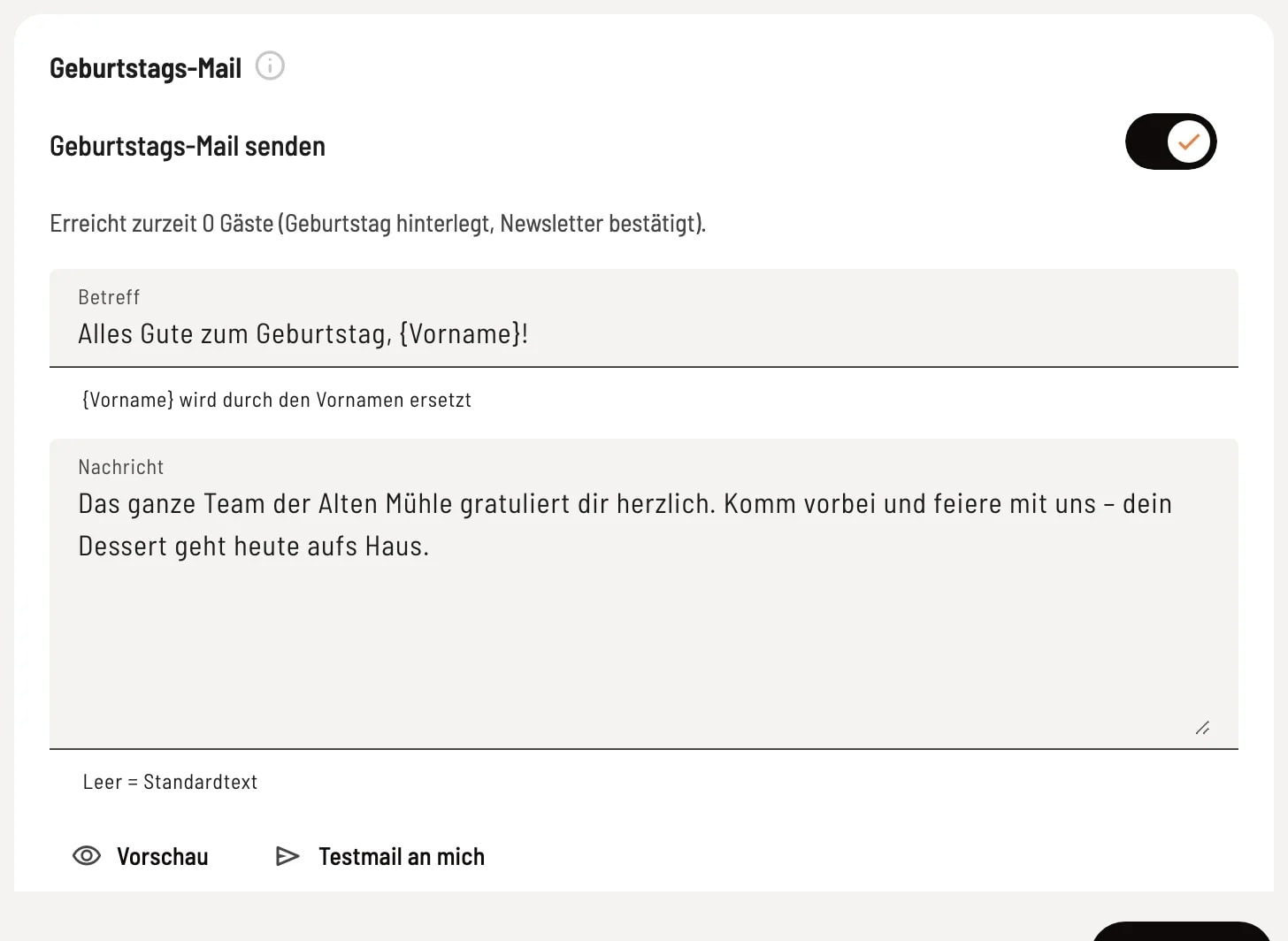
Turn on birthday email
Activate Send birthday email. Below, you'll see how many guests the email is currently reaching. Enter the Subject and Message – {First name} will be replaced with the recipient's first name. Preview lets you see the finished email, Test email to me sends it to your own address.
The fields
-
Send birthday email – Guests automatically receive an email on their birthday at 9 a.m., once a year.
-
Subject, Message – Your email text. If you leave a field blank, the default text in the guest's language will be used.
-
Preview – Shows the email as guests will receive it.
-
Test email to myself – Sends the email only to your own account address, never to guests. Sending too many test emails in a row will lock the dialog for one hour.
Good to know
Guests with a birthday on February 29th will receive the email on February 28th in non-leap years.
A small gift in the message, e.g., "your dessert is on the house today," will bring guests to celebrate with you.