
My times: hours, wages and working time account
View your own time entries for a month, net hours, bonuses and working time account in the cash register.
Time tracking is active and you are not exempt. You don't need to be logged in for a shift .
Under My Times you can see what has been recorded for you at any time. You can open it in the overview on the Time Tracking card. Use the ‹ and › buttons at the top to change the month.
Step 1 of 4
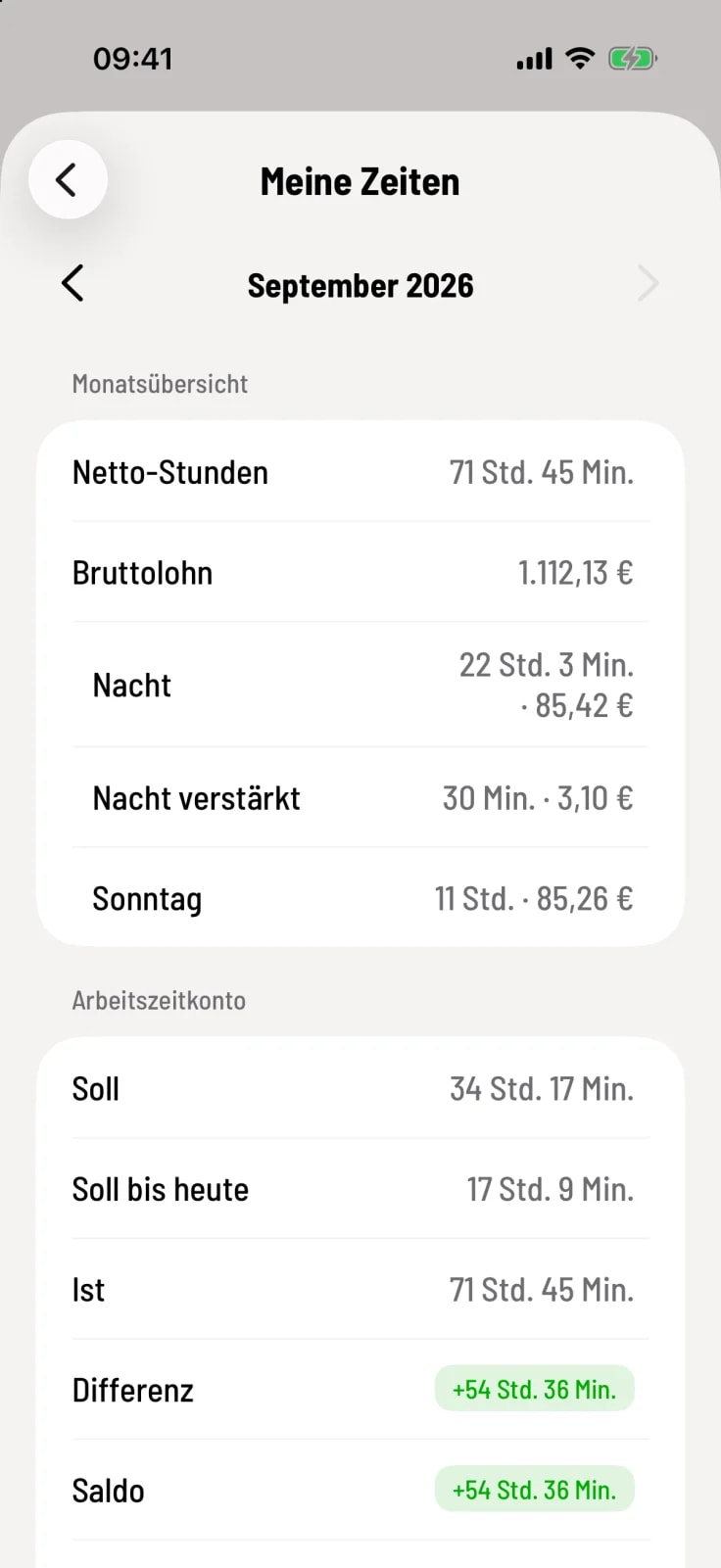
Monthly overview
Net hours and gross wage for the month, including any type of surcharge – such as night work or Sunday work – with duration and amount. If no hourly rate is specified, a dash is shown next to the wage.
Step 2 of 4
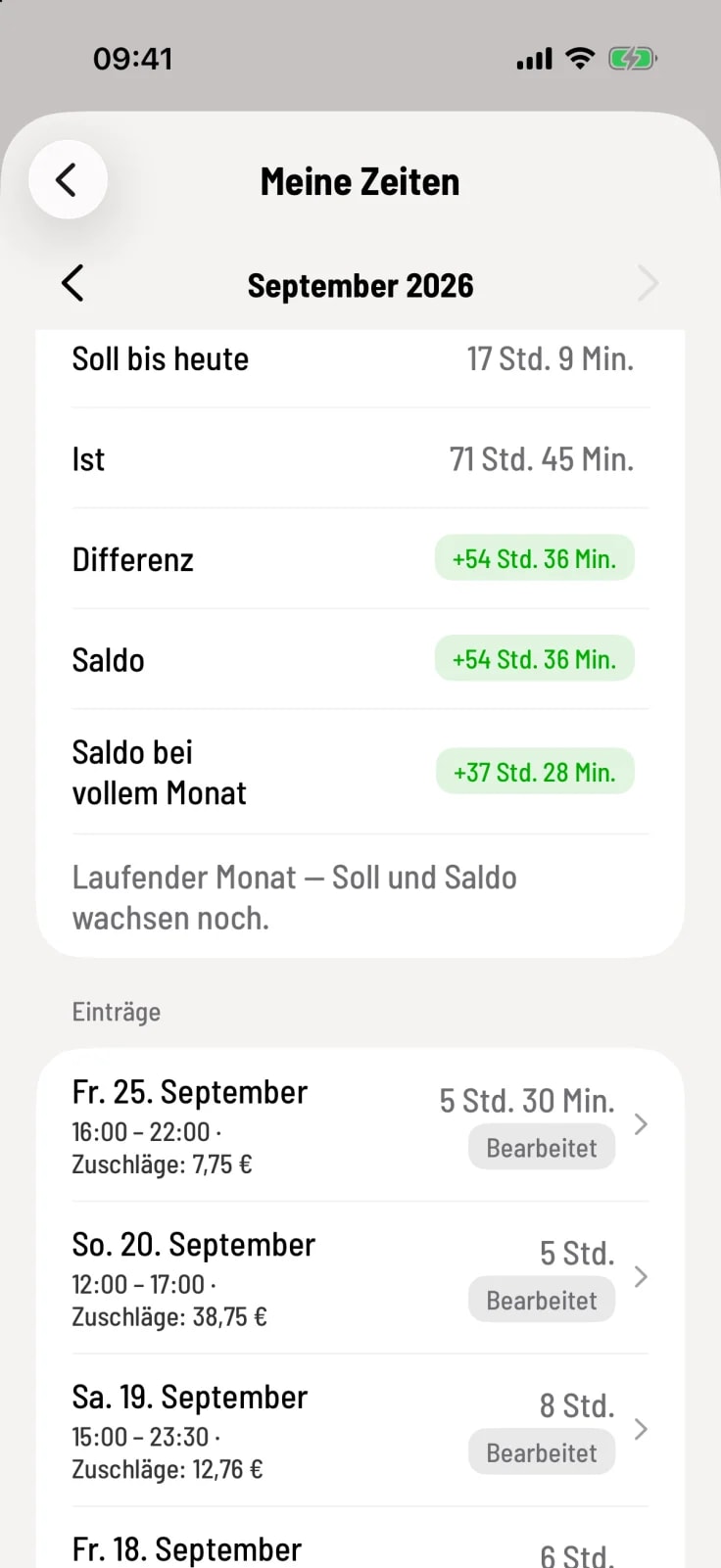
Working time account
Target, Actual, Difference, and Balance, and in the current month also Target to date and Balance for a full month. Green means positive, red negative. The card appears when the company has recorded your weekly hours.
Step 3 of 4
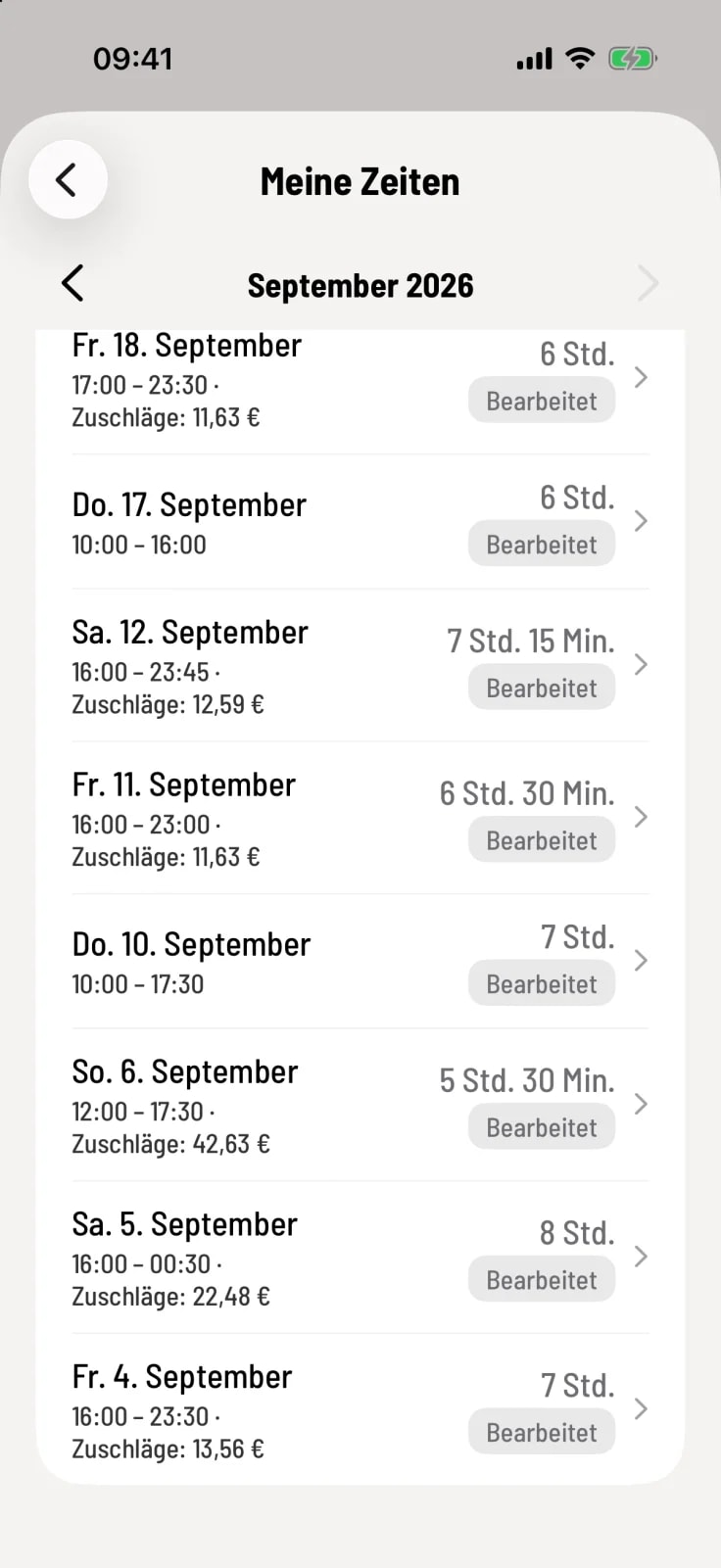
Entries
One line per shift with date, start and end times, surcharges, and net time. A sticker indicates special features such as Processed, Correction request pending, or an automatically closed entry.
Step 4 of 4
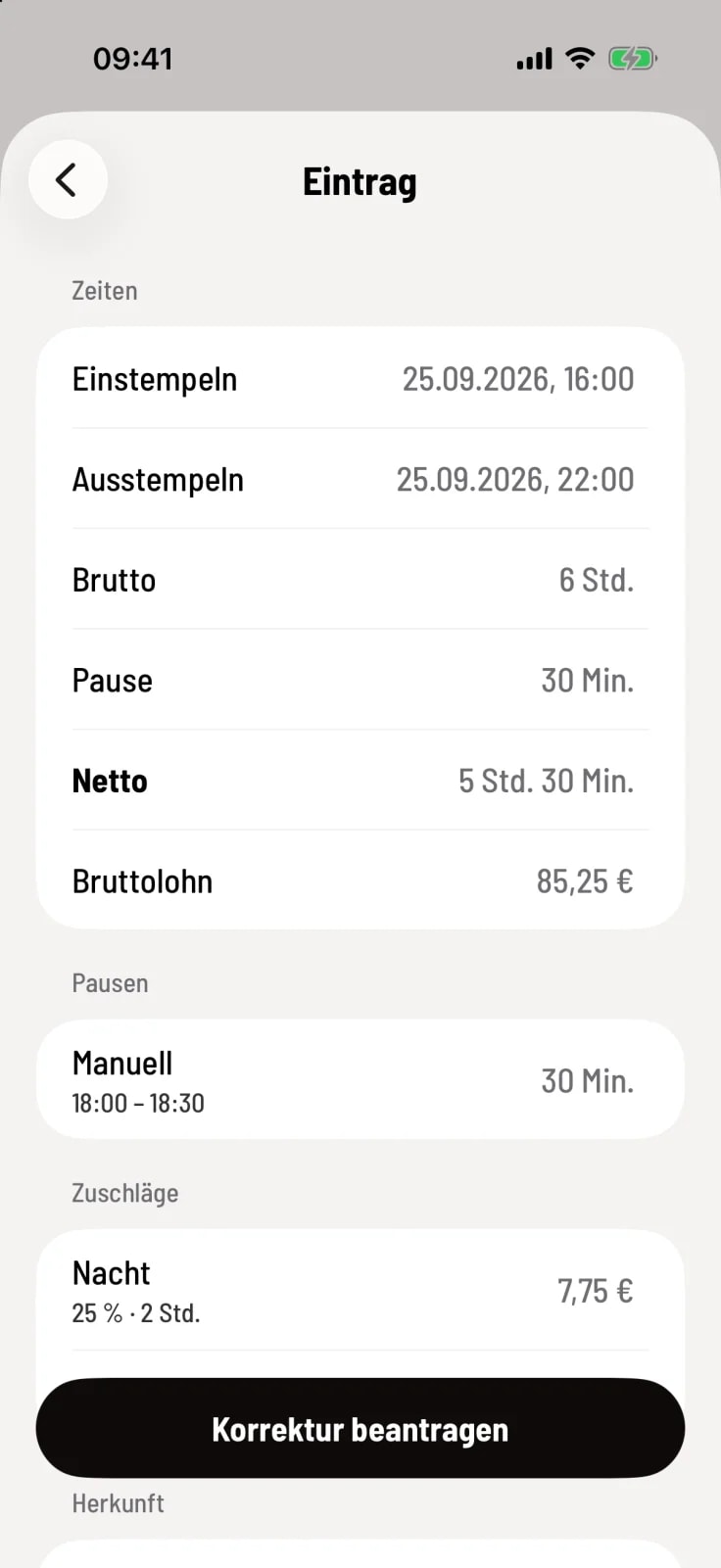
Entry details
Tapping on an entry displays clock-in and clock-out times, gross pay, breaks, net pay, wages, each break, and each bonus. Further down are notes, company corrections, and the change history.
If a business has changed an entry, the reason is displayed under Edited. If something is incorrect, tap Request Correction at the bottom: Request correction.