
Operating the kitchen monitor: Checking off dishes
Forward orders, read aisles and colors, open recipes and report "Busy".
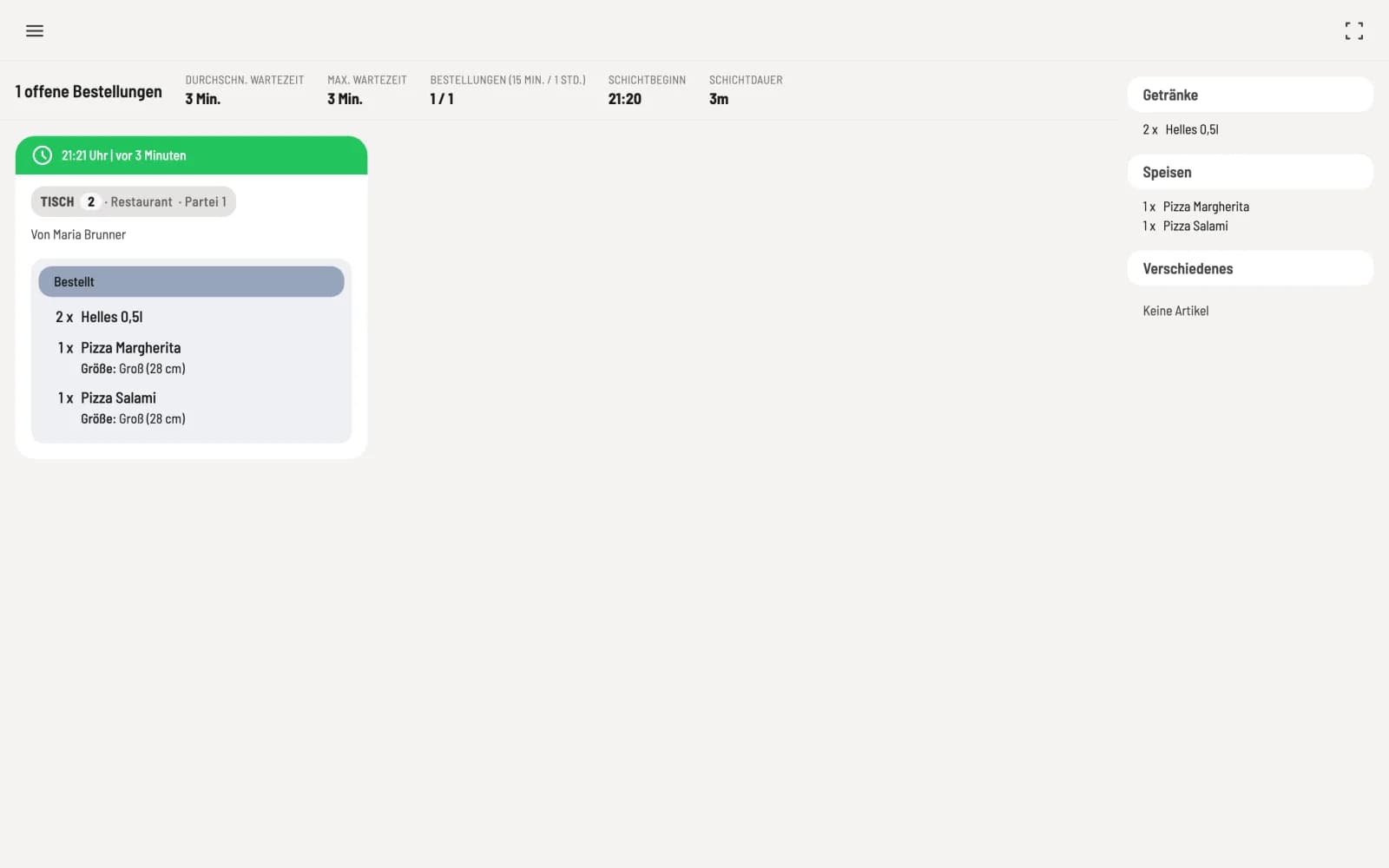
Each order card displays the table or pickup number, who placed the order, and the items in blocks, one for each processing stage. As you advance, the items move to the next block and disappear from the screen at the end. For online orders without a table, it indicates whether payment has already been made: Paid (online), Paid (terminal), or highlighted Payment upon pickup.
Change status
Next position
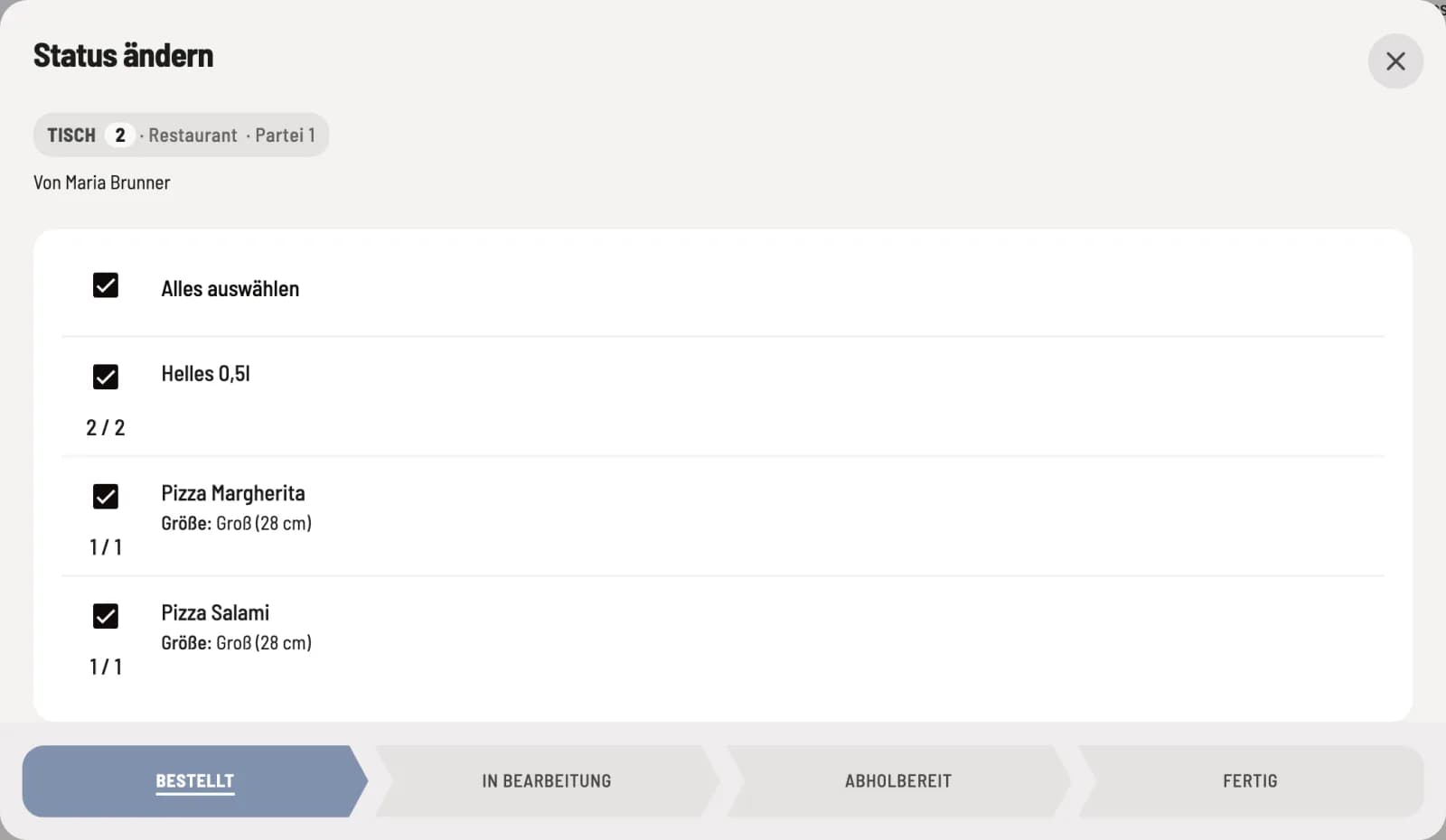
Click on a block of the map. In the Change Status window, check the boxes next to the completed positions; Select All selects all of them. Then click on the new status at the bottom.
The statuses are Ordered, In Progress, Ready to Serve, and Ready. For pickup orders, the last two are Ready for Pickup and Picked Up. A double-click or double-tap on a block moves everything within it to the next status.
For pickup: If you're using pickup numbers, first set the order to Ready for pickup. The customer will be called as soon as all item in the order are ready for pickup; only then will the number on the pickup display move to the right. If you jump directly to Picked up, the customer will never be called; the monitor will display a warning. An order with payment upon pickup will remain in the checkout under Online Orders until it is processed, even if you finalize it here.
Call up collection number again
button on the card
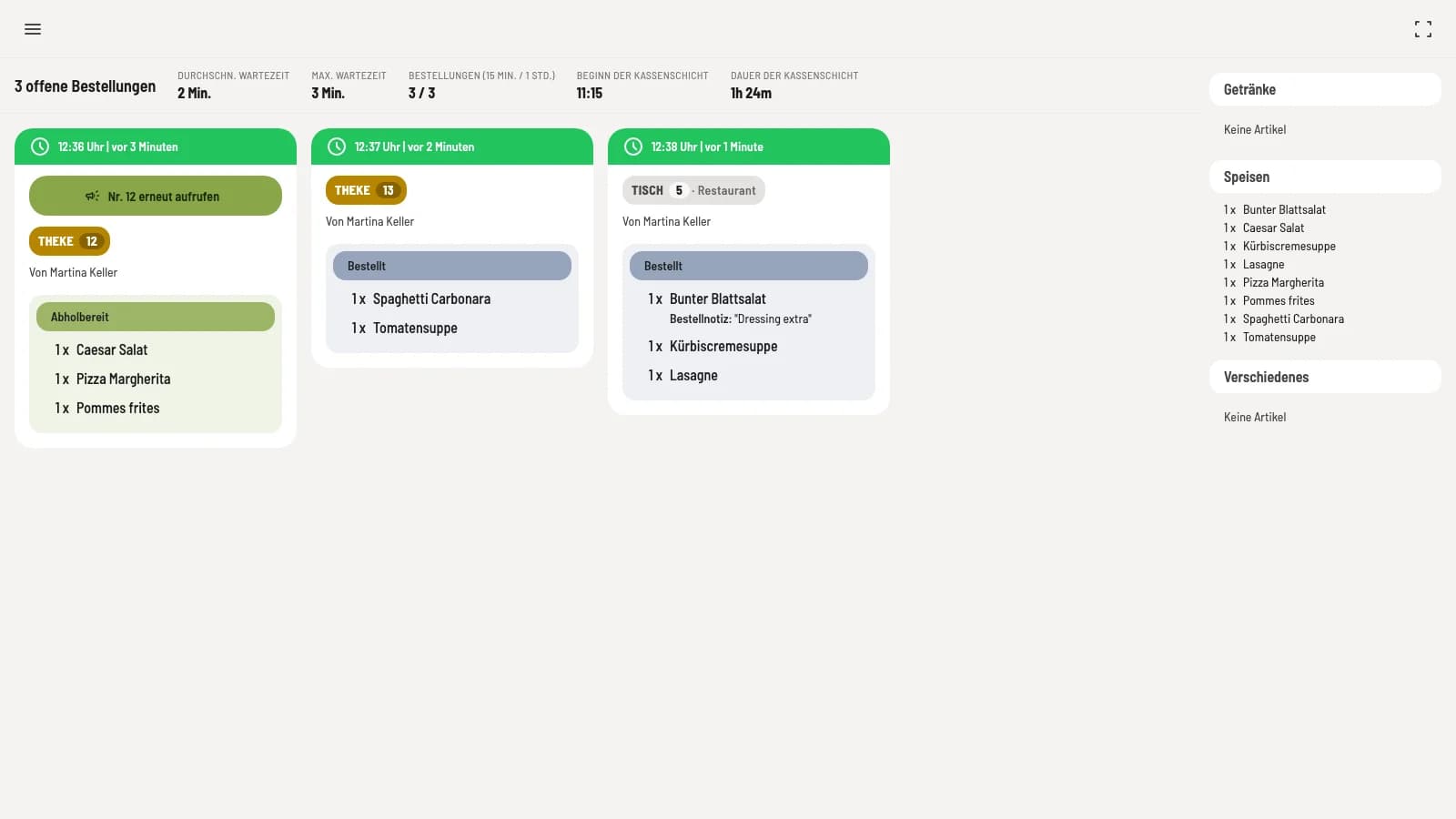
When the guest's name is called, a green button like Recall No. 12 appears at the top of their card. Tapping this button plays the sound again on the pickup display. The same button is also located at the top of the Change Status window. When the guest picks up, set the status to Picked Up.
Colors and corridors
The menu header changes color depending on the waiting time: first green, then yellow, then red; by default, it's yellow after 11 minutes and red after 31 minutes. If you're working with courses, the monitor groups the items accordingly and displays Prepare now, Prepare in ~12 min, or Not yet prepared for each course.
Delivery services
If a delivery order is awaiting acceptance, the card will display Awaiting Acceptance. In the window that appears, you select Accept with the expected pickup time or Decline with a reason. If an item is missing, you report this with ** item missing**, and the delivery service will then contact the customer.
Top and right
The header counts open orders, waiting times, orders from the last 15 minutes and the last hour, as well as shift start and duration.
On the right, the overview counts all open positions per product group, useful for seeing how many pizzas are pending in total.
If Show recipe buttons is enabled, the book icon will open your recipe in a specific location; you can also edit it there. The book icon in the header displays all recipes in the view.
If you enable the button in the Web desk , Busy adds 10, 20, or 30 minutes to the preparation time of online orders for 60 minutes. Stop deactivates it immediately.