
Connect delivery services to the checkout
Here's how to connect Uber Eats with your restaurant – orders go directly to your cash register, and the menu is transmitted via Servire.
Under Settings → Integrations → Delivery Services, you connect delivery platforms to Servire . Orders go directly to your POS system, and Servire transfers your menu to the platform. Since September 23, 2026, Servire has automatically accepted incoming orders.
Delivery services are included in the Max plan. For Uber Eats, you also need an Uber Eats store, a configured TSE ( Technical Security Equipment), and a completed data processing agreement (DPA). For orders to be printed, a print center must be running or the Print Online Orders function must be enabled at the checkout.
An overview of delivery services
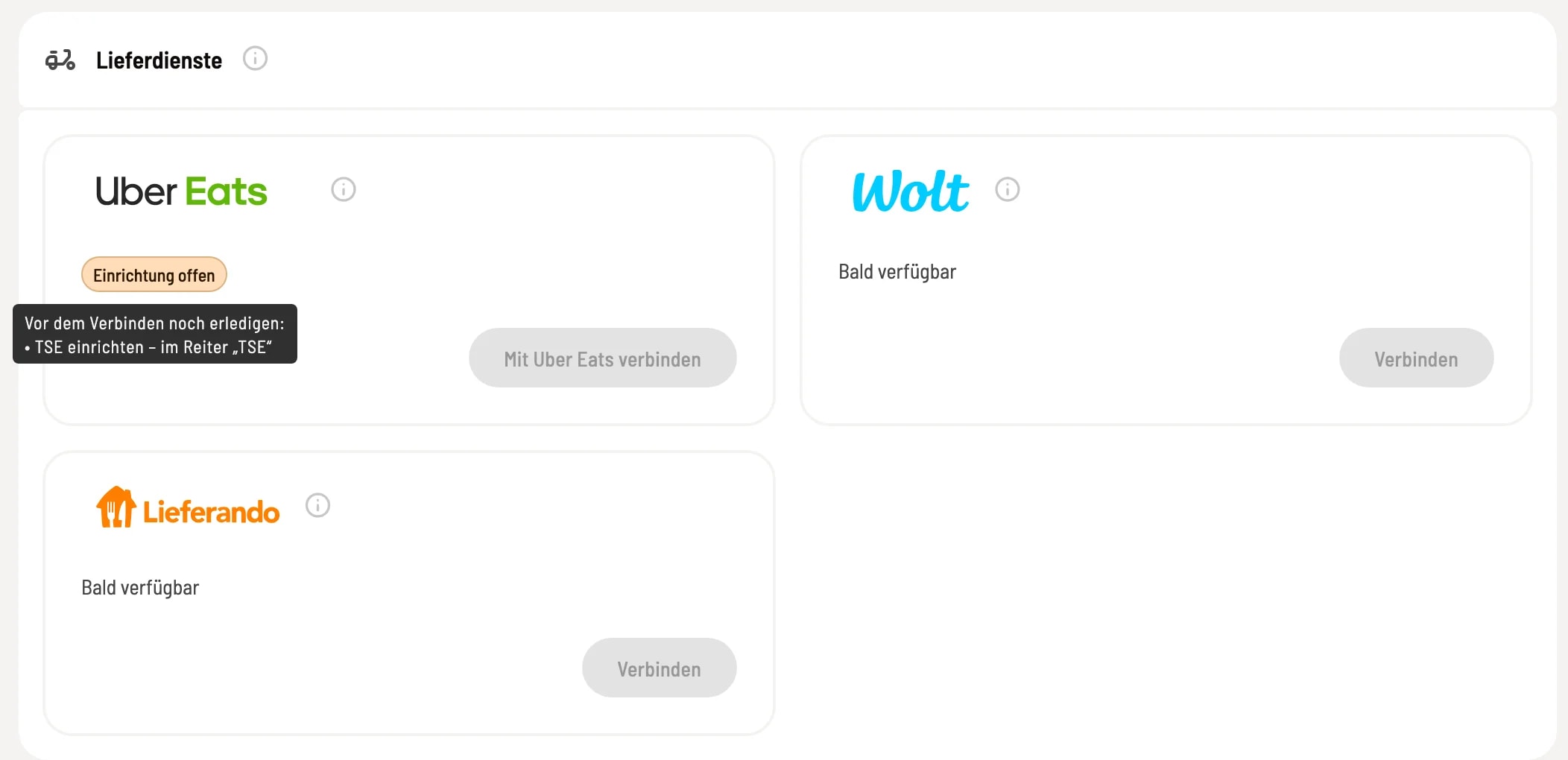
Maps for Uber Eats, Wolt and Lieferando
Uber Eats is available, Wolt and Lieferando show Coming Soon. If a requirement is still missing, the map shows Setup Open; hovering your mouse over it will show what's missing and in which tab you can complete it – e.g., Set up TSE – in the "TSE" tab. Until this is done, Connecting with Uber Eats is disabled.
Uber Eats connects
Click on Connect with Uber Eats. You'll log in to Uber, select your store, and return. The map will then display the status (Connected, Paused, Error), the store ID, and the last menu synchronization date. Below this are three buttons: - Manage Channel – opens the channel settings directly above the map: menu, channel prices, orders ( set delivery channel ). - Test Connection – checks if Uber Eats is reachable. - Disconnect – ends the connection after a confirmation prompt; menu transfer stops. If a prerequisite is no longer met after connecting, the map will again display Setup in Progress – no orders will be received until this is completed.