
Payment service provider in the POS app
What the cards show under Settings → Payment service providers and what you configure there for each device.
You connect and disconnect providers in the Web desk: Connect payment providers. You do not log in to the provider in the POS app.
Open Settings → Payment Providers. A card will appear here for each provider your business has connected: SumUp, Stripe, or PayPal. All devices will automatically connect.
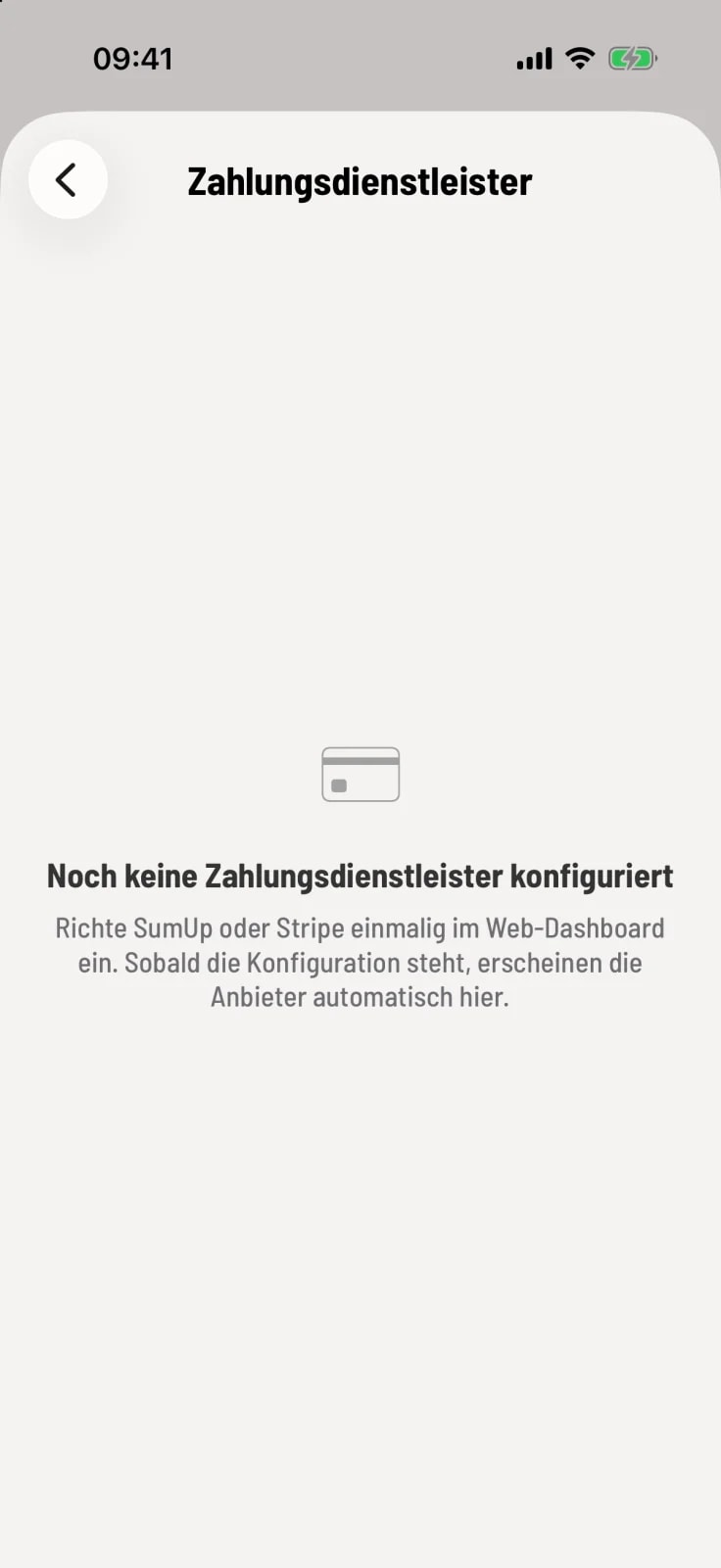
If no provider is connected yet, it will say No payment service providers configured yet.
A provider's card
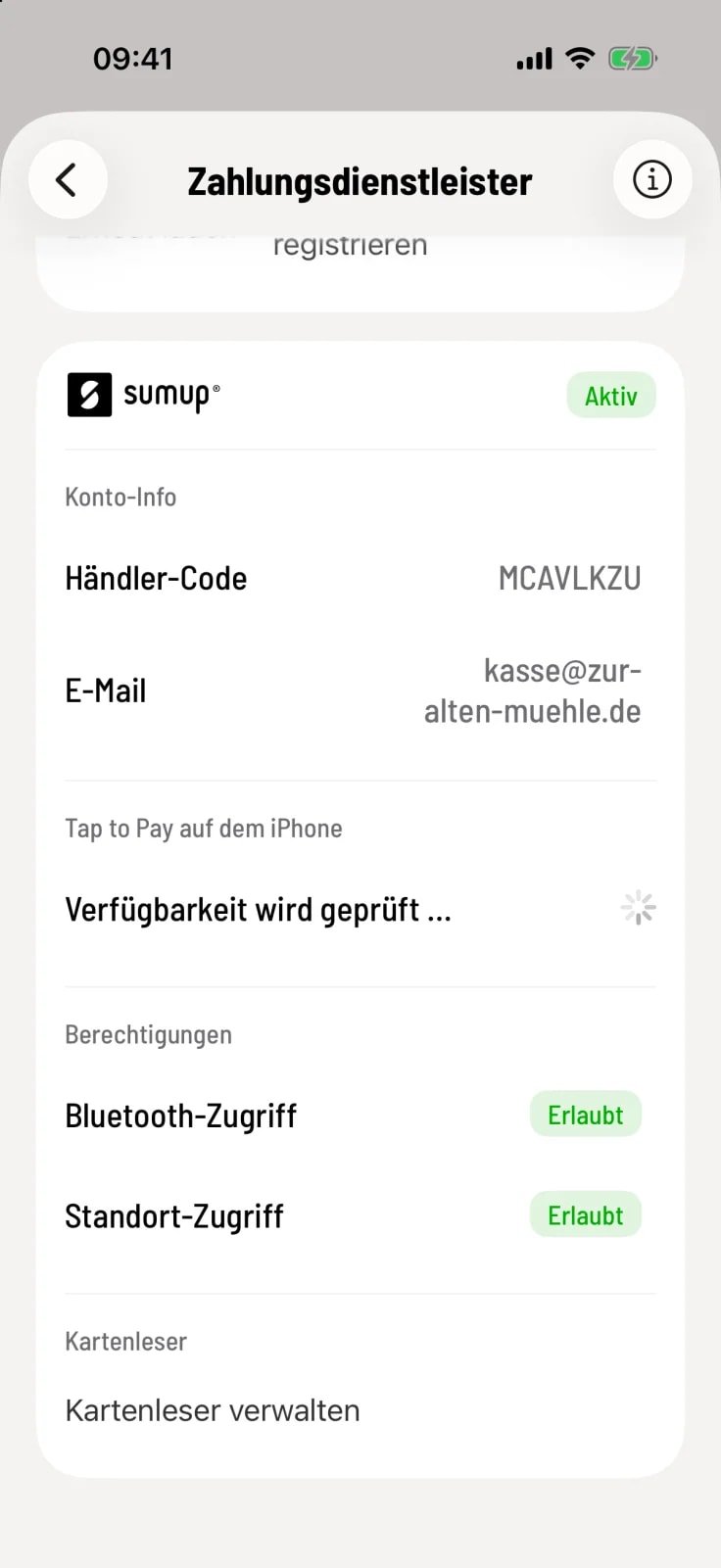
Status in the upper right corner – Active, Setup open, Access expired, or Error. If access has expired, a red message will appear with Open web dashboard. Then reconnect the provider in the Web desk .
Yellow message – the merchant is connected, but the appropriate payment method is missing at checkout. Therefore, no card can be charged. Add the payment method in the Web desk . This message only appears during a current shift.
Account Info – for viewing only, such as Merchant Code at SumUp or Stripe Account.
Tap to Pay – Accept cards directly at this device: Card payment directly at the device (Tap to Pay).
Permissions – for example, Bluetooth access and Location access with Allowed, Denied, or Not requested. If something is missing, tap Grant permission or Go to device settings.
Card Reader – which reader this device uses: Register and remove card readers.
The i button in the upper right corner opens the Notes. There you will find a short explanation for each section of the maps.
Tap to Pay: Permissions and the selected card reader apply per device. When settling accounts, your team doesn't select a provider, but rather a payment method: Pay by card.