
Manage suppliers
This is how you add suppliers with contact details so that you can order from them and book deliveries in containers.
Suppliers are the basis for order suggestions, email orders, and booking in bulk. You manage them under Inventory → Suppliers.
Prerequisite: The warehouse belongs to the Max tariff; newly registered accounts test it for 14 days. The owner and employees with the Manage Warehouse right (Web desk under Employees, section ** Web desk & Master Data**) are authorized to create, book, and order items.
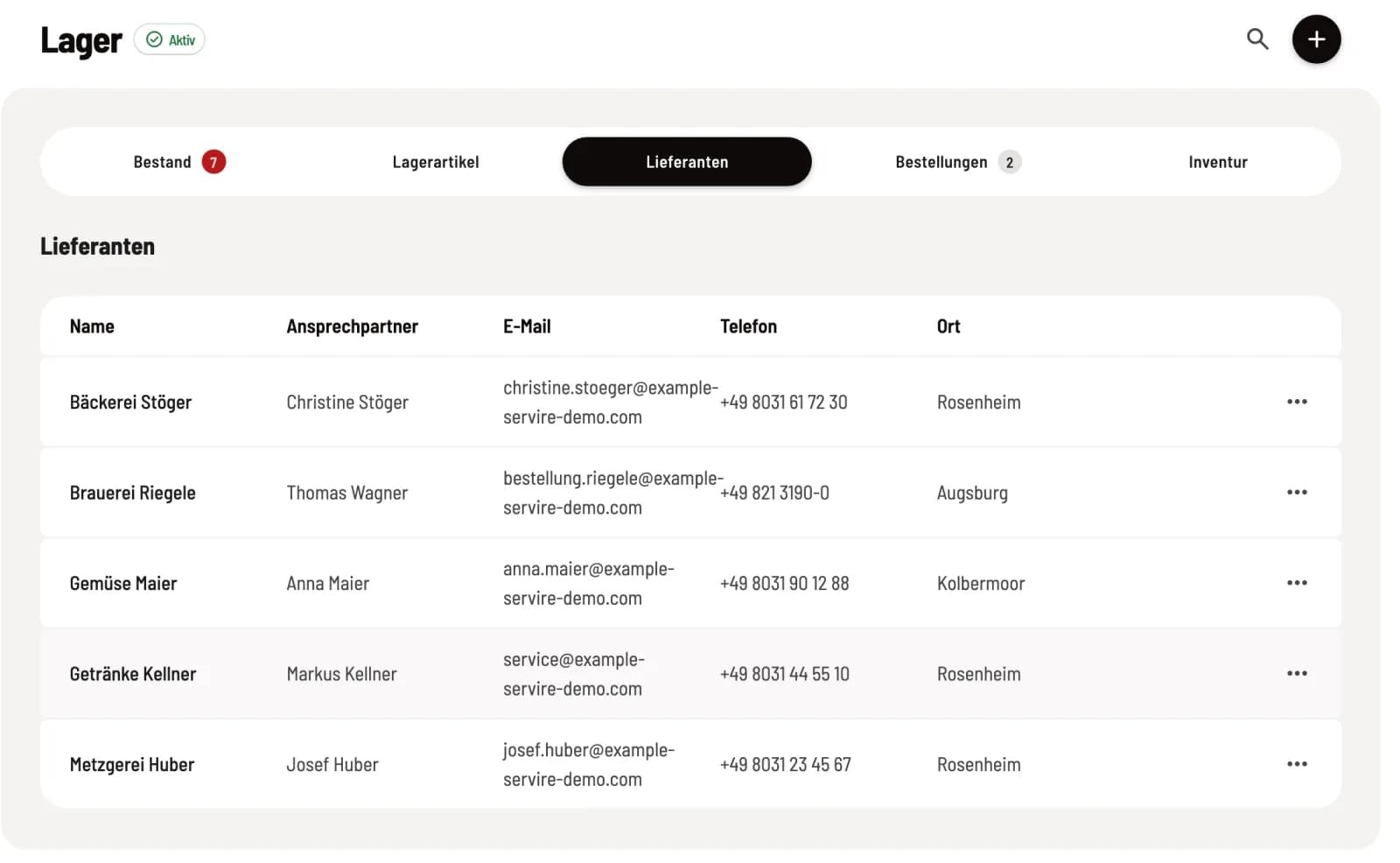
Step 1 of 2
Open list
The list shows Name, Contact Person, Phone, Email, and Location. Use the magnifying glass at the top to search; clicking on a row opens the supplier's page.
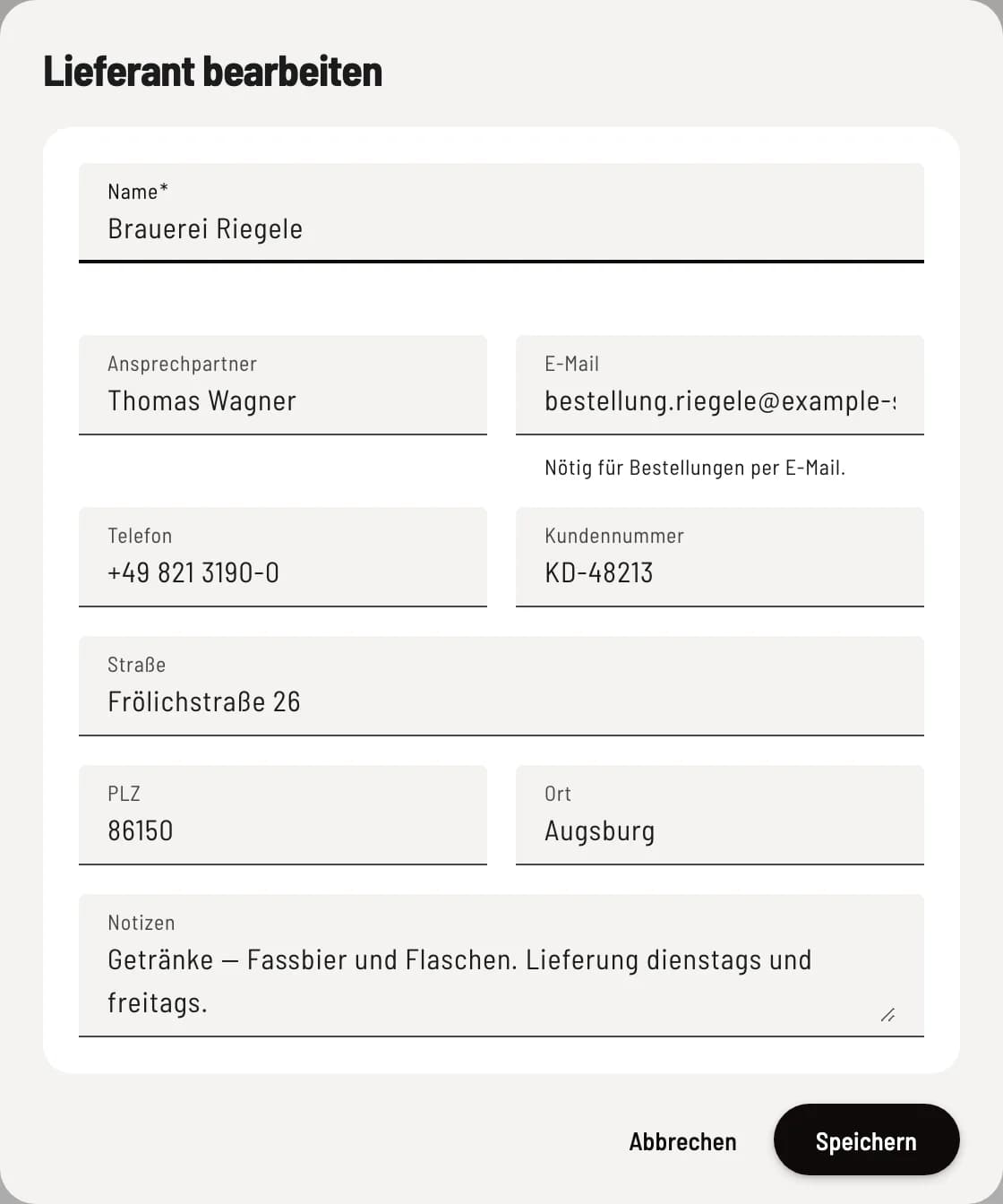
Step 2 of 2
Create supplier
Click on + in the top right corner. Enter Name, Contact Person, Customer Number, Email, Phone, Street, Postal Code, City, and Notes, then click Save. You will need the email address if you want to ship orders directly.
You can also create a supplier in the Book Goods Receipt dialog: In the Supplier (optional) selection, there is New Supplier.
Assign suppliers to stock items
You enter which item you buy from whom in the inventory item under Suppliers, including packaging and purchase price (see Creating Inventory Items ). Servire calculates the cost of goods sold based on the purchase price.
Archive
You can remove a supplier from the selection via … → Archive. If they are still listed under stock items, the confirmation dialog will display the number of stock items; these assignments remain until you remove them from the item . You can restore them using the Archived filter and the Restore function.