
Payroll export handed over to the payroll office
How your payroll department imports the file and how you reload or replace previous exports.
Each generated file is saved with its export ID. You can find it in the Payroll Export window for the respective month under Previous Exports this Month.
Prerequisite: The payroll export can be viewed by the owner and all users with authorization to manage time tracking. How the file is created: Create payroll export.
Import file
** DATEV LODAS**: The file name begins with LODAS, followed by the client number and export ID. Your payroll department imports it under Client → Import Data → ASCII Import and leaves the verification run enabled.
** DATEV Payroll and Salary**: The file name begins with LuG. The payroll department imports it under Data Transfer → Import Transaction Data and creates a one-time, three-column import description (personnel number; wage type; value).
Payroll Preparation Journal: The filename begins with "Payroll Preparation". Open the CSV file in Excel via Data → From Text to preserve leading zeros in the employee number. Each row contains the employee number, wage type, hours, hourly rate, and amount.
Previous exports
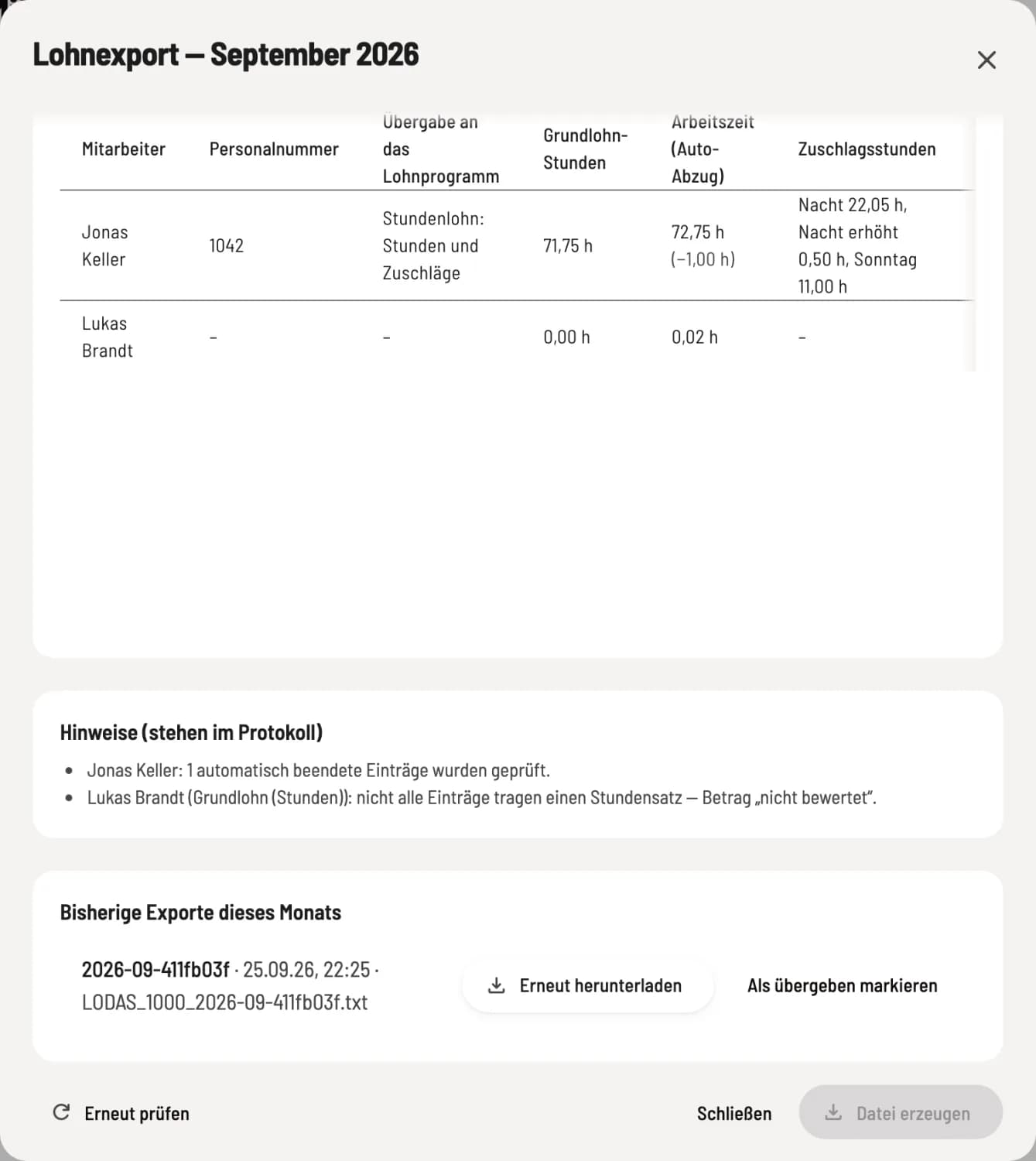
Exports so far this month
Redownload downloads a file again unchanged. Mark as submitted records when it was sent to payroll; afterwards, it will say Submitted to payroll on….
Resend after corrections
If a new submission is required one month after corrections, you create a new file. This completely replaces the previous one; the previous file must be discarded by the payroll department. If it was already marked as submitted, the export requires additional confirmation: The payroll department must reverse the already imported transactions. There is no cancellation file.
Files and logs will be stored until the end of the sixth calendar year after creation.