Link sales items and create recipes
This is how you determine which sale deducts how much from the inventory, and when item are automatically sold out.
The link determines when the stock level of a warehouse item automatically decreases. You configure it in the warehouse item under Link (Warehouse → Warehouse Items, click on the item ).
Prerequisite: The warehouse belongs to the Max tariff; newly registered accounts have a 14-day trial period. The owner and employees with the Manage Warehouse right (Web desk under Employees, section ** Web desk & Master Data**) are authorized to create, book, and order warehouse stock. Debits are only processed while the warehouse is Active.
No linking: The stock level only changes via goods receipt, correction, and inventory.
1:1 with sales items: Each sale of an item deducts a fixed quantity.
Recipe ingredient: This stock item is used in dishes or drinks; each sale deducts the quantity from the recipe.
1:1 with a sales item
Select items for sale
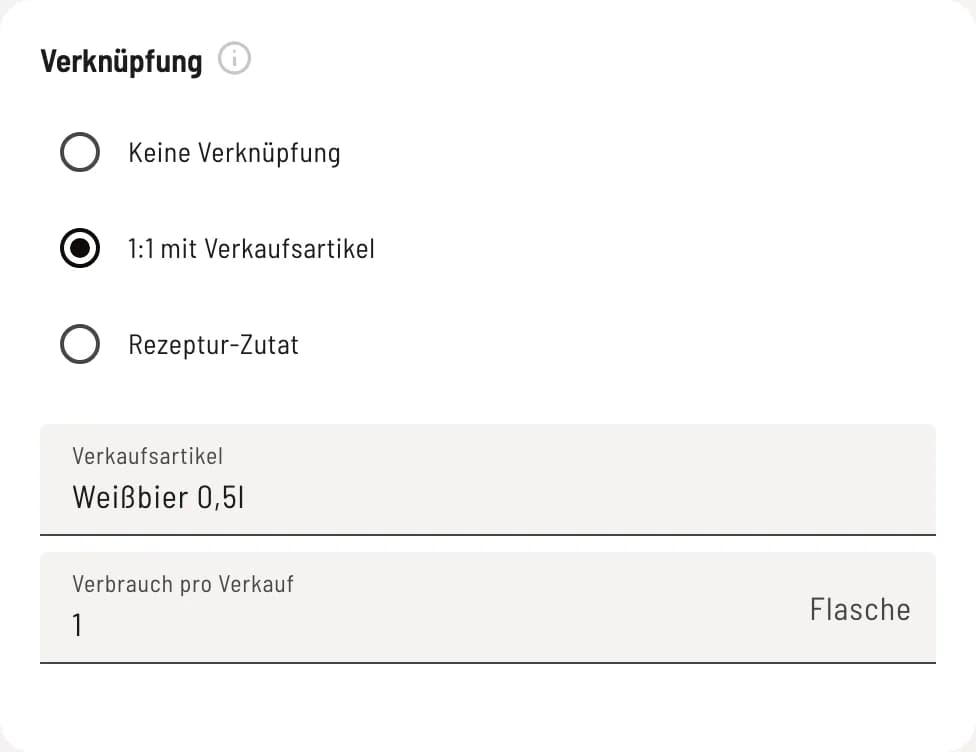
Select 1:1 with sales item and search for the item. Under Consumption per sale, enter the quantity in the base unit, for example, 1 bottle or 0.2 l per glass of wine. item marked Already linked are already associated with another stock item. Click Save.
Create a recipe
Step 1 of 2
Select recipe ingredient
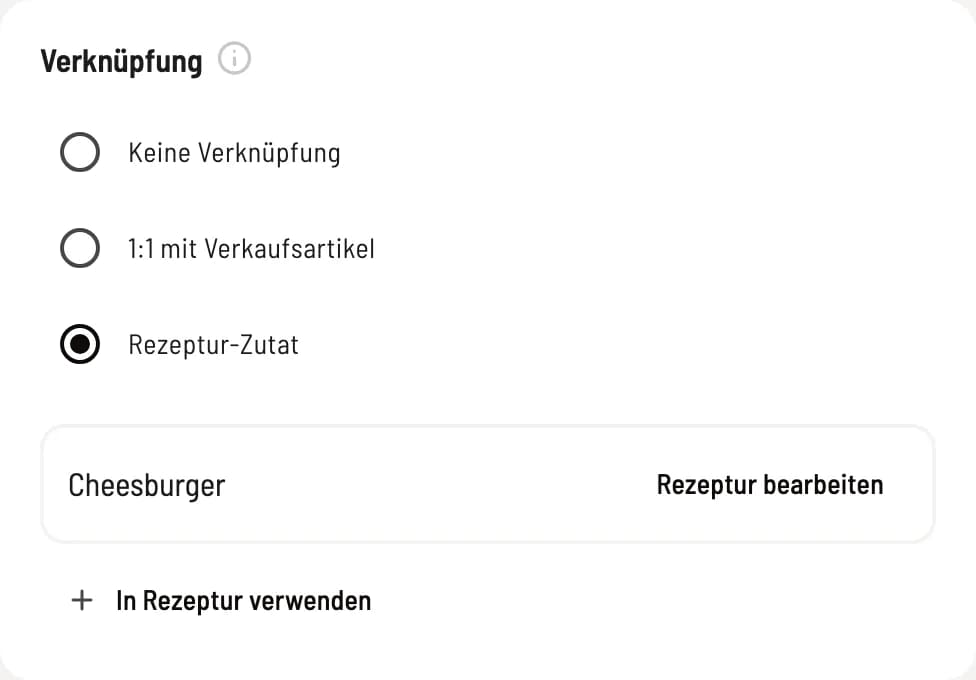
First, save the stock item. Then select Recipe Ingredient and click Use in Recipe. Existing recipes are listed above, each with Edit Recipe.
Step 2 of 2
Enter ingredients
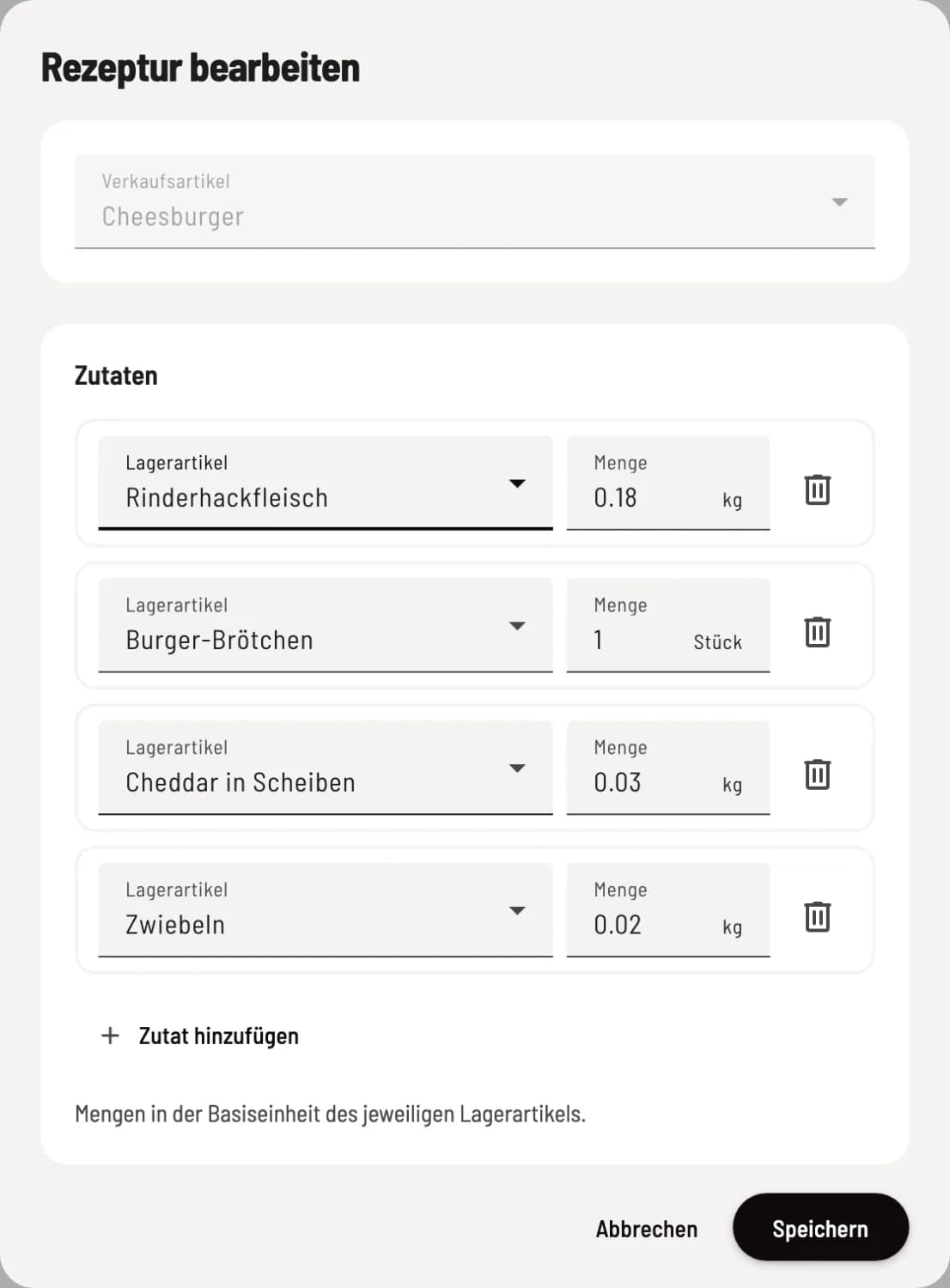
Select the product, for example, the cheeseburger. Use Add Ingredient to enter each ingredient with its quantity, each in the base unit of the stock item: 0.18 kg ground beef, 1 burger bun. Click Save.
If the sales item is already linked 1:1 to a stock item, the dialog will indicate this: When saving, the recipe will replace this link.
What happens during the sale
The cash register, guest orders, order terminal, and delivery services all deduct the amount when a ring up ; a cancellation reverses the transaction. In the transaction history, you can see each transaction as either a sale or a cancellation. If you sell more than is booked, the inventory drops below zero and is displayed in red in the list.
Automatically sold out
If Automatically set to "sold out" is enabled (default), all linked sales items will be marked as sold out when stock is depleted; for recipes, every dish containing that ingredient will be marked as sold out. They will be available again as soon as new stock is booked. A manually set "sold out" status will remain. With From reorder point onwards, only available at the POS, item will disappear from stock as soon as the minimum stock level is reached from guest orders, order terminals, and delivery services; the POS will then sell the remaining items.
From menu item to warehouse
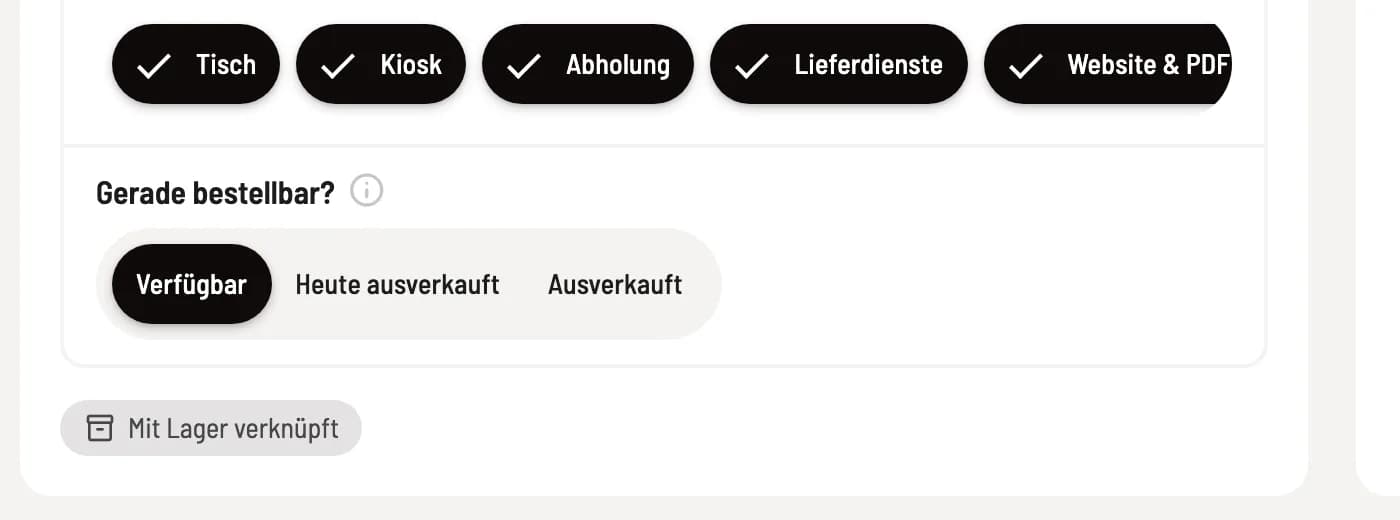
If a sales item is linked, its dialog under Menu displays the button Linked to Stock. Clicking this button opens the corresponding stock item.