
Time period, comparison and filters in statistics
This is how you select days, comparisons, and sections – and remember your favorite view.
You can define which numbers you see using the Filter in the top right corner of each statistics page. The selected values are shown as a chip next to the button; the ✕ inside the chip removes them.
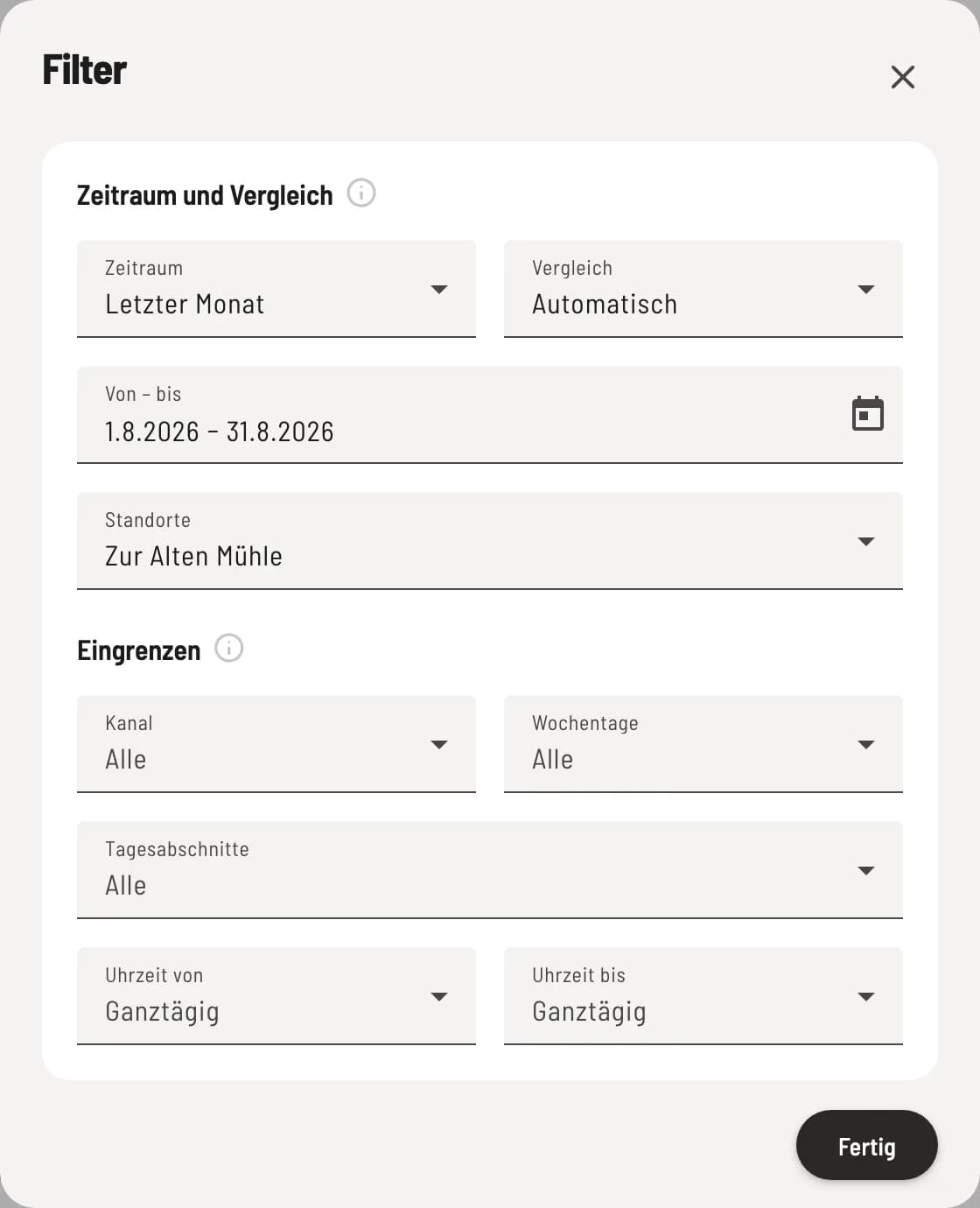
Open filter
At the top are Timeframe and Comparison, below are the fields for Refinement. Done closes the dialog.
Period
Under Period, you select, for example, Yesterday, This Week, Last Month, or Last 30 Days. In the From - To field, you enter any number of days; for a single day, click the same date twice. A day is defined as a business day: The late shift after midnight counts as the previous day.
Comparison
Automatically compares with the relevant previous period:
a single day with the same day of the week as the previous week
a week with the same days as the previous week – Monday to Wednesday with Monday to Wednesday,
a month with the same days as the previous month, a whole month with the whole of the previous month, a year likewise with the previous year,
Everything else with the same length of time directly before it.
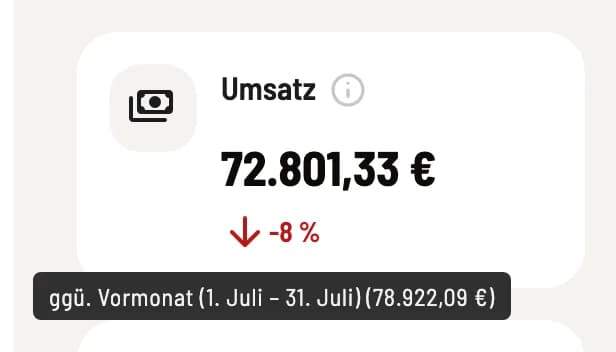
Previous period always refers to the immediately preceding period of the same length. Previous year is 364 days in the past, so that a Saturday is compared to a Saturday. The arrow below each metric shows the change. Hovering your mouse over it displays what it is being compared to.
narrow down
You can refine your search using Channel, Days of the Week, Time Periods, and Time From/To, for example, to select "To-Go" on weekends. You can set the area, category, and person directly in the statistics with a single click: on an area (page Sales), a category (page ** item**), or in the scorecard (Max) on Only this person.
With filters applied, the totals shown are receipt totals and may differ from the Z-report by a few cents. More information: How the statistics are calculated.
Multiple locations
If you have access to multiple locations, select them in the filter under Locations. All pages will then count them together, and the Branches page will display them side by side.
Save view
Using ⋯ → Save View, you can save the page, time period, and filters under a name, for example, "Lunchtime Business". With Use when opening statistics, the statistics will always start this way.