
Edit multiple item at once
This allows you to change prices, tax rates, status, product group, color, or channels of many item in one step.
You don't need to open each item individually to increase a price or change a tax rate. In the Web desk , you select the item and change them all at once.
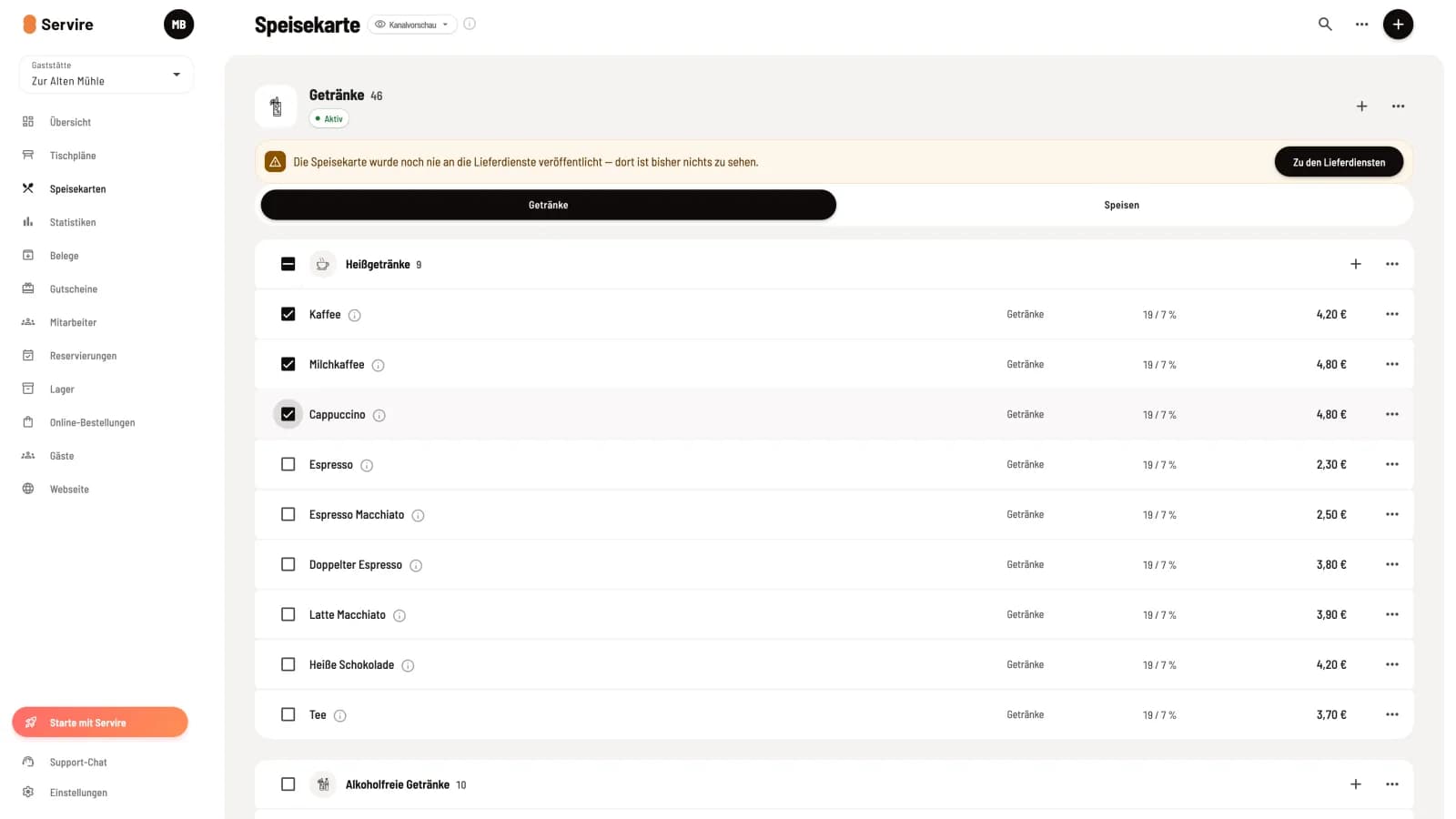
Step 1 of 4
Select item
In the menu, check the boxes next to the items. A checkmark in the header of a category selects all item within that category.

Step 2 of 4
Action bar
At the bottom, the bar appears with the number, Deselect, Edit and the trash can icon.
Step 3 of 4
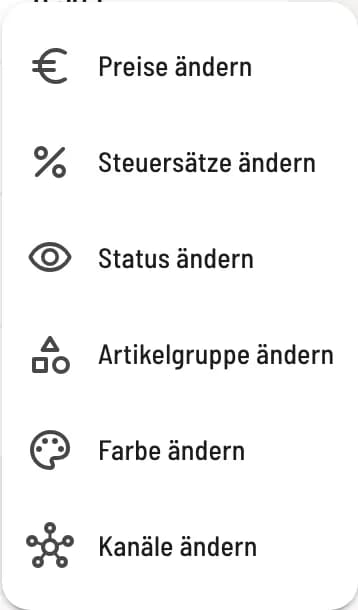
Select change
Edit offers Change prices, Change tax rates, Change status, Change item group, Change color and Change channels.
Step 4 of 4
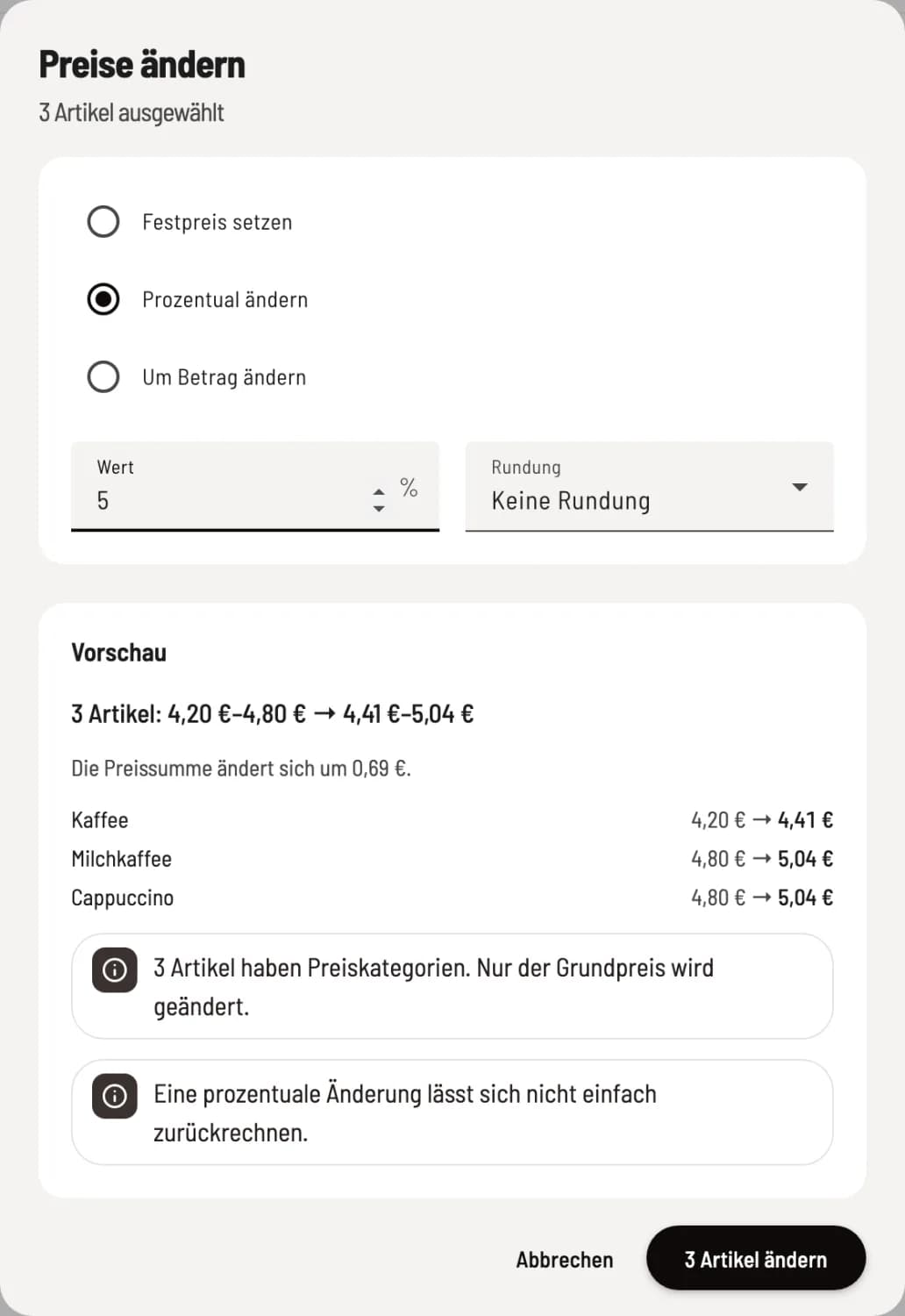
Preview and apply
Each dialog box displays a preview with old and new values. Only when you **… edit item ** does the change take effect.
What the dialogues can do
Change Prices: Set Fixed Price, Change Percentage, or Change by Amount, with Rounding to 5, 10, or 50 cents, to 1 euro, or to X.90. Only the base price changes; price categories, variant surcharges, and deposits remain the same. item with a price of €0.00 are skipped.
Change tax rates: In-house and out-of-house rates are now separate. Rates that the TSE cannot sign or that do not have a DATEV revenue account are blocked. Open orders retain the old rate until invoicing.
Change status: Active on or off and Currently available for order? (sold out today or indefinitely, Remove sold out).
Change product group: Remember that the product group determines which printer prints the receipt.
Change color or No color.
Change channels: per channel Appears, Does not appear or Inherit from category or card.
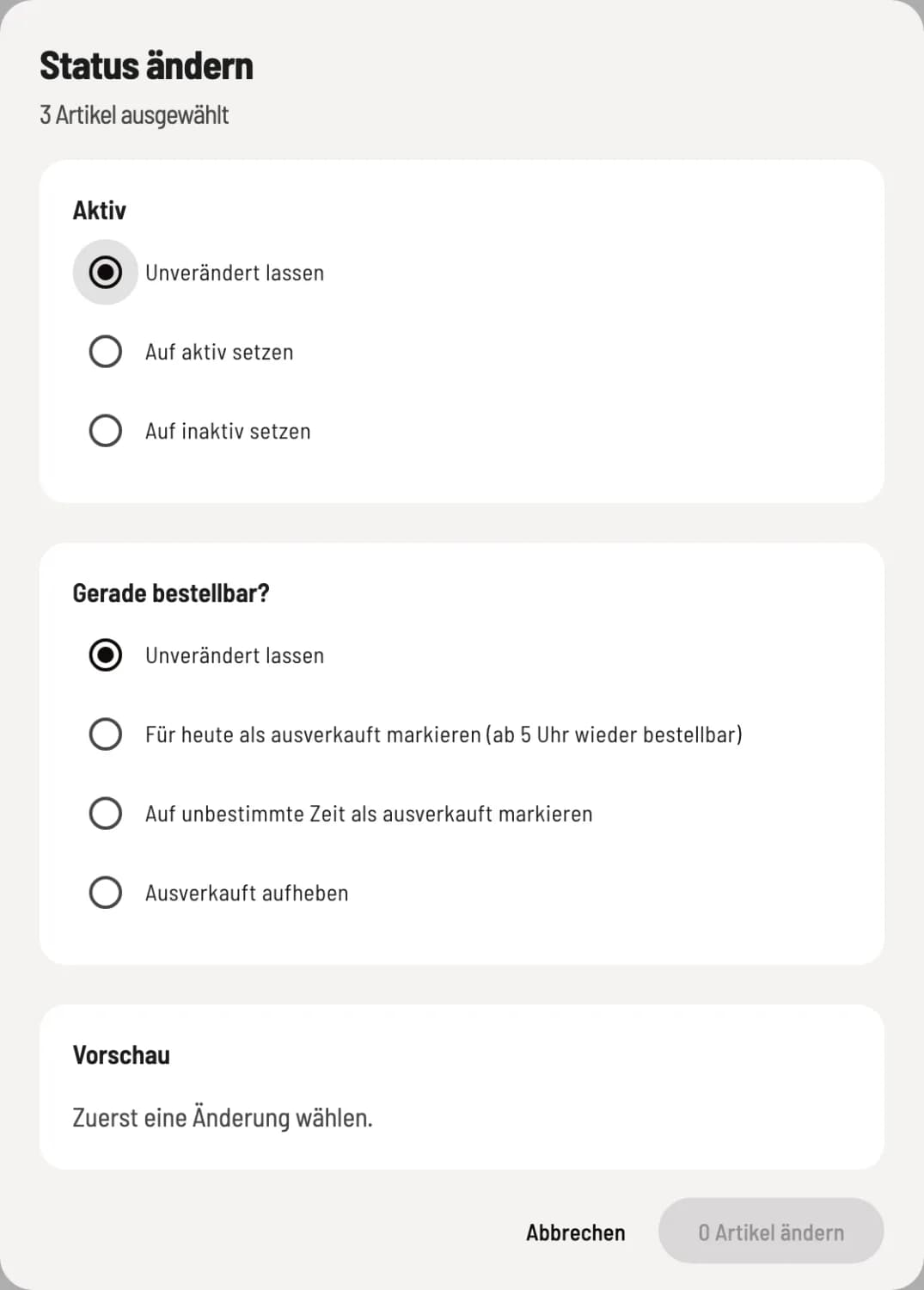
Example: Change status
Choose what to change; Leave Unchanged will not affect the item. The preview counts the affected item.
The trash folder deletes the selected item after a confirmation prompt. For ten or more items, you must enter the quantity for confirmation.