
Guest profile in the Web desk
The guest profile shows: contact details, visits and sales, stamps, credit balance, outstanding balances and history.
Clicking on a guest in Guests opens their profile. Everything about that guest is on one page.
Prerequisite: Guest management is part of the Max plan ( change plan ) and must be activated ( set up guest management ). Only those with the Manage Guests right can make changes; all others can only view the data. Merging, accessing, and deleting data is restricted to the plan owner.
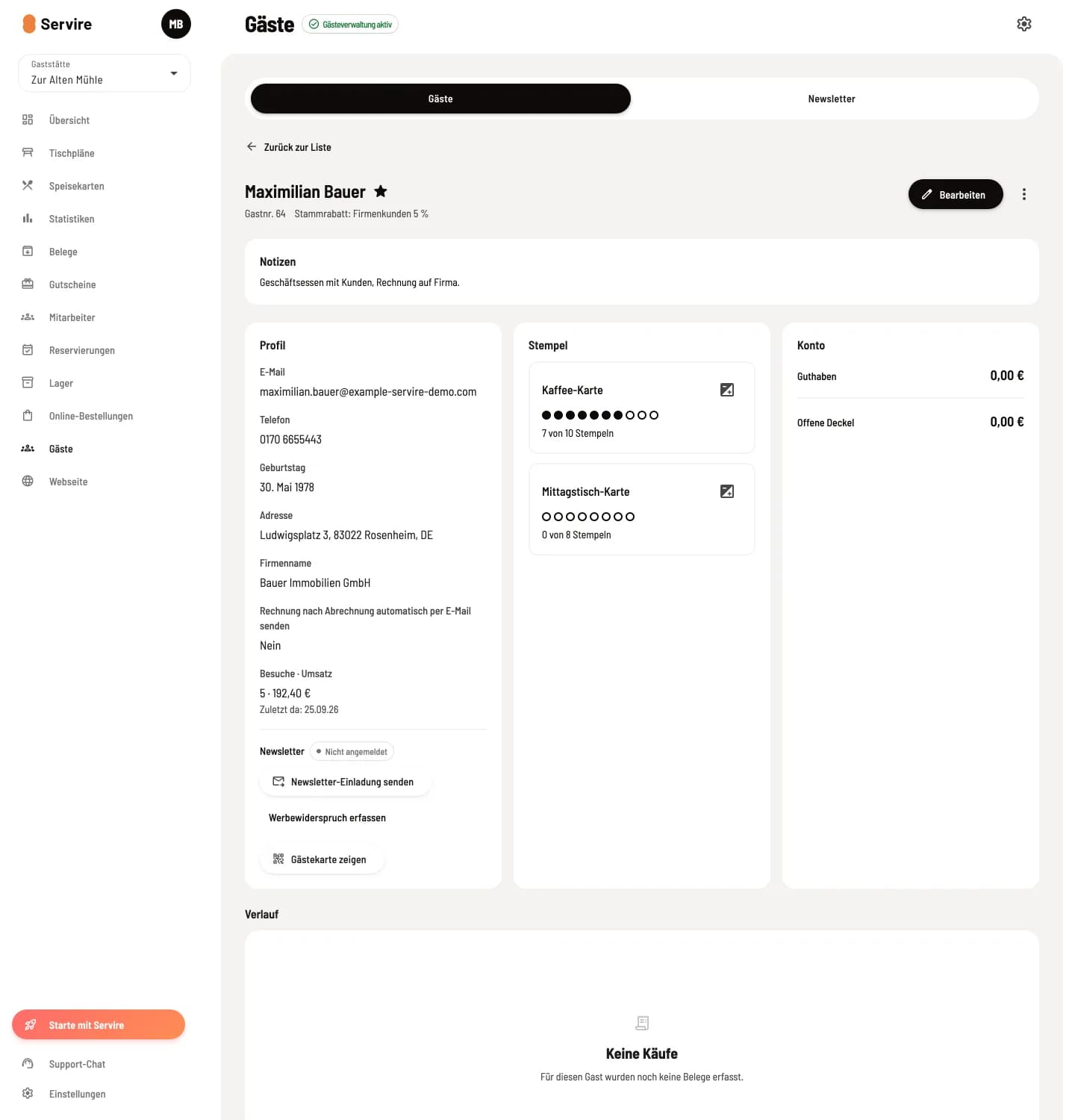
Head and cards
At the top are your name, VIP star, Guest No., and Loyalty Discount. On the right are Edit and the menu ⋮. Allergies and notes are clearly displayed above the three cards: Profile, Stamp, and Account.
profile
Contact details, date of birth, address, and, for companies, the company name. Visits · Revenue shows how often the guest has been, their total spending, and their last visit. Below that is the Newsletter status with Send Newsletter Invitation and Record Advertising Opt-Out ( Newsletter Registration and Consent ), as well as Show Guest Card ( Guest Card and Wallet ).
Rubber stamp
Step 1 of 2
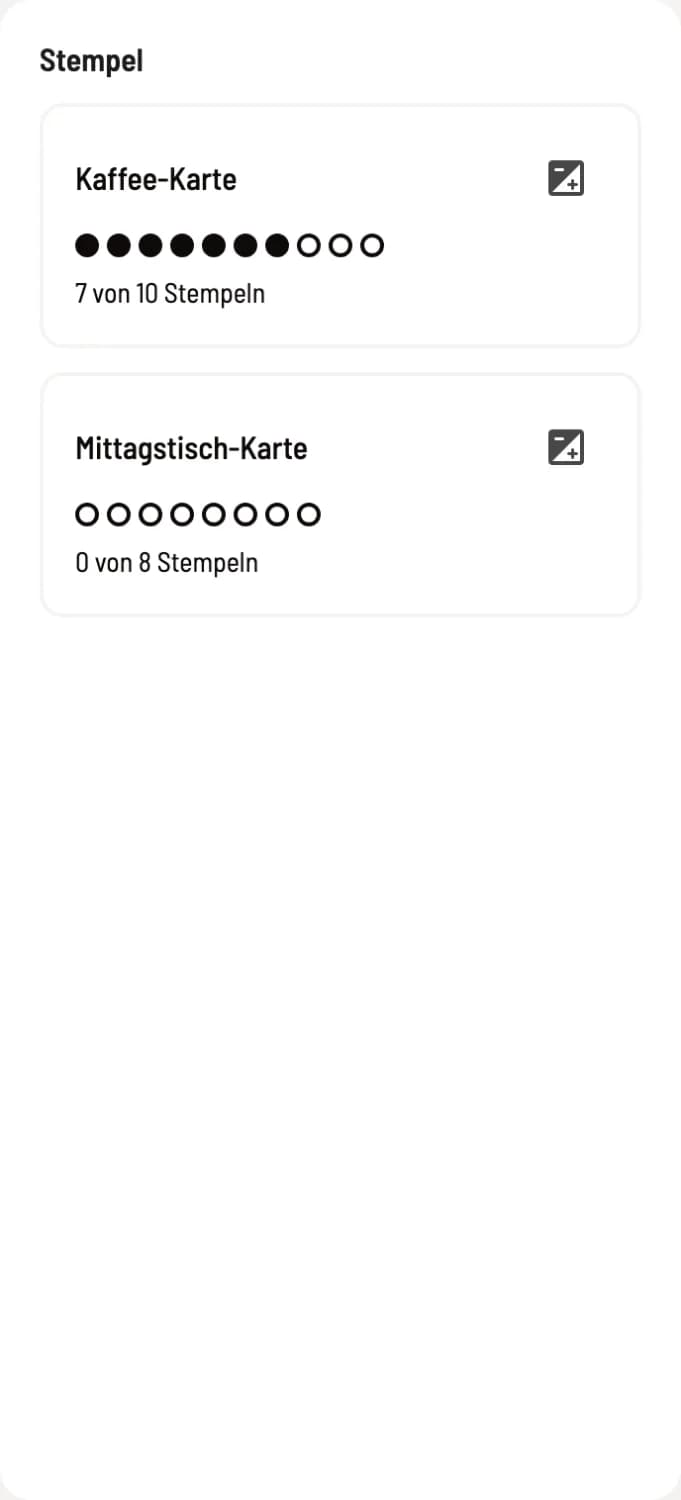
Guest's stamp cards
Each stamp card displays your progress as points, e.g., 3 out of 10 stamps, and rewards redeemable when a card is full. Rewards can be redeemed at the checkout.
Step 2 of 2
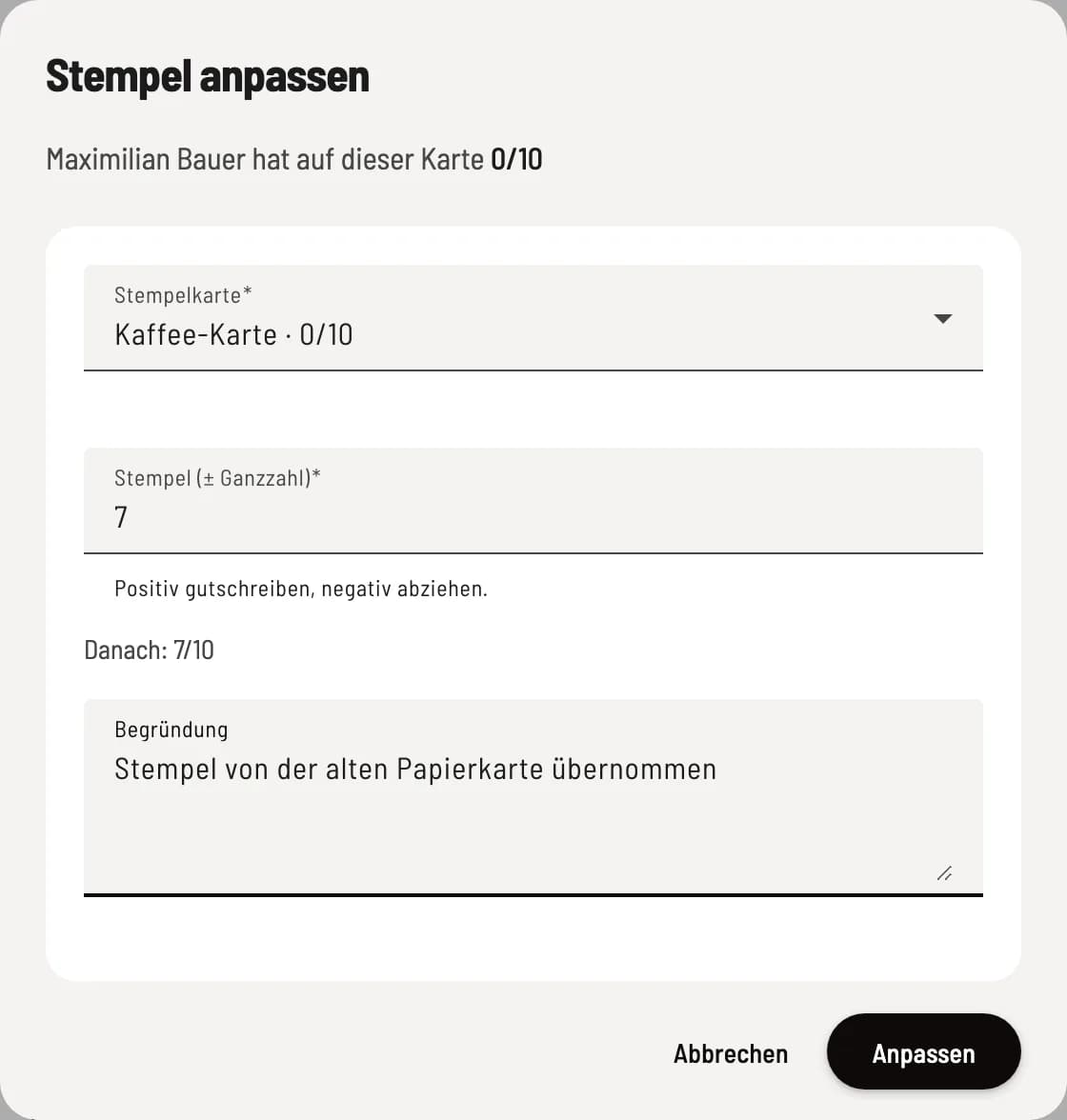
Correct stamp
The symbol on the right side of the card opens Adjust Stamp. Enter a positive number to add or a negative number to deduct, and a Reason (required). Then displays the new balance; Adjust posts it.
Account
Balance shows how much the guest has added, using the individual credit codes ( Credit (Prepaid) for Guests ). Open Lids lists orders that have not yet been paid: Open Order, Open without Receipt, or ** Written on Lid **. Payment is always made at the register.
If a guest fails to pay a tab, the owner can mark it as uncollectible using the Write Off function. This is not a cancellation: the revenue remains taxed, and your tax advisor will adjust the VAT accordingly (§ 17 UStG). If the guest does pay, you can retrieve the tab and return it to the cash register using Reopen.
Course
Step 1 of 2
Receipts and reservations
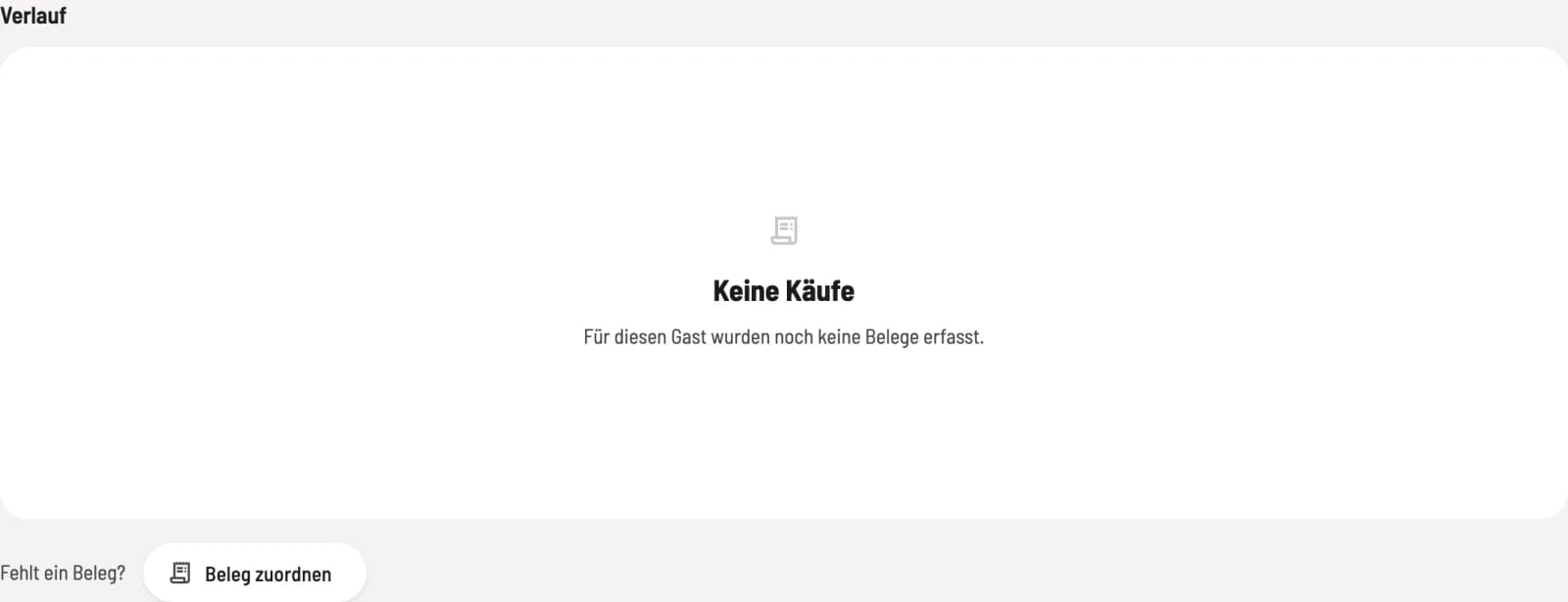
Under History you will find all of the guest's receipts with date, receipt number, table, payment method, channel and amount, including their reservations and no-shows. Clicking on a receipt displays the details.
Step 2 of 2
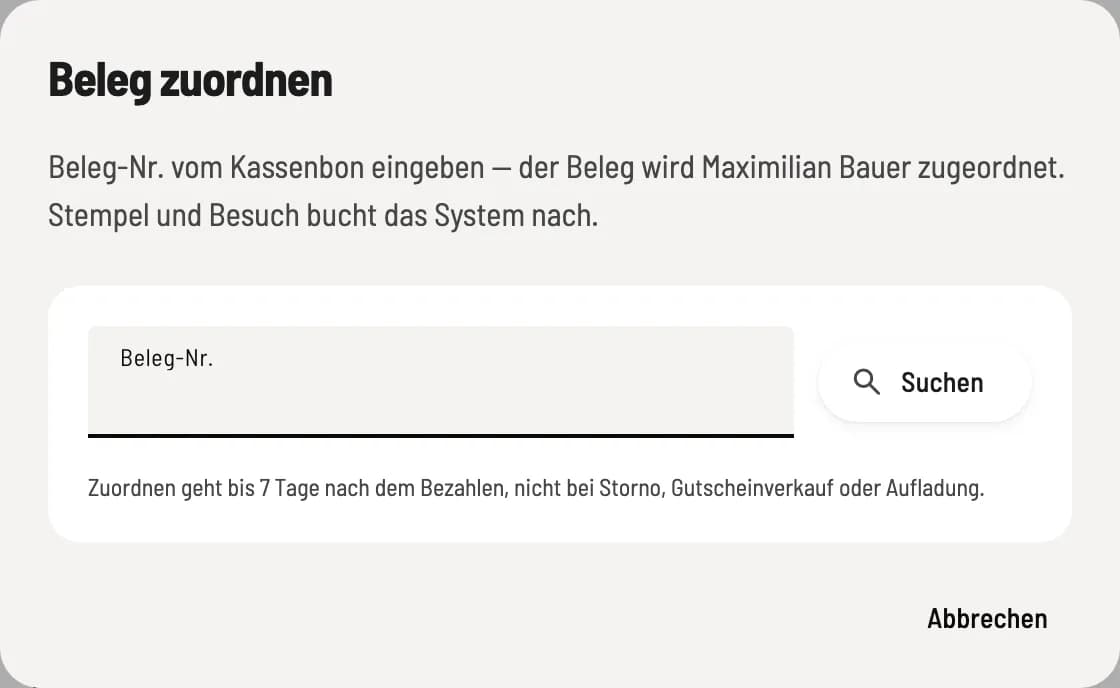
Assign document retroactively
If you forgot to assign the guest at the checkout, click on Assign Receipt under Missing Receipt? and enter the receipt number from the till slip. Servire will then add the stamp, visit, and sales. This is possible up to 7 days after payment, but not for cancellations, voucher sales, or account top-ups.
The menu ⋮ above contains Merge guests, Data information (GDPR) and Delete guest, see Merge guests and Data protection.