
Import and export guests
Here's how to import guests from another system via CSV file and export your guest list.
You can import guests from a spreadsheet, newsletter program, or other point-of-sale system via a CSV file. Both options can be found under Guests via … in the page header.
Prerequisite: Guest management is part of the Max plan ( change plan ) and must be enabled ( set up guest management ). Only users with Manage Guests permission can make changes; all others can only view the settings. Exporting is also possible in read-only mode.
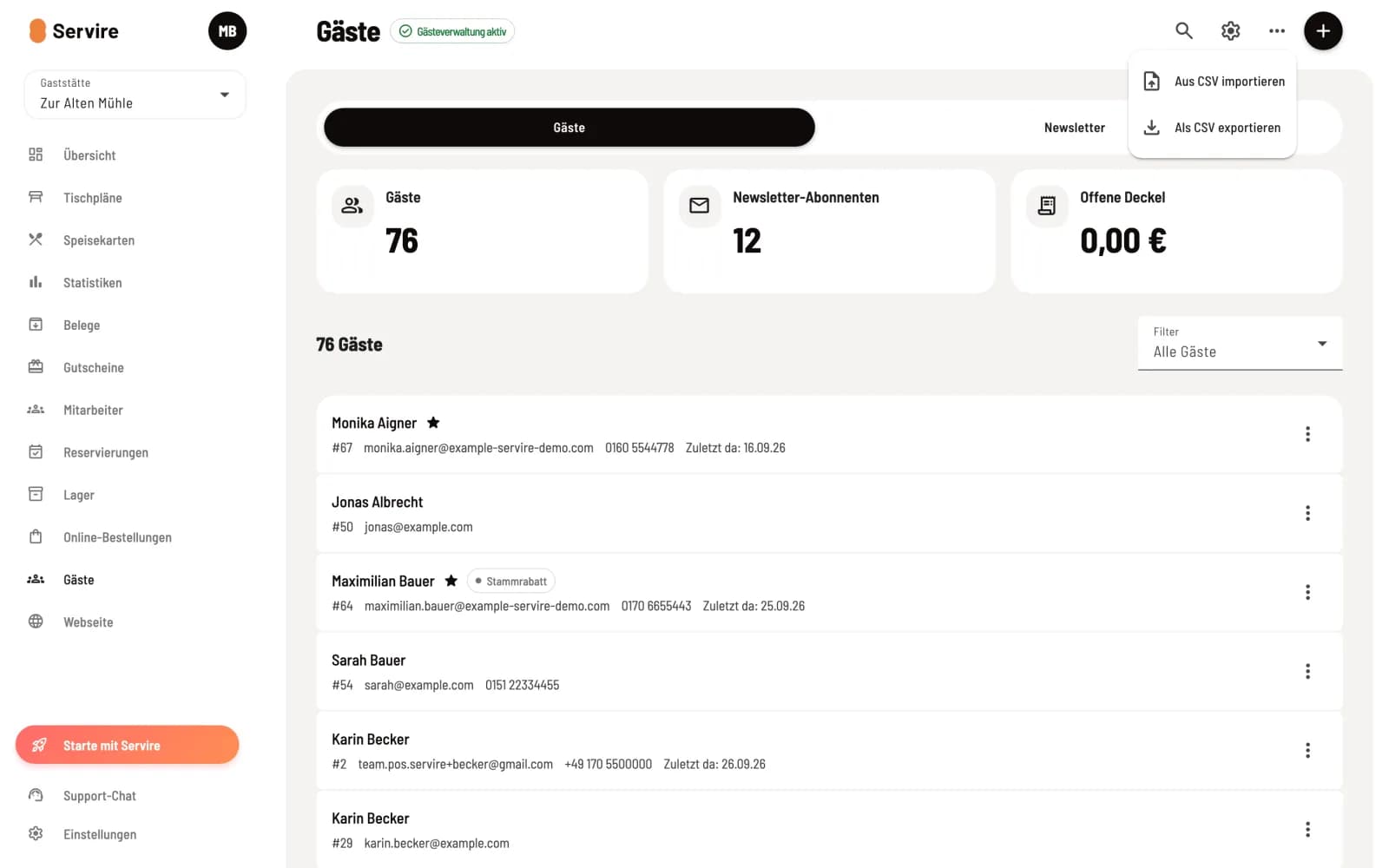
Open Import and Export
In Guests, click on … at the top. Import from CSV starts the import, Export as CSV downloads the list.
Import in three steps
- Select CSV file: Drag the file into the field or select it. Download CSV template provides a template with two sample rows that you replace. Guest type:
privateorbusiness, birthday as DD.MM.YYYY. 2. Map columns: Map a field to each column in your file (First name, Last name, Email, Phone, Address, Company, Birthday, etc.). First or Last name must be mapped. If the first row contains headings, leave First row contains column headings checked. 3. Preview and import: You will see how many rows will be imported, which are duplicates, and which have warnings. Import creates the guests.
Duplicate guests (same email address or same name and birthday) are not recreated during the import process. Invalid email addresses or birthdays are omitted, and the guest is imported anyway. Guests who have requested deletion are not recreated. Finally, you download missing rows as a CSV file using the Problem Rows option.
Importing an item doesn't automatically subscribe anyone to the newsletter. You obtain consent for each guest individually via an invitation.
Export
Export as CSV saves the currently displayed list, including your filter and search results. The file contains guest ID, contact details, address, newsletter status, visits, revenue, and last visit, and opens directly in Excel.