
Guest card and wallet
The cash register recognizes your guests via QR code: Show guest card, print, reissue and save in Apple Wallet or Google Wallet.
Each guest has a guest card with a QR code. When they show it at the checkout, they are immediately identified and collect stamps. Newly registered guests receive the card automatically.
Prerequisite: Guest management is part of the Max plan ( change plan ) and must be enabled ( set up guest management ). Only those with the Manage Guests right can make changes; all others can only view the settings. Issuing new passes and loading Wallet passes also requires the Manage Guests right.
Map in the Web desk
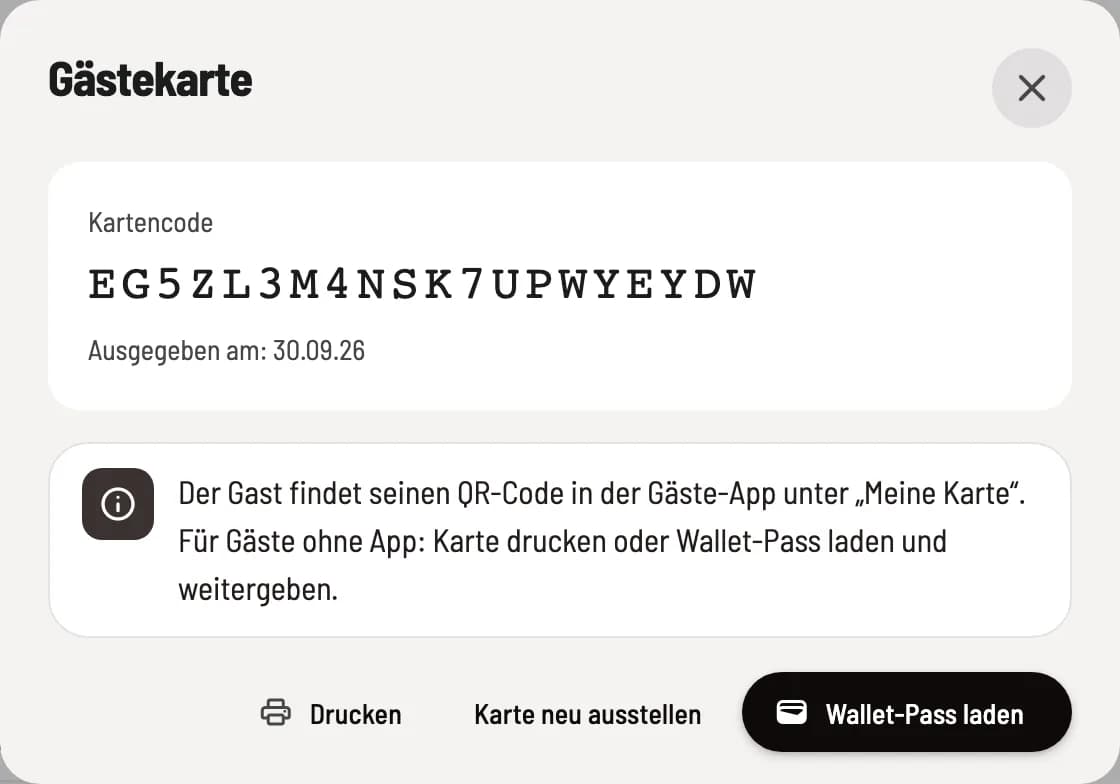
Show guest card
Open the guest profile and click on Show Guest Card. You will see the Card Code and Issued Date. Print – prints a card with the guest's name, QR code, and code for guests without a smartphone. Download Wallet Pass – downloads the card as a file for Apple Wallet, which you can then give to the guest. Reissue Card – for example, in case of loss. The old code is immediately invalidated, and the guest is logged out of the guest app. They will then download a new Wallet Pass if one is installed.
Map on the guest's smartphone
In the guest account under My Card, the guest displays their QR code. On an iPhone, this will show Add to Apple Wallet, and on an Android smartphone, Add to Google Wallet. The card in Google Wallet will display your restaurant's logo and colors, buttons for ordering, reserving, and calling, as well as your opening hours. On a computer, the page will suggest opening it on your smartphone.
By selecting Print customer card on receipt in the receipt options, guests without a guest account receive a QR code on the receipt, which they can use to create one.