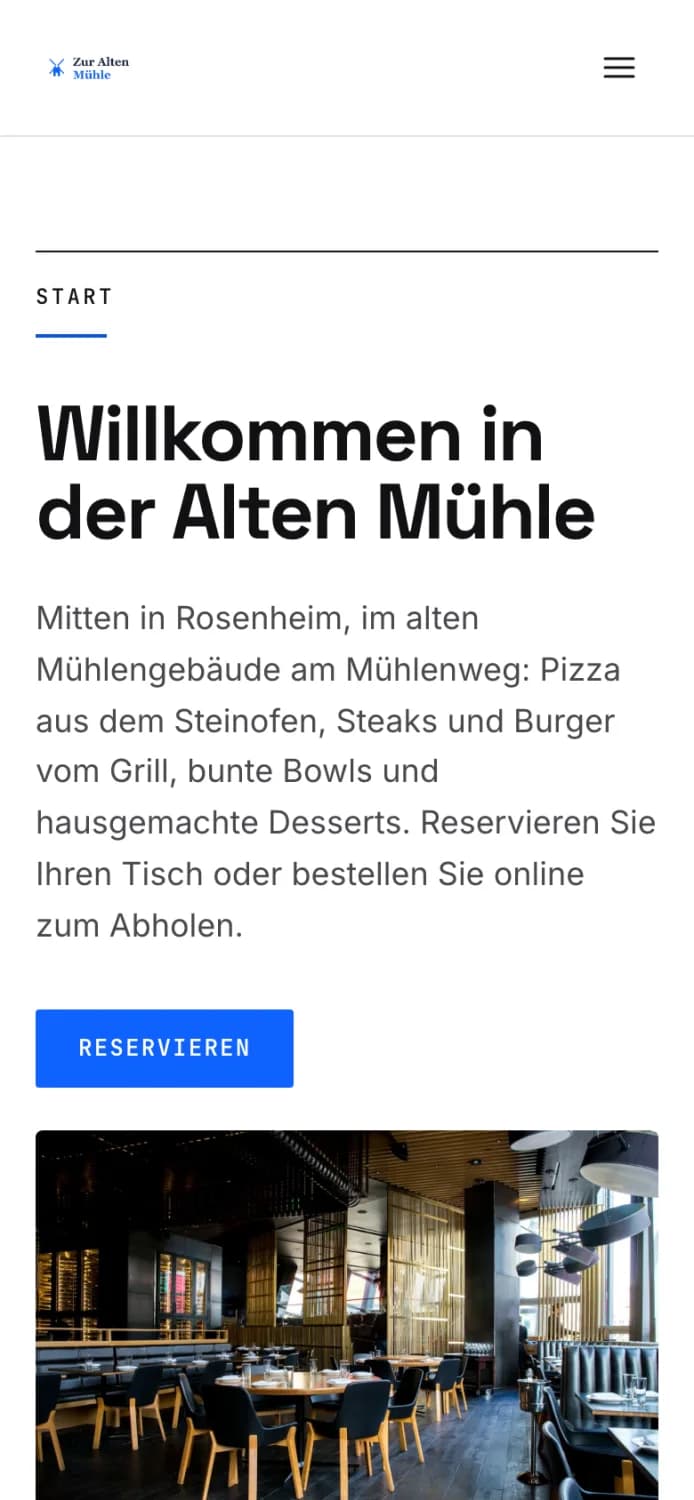
Setting up your own website
This is how you create your restaurant website with the assistant and find your way around the overview.
Servire builds your own website with a menu, opening hours, reservation system, and online ordering. The menu, address, and opening hours are all provided directly by Servire and are therefore always up-to-date. The website also serves as the point of contact where guests can order via QR code and pickup link.
Prerequisite: The website belongs to the Max plan. Editing is possible only for those with access to the restaurant's Web desk .
Setup using the wizard
In the Web desk , click on Website on the left. The first time you open it, a wizard will start: - Choose your web address – the name at the end of the address, e.g., zur-alten-muehle. Allowed characters are a–z, 0–9, and hyphens; 3 to 50 characters. Available indicates that the name is available. - Choose your design – template, accent color, and font. All of this can be changed later. - Prepare content – with Pre-populate with sample data, Servire creates sample texts, placeholder images, contact pages, menu pages, FAQs, and legal pages. Replace them with your own information before publishing. - Your website is ready! – the website is not yet online. Publishing will occur in the overview.
The overview
Open website
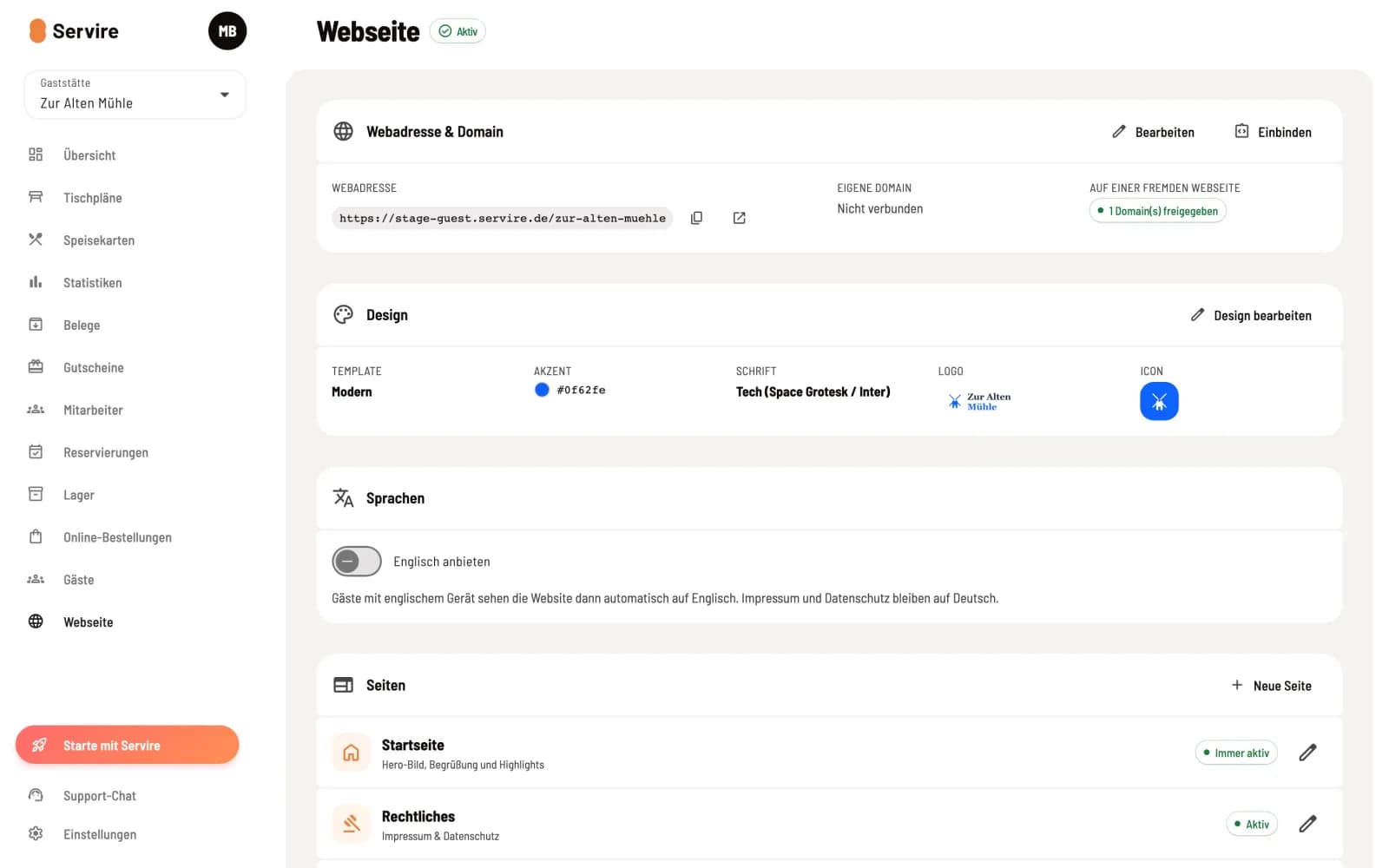
After the wizard, the Website section displays the overview. Next to the title, it indicates whether the website is Active (published) or Inactive.
Web Address & Domain – your address for copying and opening, your own domain, and sharing with other websites. Edit and Embed open the settings for these.
Design – Template, accent color, font, logo, and icon. Edit Design changes them.
Languages – Offer the website in English as well.
Pages – Home, Legal, menu, About Us, Contact, Gallery and FAQ, plus your own custom pages. The pencil icon opens a page, New Page creates one.
If something is missing from a section, it will say Info missing. Hovering your mouse over it will show you what's missing.