
Display menu on a timed schedule
This way you can display a menu , such as the lunch menu, only on certain days and times.
A lunch menu should only be available for order at lunchtime, and a breakfast menu only in the morning. The menu will therefore have time slots for each day of the week.
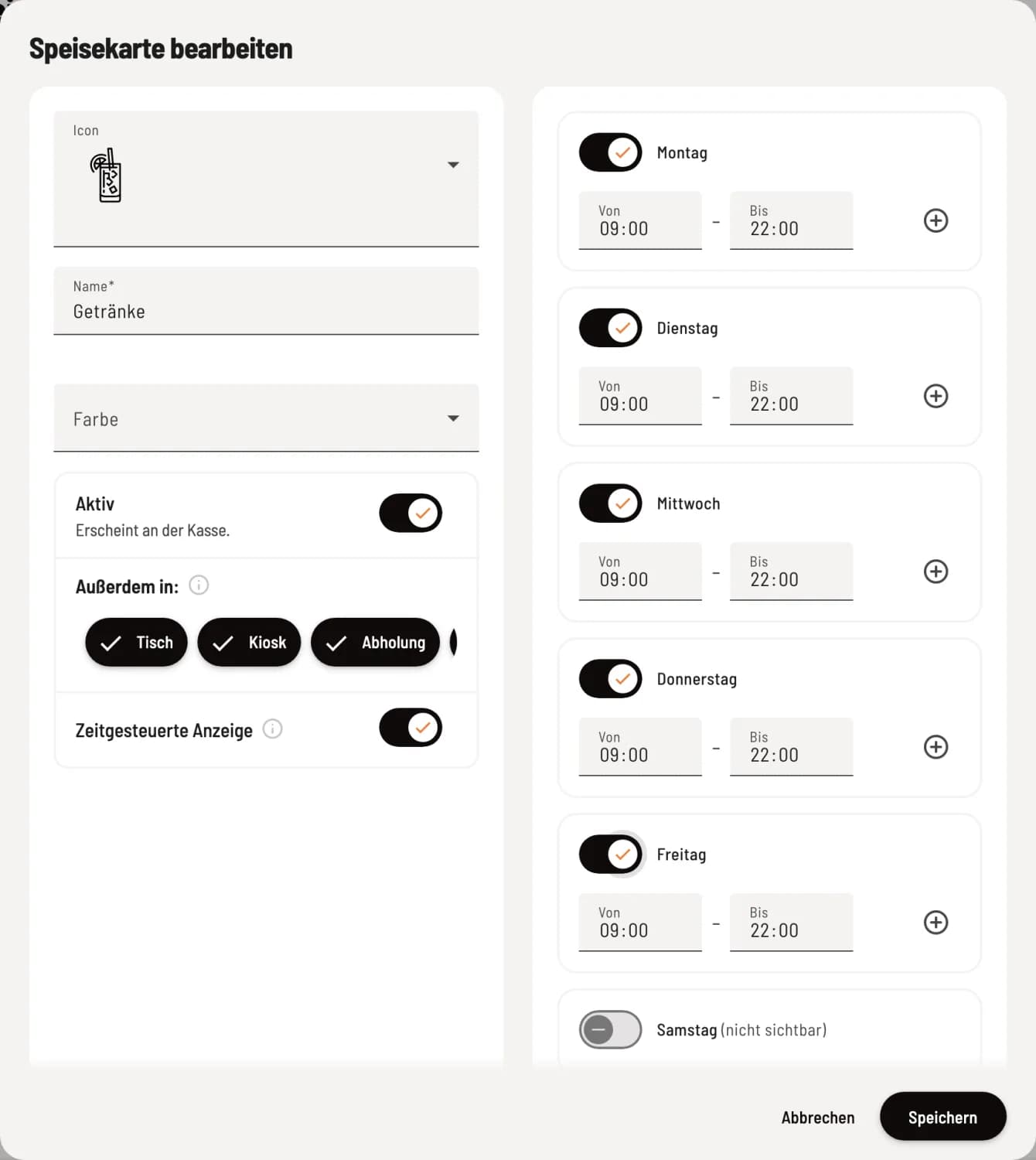
Set a time window
Open the menu at the top and click **⋯ → Edit menu **. Activate Timed Display. On the right, select the days of the week and enter From and To. Use + to add a second time slot on the same day, for example, 11:00 to 14:00 and 17:00 to 22:00. Slots extending past midnight (22:00 to 02:00) are permitted.
At least one day must be enabled, and time windows must not overlap; otherwise, saving will remain disabled. The card will then be marked as Time-controlled in the list.
Where time control applies
POS App: Outside of the time windows, the menu disappears from the order view and reappears automatically at the start time. In the filter under Overview → menu, it is marked (time-controlled).
Table, Kiosk, Collection, Delivery Services: Guests can only order within the time slots.
Website & PDF: The menu is always available so that guests can check what's on the menu for lunch the evening before.
The channel preview lets you check what viewers are currently watching for a specific day of the week and time.