
Manage and refund guest orders
This way you can keep track of guest orders in the Web desk , pause acceptance, and refund orders paid online.
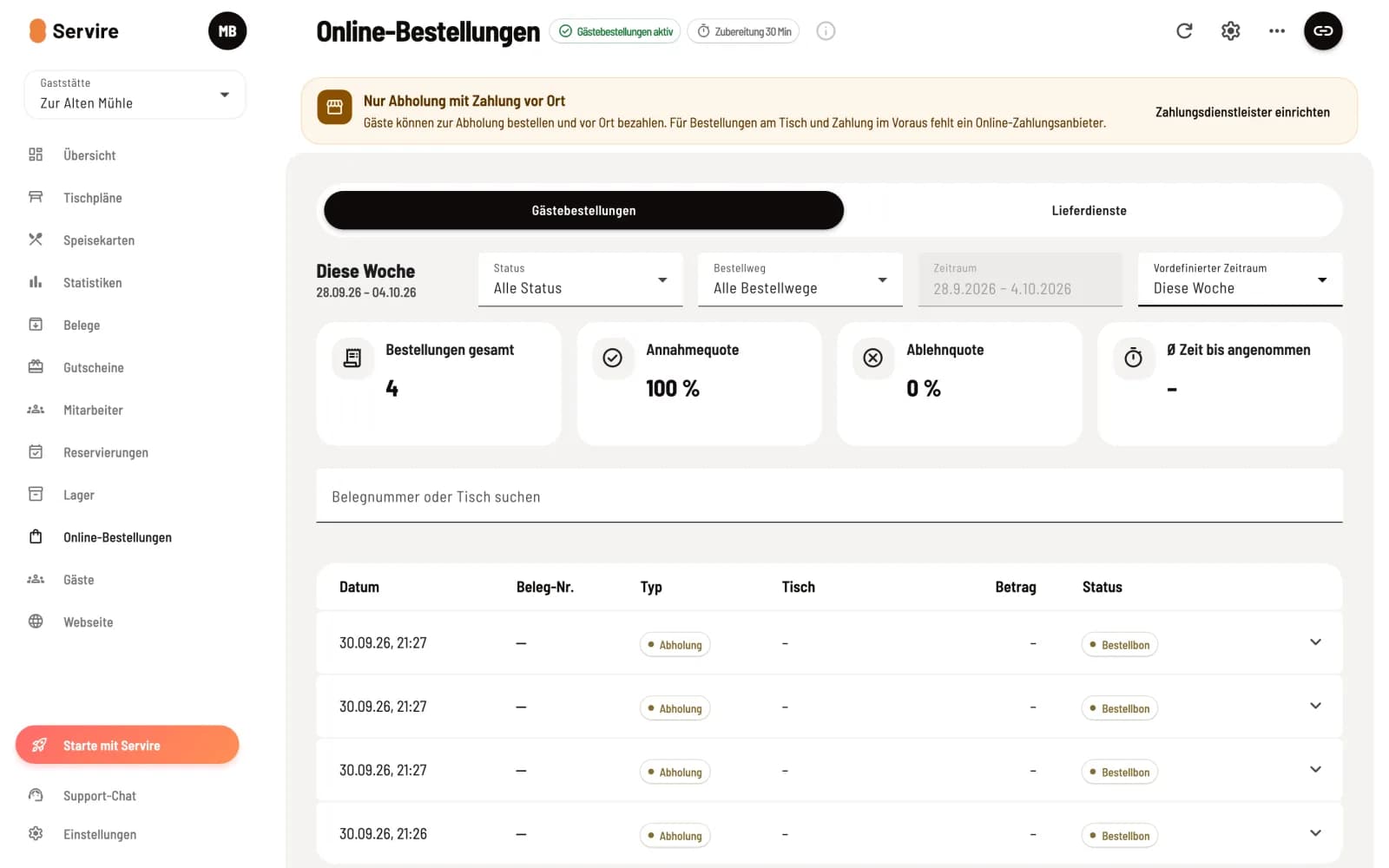
Under Online Orders → Guest Orders you can see all orders and cancellations from tables, pickups, the website, and the ordering terminal. You can manage open orders at the checkout.
Prerequisite: Guest orders are part of the Max plan. Changes can only be made by employees with the Manage Guest Orders permission. If the Max plan ends, the order list and refunds for existing orders will remain accessible, but new orders will no longer be possible.
View orders
At the top, you select the time period, status, and order method. The tiles display total orders, acceptance rate, rejection rate, and average time until acceptance. The arrow at the end of the row expands the order details, including guest, payment method, and items.
Order Receipt means: The order has been received and is ready for processing at the register, e.g., for payment upon pickup. The receipt number and amount will only be displayed after processing. You can find an individual order using Receipt Number or Table Search. The tile tooltips also show the no-show rate and the average time until ready for pickup, a good guideline for your preparation time.
Refund order
In the row of an online paid order, click on Cancel. Select a reason for cancellation, add a comment if necessary, and click on Initiate cancellation.
The guest will receive a full refund, including tip , through your payment provider. The line will initially show Cancellation in progress, then Cancelled after confirmation, and finally a Cancellation booking. If your TSE ( Technical Security Equipment) is active, the cancellation will be signed. For orders with payment upon pickup, you can cancel them at the checkout. If the option is missing from the dialog, first create cancellation reasons.
Pause or turn off acceptance
Pause Order Acceptance in the menu ⋯ in the upper right corner pauses new orders from tables, pickup, and the website. Orders already received and those placed at the order terminal continue to process orders. The message Order Acceptance Paused will then appear at the top; Resume Order Acceptance will resume the pause.
The Guest Orders Active badge next to the title disables all ordering methods, including the ordering terminal. After a confirmation prompt, it displays Guest Orders Inactive.
Is the kitchen just full? Then "Busy" is usually enough: Set the preparation time and "Busy".