
Create and edit guest
This is how you create a guest account in the Web desk and manage contact details, company, regular discount, allergies and VIP status.
Guests are added in several ways: at the checkout, through online reservations or orders, when a guest registers themselves, via CSV import, or manually in the Web desk. This section focuses on the process using the Web desk.
Prerequisite: Guest management is part of the Max plan ( change plan ) and must be activated ( set up guest management ). Only those with the Manage Guests right can make changes; all others can only view the settings.
Add new guest
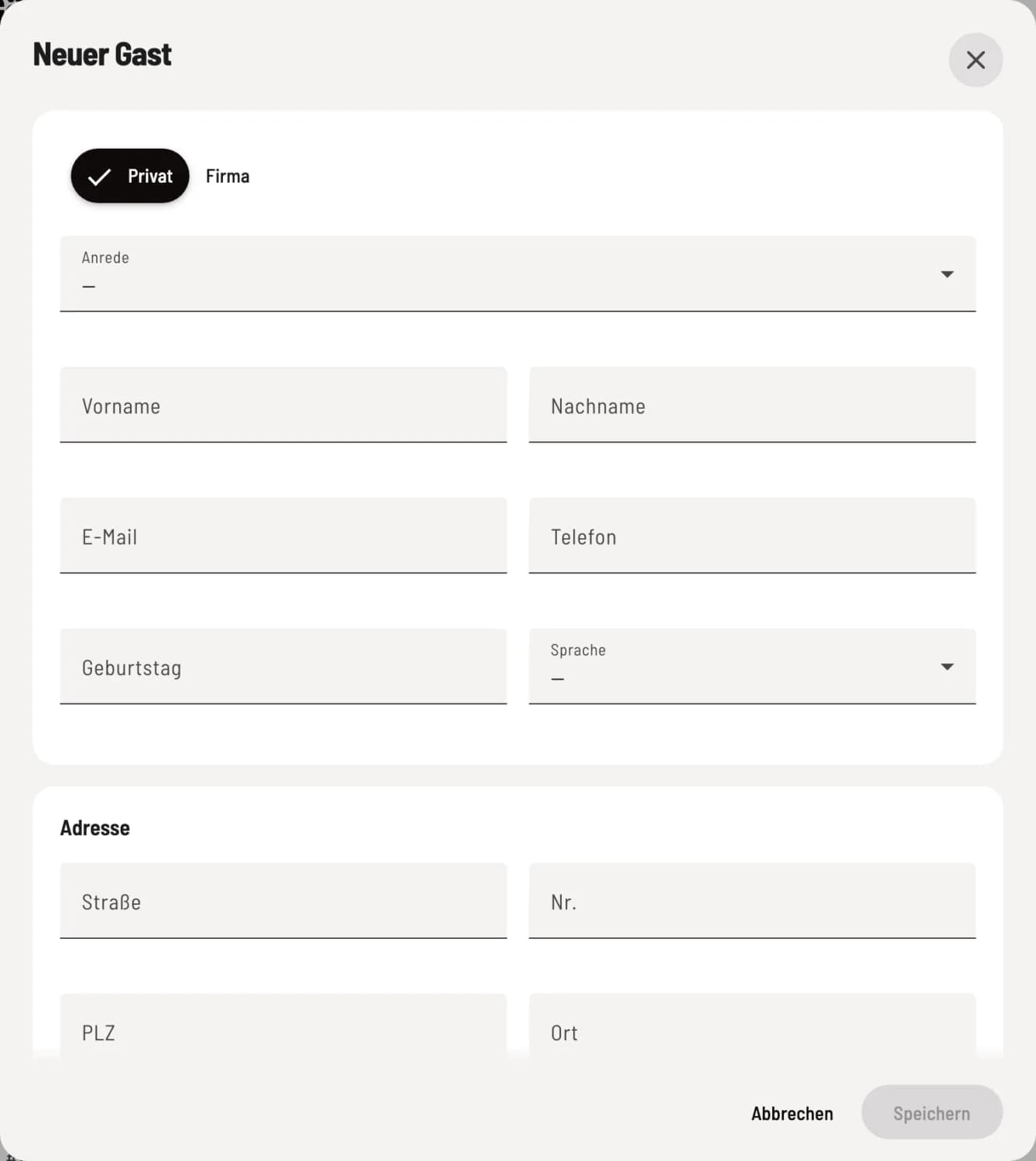
New guest
In the Guests section, click on + in the upper right corner. Select Private or Company and fill in the fields. A first name, last name, or, for companies, the company name is required. Save creates the guest account; the guest number is assigned automatically by the Servire .
If a guest with similar information already exists, the dialog box warns of a possible existing guest and offers the option to open their profile. An email address can only belong to one guest; if the address is duplicated, Servire opens the existing profile.
The fields
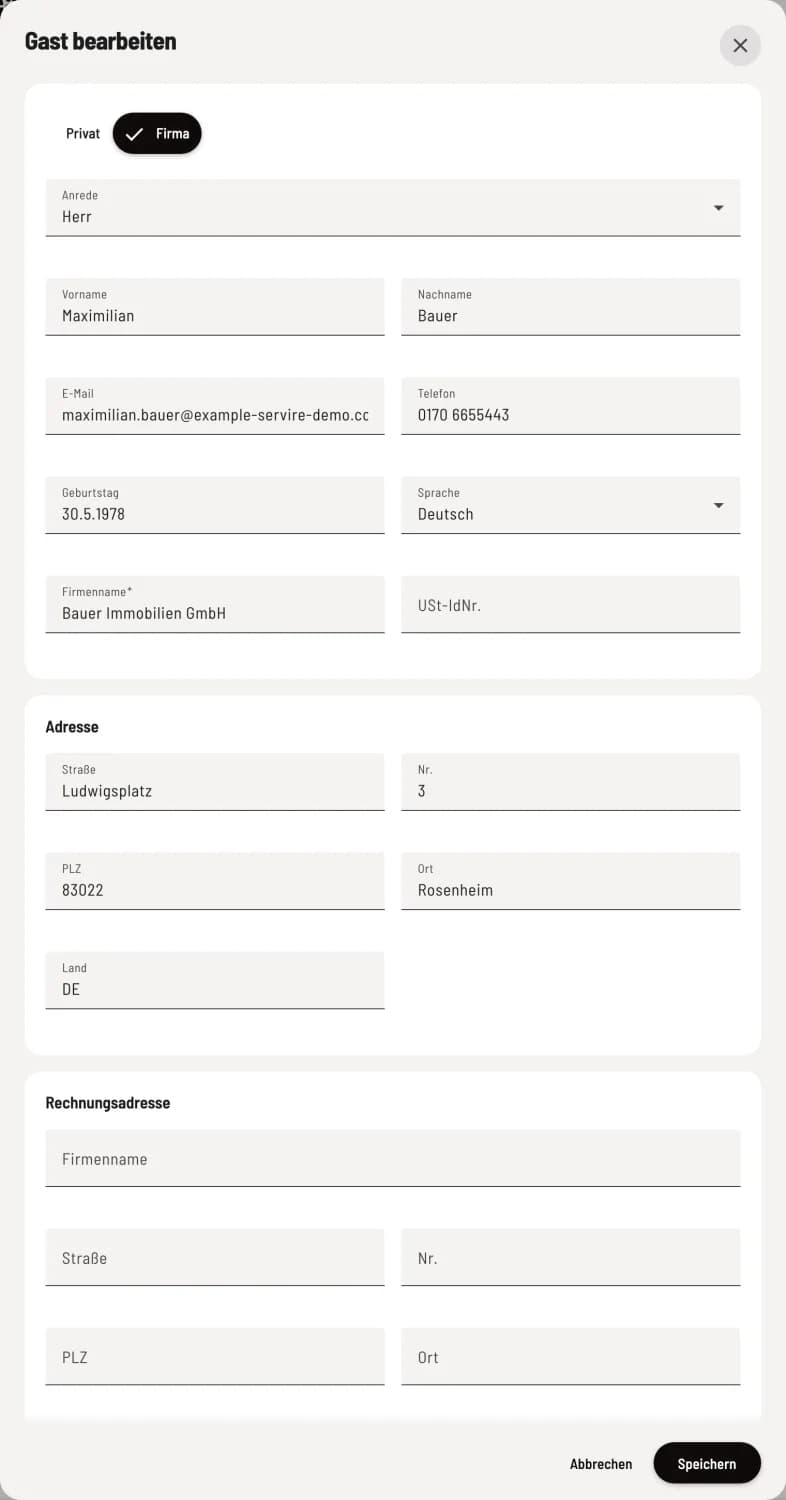
Step 1 of 2
Contact and address
Title, First Name, Last Name, Email, Phone, Birthday (for the birthday email ), and Language of the emails to the guest. Below that, the Address. For Company, Company Name, VAT ID Number, and a separate Billing Address are also required.
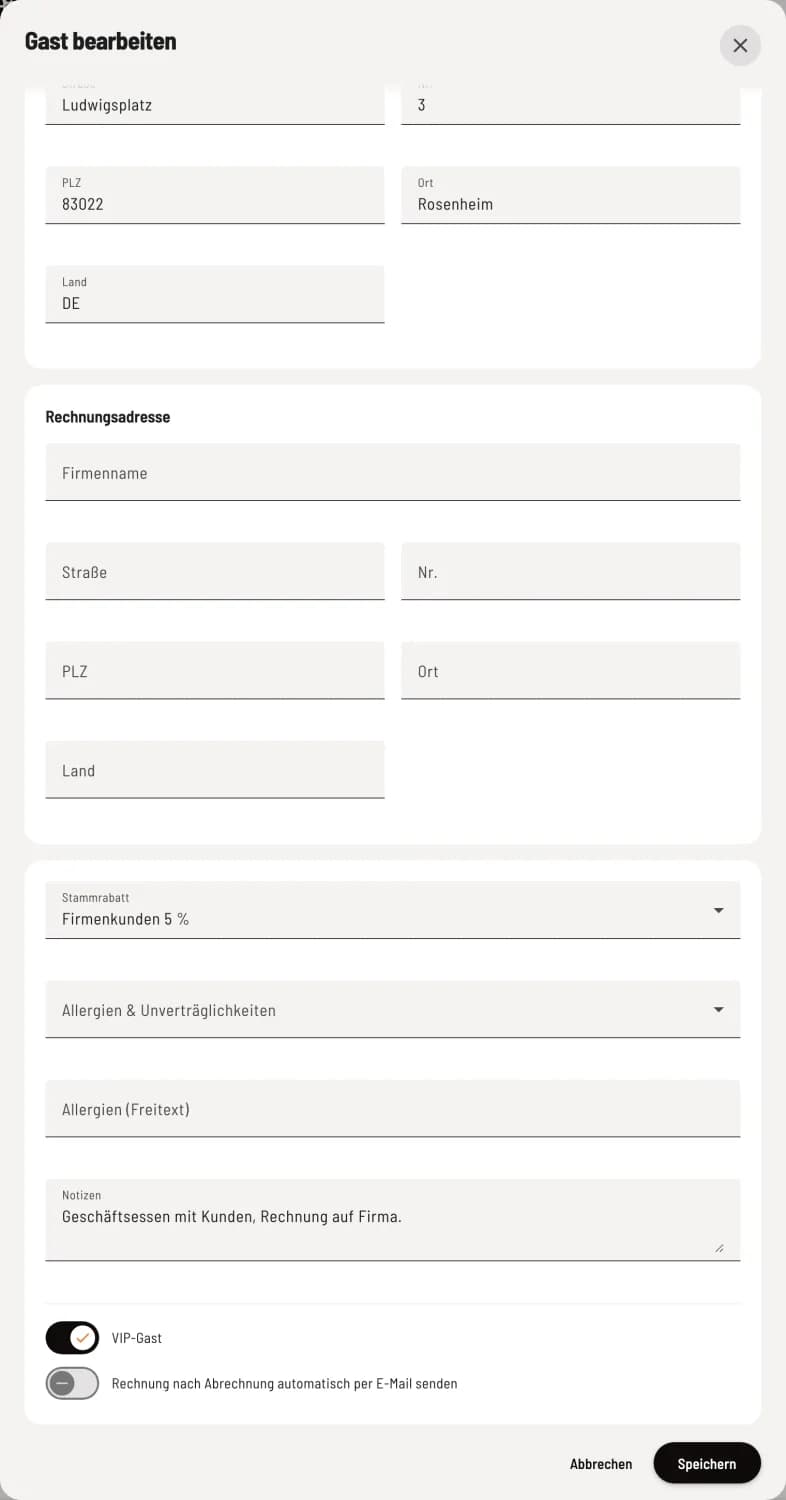
Step 2 of 2
Regular discount, allergies, VIP
Loyalty Discount – a discount that the POS system automatically applies to this guest ( loyalty discount for guests ). Allergies & Intolerances and Allergies (Free Text) – appear at the POS and in the profile. You only save new allergies if you confirm that the guest has explicitly consented (health data, Art. 9 GDPR). Notes – internal notes for the team. VIP Guest – marks the guest with a star. Send invoice automatically by email after checkout – the guest receives their receipt by email after each checkout.
Edit guest
Open the guest profile and click Edit, or select ⋮ → Edit from the list. Merged and anonymized profiles can no longer be changed.
You don't activate the newsletter here. Instead, you send the guest an invitation via their profile, which they then confirm themselves: Newsletter registration and consent.