
Remove employees
This is how you separate departing employees from your restaurant without losing their data.
If someone leaves your business, you disconnect their account from the restaurant. After that, they can no longer log in to your POS system or Web desk for that restaurant.
Prerequisite: Only the owner can remove an employee. No one can remove the owner.
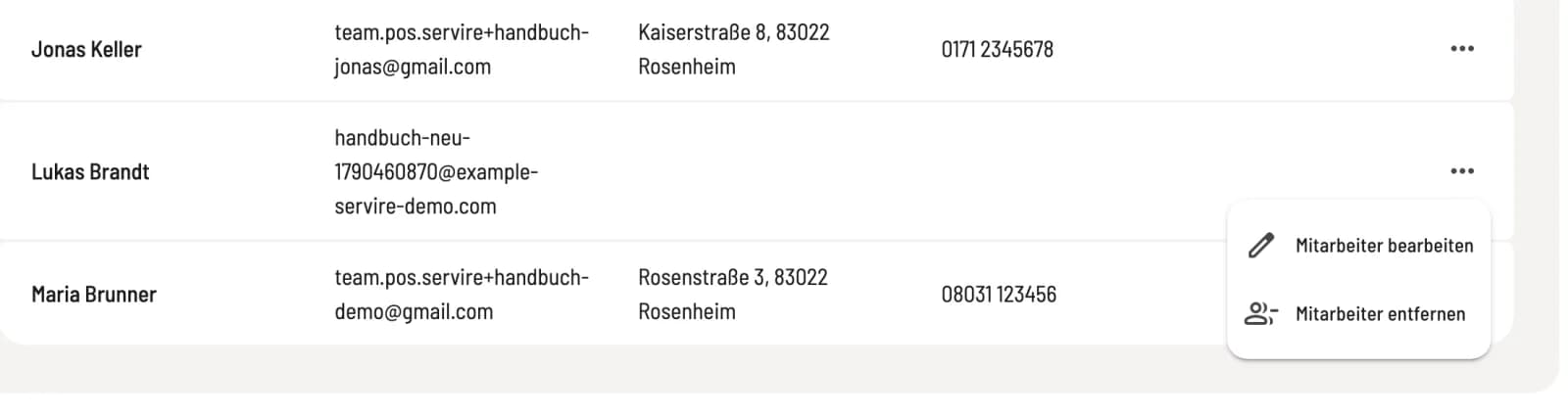
Step 1 of 2
Select Remove Employee
Open Employees → (if time tracking is active, click … → Manage Employees). Click on … in the person's row and select Remove Employee.
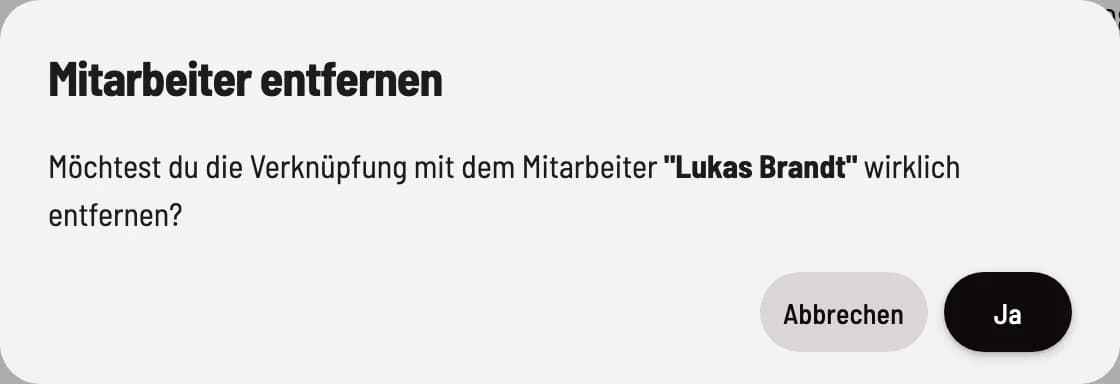
Step 2 of 2
Confirm
Confirm the prompt. The person will disappear from the list.
What happens to the data
The person's Servire account will remain active. They can reconnect later using their PIN.
Receipts, vouchers and shift reports that she created remain unchanged.
Time entries, working time accounts, and payroll data are retained for the payroll export of the month of termination and for the retention period. The employee number is then released.
If the person is still logged in when they leave, Servire immediately closes the entry and marks it for review. Correct it as described in Correcting Time Entries.
Renew PIN
If the person knew the company PIN, they can renew it under Settings → Restaurant. No one will be able to connect using the old PIN after that.