
Set up statistics and try it out with sample data
The assistant when opening for the first time, the preparation of your layers, and the example mode.
The first time you open the Statistics, a short wizard will start. It configures the statistics for your business. Everything is pre-filled – you can also simply click through using Next.
Only the owner can see the assistant, and only until it's completed. Your team can see the statistics directly.
The steps
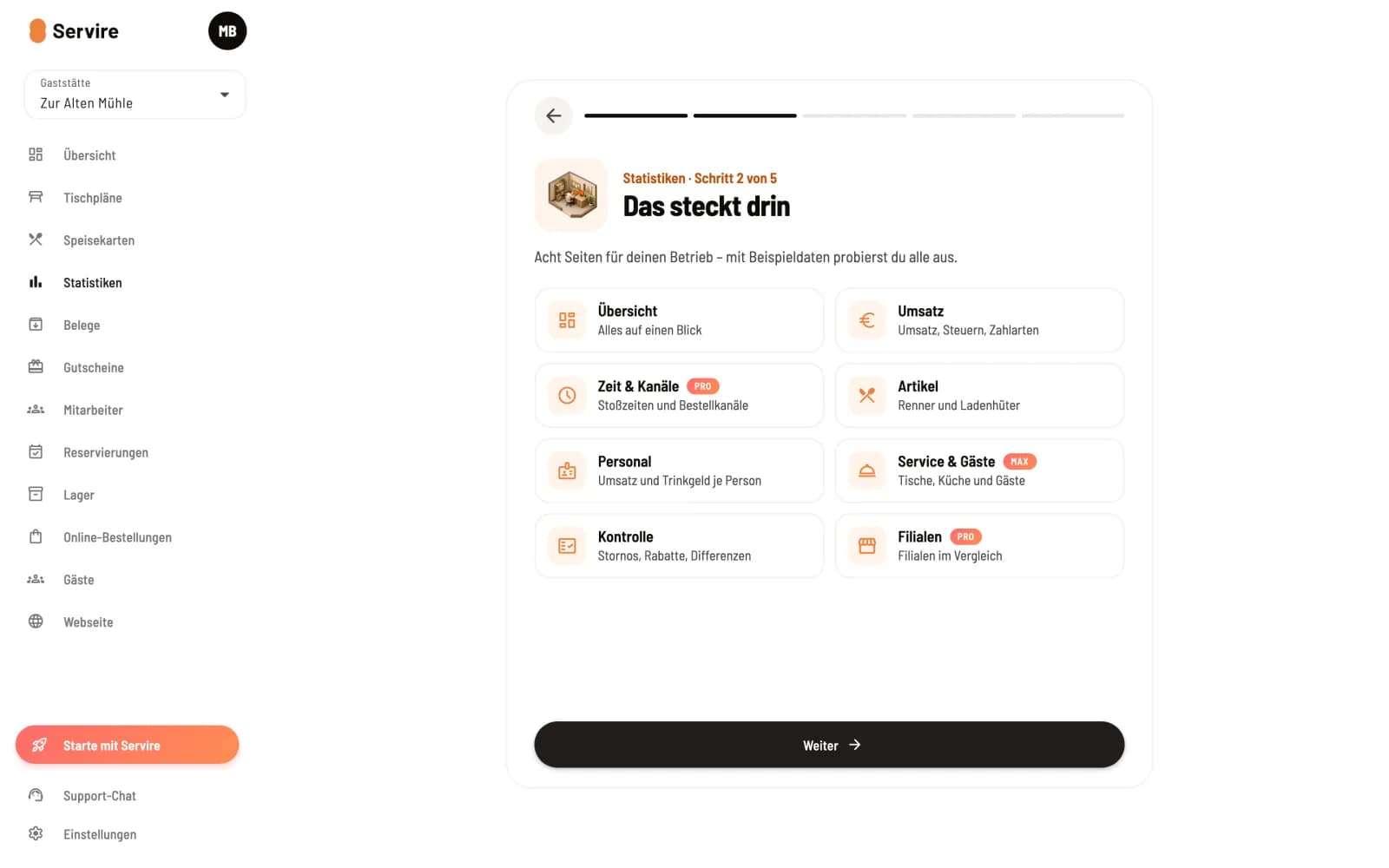
Step 1 of 3
overview
The eight pages of statistics, each with a sentence explaining what it shows.
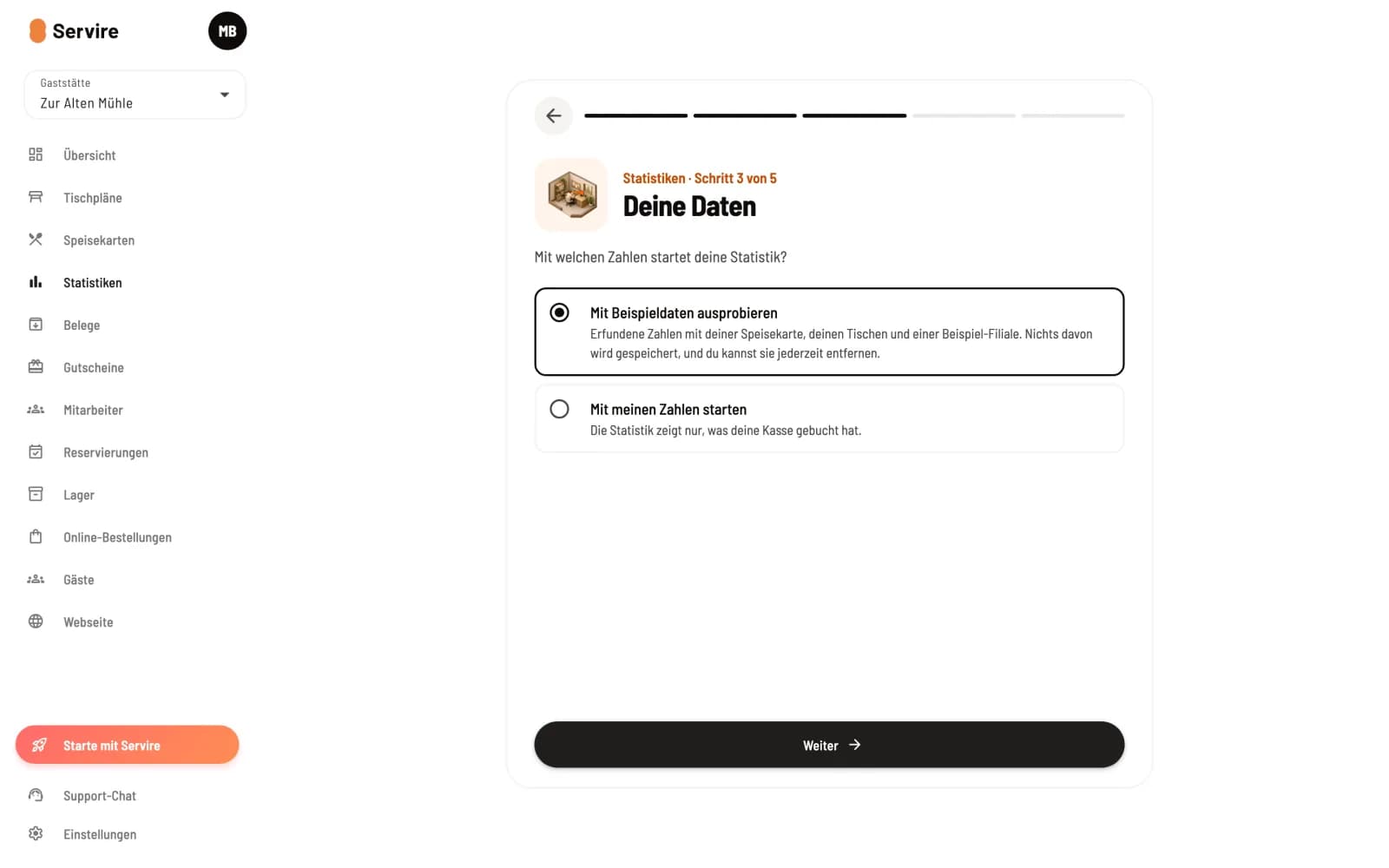
Step 2 of 3
Your data
Servire is preparing your completed shifts from the last 25 months, starting with the most recent. This process runs in the background. Without a TSE) , you can also select Try it with sample data here.
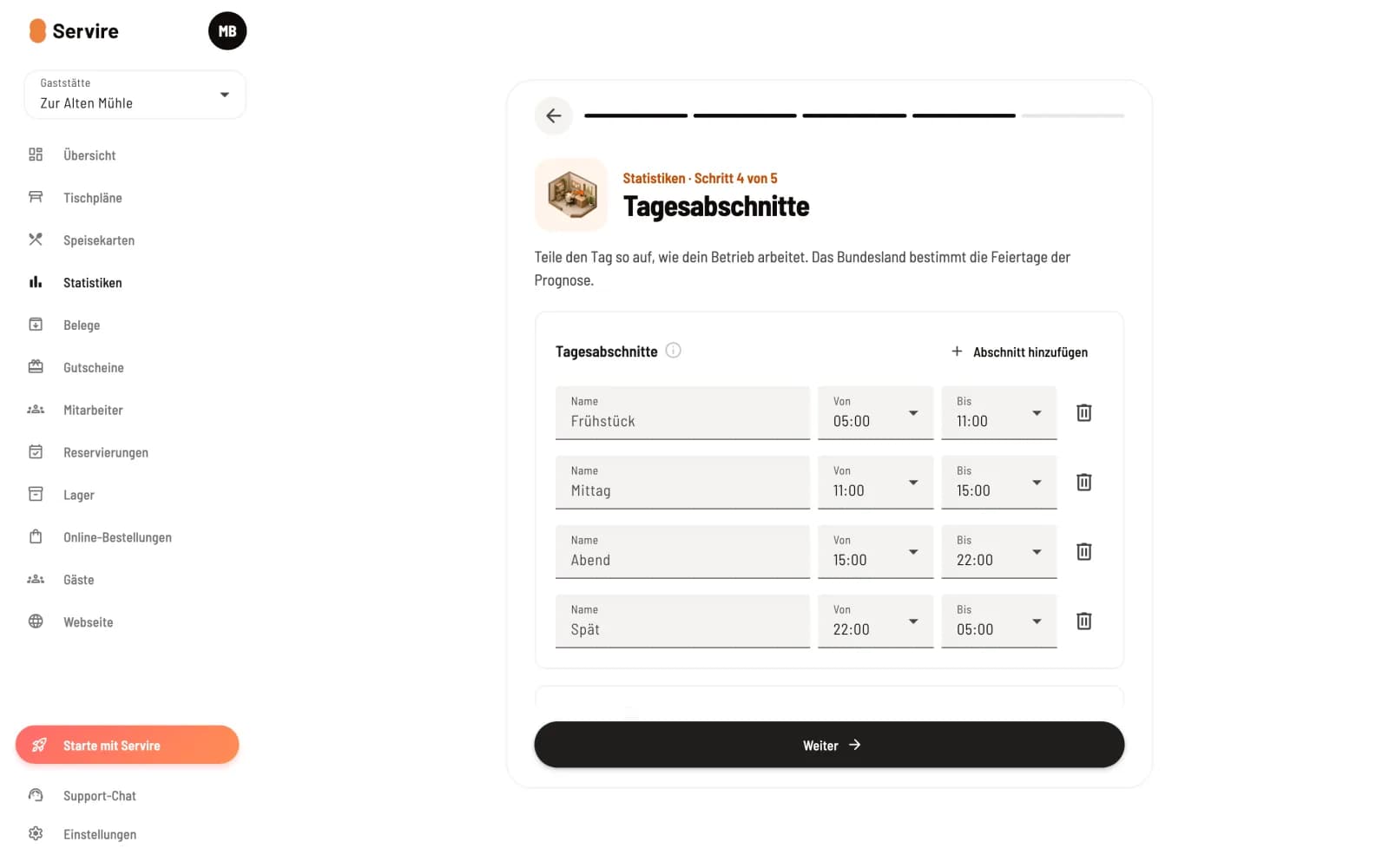
Step 3 of 3
Time of day
How your day is divided, for example, midday and evening, and which federal state you are in. The federal state determines the upcoming public holidays.
If other people have access to the Web desk, you define in the Team step who sees the statistics and who sees the figures for each person. From the Pro plan onwards, Report is included: your figures daily or weekly via email. Later, you can change daily time periods via the gear icon at the top of the statistics, the permissions under Employees, and the report via ⋯ → Receive via email.
Try it out with sample data
As long as no TSE) is set up at your location, you can populate the statistics with sample data. Servire will generate sales figures based on your menu and tables, along with a team and a sample branch. This way, you'll see every page populated, including those from the Pro and Max versions.

Sample data is not stored anywhere – not in the cash register, receipts, cash book, DATEV or Z-reports.
Reports sent via email always contain your actual figures.
You only write your daily notes with your actual numbers.
Remove sample data
Click on Remove sample data in the notification. Afterwards, you will only see your actual figures. As long as no TSE) is set up, you can retrieve the sample data via ⋯ → Show sample data. If you set up the TSE and delete your test data in the process, the sample data will also disappear.