
Create vouchers in the Web desk
In the Web desk, you can create individual coupons or entire stacks and download them as PDFs or images for printing.
In the Web desk , you create vouchers in advance, e.g., for pre-printed cards or a promotional campaign. They are then sold at the checkout, with a receipt and TSE signature (TSE: Technical Security Device).
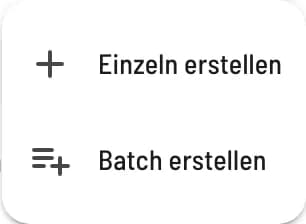
Create a voucher
In Coupons, click on + in the top right corner and select Create individually or Create in batch.
Choose purpose
Prepare – only creates codes. You book the sale later in the POS app.
Promotional/Goodwill Voucher (free) – a gift without a sales receipt. Full VAT is payable upon redemption; the restaurant covers it. Only available as a multi-purpose voucher.
Individually or in stacks
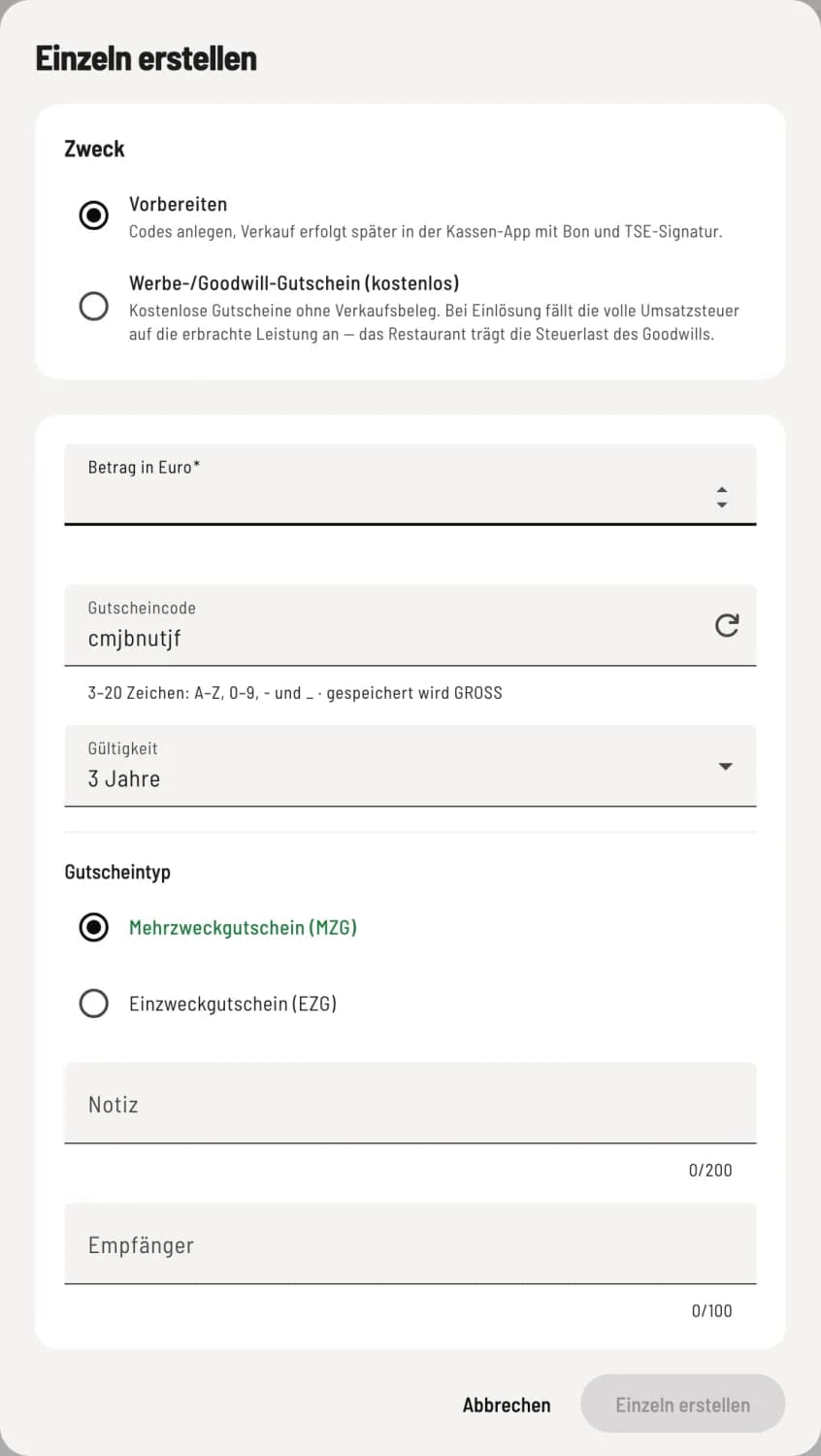
Step 1 of 2
Create individually
Enter the amount in euros (up to €10,000) and a voucher code (3–20 characters) or have it generated automatically. Select the voucher type and the validity period: 1, 2, 3, 5, or 10 years until December 31st, or custom. Notes and recipient are optional.
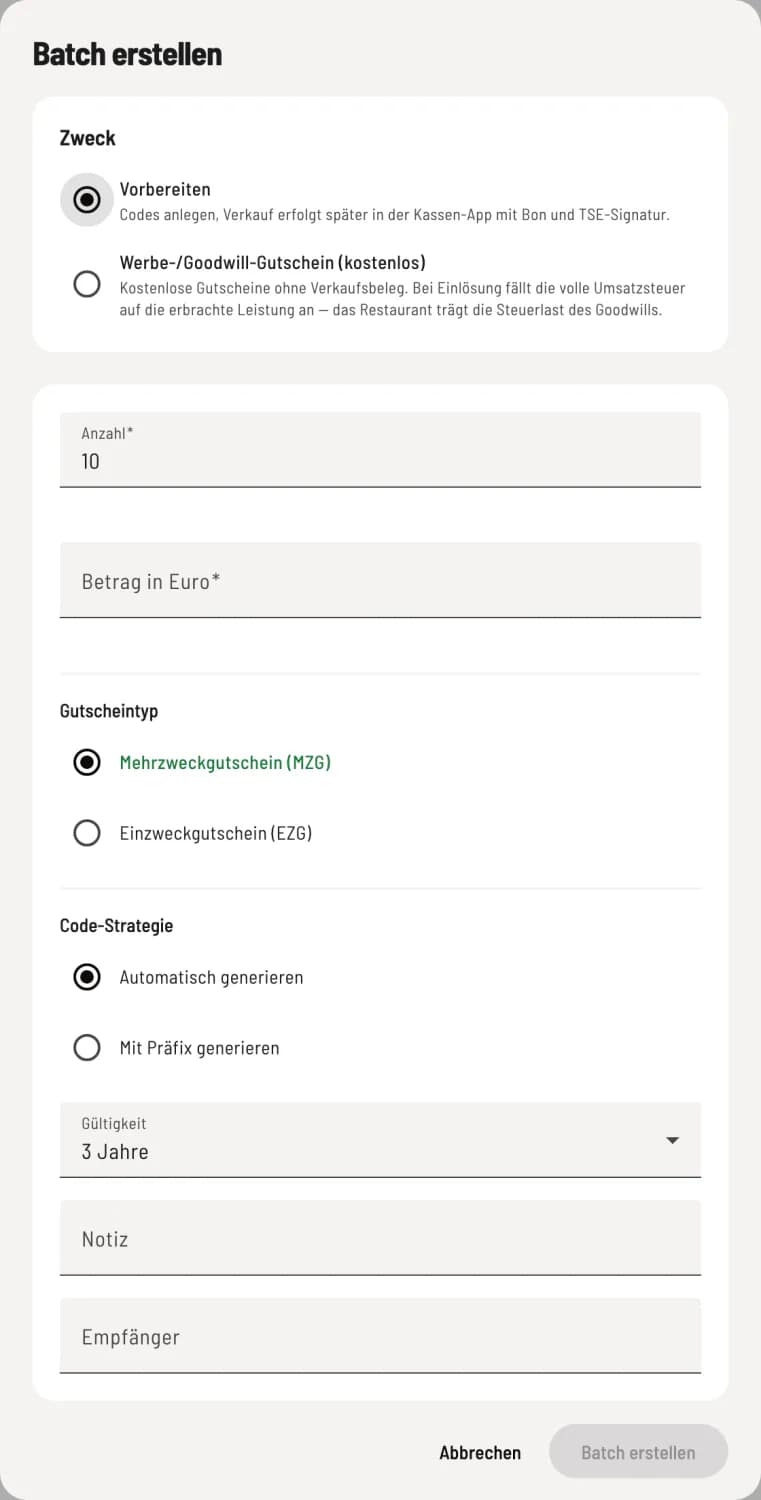
Step 2 of 2
Create batch
For multiple identical vouchers: Quantity (1 to 500), Amount, Type, and Validity. Under Code Strategy, select Generate Automatically or Generate with Prefix (2–8 lowercase letters or numbers before each code).
Multi-purpose voucher (MZG or EZG): Multi-purpose voucher (MZG) – VAT is only incurred upon redemption; almost always suitable. Single-purpose voucher (EZG) – with a fixed tax rate, the tax is due upon sale. It can only be redeemed for item with the same tax rate and must be sold at the checkout before being issued.
Download and print
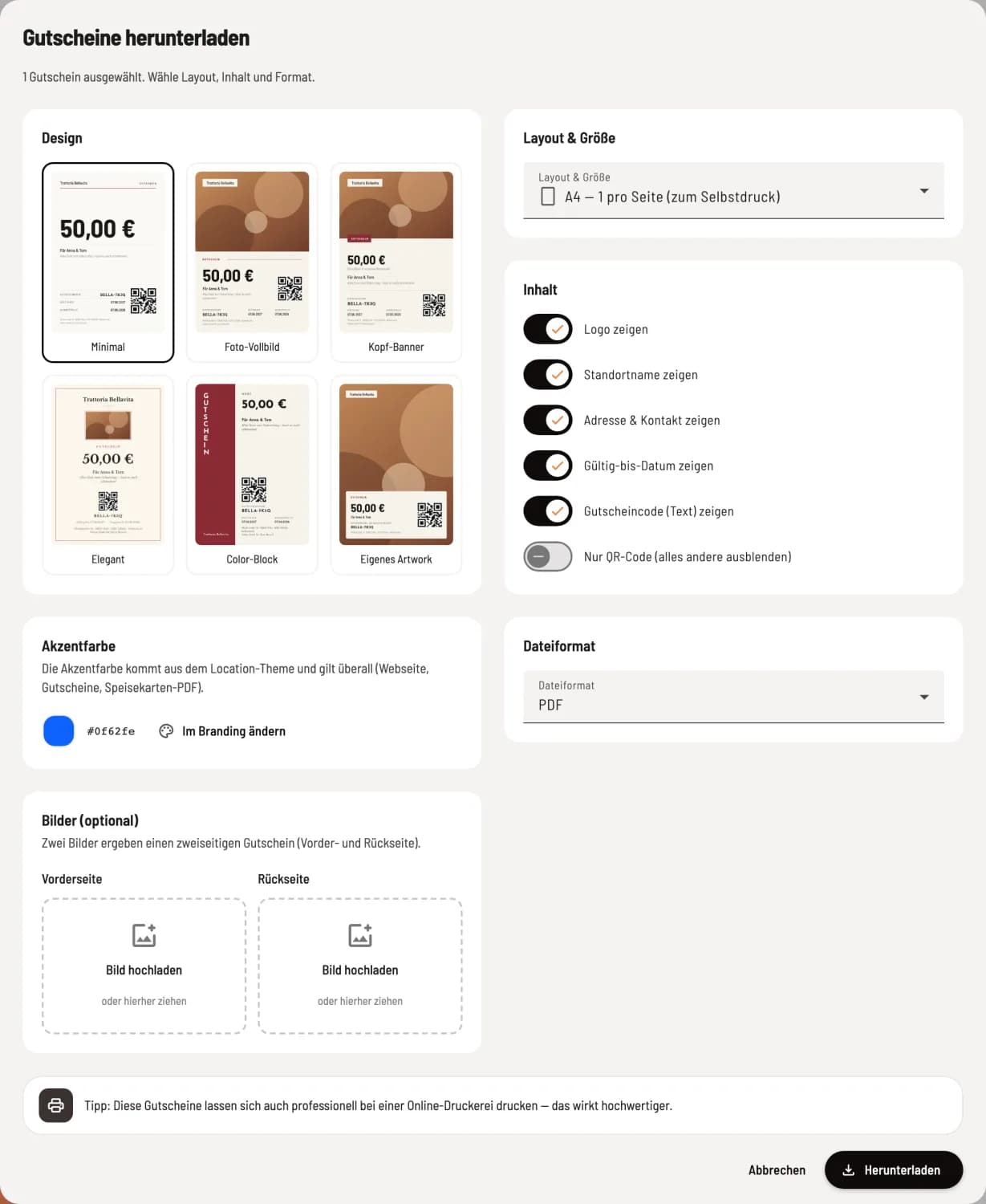
Download coupons
Select the coupons in the list and click Download in the bar below, or select the PDF icon in the row. Choose Layout & Size (A4 with 1, 4, or 9 coupons, individually in A5, A6, DL, business card, or square with QR code only), the Content (logo, name, address, code, expiration date), the Design (e.g., Minimal, Elegant, Custom Artwork, optionally with custom images for front and back), and the File Format: PDF, PNG, or JPEG. The Accent Color comes from your branding and can be adjusted via Change in Branding.
Individual formats can be printed to a high standard at an online print shop. JPEG files are suitable for sending via WhatsApp.