Conduct inventory
This is how you count your inventory, even with multiple devices simultaneously, and record the differences.
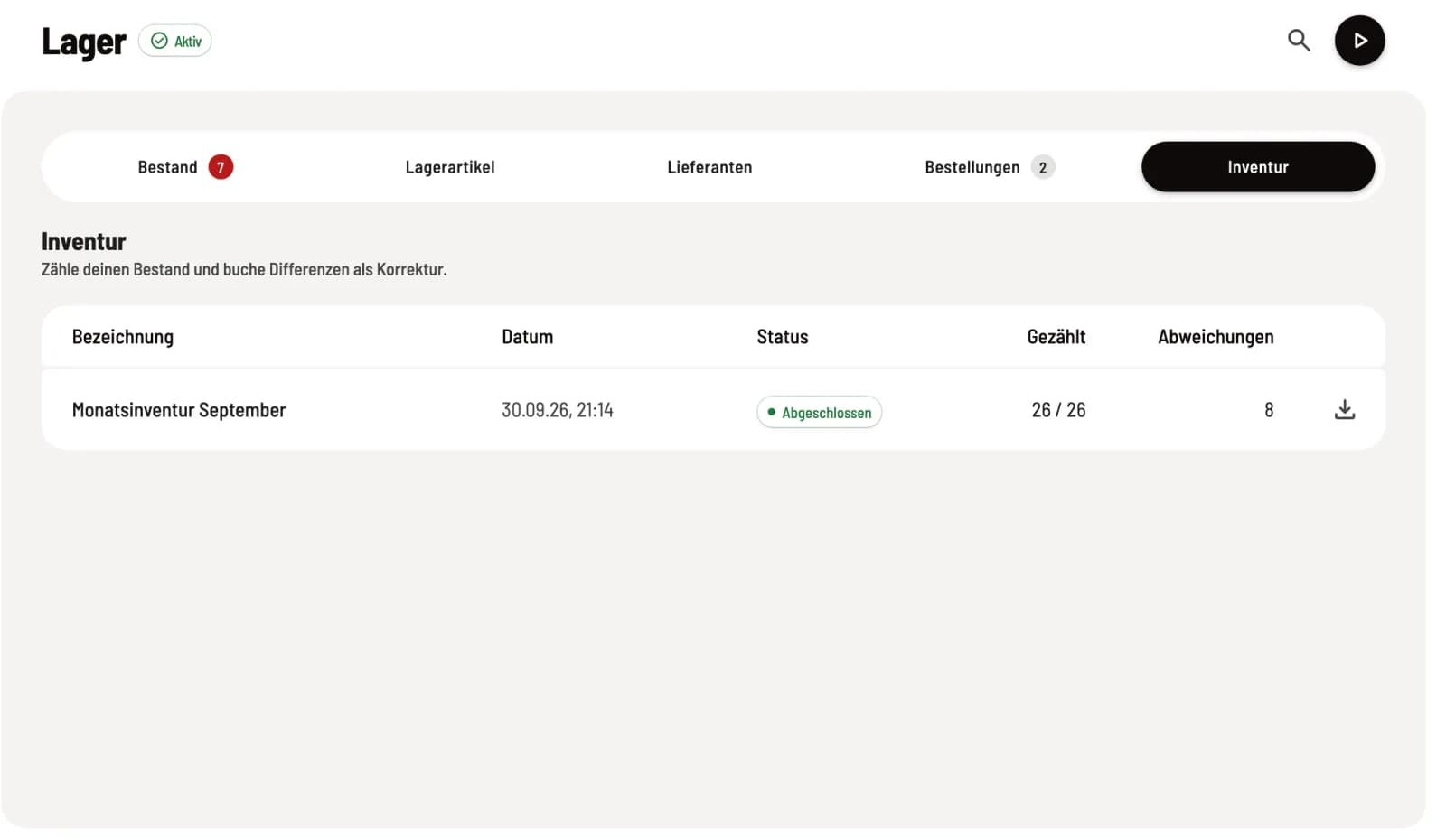
During inventory, you count what's actually there. At the end of the inventory period, the counted value becomes the new stock level; Servire posts any differences as adjustments. You can find this under Warehouse → Inventory.
Prerequisite: The warehouse belongs to the Max plan; newly registered accounts test it for 14 days. The owner and employees with the Manage Warehouse right (Web desk under Employees, section ** Web desk & Master Data**) are authorized to create, book, and order items. Only one inventory can be open at a time.
Step 1 of 3
Start counting
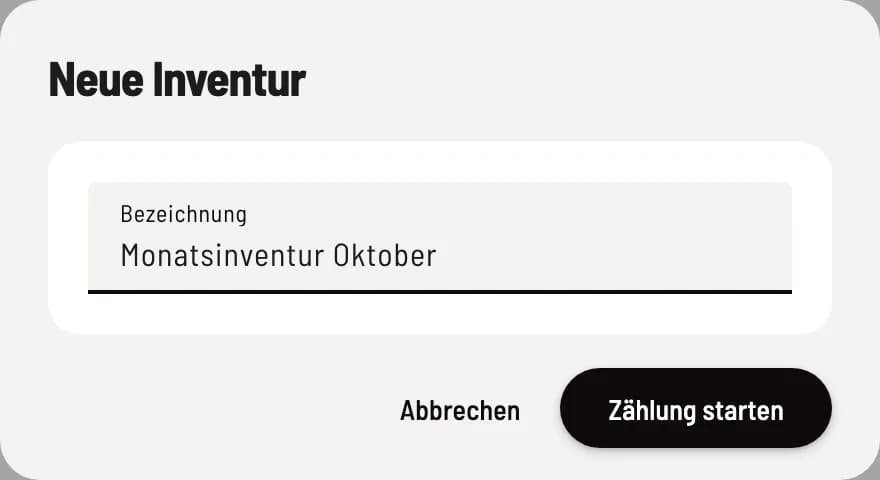
Under Warehouse → Inventory, click Start Count in the upper right corner, enter a name, for example "Monthly Inventory October", and confirm with Start Count. The count list contains all active warehouse items.
Step 2 of 3
To count
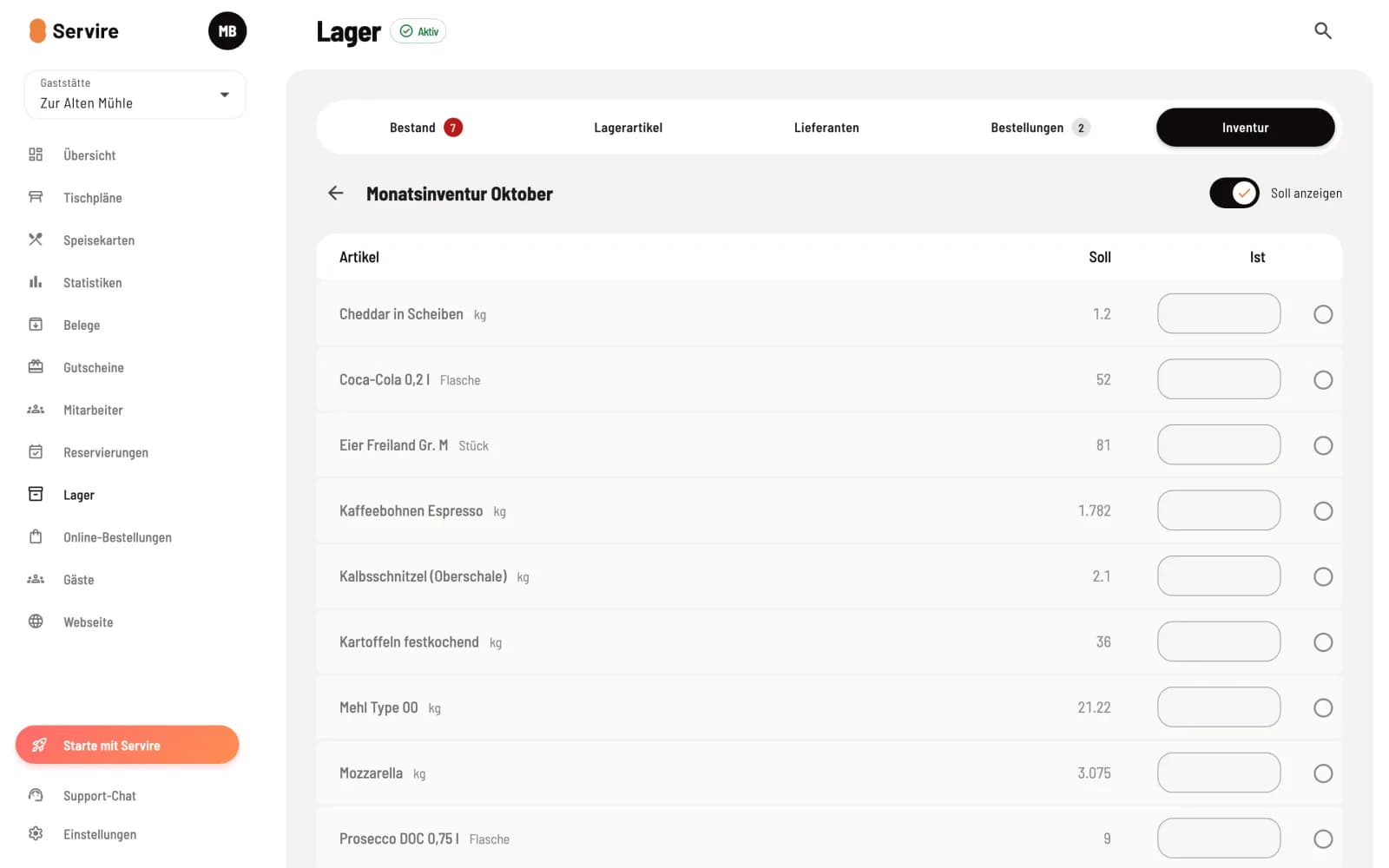
Enter the counted quantity for each item under Actual and press Enter. The field is initially empty so you don't enter the expected value. Counted rows are marked with a checkmark and move to the end of the list; the progress is displayed at the bottom. Use Show Target to display the expected stock level, and the magnifying glass icon to search for item. Every entry is saved immediately; multiple employees can count simultaneously on different devices.
Step 3 of 3
Complete
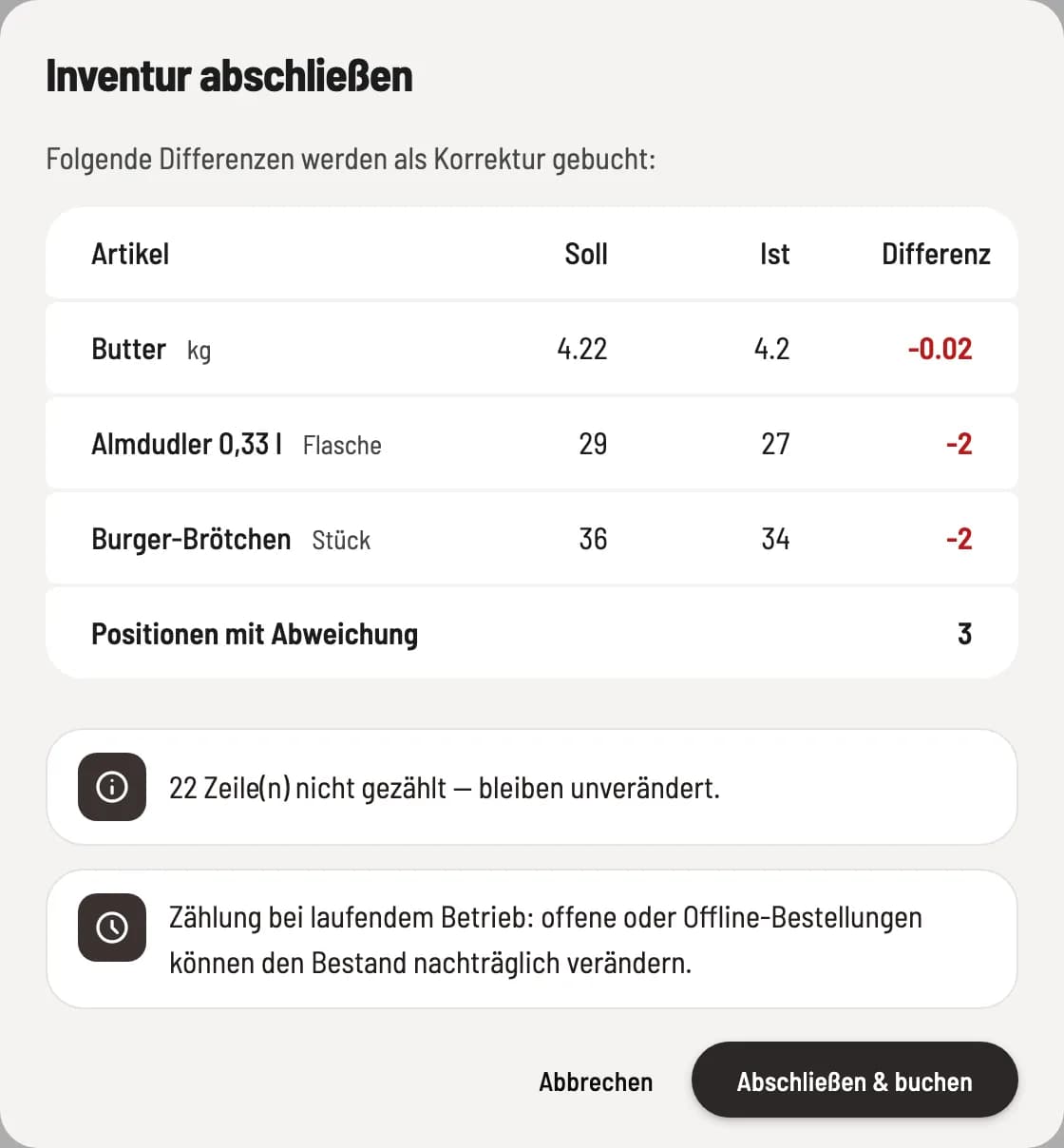
Click on Complete. The overview lists each deviation with target, actual, and difference values; uncounted lines remain unchanged. Click on Complete & Post.
It's best to count outside of opening hours. Anything sold during the count won't be included in your count, but the inventory will still be recorded at the counted value.
Interrupt, cancel, reread
You can continue an open count by clicking Continue Count in the Open Inventory note. Clicking Cancel Inventory discards it; the stock level remains unchanged. The list displays each inventory with Date, Status, progress, and the number of Discrepancies. You can open completed inventories for review and download them as Inventory List as PDF.