
Setting preparation time and "Busy"
This is how you determine how long your kitchen needs for online orders and adjust pickup times if it gets busy.
The preparation time determines the earliest pick-up time guests can choose. Servire informs delivery services of this time when the order is ready upon acceptance. The same time is printed on the kitchen slip.
Prerequisite: Guest orders are included in the Max tariff. Changes can only be made by employees with the Manage Guest Orders permission.
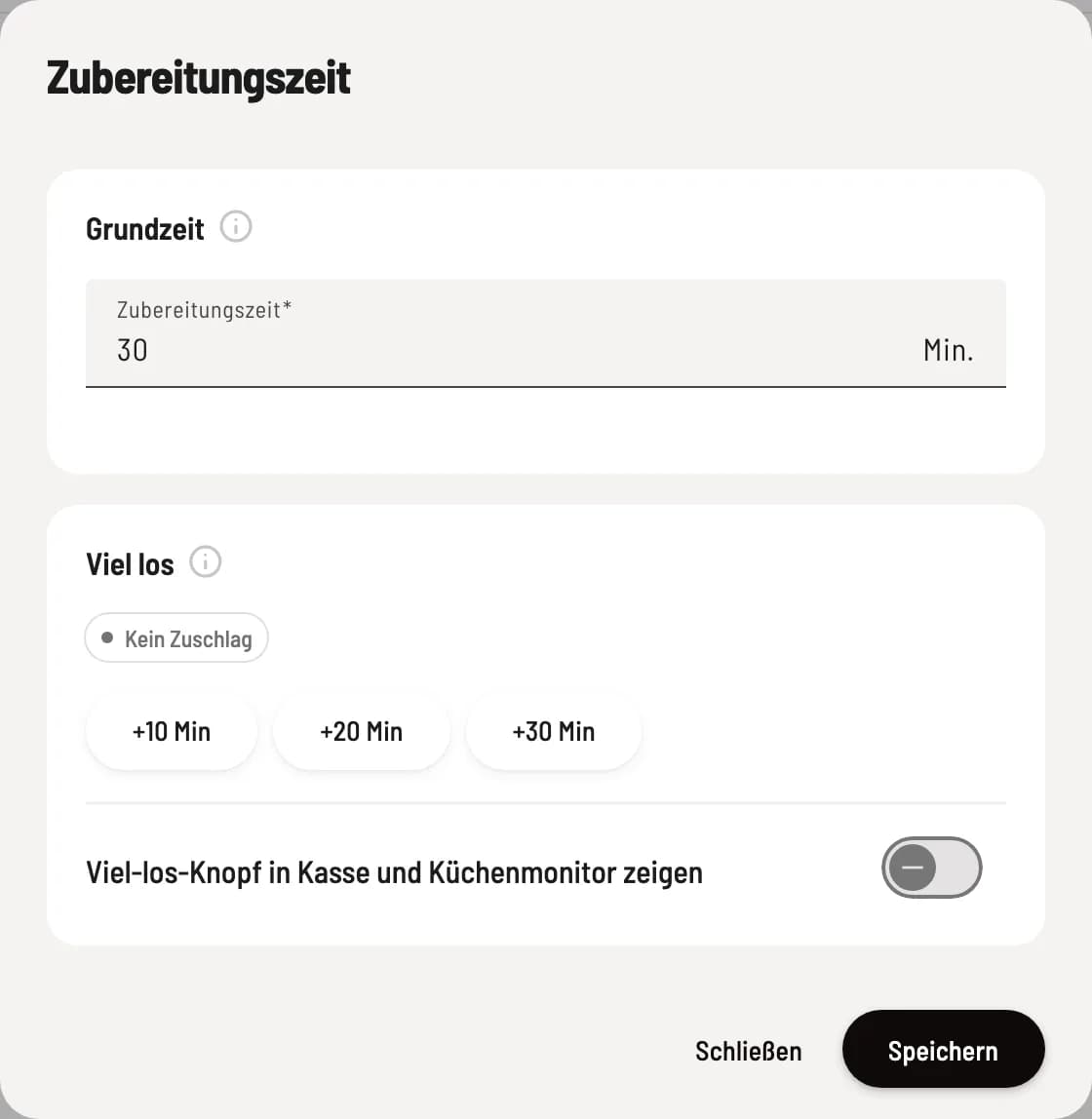
Open preparation
In the Web desk, under Online Orders in the page header, click on Preparation, e.g., Preparation 30 min. The button is available in both tabs.
Basic time
Under Preparation Time, enter how many minutes your kitchen needs to prepare an online order (0 to 240), and click Save. For pickup via the link and website, the earliest pickup time will be determined by how long after the order was placed. 0 = no waiting time; delivery services will then not receive a time notification.
Busy
If it gets busy, click on +10 min, +20 min, or +30 min. The surcharge applies immediately and for 60 minutes to the pickup link, website, and new delivery orders. The page header will then display, for example, Preparation 30 + 20 min · until 7:45 PM. Clicking again restarts the 60-minute period, while Exit deactivates it immediately. When selecting a pickup time, customers will see the message Currently very busy – earliest pickup….
"Busy" at the cash register and kitchen monitor
Activate the Busy Button in POS and Kitchen Monitor so that the entire team can activate the surcharge. In the POS app, the Busy Button will appear at the top of the order list.
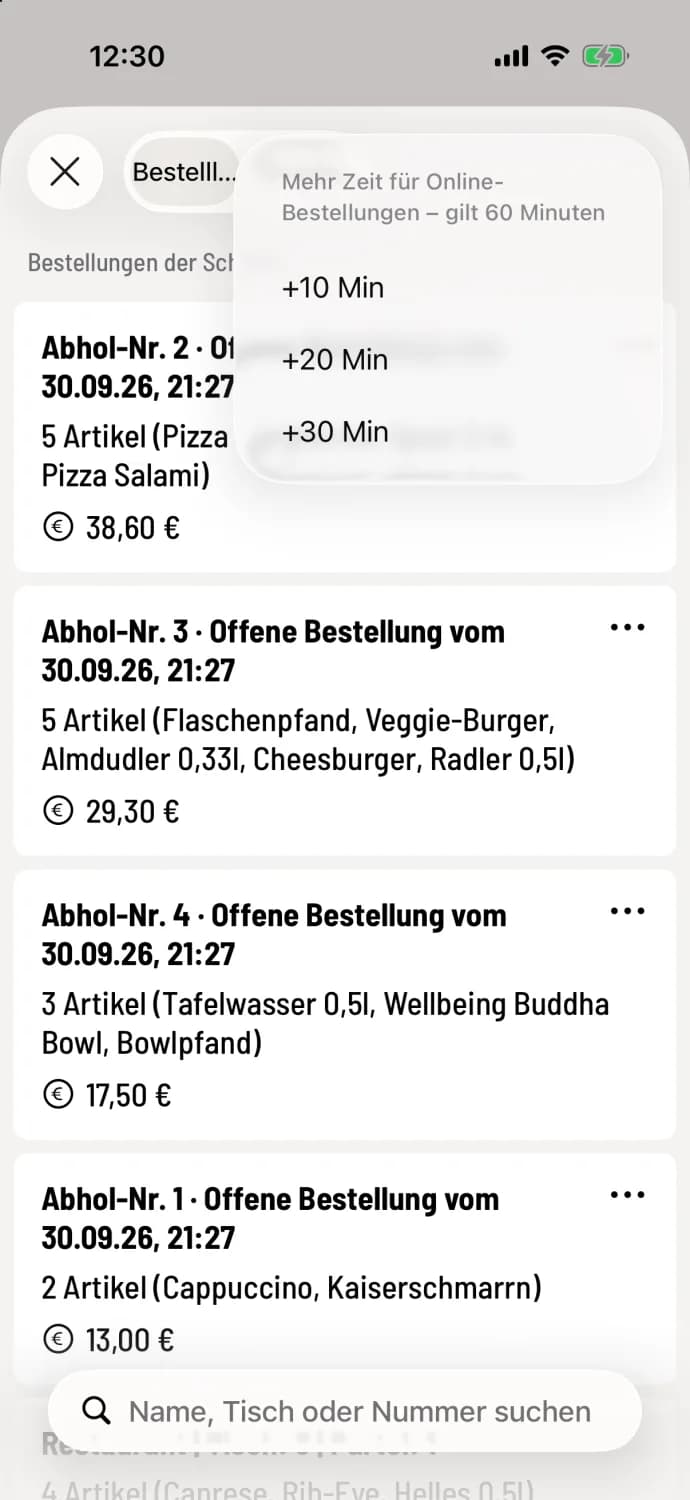
Busy at the checkout.
Tap Busy at the top of the order list. Under More time for online orders – applies for 60 minutes, select +10 min, +20 min, or +30 min. If a surcharge is in effect, the button will display, for example, +20 min · until 7:45 PM; End will deactivate it.
If the kitchen is simply full, "Busy" is sufficient. If no new orders should be received at all, select Pause Acceptance: Manage and refund guest orders.