
Order from suppliers
This allows you to have reorder suggestions, compile orders, and send them to the supplier via email.
Under Inventory → Orders, you compile orders for your suppliers. At the top, you'll see Open Orders, Ordered & In Transit, and Drafts. The table displays the order number, supplier, status, items, total, date created, and expected delivery date. Use Open and All to switch between current orders and the order history.
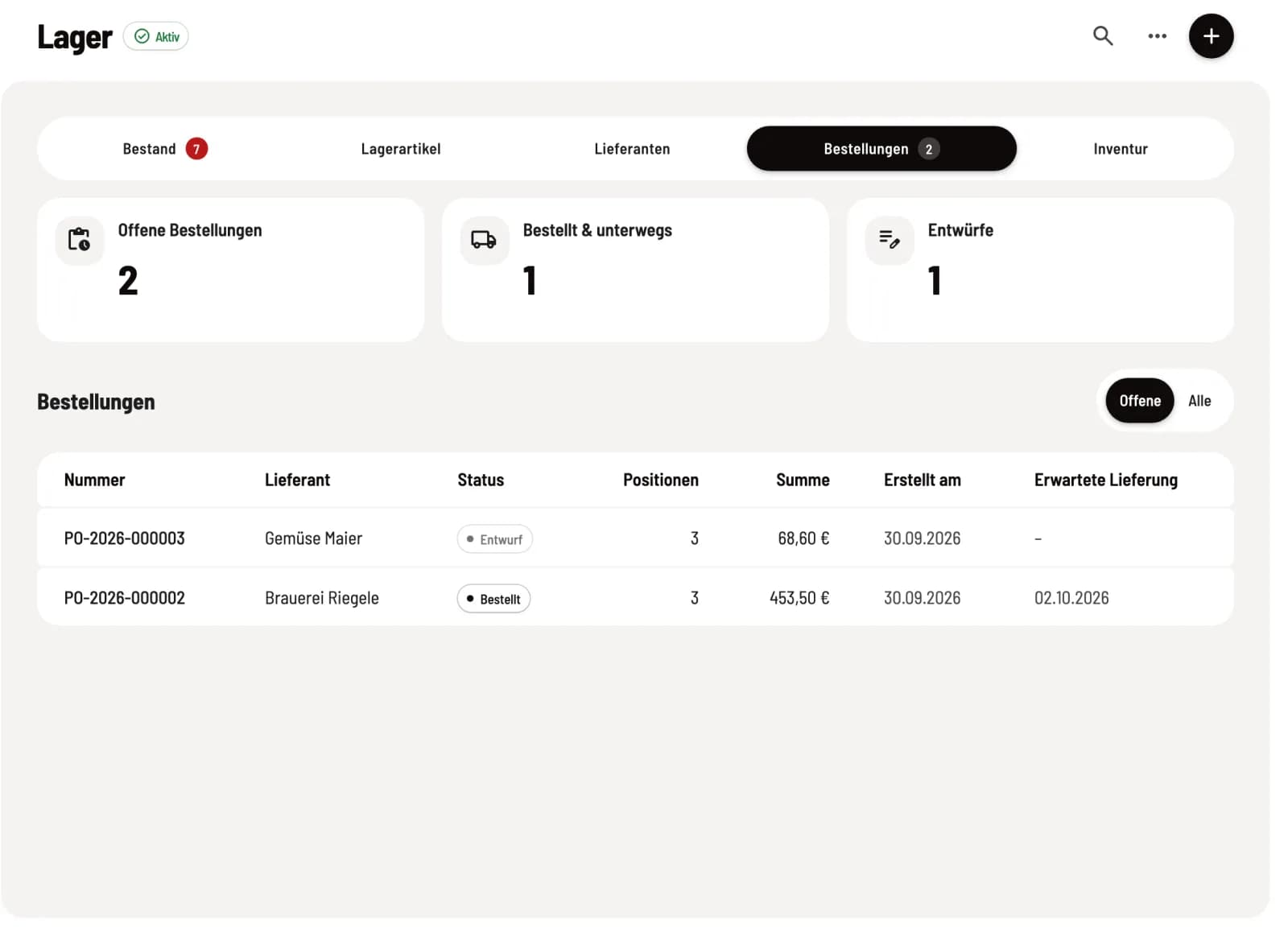
Prerequisite: The warehouse belongs to the Max plan; newly registered accounts have a 14-day trial. The owner and employees with the Manage Warehouse right (Web desk under Employees, section ** Web desk & Master Data**) are authorized to create, book, and order items. Warehouse items require a minimum stock level and a supplier for order suggestions.
Use order suggestion
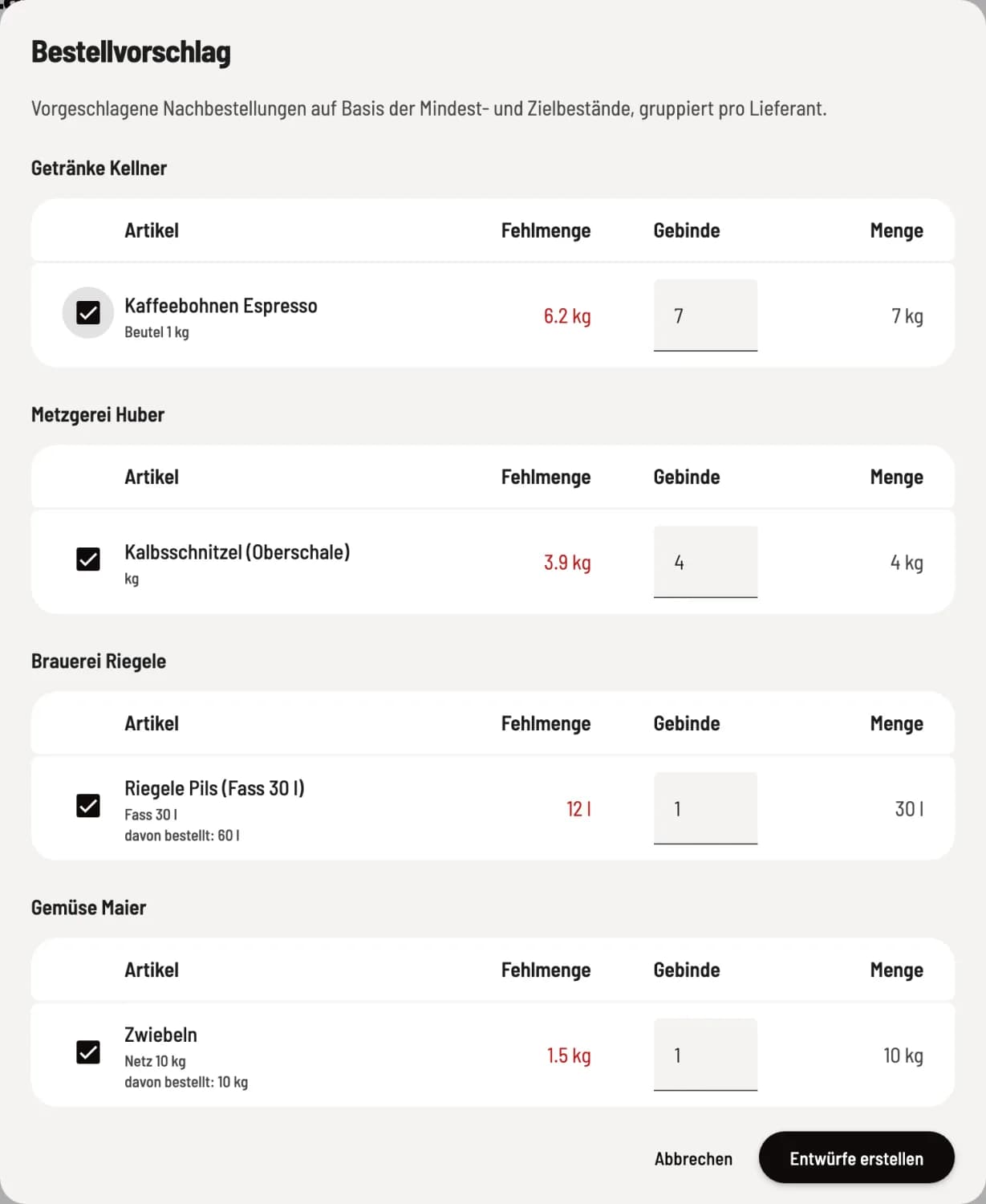
Open suggestion
Click on … → Order Proposal in the upper right corner. Servire takes all item below minimum stock, calculates the missing quantity to reach the target stock, subtracts already ordered quantities, and rounds up to whole packages, grouped by supplier. item without a supplier are listed under No Supplier. Adjust the quantities, deselect rows, and click on Create Drafts.
Assemble order
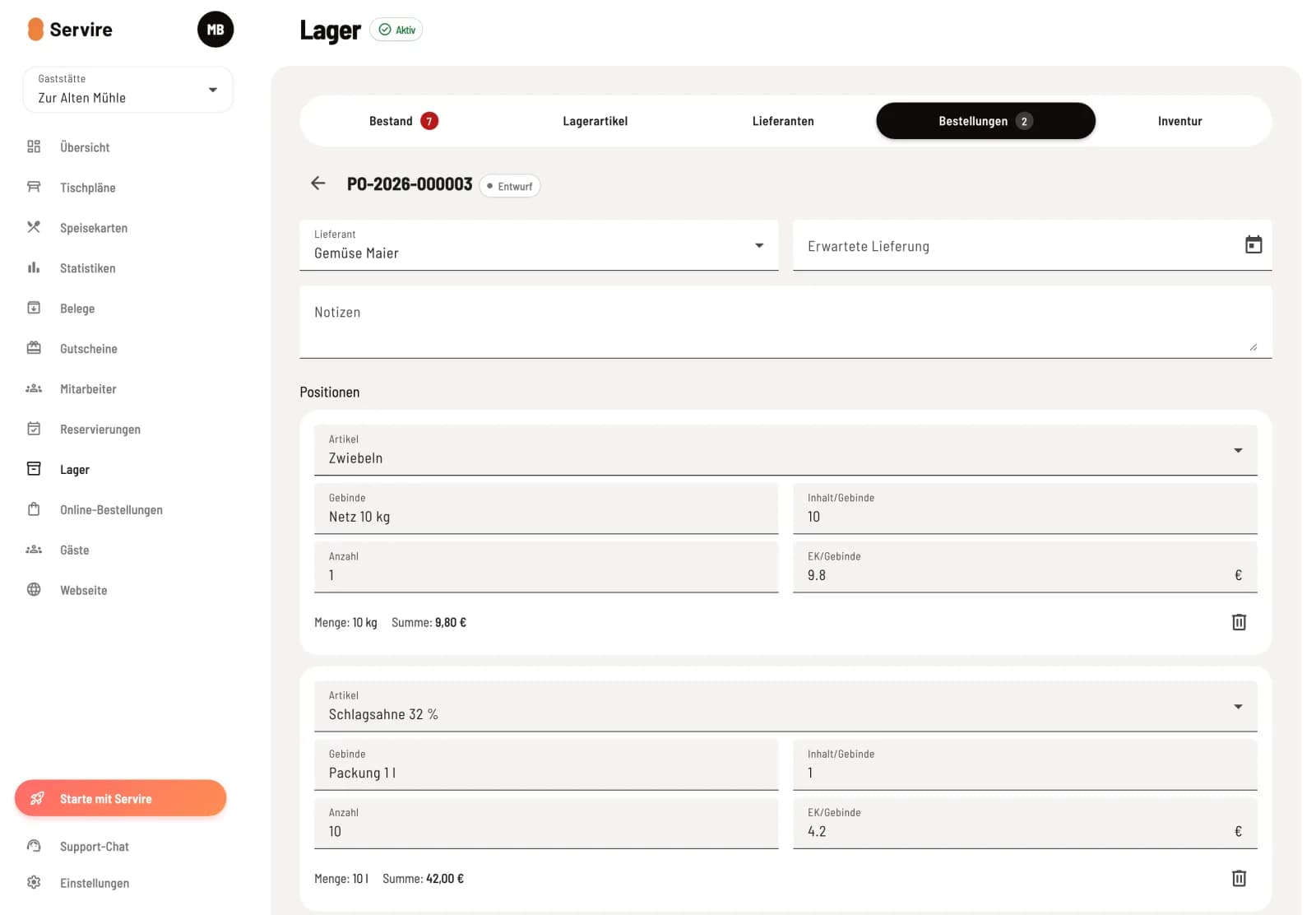
Edit draft
Click on + or open a draft. Select the supplier, the expected delivery date, and notes if needed. Under items, add item using Add item and enter the quantity of packages; the package size and purchase price are taken from the stock item. Click on Save.
Submit order
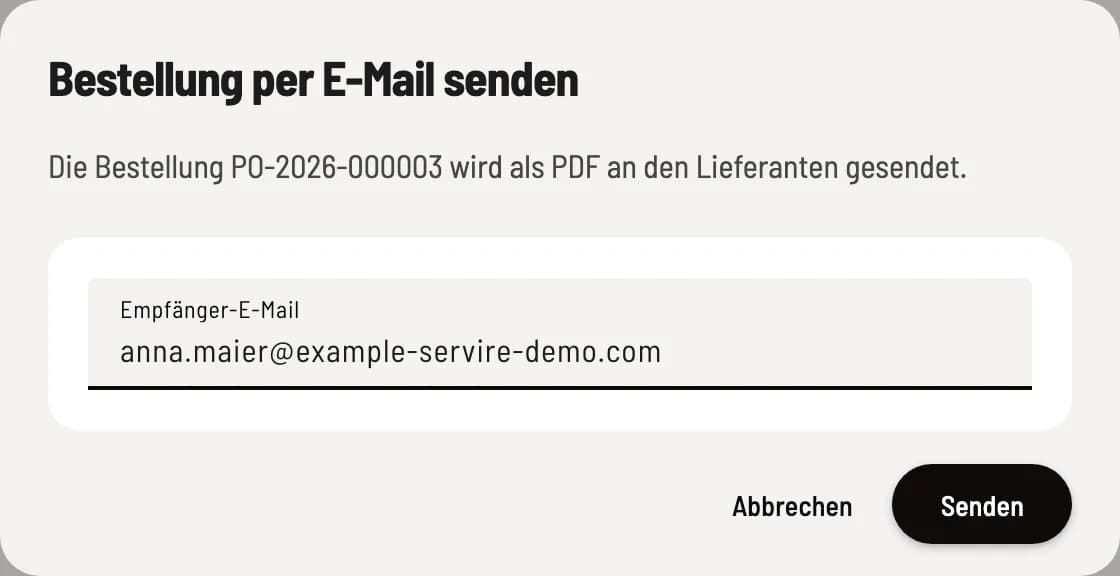
Send via email
Click on Send by email. The supplier's email address is pre-filled. Click on Send: The supplier receives the order as a PDF, and it is marked as Ordered.
If you prefer to order by phone or online, download the order form using Download PDF and then click Mark as Ordered. In both cases, the items cannot be changed afterward. Clicking Cancel discards a draft or an order that has been placed but not yet delivered.
When the goods arrive, you book them directly into the order: Book goods receipt.
Draft: still subject to change
Ordered: shipped or marked as ordered
Partially received: part is booked, the rest is pending
Received: all booked
Cancelled: discarded